HCI supports virtual license. This method allows you to use virtual key to complete licensing. This method ensures that cluster services are not affected when the USB key is missing or faulty, and also eliminates the need to send back the current USB key and apply for another USB key when the licensing scenario changes.
Precautions
Only HCI V6.8.0 and later support virtual key licensing.
You cannot use a USB key and virtual key for licensing at the same time.
By default, a USB key is used for licensing of HCI V6.8.0 or upgrades from earlier HCI versions. You can switch the licensing mode after the HCI upgrade is complete and then send the USB key to Sangfor.
After the licensing mode is switched, the original USB key becomes invalid.
Virtual key can be used only for offline licensing. It currently does not support online licensing.
To export hardware information for virtual key licensing, you need to select two nodes. If either of the two nodes is replaced, the licensing for the replaced node becomes invalid. In this case, perform relicensing in Sangfor Licensing Server. If both nodes are replaced, HCI licensing becomes invalid. In this case, contact Platform-X technical support to perform relicensing.
If no license key file is imported after the HCI cluster is created, you are not allowed to create VMs. You can only import SCP VMs.
Prerequisites
A Platform-X account is obtained.
An HCI cluster is created. For more information, refer to Section 1.3 Introduction to Installation Process.
Steps
Step 1.Log in to HCI, go to System > General > Licensing Management, and click Activate License to go to the Offline Licensing page.
Step 2.Select the two HCI nodes to export the device information.
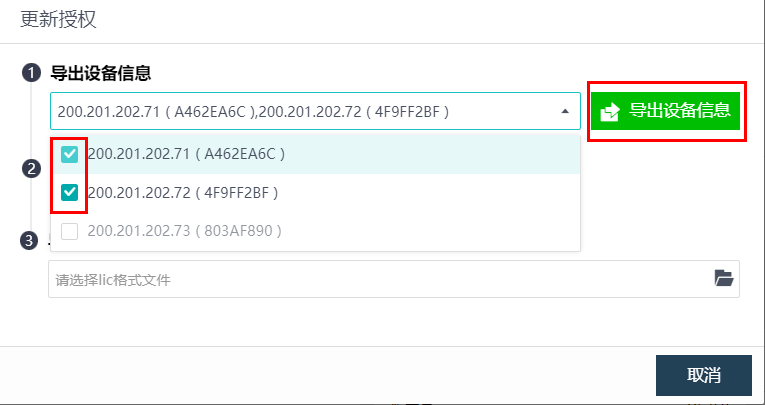
Step 3.After you obtain the device info file, export the file and send it to the local Sangfor team to obtain the license key file of the device.

Step 4.Import the license key file to HCI to complete licensing.


