


{{ secondMenu.name }}
 {{ language }}






Athena NGFW supports secure HTTPS login, which uses the standard port of the HTTPS protocol to prevent security hazards arising from interception during configuration.
The default IP address of the eth0 networking interface of the Athena NGFW device is eth0: 10.251.251.251/24.
If the computer is connected to the eth0 port of the device, you need to configure a 10.251.251.0/24 network segment address on the computer first, open the browser, and enter https://10.251.251.251 to log in to the device gateway console.
Operation Steps:
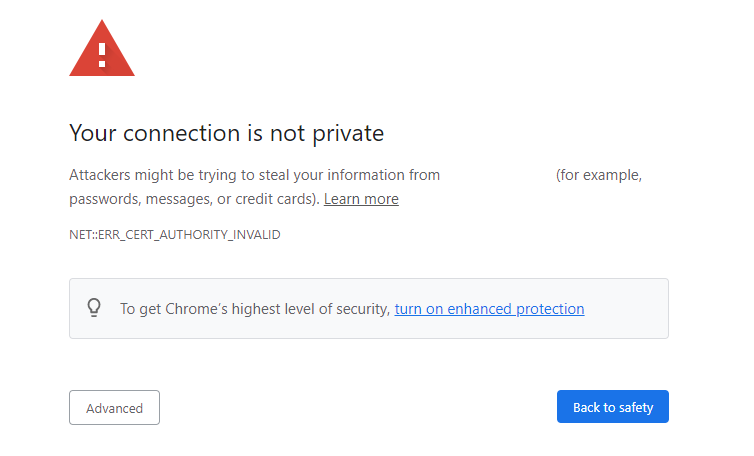
Step 1.First, configure the device's IP address or network segment 10.251.251.X (for example, 10.251.251.100). Then, enter the URL https://10.251.251.251 in the browser. A security warning page, as shown below, will be displayed. Click Advanced and then Go to this page to jump to the console login page.
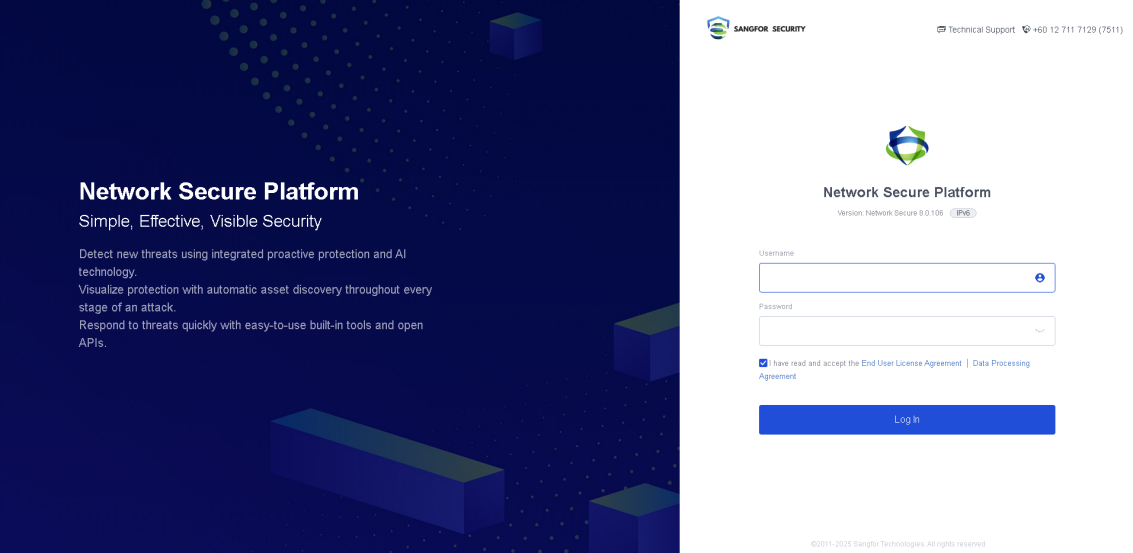
Step 2.Enter the username and password in the login box, both of which are admin by default. Read the User Agreement and Privacy Policy (please contact Sangfor if you have any questions about the agreement). Check the I have read and accept the End User Agreement checkbox, and then click Log In to log in to the Athena NGFW device to complete the configuration.
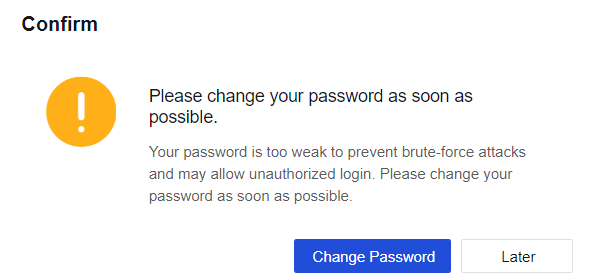
Step 3.If the password is too simple, it will be detected as a weak password, and the console will give a warning. If the password is deemed too weak after logging in, the following dialog box will appear.
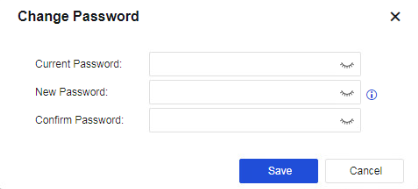
Step 4.Click Change Password. On the page displayed, you can change your password.


 {{ $t('index.defaultHeader.chromeBrowserTip') }}