


{{ secondMenu.name }}






Go to Resources > Management > System Maintenance and Upgrade > Upgrade to view the current SCP version. 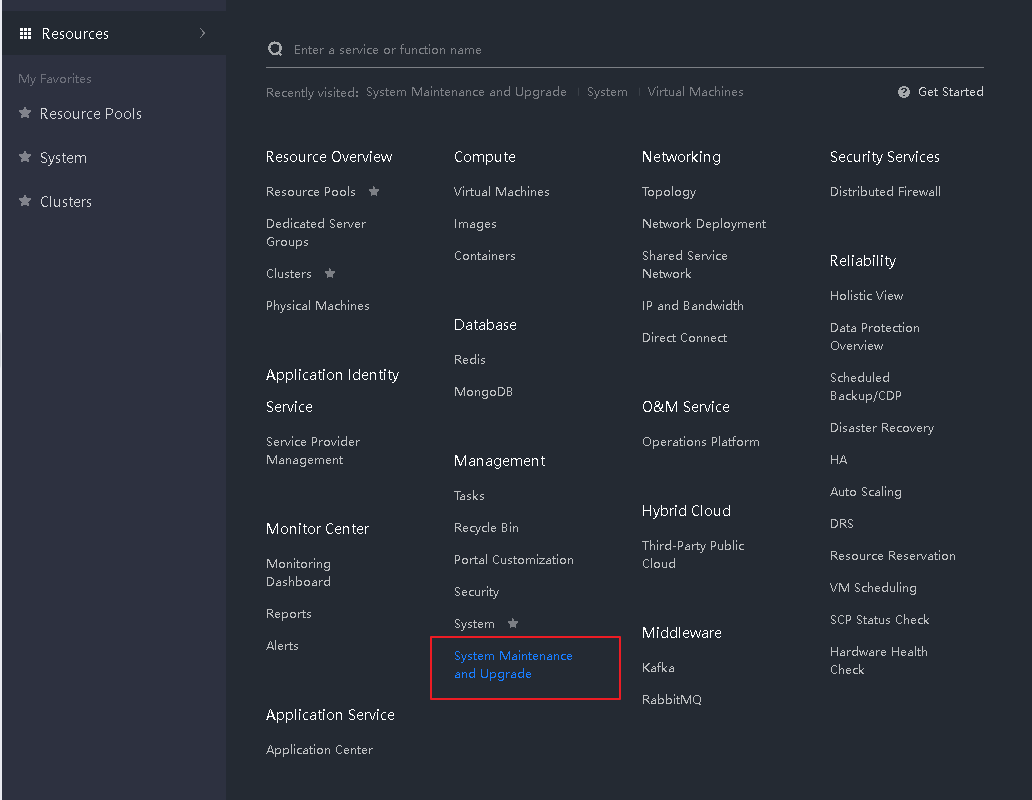
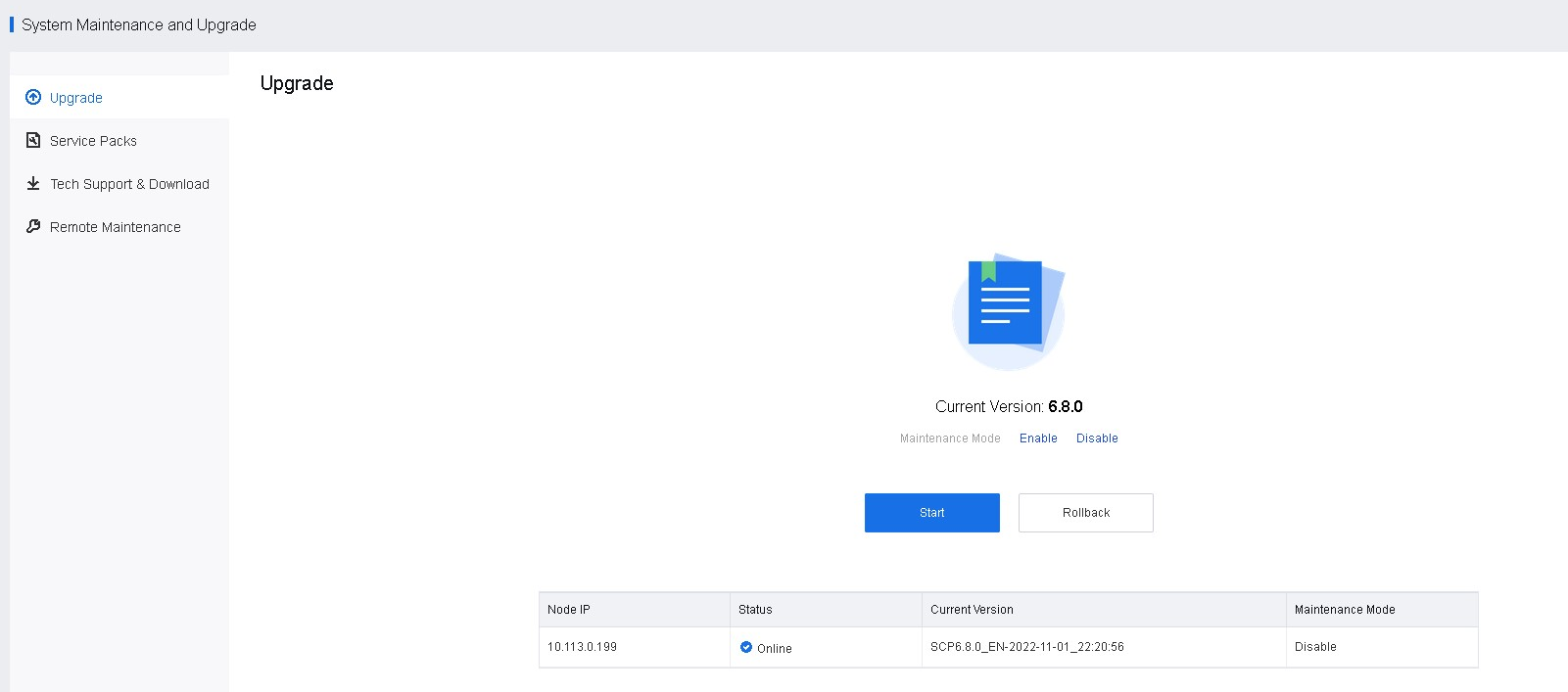
• Platform Type: Select SCP.
• Username: Enter sysadm for SCP6.3.0 and above or root for other versions.
• SSH Port: Enter 22345. For versions earlier than SCP6.1.0, enter 22.
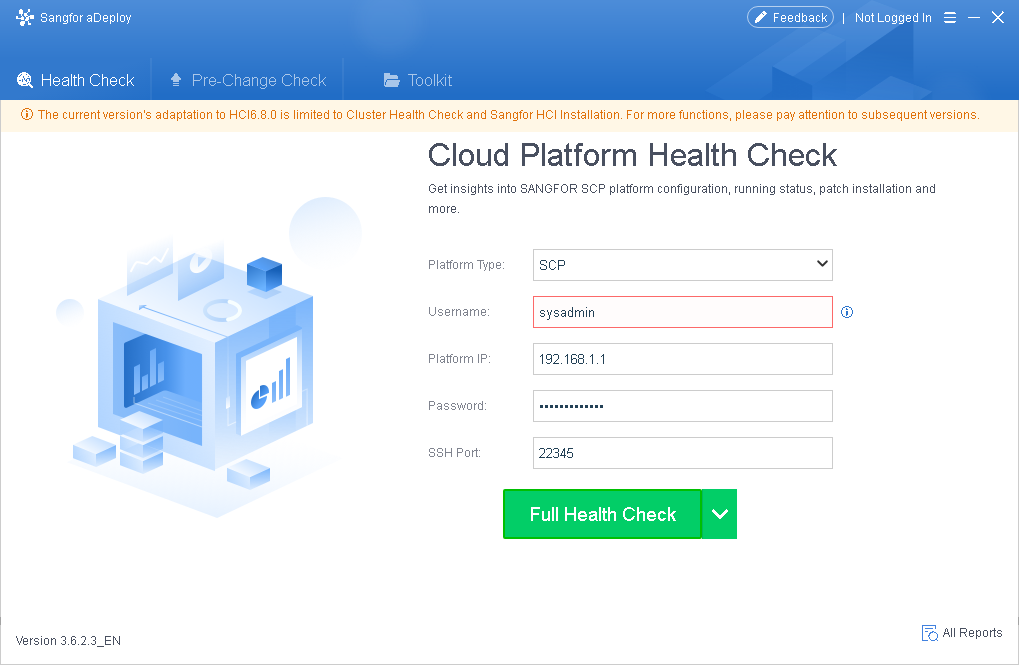
If an error message indicates that the SSH service port needs to be enabled, go to Resources > Management > System Maintenance and Upgrade > Remote Maintenance and click Enable.
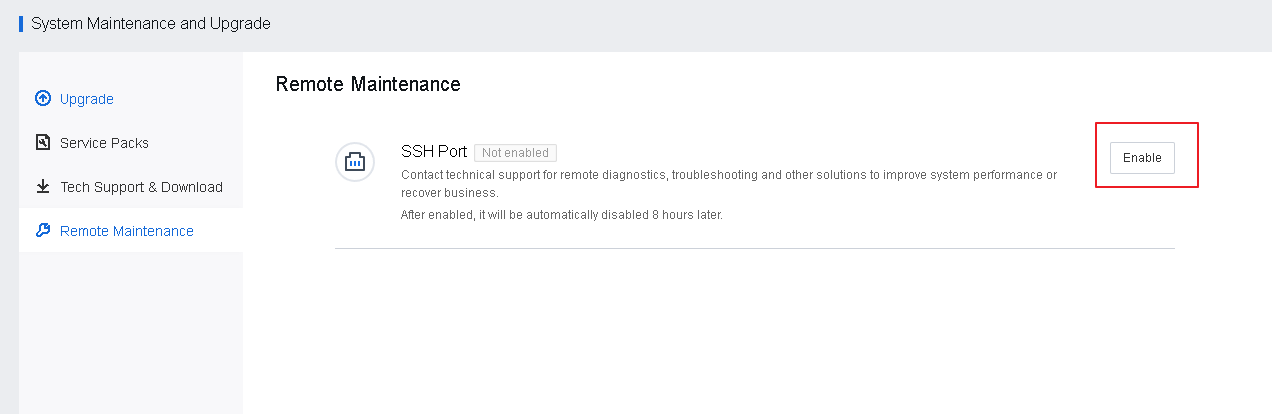
Before upgrading, check whether SCP is in active/standby mode. Then, log in to the management portal of SCP, and go to Reliability > SCP Status Check > SCP Failover to check whether there is a standby node. If yes, upgrade the active and standby pre-upgrade package first to upgrade the active and standby nodes simultaneously. For details, refer to Chapter 2.2.3.1 Packages, Documents, and Tools.
In disaster recovery scenarios, there is no particular upgrade sequence for primary and secondary sites (they can be upgraded simultaneously). Before upgrading, check the current tasks of primary and secondary sites to ensure that no disaster recovery-related task is in progress. It is recommended to manually stop ongoing disaster recovery tasks (if any) before upgrading. After the upgrade, ensure the platform runs properly and start disaster recovery tasks.
If there is an ongoing task in Tasks, please wait for the task to finish before upgrading, or manually cancel the task and start the task after the upgrade.
Check whether SCP has four disks and whether the capacity of disk 4 is 400 GB or more. If disk four does not exist or its capacity is less than 400 GB, add a disk or expand the capacity for an existing disk before upgrading.


 {{ $t('index.defaultHeader.chromeBrowserTip') }}