


{{ secondMenu.name }}






The online patch service can obtain the latest patch information from the online patch platform regularly to ensure the stability and security of the device.
The management network can connect to the HCI equipment of the Internet, and directly access the Sangfor online patch platform to update the latest patch information. For HCI devices in the internal network of the management network, if the virtual machine can access the Internet, you can use the Sangfor network proxy virtual machine to update the Patch. If the virtual machine network cannot connect to the Internet, you can use a thirdparty network proxy to access the online patch platform; The SP patch server is deployed on the Internet for patch updates.
Precautions
Precondition
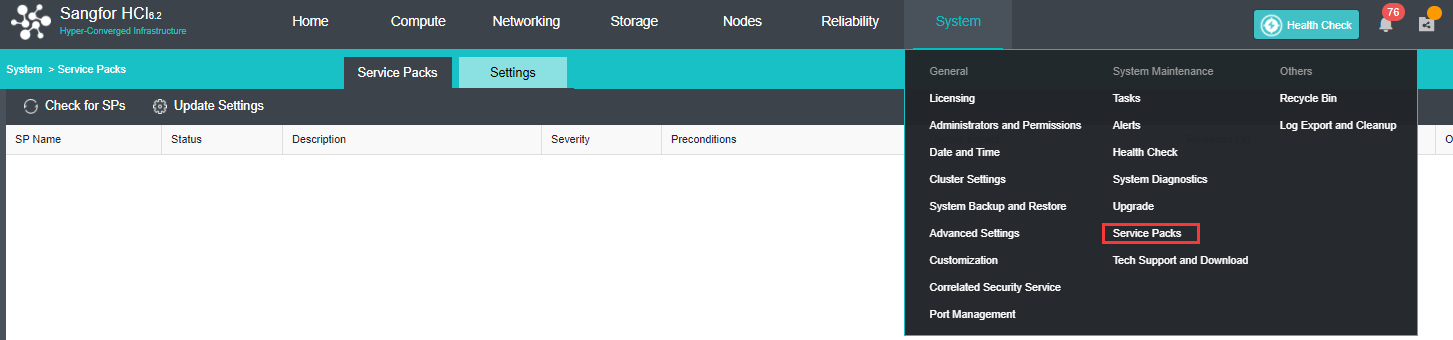
The customer network needs to release the address update1.sangfor.net of Sangfor's patch server to ensure that the platform can access the patch server.
Operation Step

| Server IP Address |
Description |
Requirement |
| https://cloudbgcop.sangfor.com |
Cloud Service IP Address. |
Must be allow. |
| http://update1.sangfor.net |
Online Patch Platform IP Address
|
Allow at least one of the |
| http://update2.sangfor.net |
||
| http://update3.sangfor.net |
||
| http://121.46.26.221 |
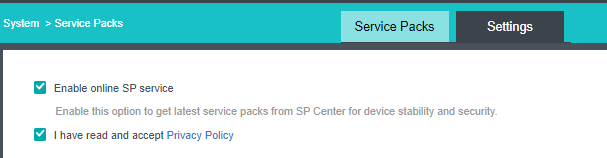
Scenario 1: Directly access the online patch platform 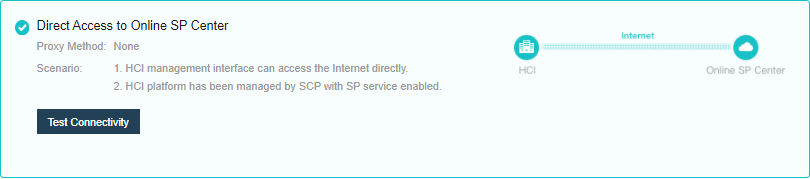
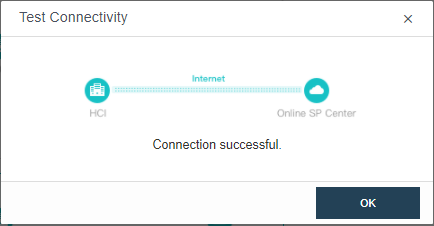
Select Direct Access to Online SP Center for communication mode settings, test the connectivity and save the settings.
Scenario 2: The HCI platform cannot be connected to the Internet, but virtual machines that can be connected to the Internet can be deployed on the HCI.
• Download the virtual machine template. 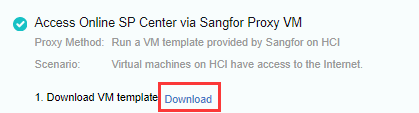
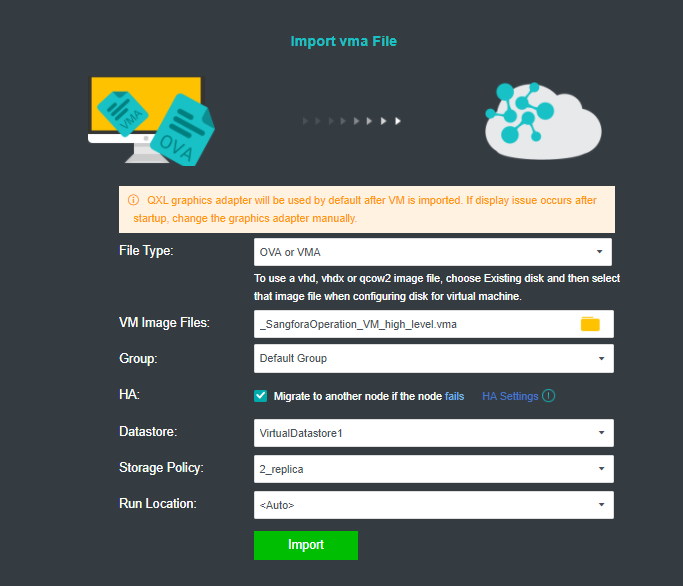
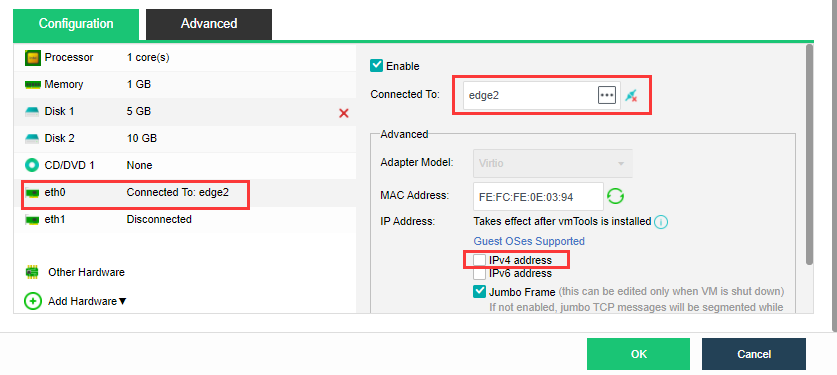
• Import the downloaded VM template into HCI. When importing the template, it is recommended to configure as following:
• Edit the virtual machine, view the Advanced configuration, and confirm that HA is enabled as well as the Power on at node startup 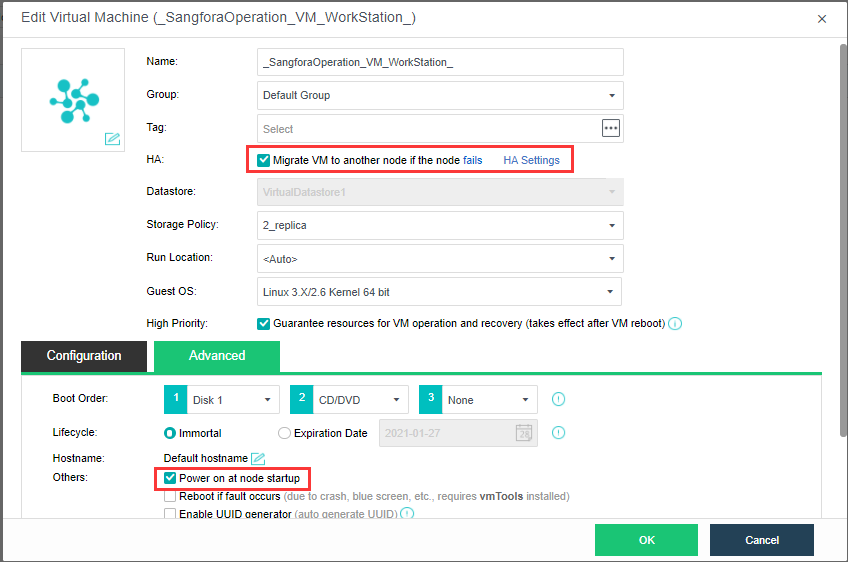
• Configure the virtual machine eth0 to connect to the physical exit, and ensure that the physical exit can access the external network. Modify the IP settings on the page, configure the planned address to the virtual machine, and start the virtual machine. 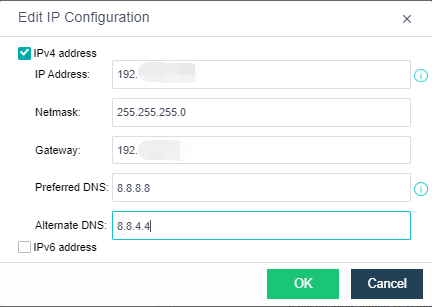
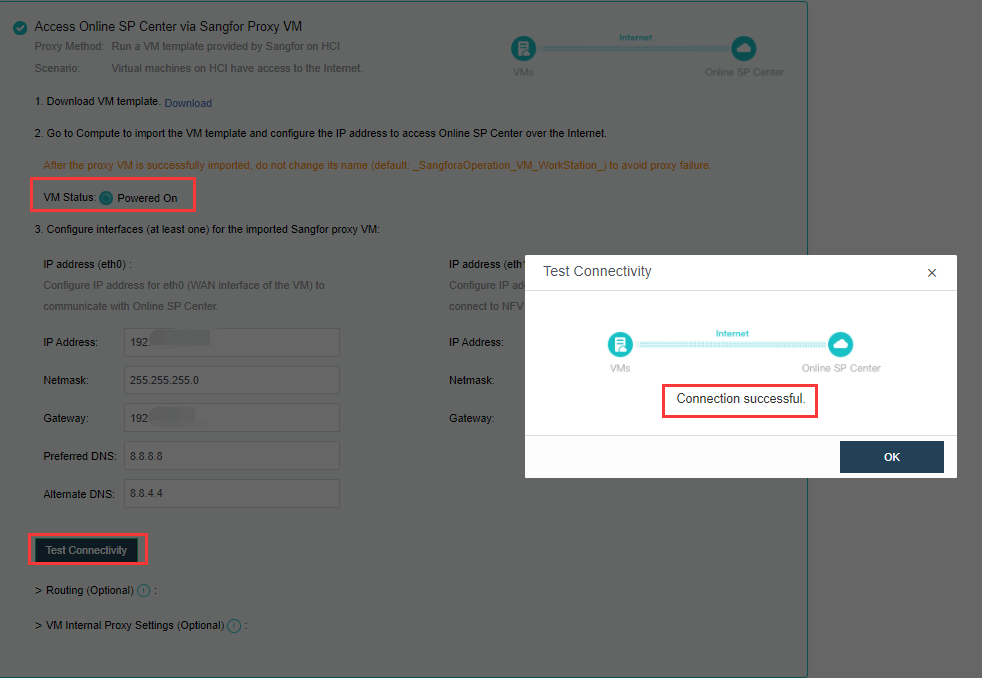
As shown in the figure below, in the online patch platform communication
mode settings, configure eth0's IP, subnet mask, gateway (optional), preferred
DNS (optional), alternative DNS (optional), test connectivity, and ensure the IP
Access to the online patch platform address. (Eth1 is the internal network port
of the proxy virtual machine. If there is an NFV device, you need to configure
the eth1 network port to connect to the NFV device. The configuration method
refers to the configuration of the eth0 port to connect to the network where the NFV device is located).
Scenario 3: The HCI platform cannot be networked, but it can be networked through a third-party agent.
• The network deployment is shown in the figure above. In this scenario, a third party proxy server is selected to access the online patch platform. 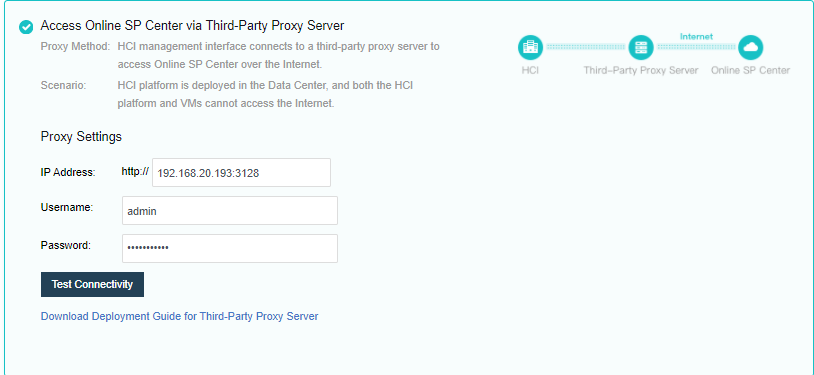
• Click Download Deployment Guide for Third-Party Proxy Server, the downloaded content is a compressed package named Proxy_Squid_Deployment_Guidance.rar, which contains document descriptions and recommended agent installation packages and configuration files.
• Refer to the downloaded configuration guide, install and configure a third-party agent program on the proxy server, and confirm that the proxy server can access the Sangfor online patch server. Deploy 2 network ports as shown in the figure below, one can access the Internet to connect to the Sangfor patch server, and the other can access the hyper-converged platform of the intranet. 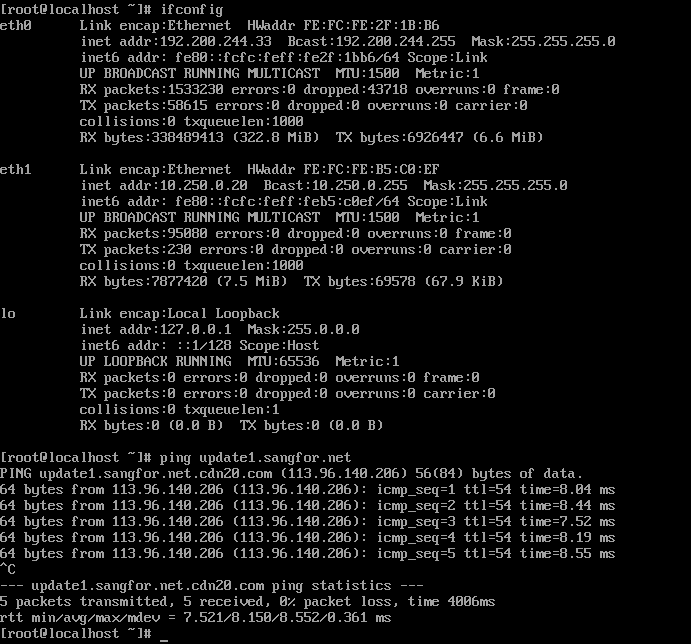
• Fill in the proxy address (IP+port, example: 10.250.0.20:3128) set in the second step on the HCI platform. And the proxy authentication user name and password set during the deployment of the proxy server.
• The IP address is the IP of the internal network port of the proxy server.
• The port is the publishing port of the proxy service, and the default is 3128.
• Click Test Connectivity to confirm that the network is connected.
Scenario 4: The HCI platform cannot be connected to the Internet, and the SP patch server has been set up in the local data center.
The customer uses multiple products of Sangfor and cannot connect to the Internet. At this time, only one Sangfor intranet SP patch server is deployed in the data center. Then, when updating the patch offline, the administrator only needs to upload the patch package to the intranet SP. It can be installed on the patch server, and each product obtains the patch package update by itself, without the administrator having to log in to multiple product platforms one by one to upgrade.
Customers who use Sangfor multiple products only need to deploy one Sangfor intranet SP patch server, which can act as a unified agent of the online patch platform for networking, and download and cache patch packages to distribute to many products. 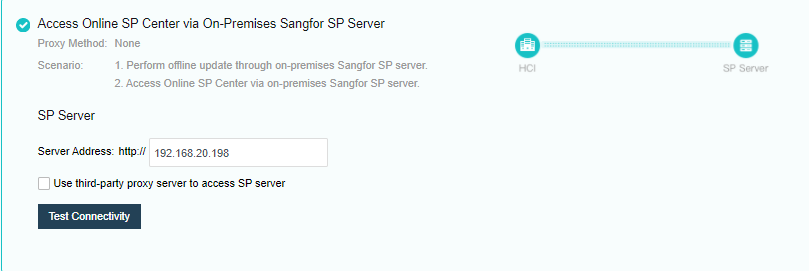
• In this scenario, select the "Use a locally built SP patch server" method.
• Contact Sangfor technical support to obtain the vma template of the offline patch server.
• Import the virtual machine of the offline patch server in Virtual Machine\New\Import Virtual Machine.
• After importing, click Go to Virtual Machine. Click Edit virtual machine. Edit
• the network card and connect to the planned network.
• Open the console and enter the default username and password, admin/Sangforupdater. After successful login, the system will ask to change the default password, please configure a new password.
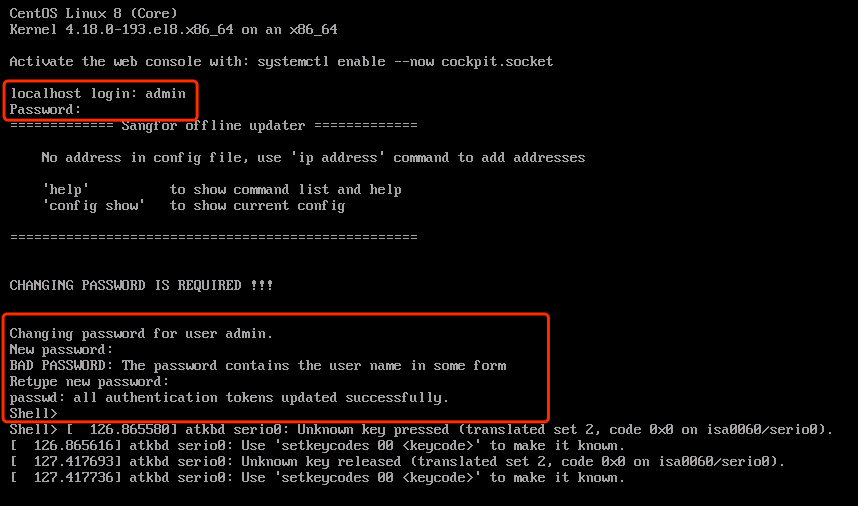
• Use the initsrv command to modify the IP address, mask, gateway, and DNS. Pressing Y to save the configuration will automatically restart the olu server to complete the configuration
• Confirm the network card configuration and check the connectivity of the
network. 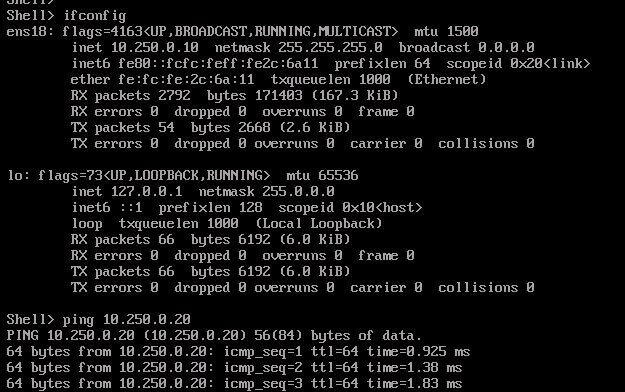
• Enter the command moashell. Pop up the QR code, scan it with Sangfor Pocket Assistant (MOA), get the password in the Pocket Assistant Little Assistant, and enter it into the command line. (Need Sangfor technical support processing) 
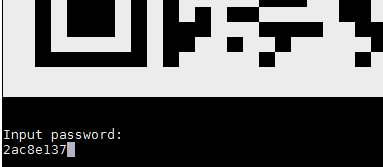
• Create a user used by the olu server and set a password, and change the group of the olu user to root. 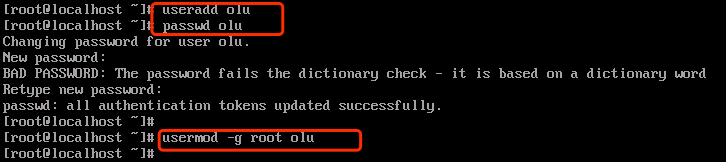
• Use the newly added olu account to log in to the patch server, upload the patch package of HCI and NFV devices to the /var/wwwroot directory through the sftp tool, and view it in the HCI patch list after decompression. 
• After configuring the Olu server, test the connectivity of the SP patch server on the HCI interface, fill in the address of the SP patch server, and click test
connectivity.



 {{ $t('index.defaultHeader.chromeBrowserTip') }}