


{{ secondMenu.name }}






It displays available repositories for backups of virtual machines. 
On the toolbar, there are Refresh, Update, New, Delete and Advanced, as shown below:
To refresh the page, you may click Refresh.
To update backups, you may click Update.
To add backup repository, you may click New. You may choose Add Datastore to Backup Repositories or Add New Windows Shared Folder. 
Add Datastore to Backup Repositories: Click it to enter the following page which displays available datastore and selected datastore list. The Selected list displays the free and total size of selected datastore, etc. 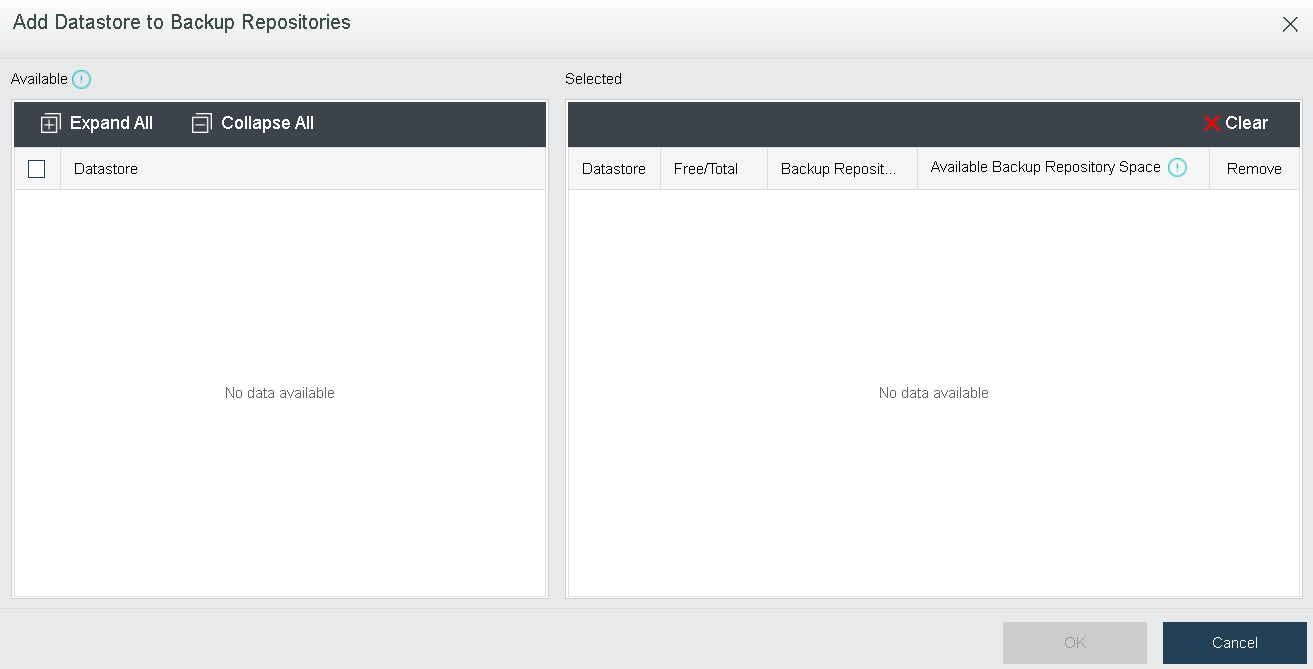
Add New Windows Shared Folder: To add a new Windows shared folder for storing backups, click Add New Windows Shared Folder. 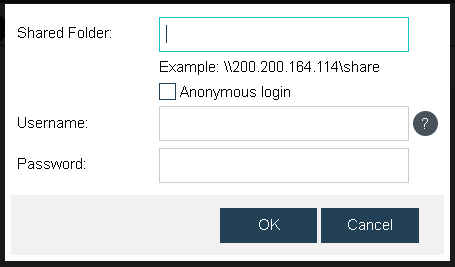
Delete: To move the datastore out of the backup repository, select the datastore(s) and click Delete. 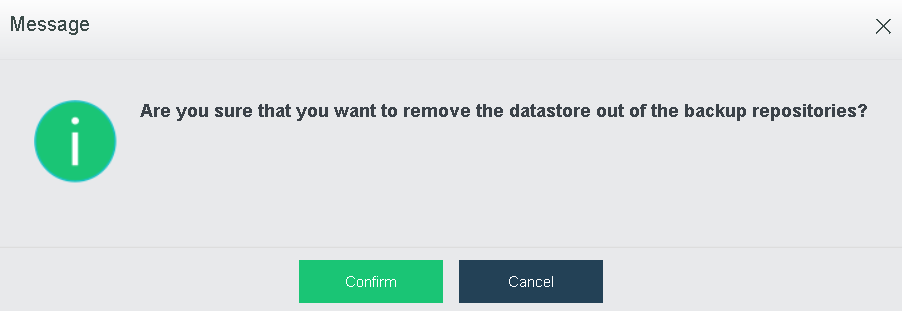

Virtual machines running on Sangfor HCI platform and VWware vCenter can be backed up to the same backup repository.
On the Backup Repositories tab, it displays status of backup repository, name of the datastore, type, total capacity, free space, total and free backup repository space, the number of virtual machines that have been backed up, max read speed, max write speed, and backup file, as shown below:

Total (For backup & archive): It displays size of backup repository. You may click on the number to edit it, as shown below: 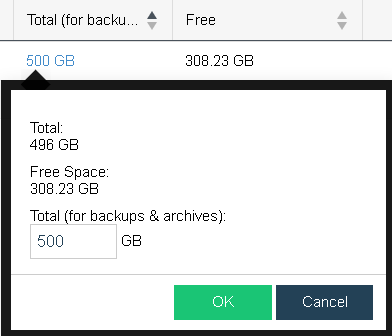
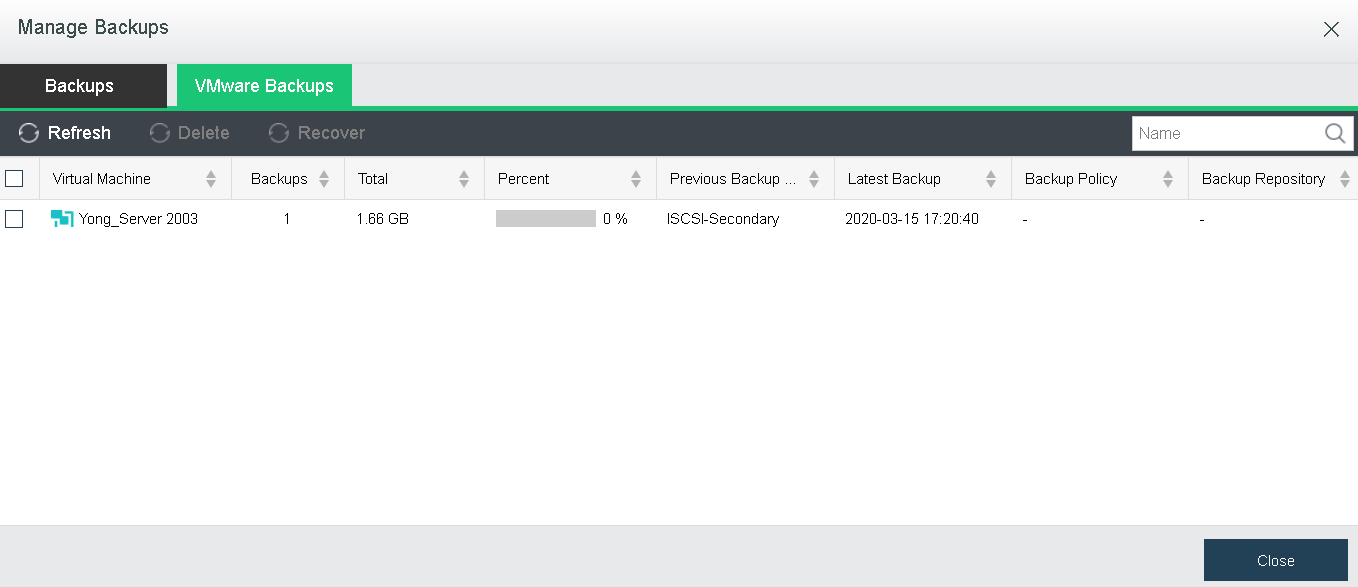
Backup: To view and manage the backups, click View under the Backup column, as shown below. 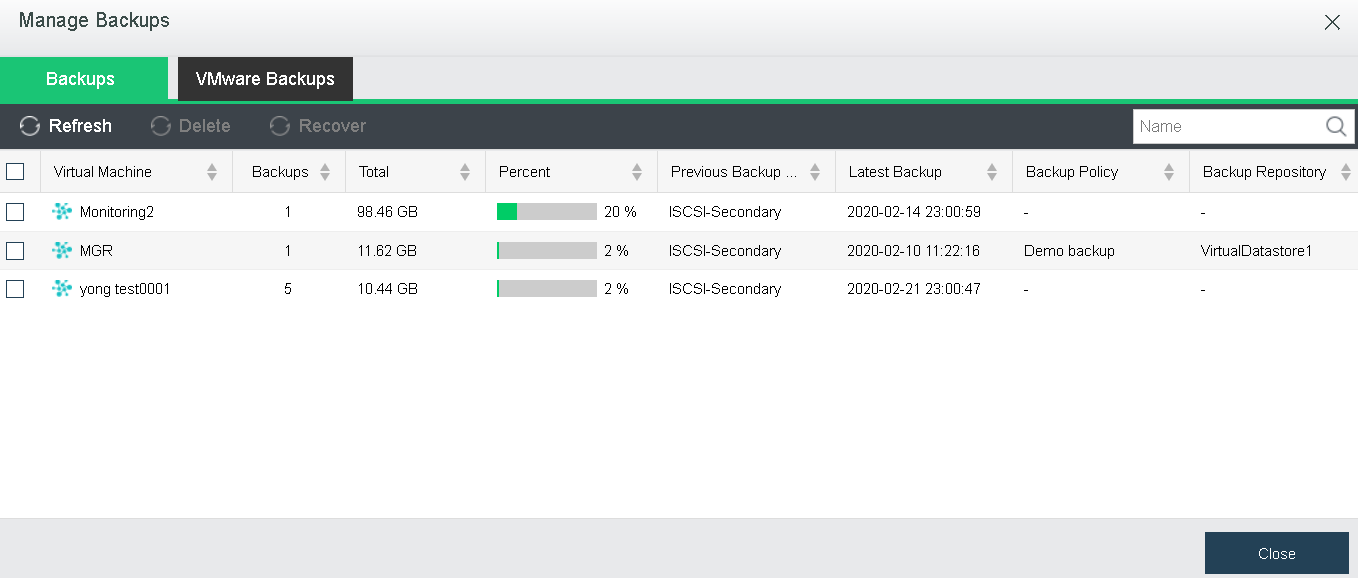


 {{ $t('index.defaultHeader.chromeBrowserTip') }}