


{{ secondMenu.name }}






On the VMware vCenter tab, it displays the vCenter servers that have been added. 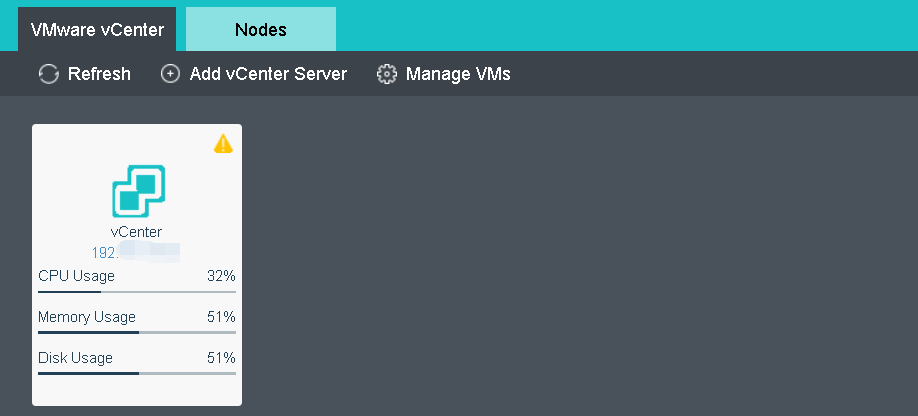
To add a vCenter server, click Add vCenter Server to enter the following page and specify Name, Address, Username, Password, Port and Description, and then click OK to start adding vCenter server and check whether the vCenter server has been added successfully. 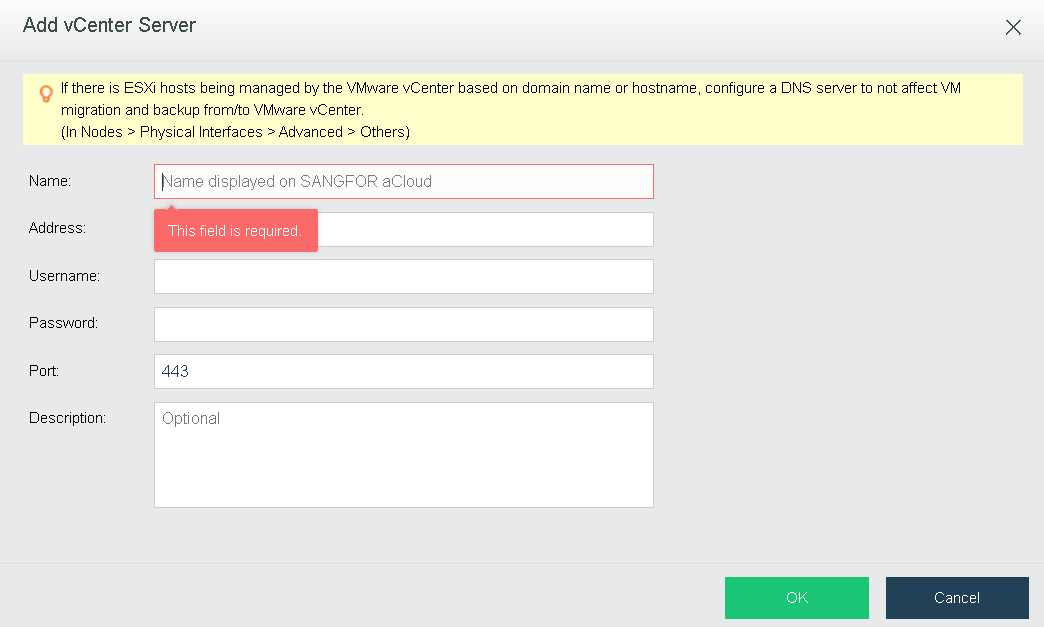
To view VMs running on VMware vCenter server, click Manage VMs. For details about those virtual machines, refer to the 2.2.2 Managing Virtual Machines in VMware vCenter section 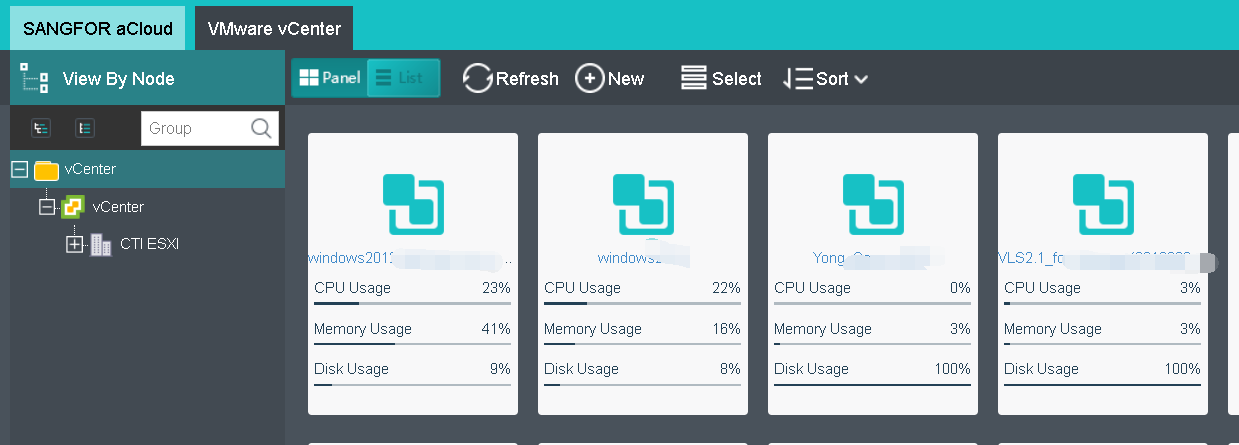
On the VMware vCenter tab, you can view detailed information of vCenter servers, enter Web administrator console of VMware vCenter server, reconnect Sangfor HCI platform to vCenter server or delete vCenter server, as shown below:
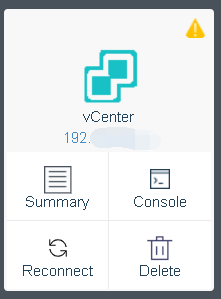
Click on the IP address of a vCenter server or click Summary to enter the Summary page, you will see the following information of that vCenter server: status, basics, alarms, etc, as shown below: 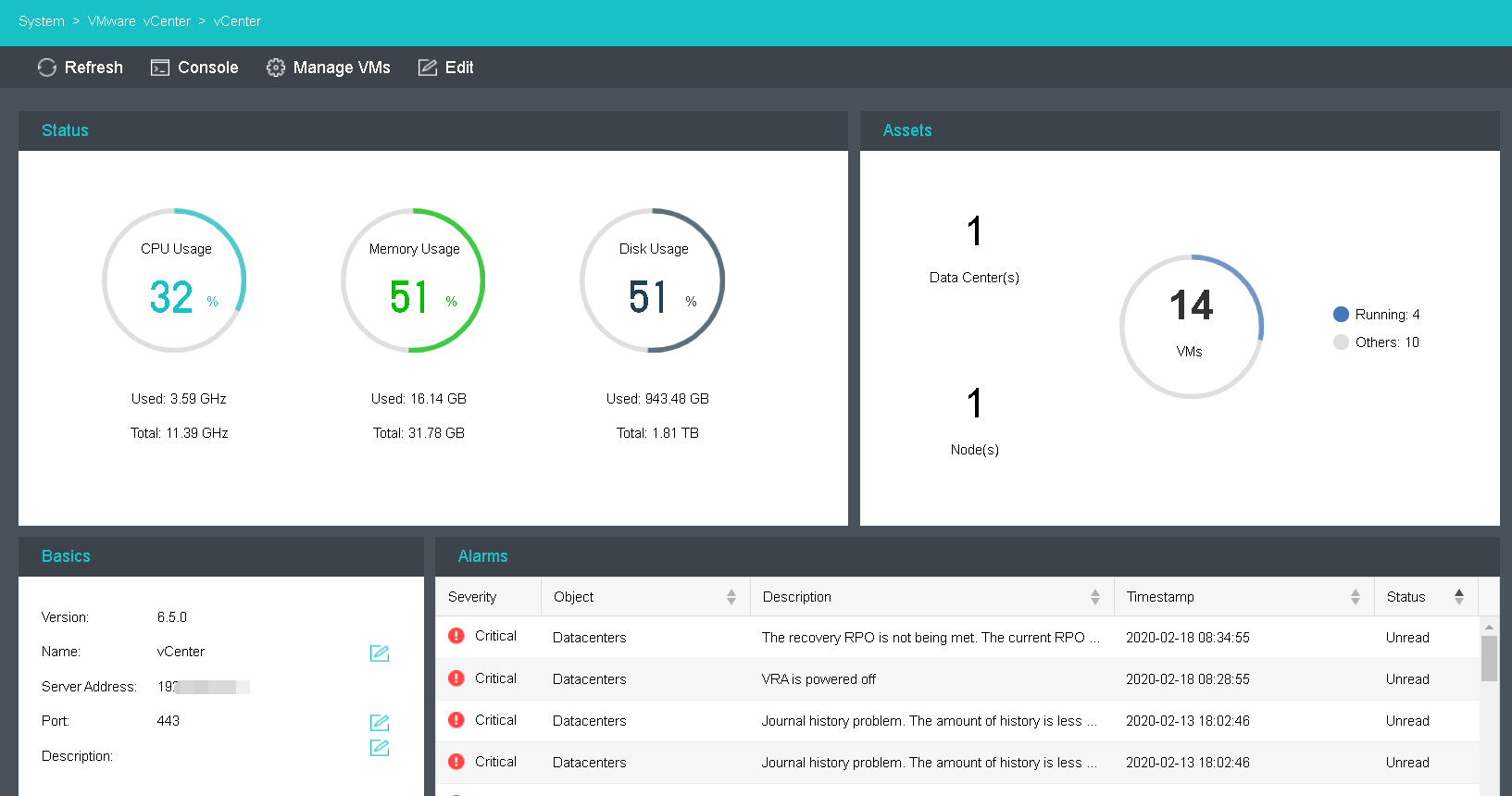
To edit vCenter server’s name, port or description, click Edit, as shown below: 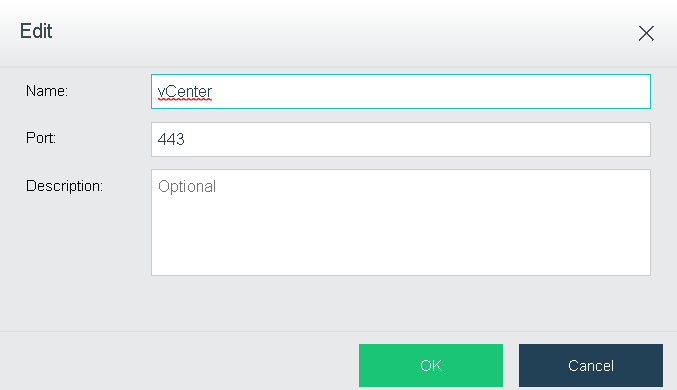
To reconnect Sangfor HCI to vCenter server, click Reconnect, and enter password to start reconnection. 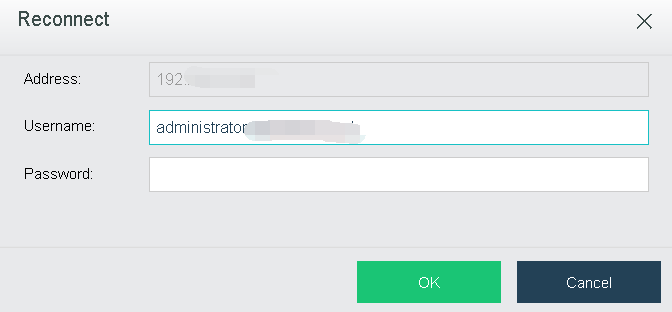
To delete a vCenter server, click Delete to remove it from Sangfor HCI platform and disconnect Sangfor HCI from that vCenter server but it will not be removed from the VMware vCenter. Type OK to confirm operation. 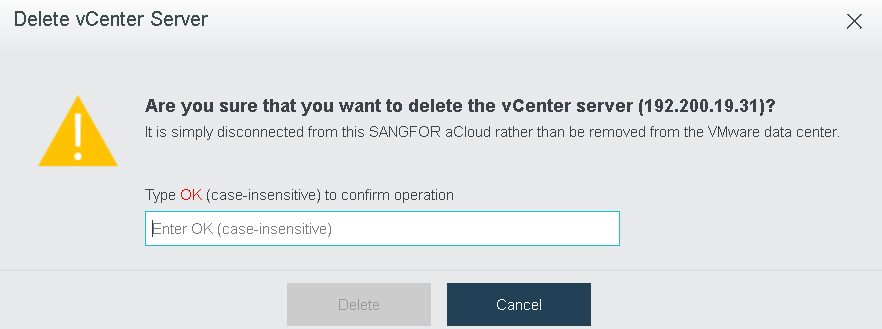


 {{ $t('index.defaultHeader.chromeBrowserTip') }}