


{{ secondMenu.name }}






To create an admin account to log into Sangfor HCI, click System Administrators and Permissions to enter the following page. To add an admin account, click Add to enter the Add Account page, as shown below:
Specify Name, Description, Password and Retype Password fields and a group. To avoid typing a wrong password, Retype Password field is required. To configure permissions, click Settings. 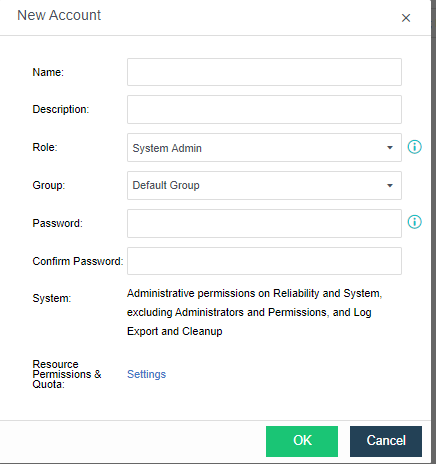
On the Permissions page, there are three tabs, Permissions, Resources and System. As for Permissions, it includes permissions on such resources as virtual machines, virtual network, virtual storage and physical disks. 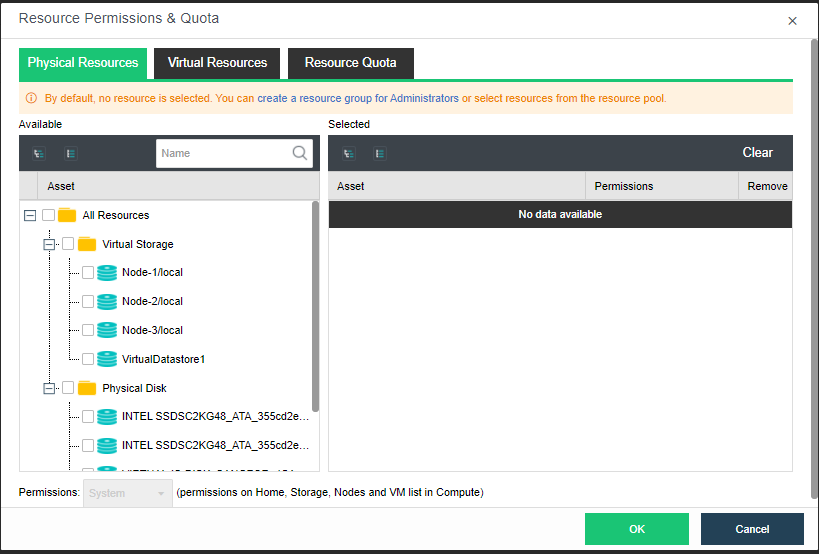
As for Resources, it includes CPU, memory and storage. The resources are allocated to the administrator to create virtual machines only, not taken up by virtual machines that are created by other administrators but are managed by this administrator. 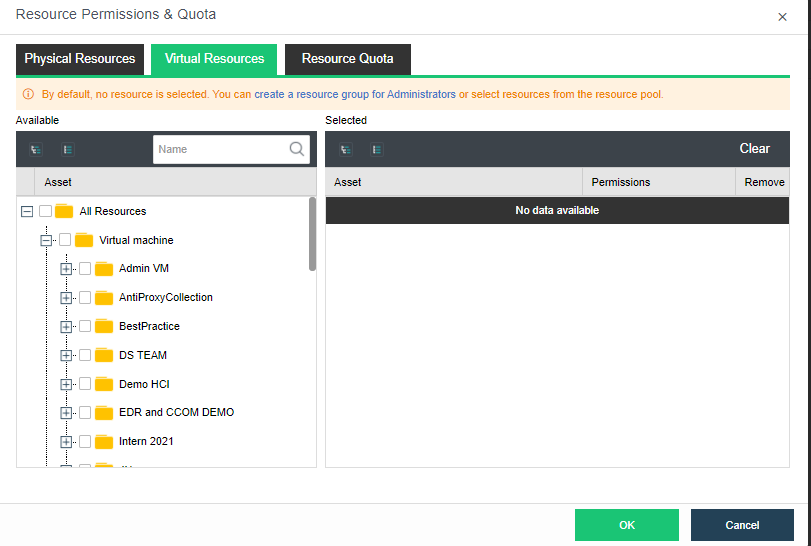
As for System, it includes Physical resources, System configuration and maintenance and Service maintenance. 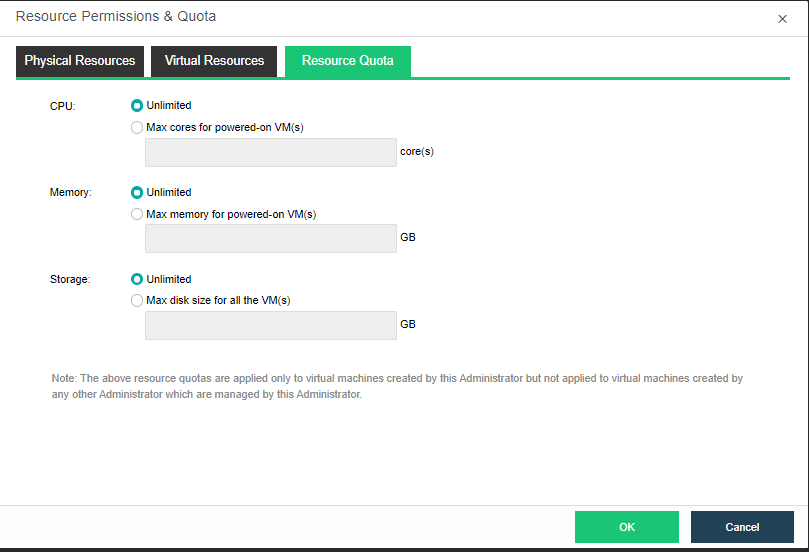
As for Physical resources, it includes configuration of Home, Storage and Nodes and view all the virtual machines.
As for System setting and maintenance, it includes configuration of some System General and Maintenance settings, including Licensing, Data and Time, Alarm Options, Cluster, System Backup and Restore, Tech Support and Download, etc.
As for Others, it includes configuration of some System General and Maintenance settings, including VM Backup and Recovery, Recycle Bin, HA and Resource Scheduling.


 {{ $t('index.defaultHeader.chromeBrowserTip') }}