


{{ secondMenu.name }}






Navigate to Storage > Virtual Storage > Virtual Datastores and click on datastore’s name to enter the following page. Here you may view detailed information about a virtual datastore. There are two tabs: Summary or Permissions. 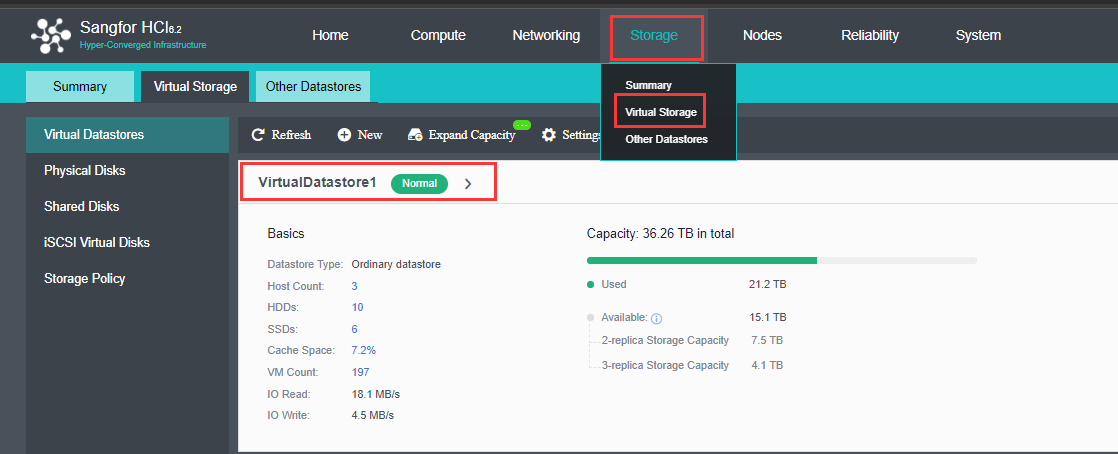
On the Summary page, you may view virtual datastore capacity, basic information, status, etc.
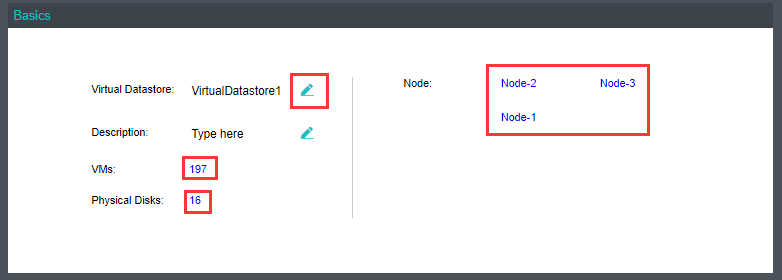
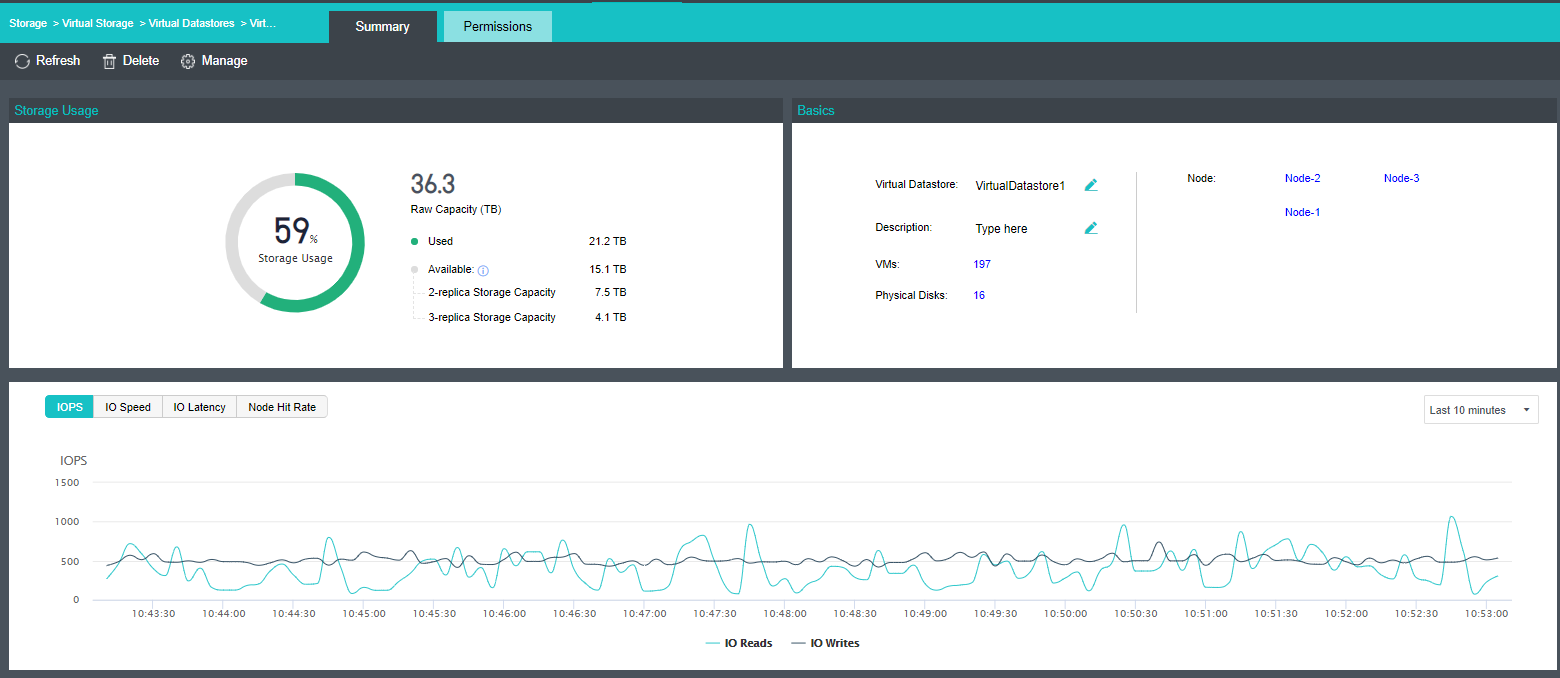
 To change virtual datastore name and description, click
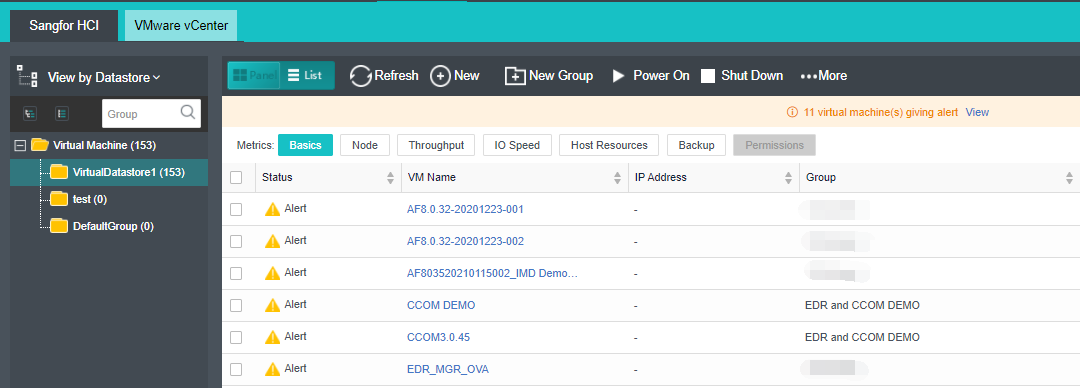
To view virtual machines in the virtual datastore, click on the number beside VMs.
To view disks in the virtual datastore, click on the number beside Physical Disks. 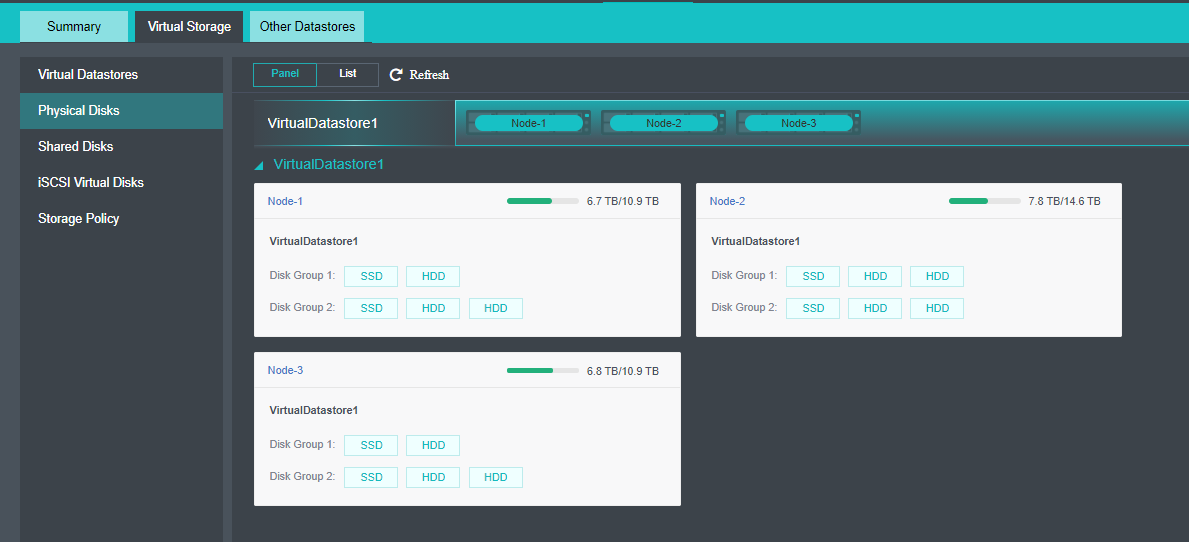
For storage operating details, you may refer to the 2.4.1 Storage Summary section. 
On the Summary page of a virtual datastore, click Delete to delete the datastore and the following dialog will pop up. Note that all the data will be deleted permanently and cannot be restored once the virtual datastore is deleted. 
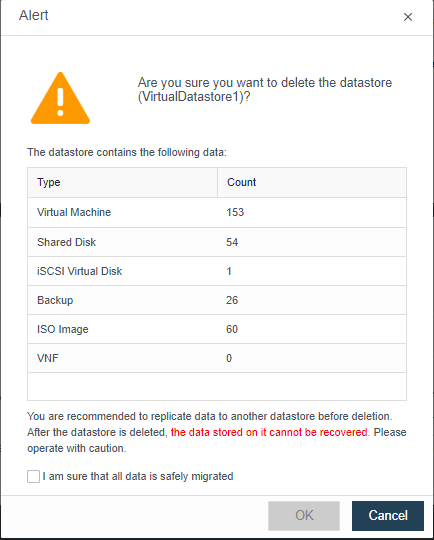
Before performing deletion operation, do the following:
Type admin password to confirm the deletion operation. Once the virtual datastore is deleted, nodes added to the virtual datastore will be removed from the cluster.
On the Summary page of a virtual datastore, you may click Manage to enter the following page. Here you can manage the datastore and folders on it.
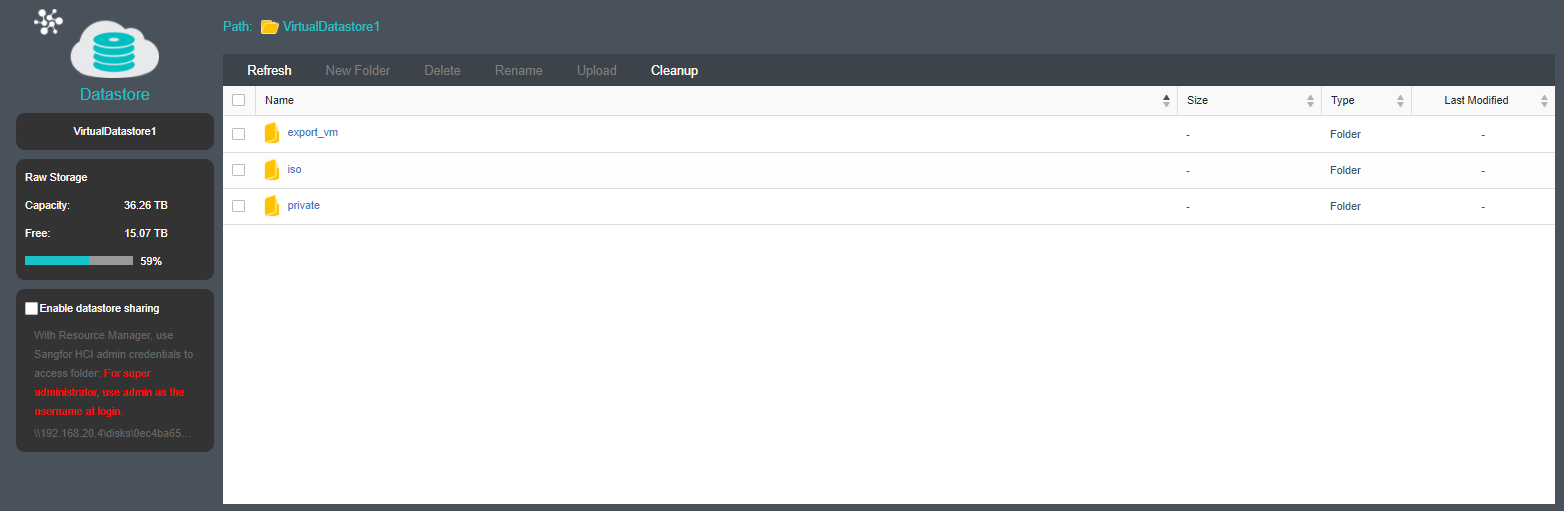

Enable datastore sharing: If this option is selected, you can access virtual datastore through the directory displayed under that option.
To add a new folder, click New Folder and then enter a folder name. 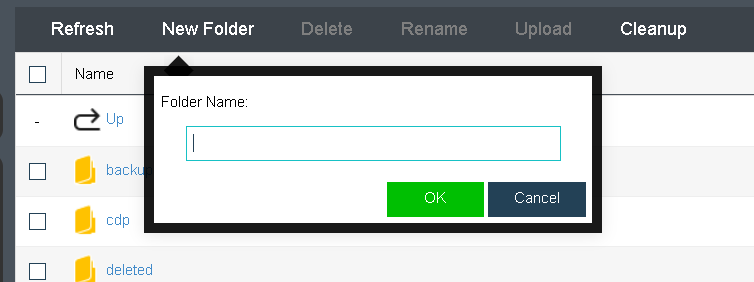
Delete: To delete a file or folder, select the file or folder that you want to delete and then click Delete.
Rename: To rename a file or folder, select the file or folder that you want to rename and click Rename.
Upload: To upload a file, select a folder and click Upload to upload a file to that folder. For example, upload an ISO image file to ISO folder for the purpose of creating virtual machines.
Permissions of virtual datastore is used to assign to sub-administrator to manage datastore. To add permission of virtual datastore on the Permissions page, you need to add the permission of accessing datastore in System > System Administrators and Permissions first. 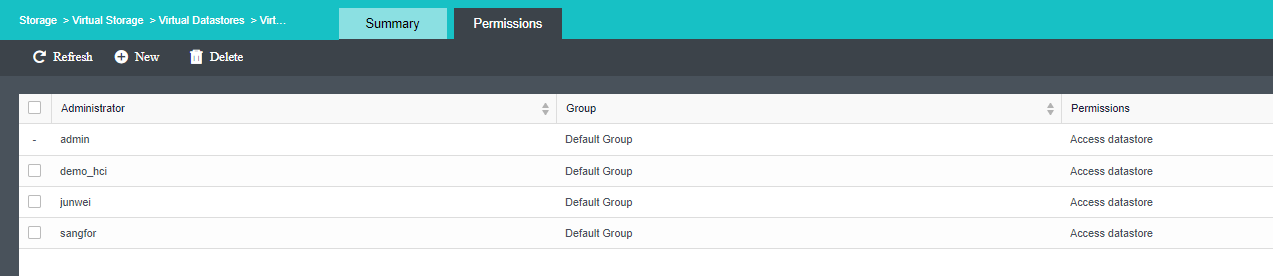


 {{ $t('index.defaultHeader.chromeBrowserTip') }}