


{{ secondMenu.name }}






Virtual machines in VMware vCenter can be backed up to Sangfor HCI platform without installing any third-party software or plugin or purchasing any backup storage device. Additionally, virtual machines can be recovered on Sangfor HCI from backup or recovered to VMware vCenter. 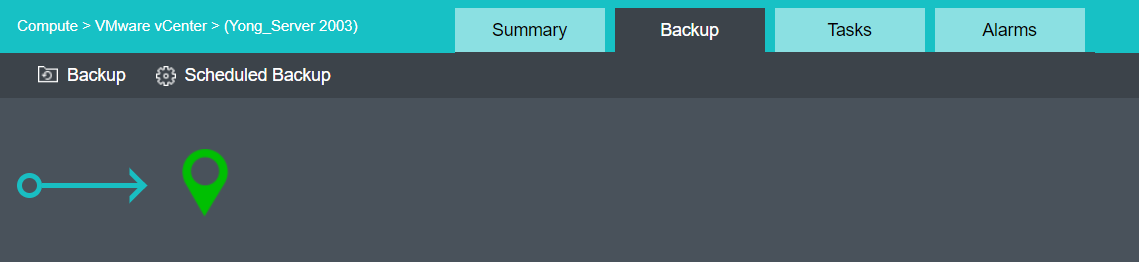
On the Backup page, you may back up virtual machine manually or have virtual machine backed up automatically. To back up virtual machine manually, you may click Backup. 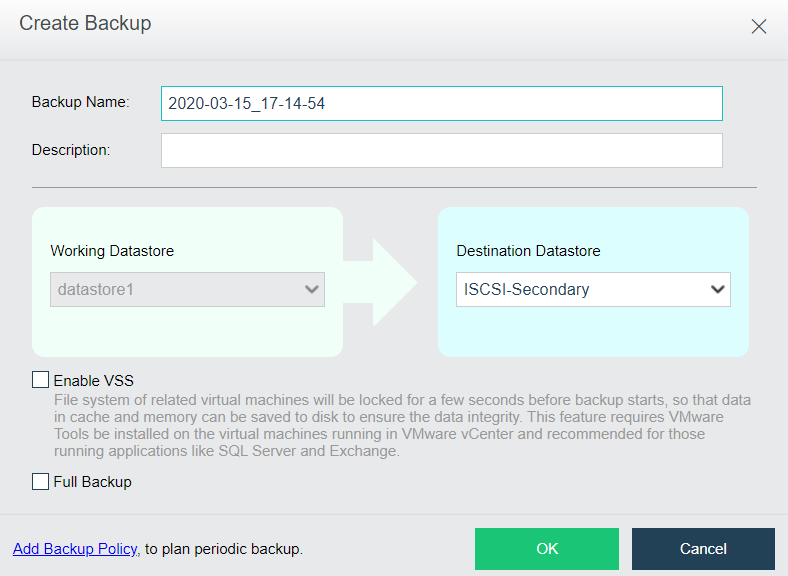
Specify Backup Name, Description and Destination Datastore. Then, click OK. You may select Enable VSS and Full Backup based on your own needs.
Enable VSS: File system of related virtual machines will be locked for a few seconds before backup starts, so that data in cache and memory can be saved to disk to ensure the data integrity. This feature requires VMware Tools to be installed on the virtual machines running in VMware vCenter and is recommended for those running applications like SQL Server and Exchange.
After specifying relevant fields, click OK to start backup operation. You may view backup status in Tasks, as shown below:
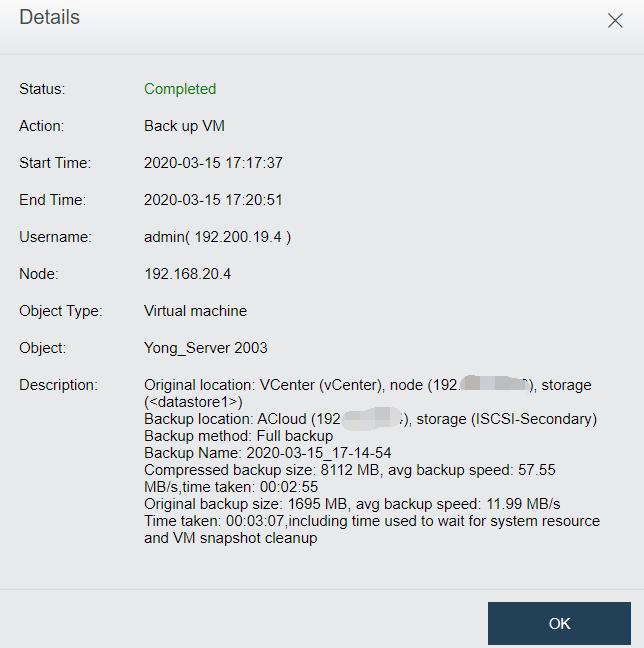
After a backup is created, you may click on the backup name and then a dialog box pops up, as shown below: 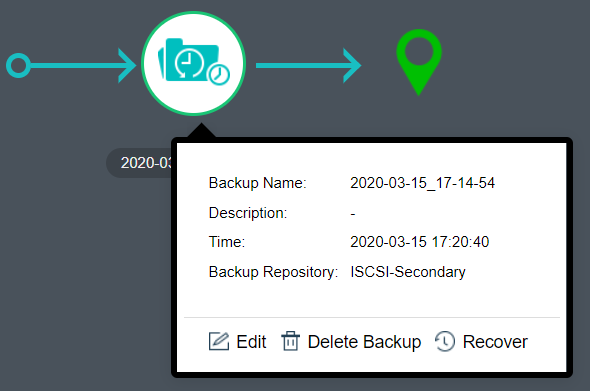
To modify backup name and description, you may click Edit.
To delete a backup, you may click Delete Backup.
To recover a virtual machine from its backup, you may click Recover.
On the Backup page, you may also create a scheduled backup by clicking Scheduled Backup to enter the following page. On that page, select the option Enable Scheduled Backup and select a scheduled backup policy, then click OK. You may click Add New Policy, if there is no schedule backup policy 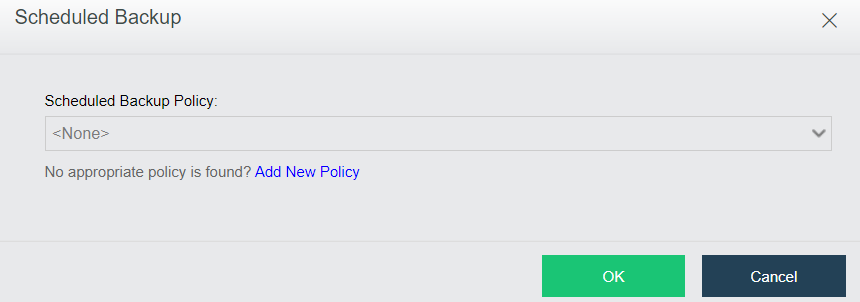


 {{ $t('index.defaultHeader.chromeBrowserTip') }}