


{{ secondMenu.name }}






Virtual machines running on VMware vCenter can be migrated to Sangfor HCI. 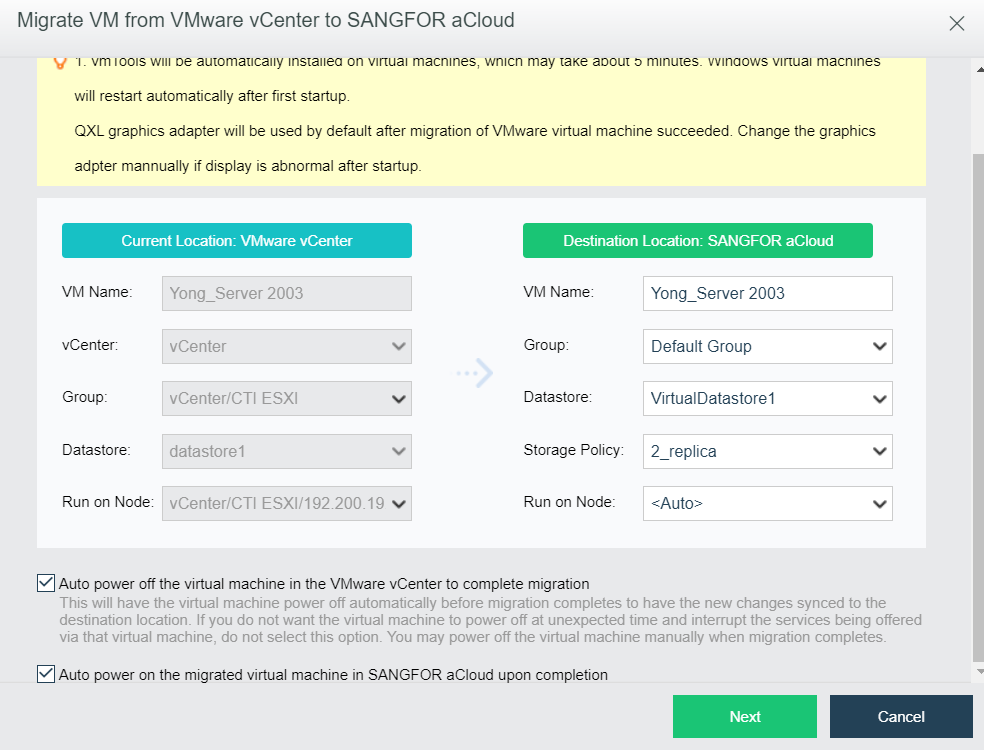
Specify the required fields under Current Location and Destination Location. Whether to select the options Auto power off the virtual machine in the VMware vCenter to complete migration and Auto power on the migrated virtual machine in Sangfor HCI upon completion depends on your own needs, and then start migrating virtual machine.
Auto power-off virtual machines in the VMware vCenter to complete migration: This will have the virtual machine powered off automatically before migration completes to have the new changes synced to the destination location. If you do not want the virtual machine to power off at unexpected time and interrupt the services being offered via that virtual machine, do not select this option. You may power off the virtual machine manually when migration completes.
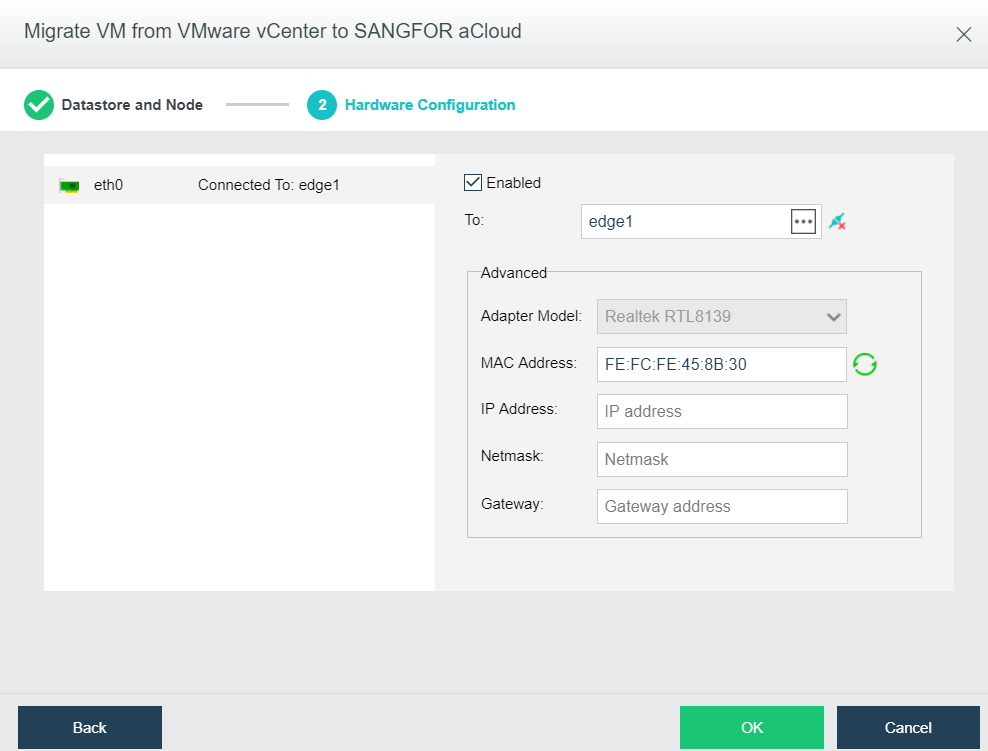
Enabled: If it is selected, it indicates that the specified virtual network adapter is enabled.
Connected To: Specifies an edge or a virtual switch to be connected to the virtual machine.
Adapter Model: Specifies the adapter model. Options are Realtek RTL8139 and Intel E1000.
MAC Address: MAC address can be automatically generated or manually specified. MAC address examples: 00-11-22-33-44-55, 00:11:22:33:44:55. MAC address will be changed after the migration operation completes and you may edit the MAC address if you do not want the MAC address to be changed.
After configuring relevant fields, click OK to start migrating virtual machine. To view migration progress, go to Migration Process, as shown below: 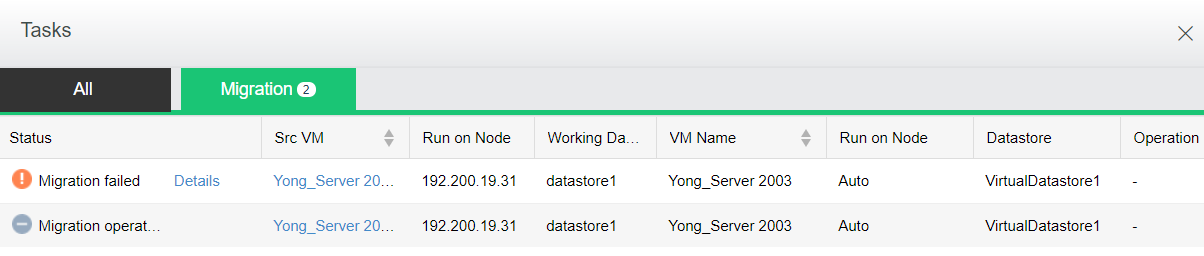
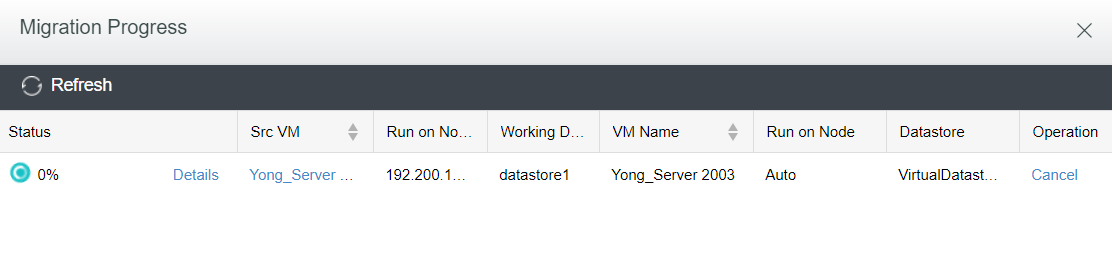

When migration is being performed on a virtual machine in VMware vCenter, do not power on the VM, expand disk capacity, or roll back snapshot of that virtual machine, or else migration may fail.
Status: Displays the following information about virtual machine: CPU Usage, Memory Usage, Disk Usage, Throughput, CPU, Memory, IO Speed, IOPS.
CPU Usage: Displays CPU usage of virtual machine. On the right side, you may view CPU usage in the last hour or last 24 hours.
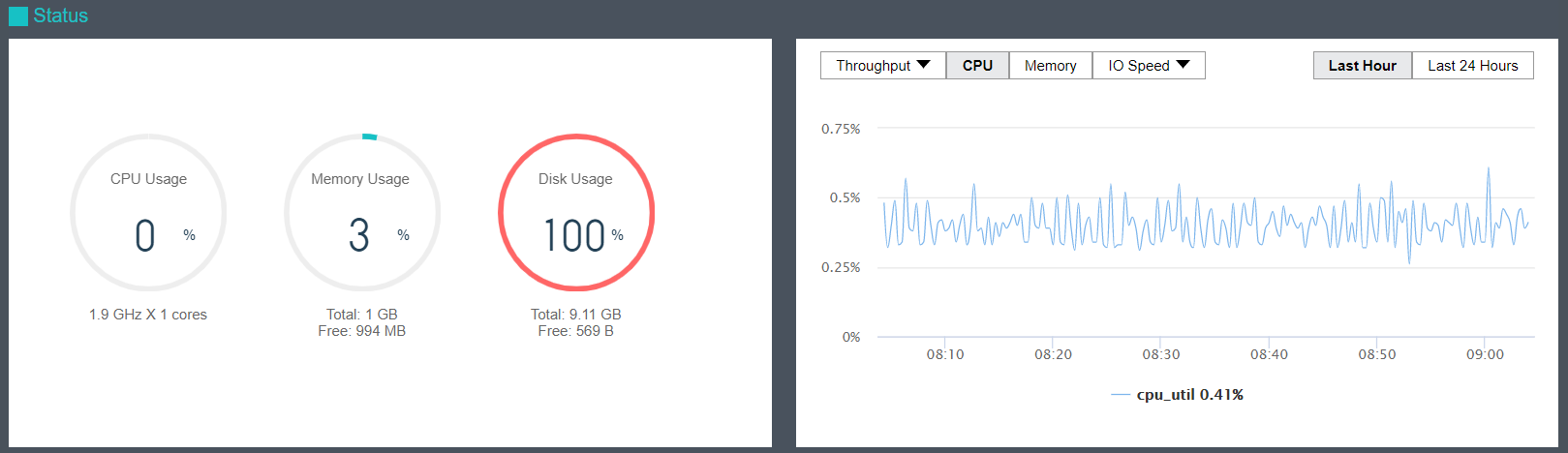
Memory Usage: Displays the total and free memory size respectively, as well as memory usage. On the right side, you may view memory usage in the last hour or last 24 hours. 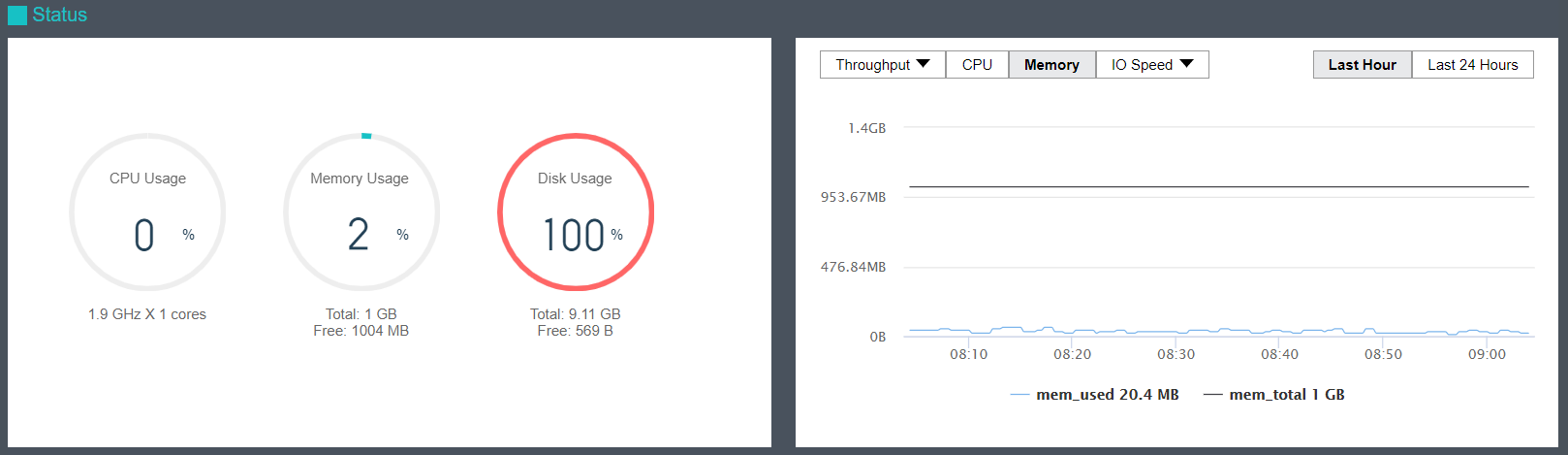
Disk Usage: Displays the total and free disk size respectively, as well as disk usage. On the right side, you may view disk IO speed and IOPS. 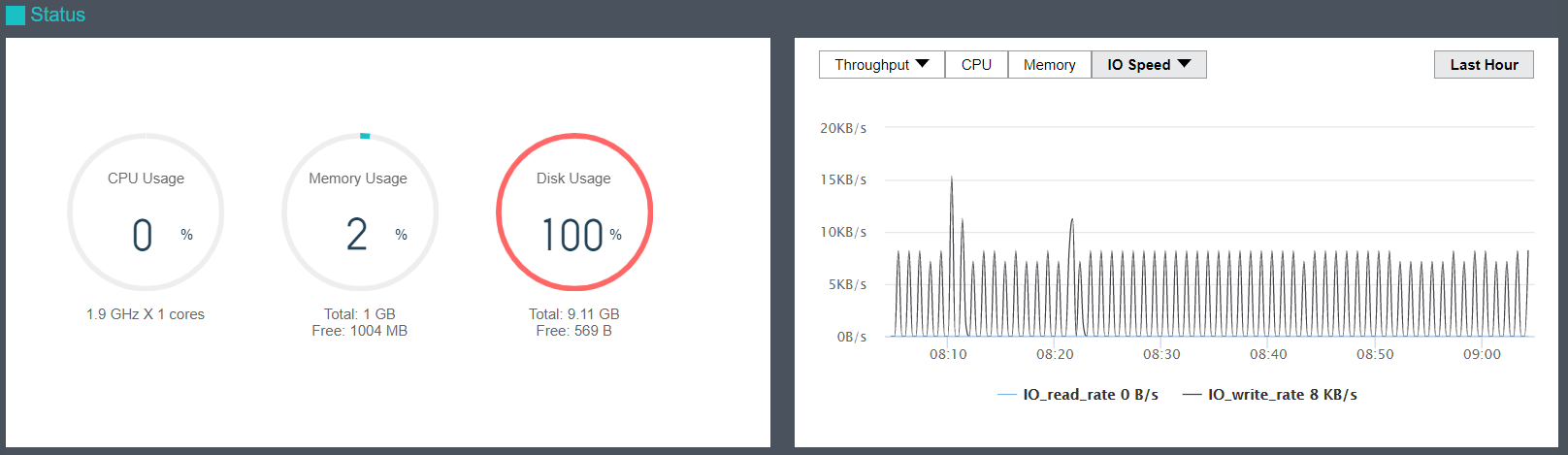
Throughput: Displays overall throughput. 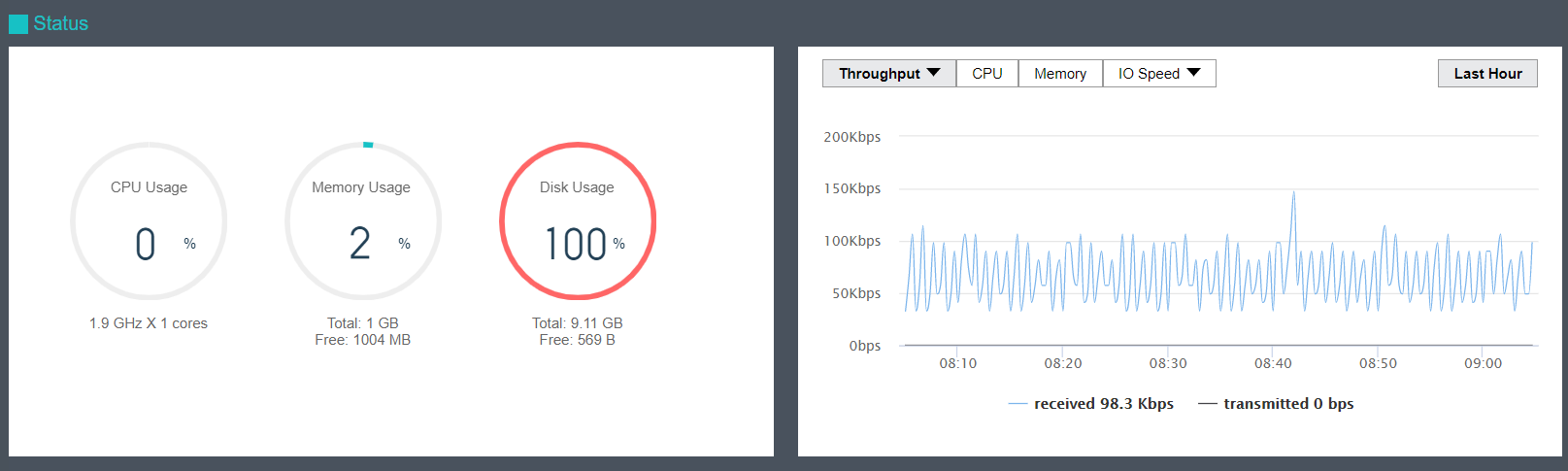
Throughput (pps): Displays inbound and outbound packets per second. 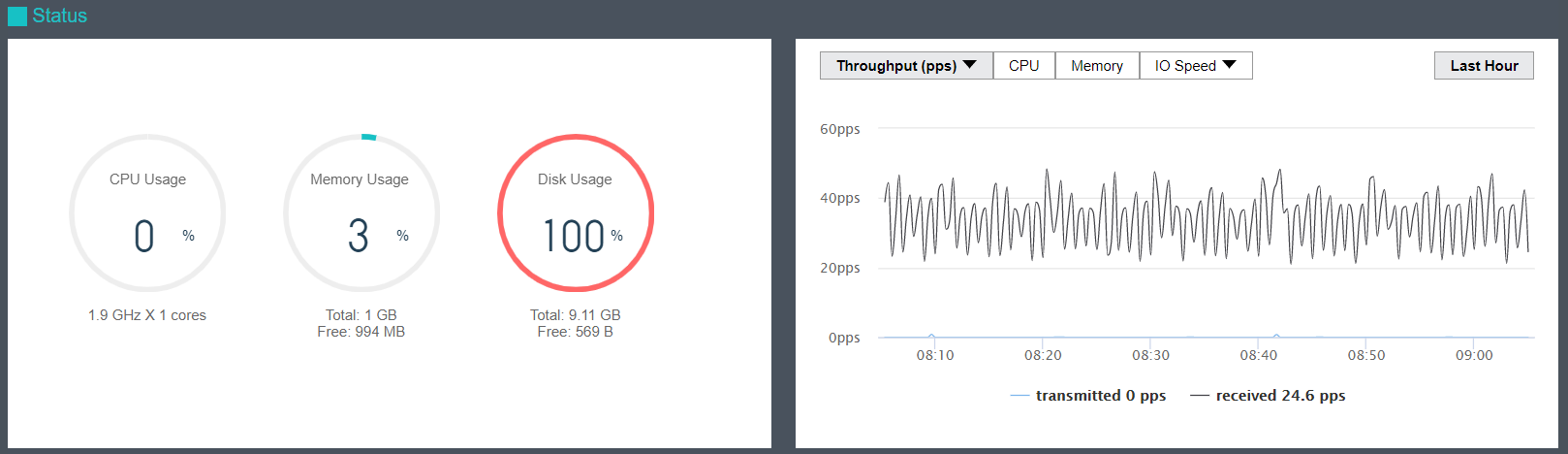
The Basics & Hardware Configuration section displays basic information and hardware configuration of virtual machine. Basic information includes Name, Description, Group, Datastore, Run on Node, Guest OS, vmTools, High Priority, Power on at host startup, Enable memory reclaiming, Boot Order, and Uptime. 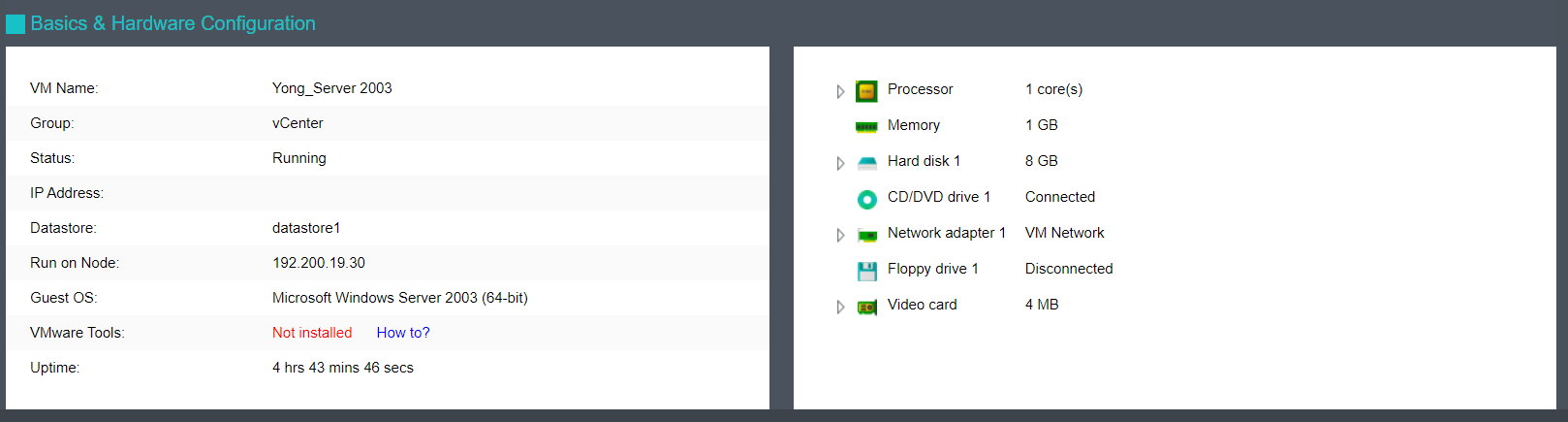


 {{ $t('index.defaultHeader.chromeBrowserTip') }}