


{{ secondMenu.name }}






Continuous data protection (CDP) is real-time backup which can log every disk IO activity of a virtual machine. It enables administrators to restore virtual machine to any point in time and view or download file created at any point in time, which helps a lot in case that virtual machine encounters file deletion by mistake, virus infection, system crash, data damage, etc. 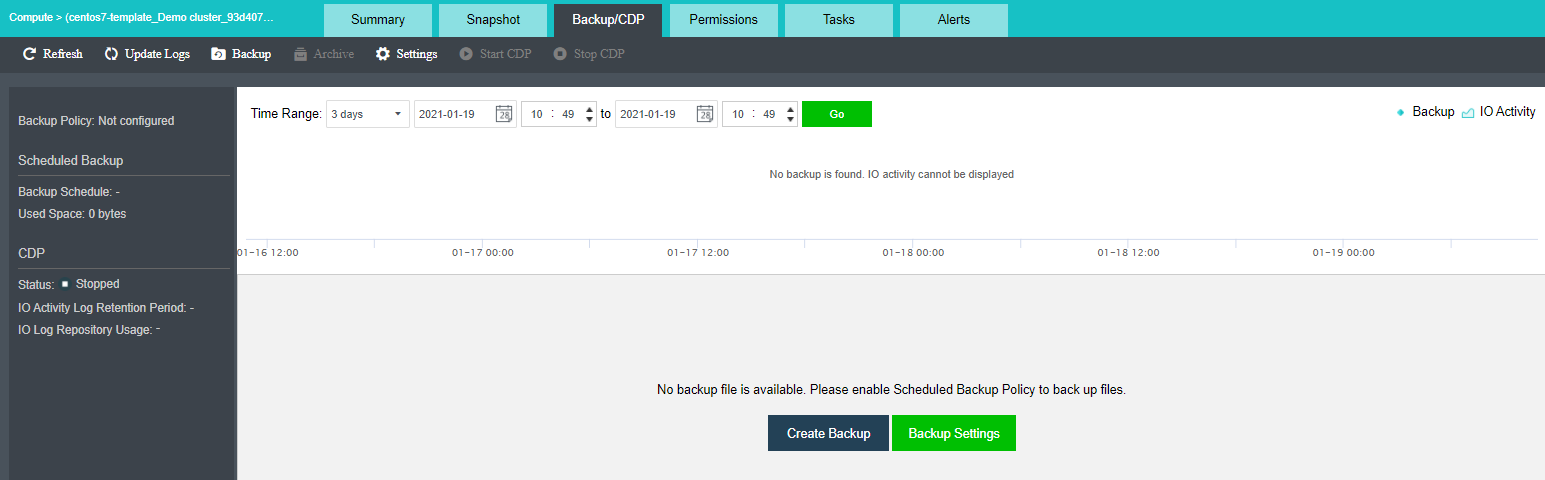
On the toolbar, there are Refresh, Scan New Backups, Backup, Settings and Start CDP, as shown below: 
To refresh the page, you may click Refresh.
To check whether there are new backups, you may click Update Logs.
To create backup for the virtual machine, you may click Backup. 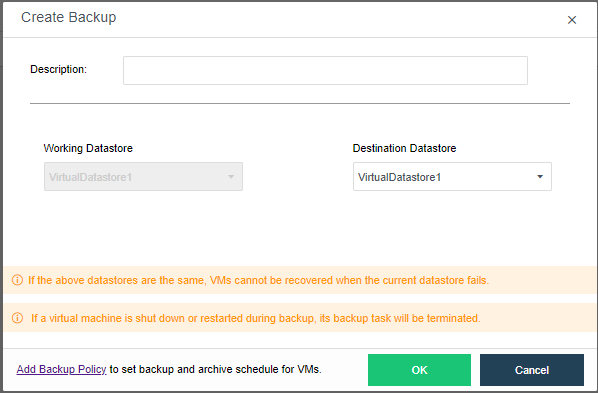

-If CDP is enabled, the destination datastore is that you have specified in CDP policy and cannot be specified manually.
-If the above datastores are the same, VM cannot recover when the current datastore fails.
To specify backup method and backup policy, click Settings. As for backup method, options are Scheduled and Continuous (CDP). For details, refer to 2.6.12.1 Sangfor Backup Policy section.
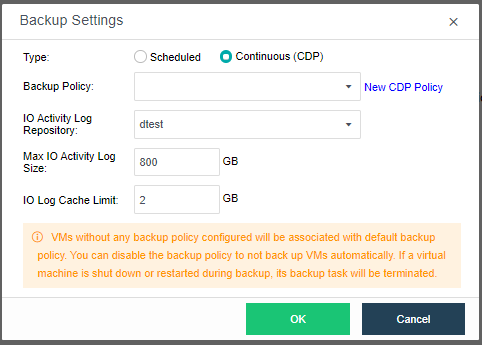
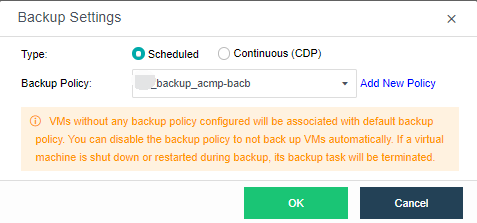
For VMs not associated with any backup policy, they will associate with default backup policy. To not back up a specific virtual machine, simply disable the corresponding backup policy.
Start CDP: To start CDP, click Start CDP, only support when the backup method is Continuous(CDP).
When CDP policy is enabled and CDP is started for virtual machine, the CDP icon is green on the VM panel. If the CDP policy is enabled yet CDP is not started, the CDP icon is gray, as shown in the following picture. 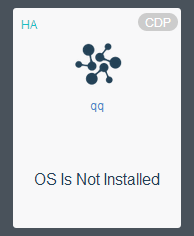
CDP can be started only when virtual machine is powered on and associated with a CDP policy. Template and virtual machines deployed from template do not support CDP.
The left panel displays backup policy, backup method and CDP information, as shown below: 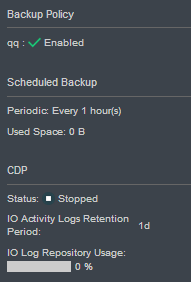
Backup Policy: It displays the backup policy that has been selected and its status.
Scheduled Backup: It displays backup method and used space.
CDP: It displays status of CDP, IO Activity Logs Retention Period and IO Log Repository Usage. Status of CDP includes Not configured, Starting, Synchronizing, Started, and Stopped, etc. 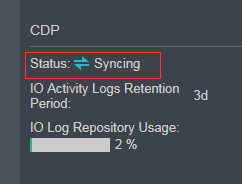
As for Period, option can be Last Hour, Last 2 Hours, Last 6 Hours, Last 24 Hours, Three days, One week, All and Specified. 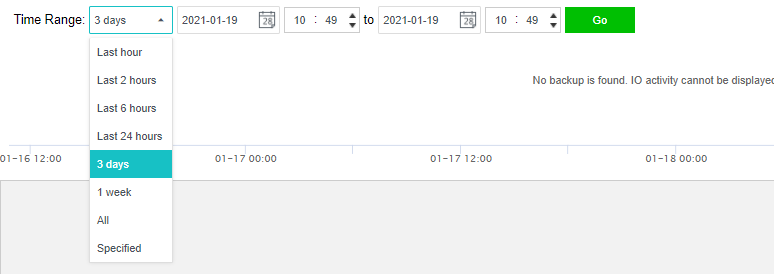
It displays backup details, including Time, Type, Used Space, Datastore, Description, Backup Lock, and Operation. 
Expand All: To display all the IO activity logs, click Expand All.
Collapse All: To hide IO activity logs, click Collapse All.
Delete: To delete one or more backups, select the backup(s) and click Delete.
Once backup is deleted, corresponding IO activity logs will also be deleted for they are dependent on backup(s). Backups cannot be recovered once deleted. Enter password of the current username to confirm operation:

 To display IO activity logs, click . .To hide IO activity logs, click
Time: Displays time that a backup or IO activity log is created.
Type: Displays backup type, Backup or IO activity log.
Used Space: Displays space used by backup or IO activity log.

 Datastore: Displays datastore where backup or IO activity log is stored.
Description: Displays backup description. To edit description, click
 Backup Lock: To enable backup lock, click on To disable backup lock, click on
Operation: For Backup, operations can be Browse Files, Recover, Delete and Clone. For IO activity log, operations can be Browse Files and Recover.
As for details of browsing files, see the Browsing Files section. For details on how to recover virtual machine, see the Recovering Virtual Machine section. For details on how to clone virtual machine, see the Cloning Virtual Machine section
You may select a backup or IO activity log created at any time point and download the corresponding backup file. This operation will be logged so as to ensure data security.
Click Browse Files to enter te following page:
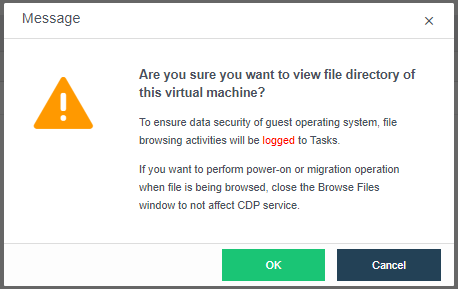
To ensure data security of guest operating system, file browsing activities will be logged to Tasks.
If you want to perform power-on or migration operation when file is being browsed, close the Browse Files window to not to affect CDP service.
As for Linux-based virtual machines, backup files cannot be browsed or saved.
Click OK to enter the following page to select partition, select one or more files, click Download File to download file to local disk, as shown below: 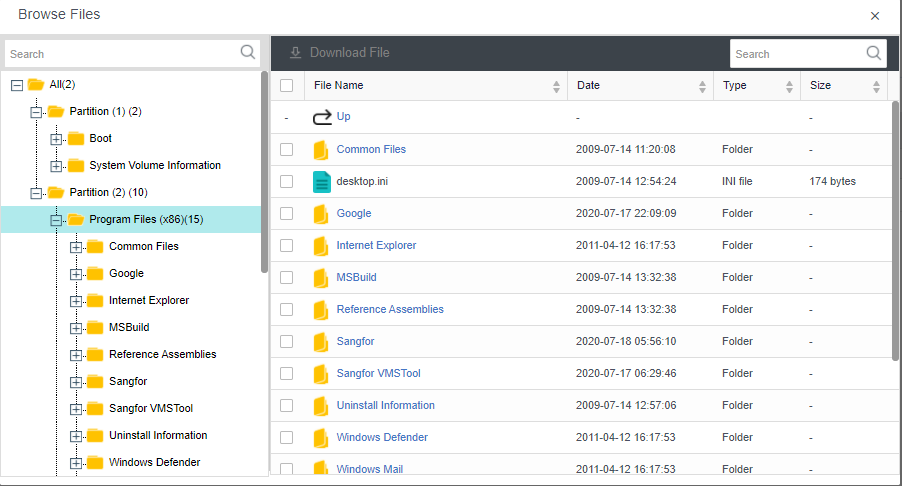
You may go to Tasks to view relevant logs, as shown below: 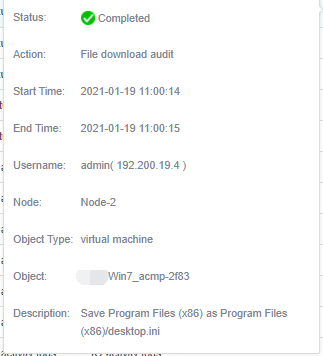


 {{ $t('index.defaultHeader.chromeBrowserTip') }}