


{{ secondMenu.name }}






A VM template is a virtual machine which has been configured, and can be used to deploy multiple virtual machines with the same configurations. The difference from cloning VM is that disk files will not be replicated when a virtual machine is deployed from a template. What’s more, changes made to template will be saved to de virtual machine incrementally.
Deploy VM: Only the virtual machine converted to template can be used to deploy virtual machines. Disk settings of the virtual machine after being converted to template cannot be changed any more. You may deploy new virtual machines when converting a virtual machine to template. Deployed virtual machines have the same configurations as that of its template
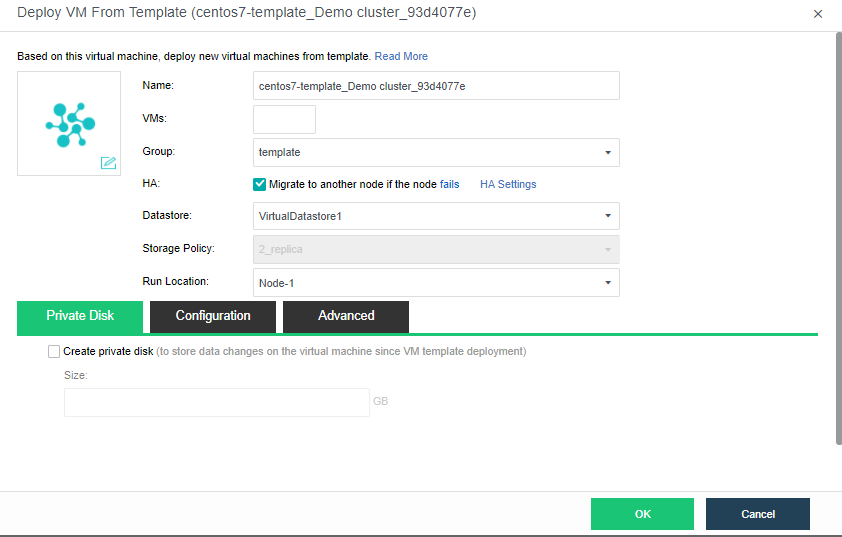
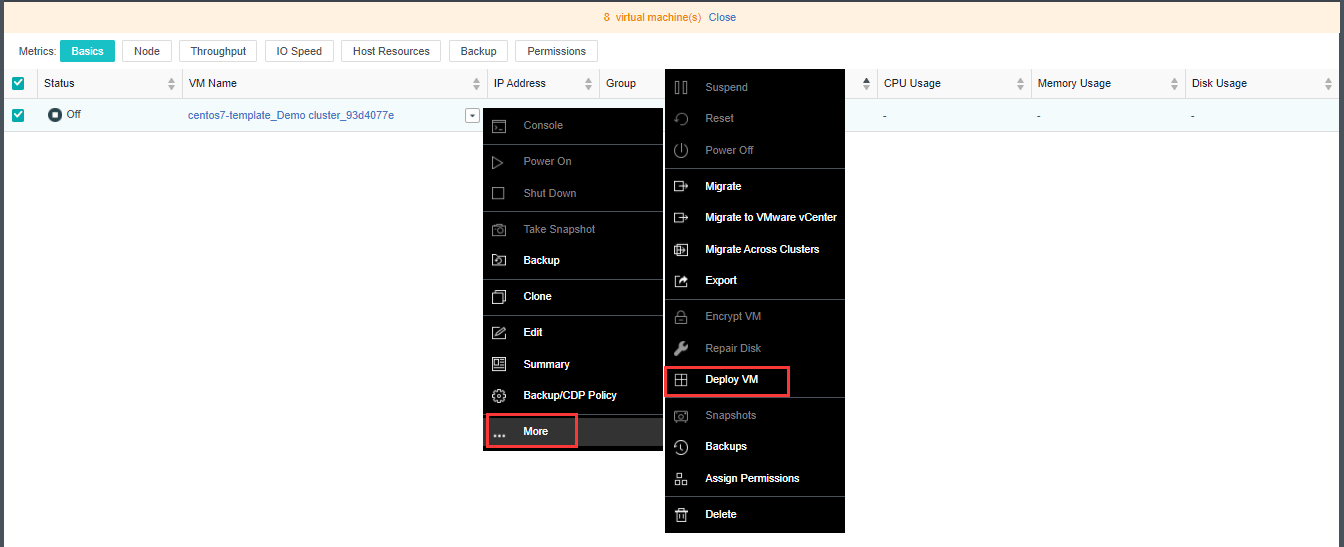
Name: Specifies name of the deployed virtual machine(s).
Name of the deployed VM depends on the Name and the number of virtual machines. For instance, name of VM is name and number of virtual machines is 2, then names of the two new virtual machines are name_0001 and name_0002 respectively.
Migrate to another node if the node fails: If this option is selected, deployed virtual machines will be automatically migrated to another node if the working node fails.
Datastore: Specifies a datastore where configuration files of deployed virtual machines are stored.
Working Location: Specifies a node where the deployed virtual machines resides.
Create Private Disk: You may create a private disk and assign a specified disk size to each deployed virtual machine.
After deploying virtual machine from template completes, go to VM template Summary page and click the number next to Deployed VM(s) to enter the following page to view deployed virtual machine.


 {{ $t('index.defaultHeader.chromeBrowserTip') }}