


{{ secondMenu.name }}






There are the following tabs: Summary, Snapshot, Backup/CDP, Permissions, Tasks and Alarms, as shown below. 
On the Summary tab, you may perform such operations as Power On, Shut Down, etc., and view basic information and hardware configurations of virtual machine.
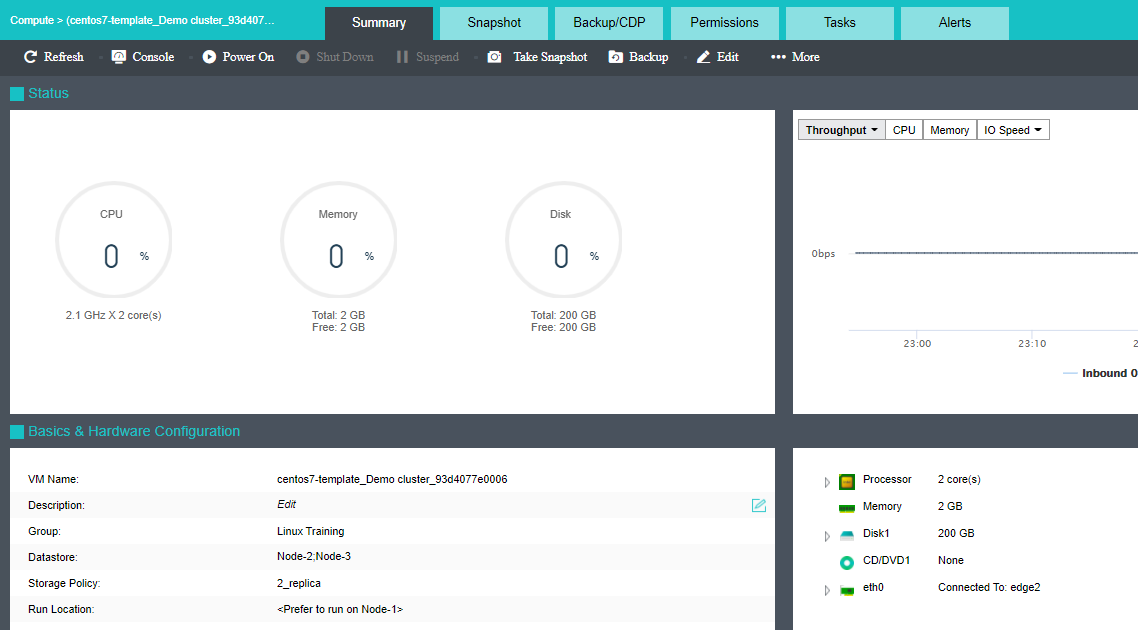
To refresh the Summary page, click on Refresh on the upper left corner.
To open virtual machine’s console, click Console on the Summary page, or click on the Console button on the virtual machine panel to enter the following page. 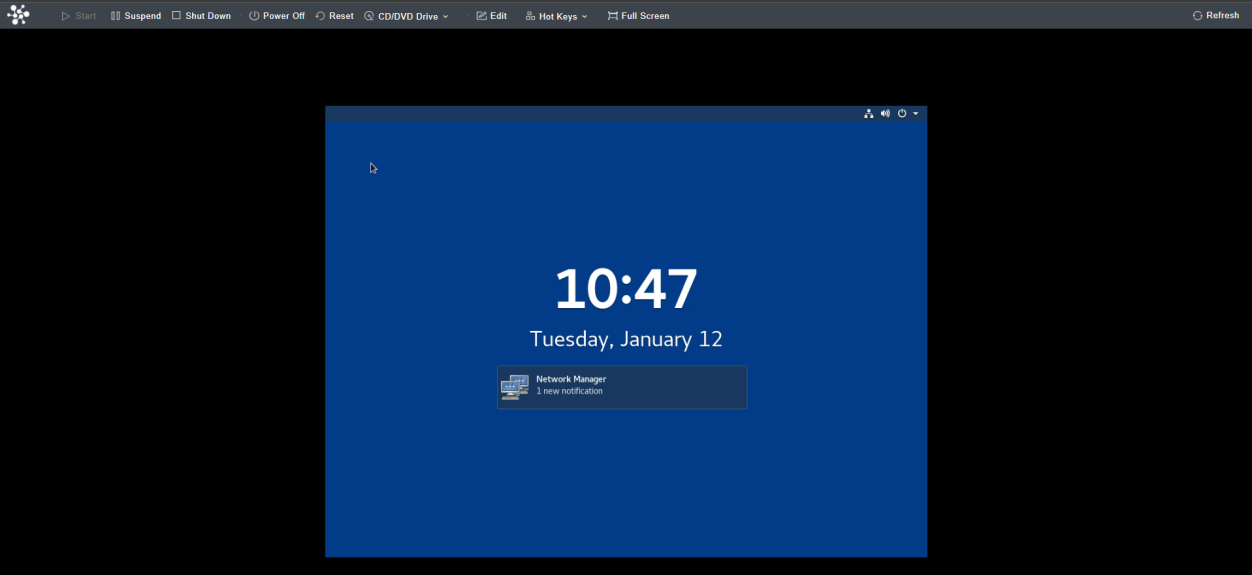

On the above page, you can perform the following operations: Start, Suspend, Shut Down, Power Off, Reset, CD/DVD Drive, Edit, Hot Keys, Full Screen, Refresh. 
HotKkeys lists combinations of commonly-used keys. 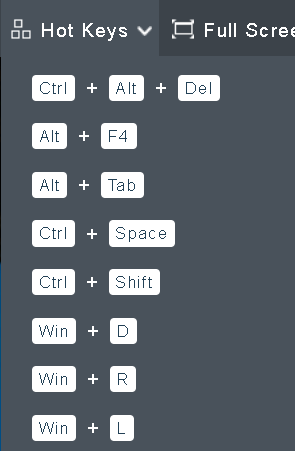
Full Screen to have console of the virtual machine displayed in full screen,
click Full Screen. To exit from full screen, you may click Exit.
If the console encounters error, you may click Refresh.
To power on virtual machine, you may click Power On.
To shut down virtual machine, you may click Shut Down.
To suspend virtual machine, you may click Suspend.
To take snapshot of virtual machine, you may click Take Snapshot.
To back up virtual machine, you may click Backup.
To edit virtual machine, you may click Edit.
On the Summary page, you may perform the following operations by clicking More: Power Off, Reset, Clone, Migrate, Migrate to VMware vCenter, Migrate Across Clusters, Export, Repair Disk, Deploy VM, Convert to VM, Convert to template, as shown below:
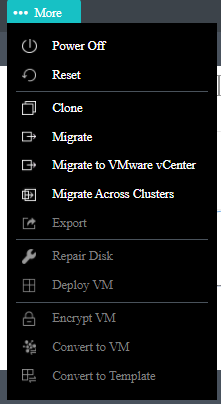

If VMware vCenter is not added to Sangfor HCI platform, the option Migrate to VMware vCenter will not be displayed.


 {{ $t('index.defaultHeader.chromeBrowserTip') }}