


{{ secondMenu.name }}






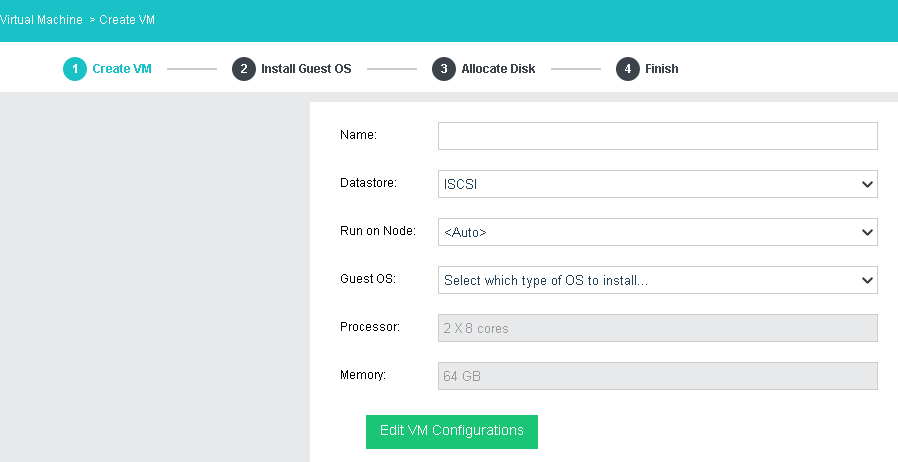
Name : Specifies a distinguishable name for the virtual machine.
Datastore : Specifies a datastore to store virtual machine. HA is configurable only when a shared datastore is selected.
Run on Node : Specifies the node to run the virtual machine.
Guest OS : Specifies an operating system for the virtual machine. The following types of guest OSes are supported: Windows, Linux, Sangfor and others.
Processor : Specifies the number of virtual sockets and cores per socket for the virtual machine respectively.
Memory : Specifies the memory size for the virtual machine. The minimum is 512 MB, and the maximum is 1TB.
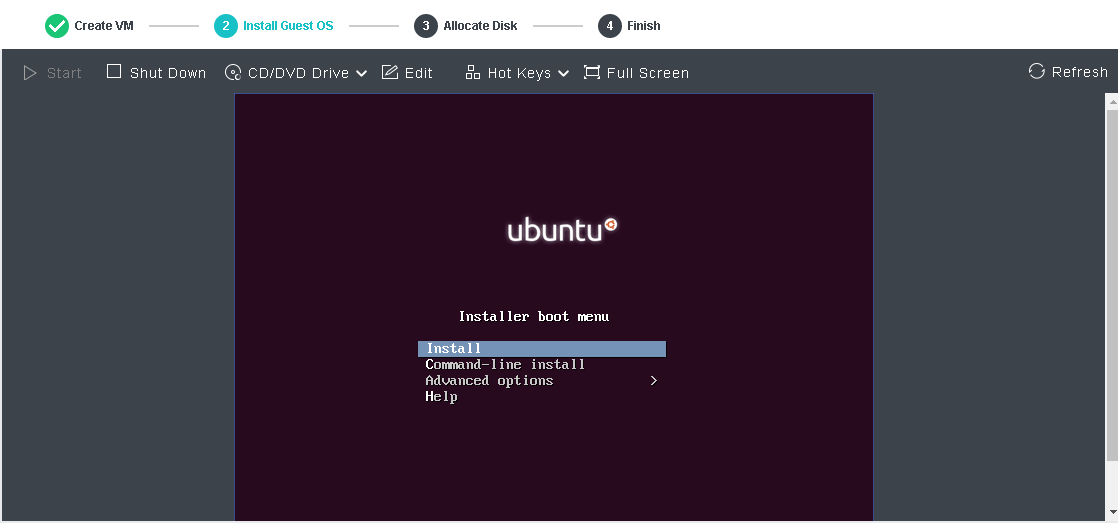
After VM name and guest OS are specified, click Next to install OS. If the image file of a specified guest OS has not been uploaded to Sangfor HCI platform, you may upload it in the same way of uploading an ISO image introduced in the 2.2.1.2 Creating Virtual Machine section.

After guest OS is installed, vmTools must be installed before proceed to next step.
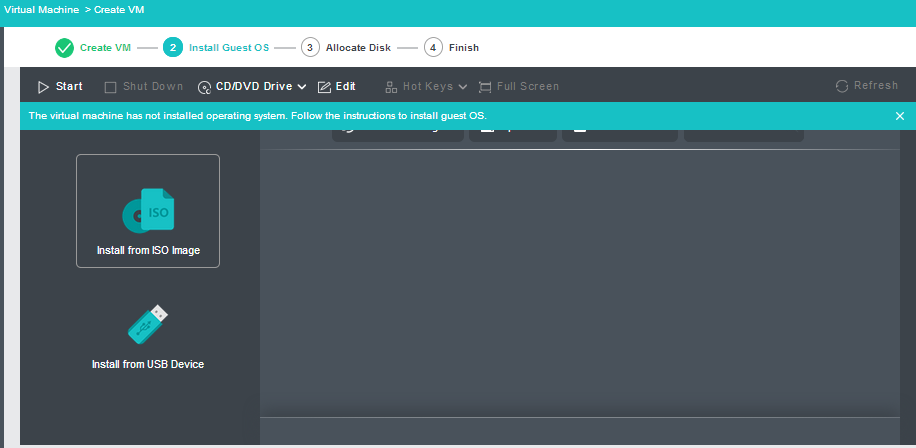
In this step, you need to configure log and quorum disks. More specifically, specify Disk Name, Total Number, Size of Each Disk on the following page. 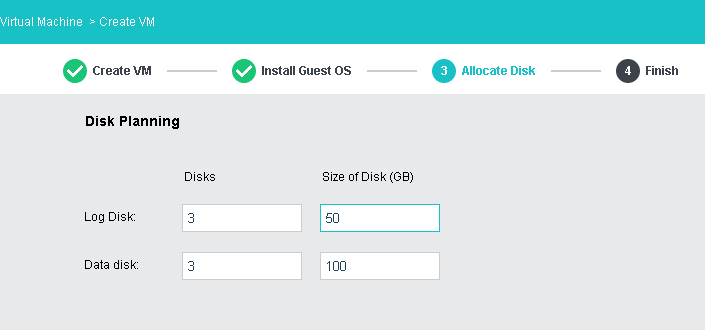
Log Disk: It is used to store Oracle database logs.
Data Disk: It is used to store Oracle database data.
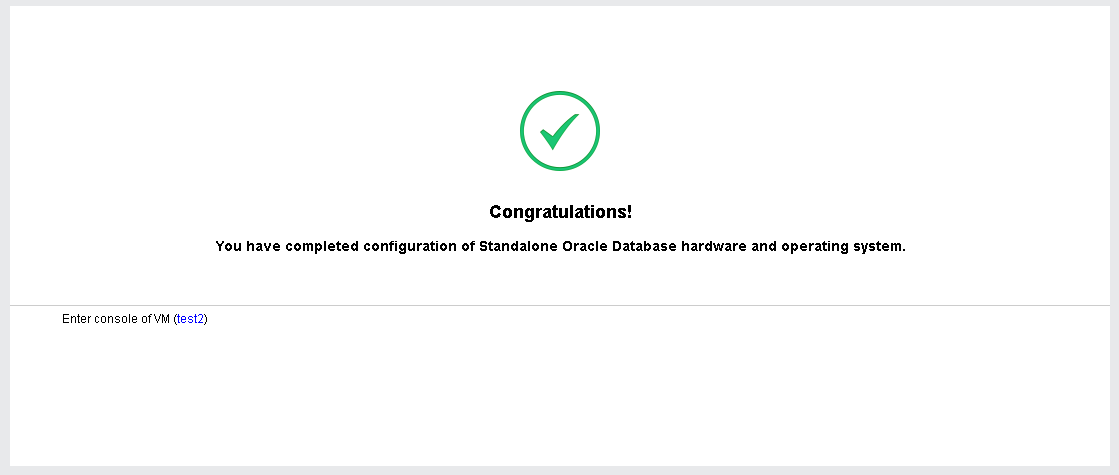
To create Oracle RAC database(cluster), follow the steps described below:
Select a type of disk to store VM data: Shared Disks, External iSCSI Disk, FC Disk. 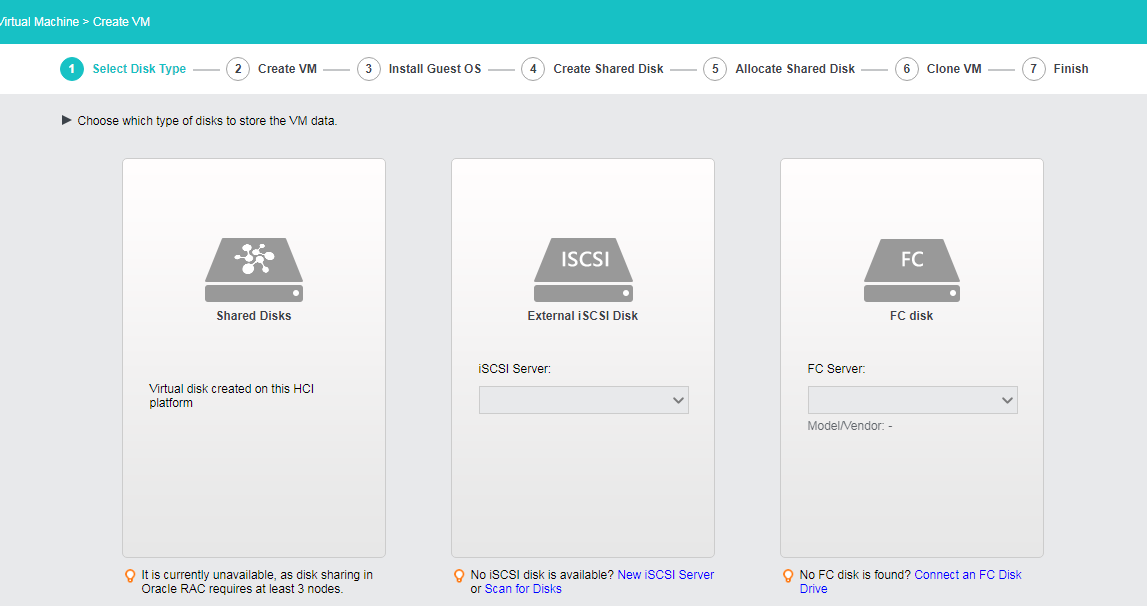
Each node in Oracle RAC needs to be configured a public IP address, a virtual IP address and a private IP address at least, and a cluster has a public IP address. Address allocation and network deployment is shown below: 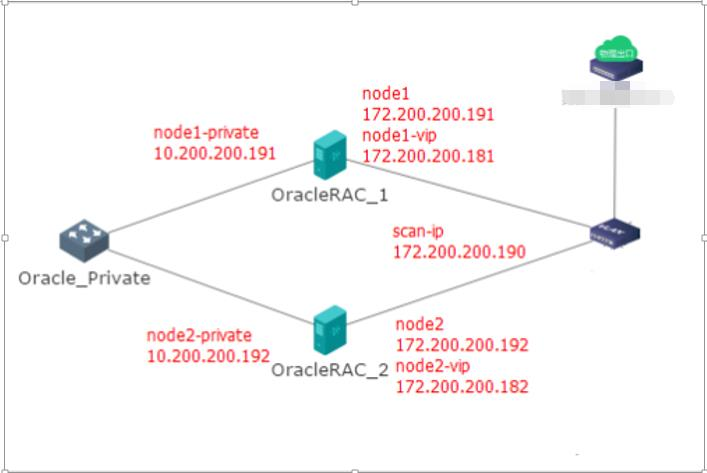
Refer to 2.2.1.2 Creating Virtual Machine section for configure virtual machine. Note that datastore must correspond to the type of disk you have chosen in the previous step.
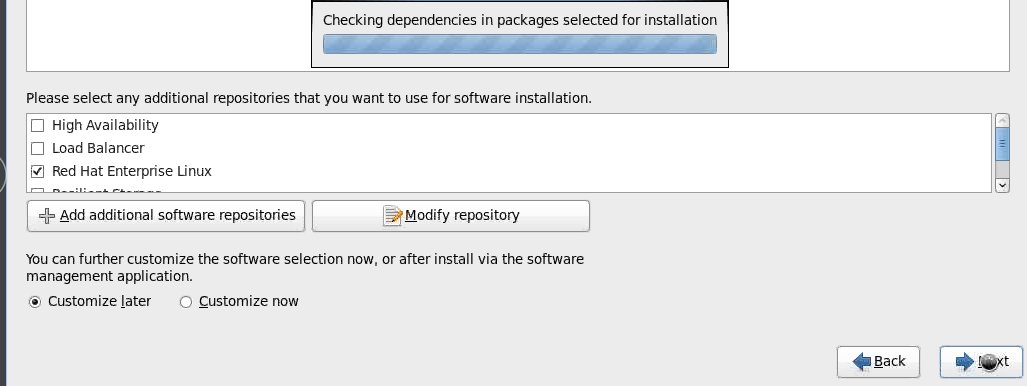
After VM name and guest OS are specified, click Next to install OS. If the image file of a specified guest OS has not been uploaded to Sangfor HCI platform, you may upload it in the same way of uploading an ISO image introduced in the 2.2.1.2 Creating Virtual Machine section.
After guest OS is installed, vmTools must be installed before proceed to next step.
In this step, you need to configure log, quorum and data disks. More specifically, specify Disk Name, Total Number, Size of Each Disk.
Log Disk : It is used to store Oracle database logs.
Data Disk : It is used to store Oracle database data.
Quorum Disk : It is used to provide quorum service.
After shared disks are configured, you may allocate them.
Here, you may specify VM name, description and the number of virtual machines to be created.
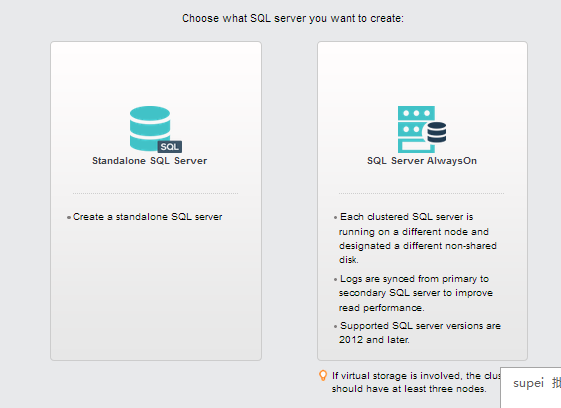
To create SQL server, do as follows:
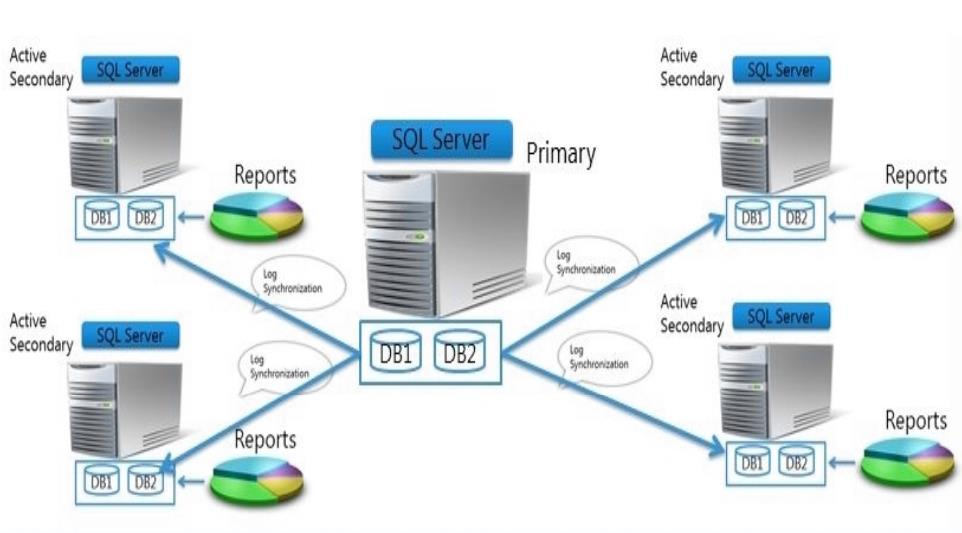
On the two nodes in an AlwaysOn availability group that host two SQL servers, the network adapter name and use should be the same. For example, both the eth0 ports on the two nodes are business interfaces and both the eth1 ports are heartbeat interfaces.
See 2.2.1.2 Creating Virtual Machine section for how to configure virtual machine. 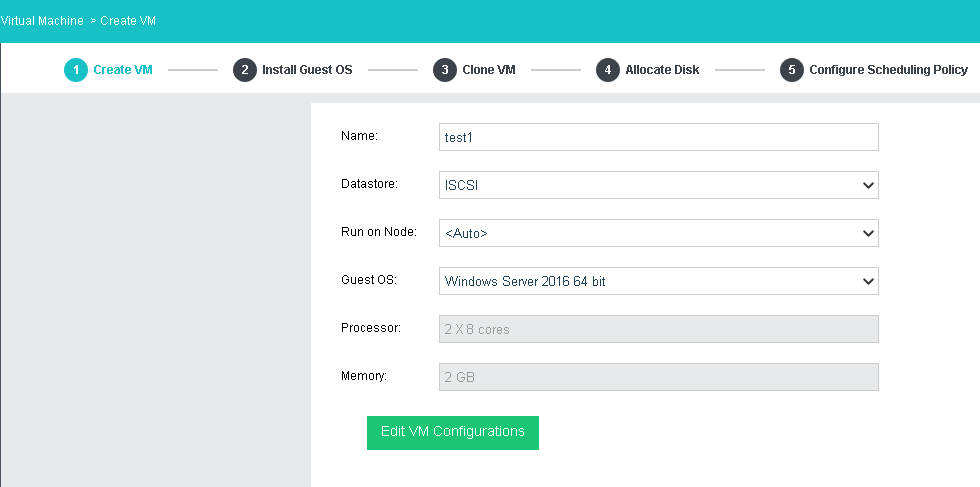
After VM name and guest OS are specified, click Next to install OS. If the image file of a specified guest OS has not been uploaded to Sangfor HCI platform, you may upload it in the same way of uploading an ISO image introduced in the Creating Virtual Machine section.
After guest OS is installed, vmTools must be installed before proceed to next step. 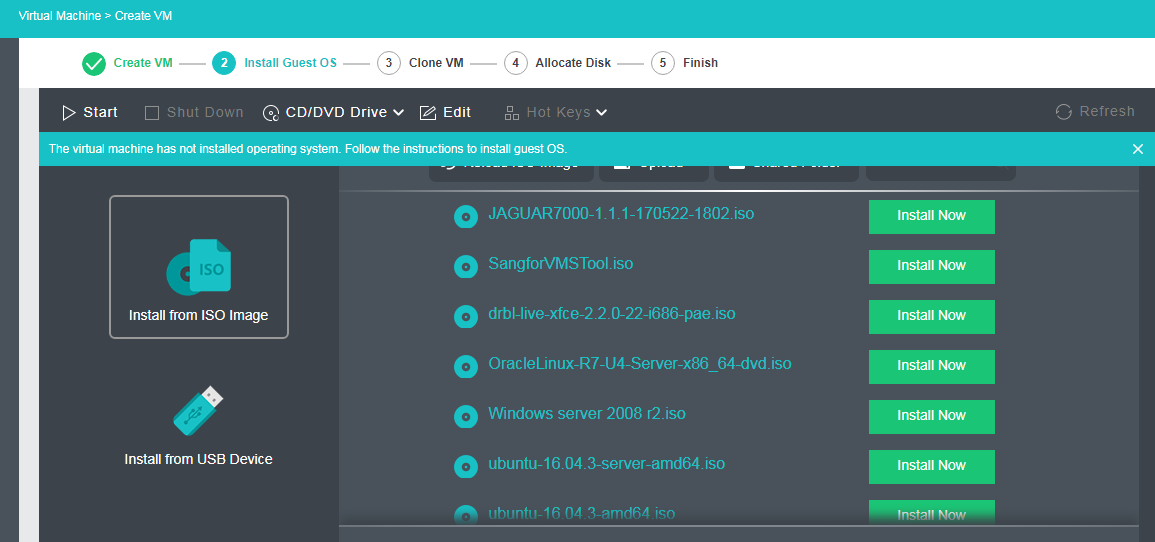
-After guest OS is installed, firewall must be disabled.
-As for database, SQL Server 2012 Enterprise SP1 is recommended (SQL Server 2012 and later versions are also supported). As for operating system, Windows Server 2012 R2 Datacenter is recommended (Windows Server 2008 R2 and later versions are also supported)
After one SQL server AlwaysOn virtual machine is created, you may create other virtual machines by cloning the previous one so as to enhance deployment efficiency and to ensure that the configurations of all SQL server AlwaysOn virtual machines are exactly the same.
As for number of cloned SQL Server AlwaysOn nodes, enter the number directly. For example, to create two SQL server AlwaysOn virtual machines, enter 2. 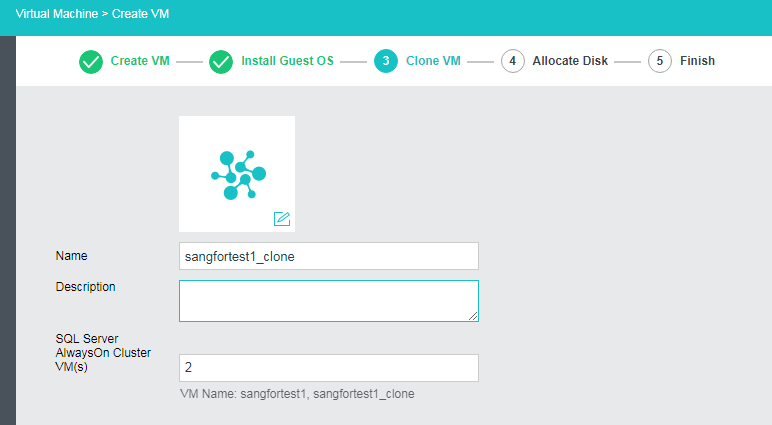
Allocate disks by specifying number of log disks, data disks and database root disks and size of.each disk respectively.
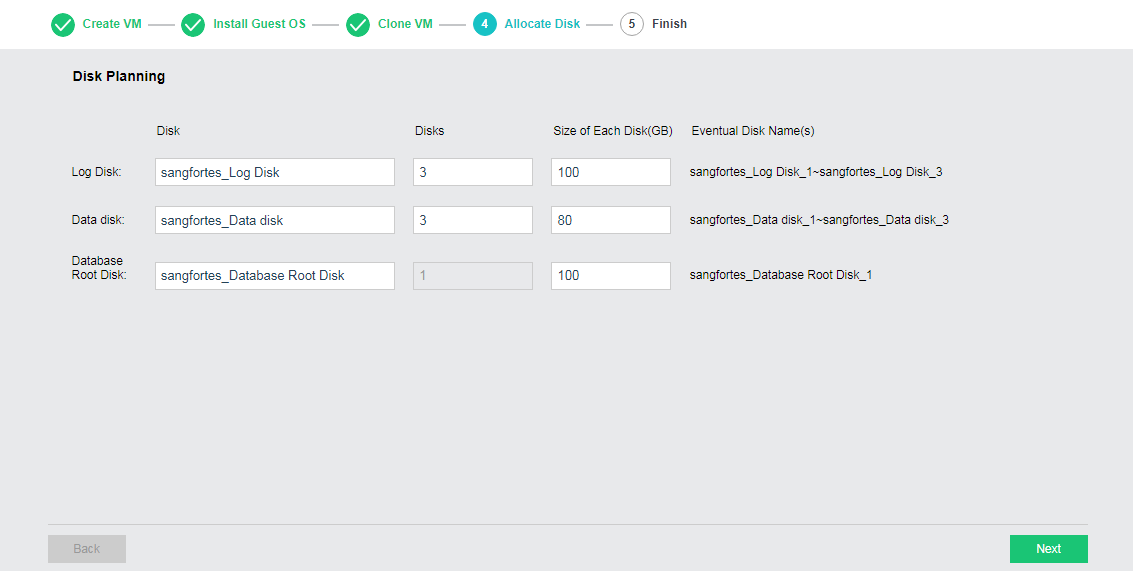
Log Disk: It is used to store log files of SQL server.
Data Disk: It is used to store data of SQL server.
Quorum Disk: It is used to store logs and data files of system database tempdb.
After configuration, you may download deployment guide by clicking Download Deployment Guide. 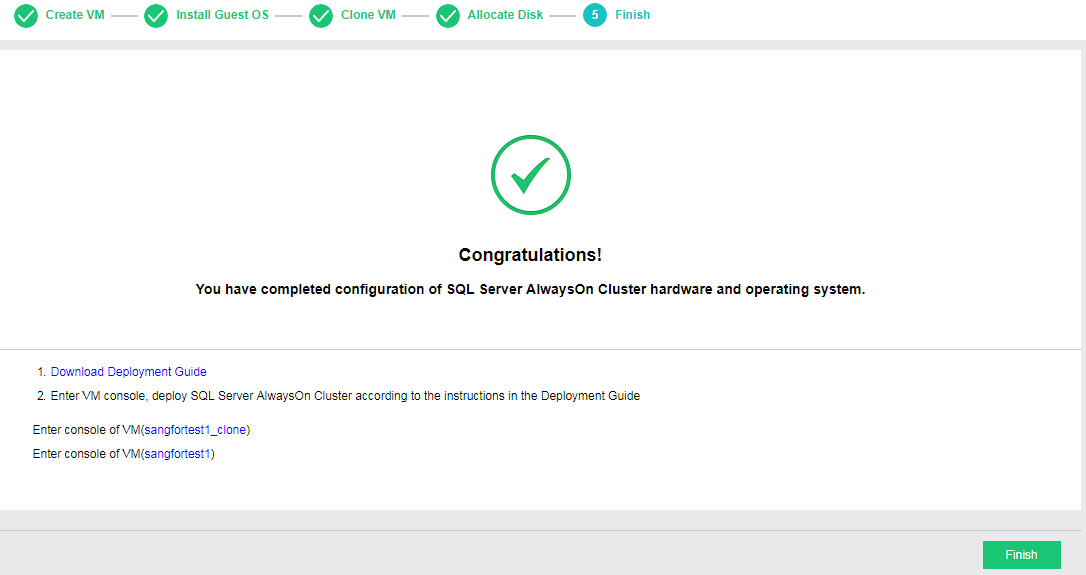


 {{ $t('index.defaultHeader.chromeBrowserTip') }}