


{{ secondMenu.name }}






Administrator can perform the following operations against multiple virtual machines: Power On, Suspend, Shut Down, Power Off, Reset, Move, Edit, Add New Tag, Remove Tag, Take Snapshot, Delete, Migrate, Migrate Across Cluesters, and Migrate to Vmware vCenter. 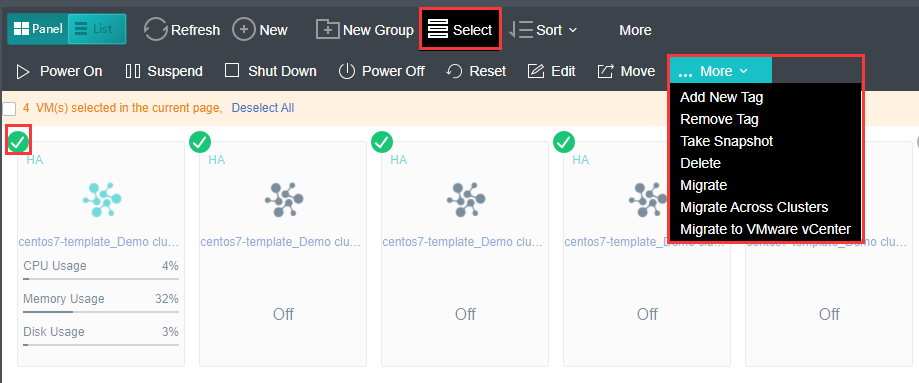
Power On : To power on virtual machines(s), select one or more than one virtual machines and then and click on Power On.
Suspend : To suspend virtual machines(s), select one or more than one virtual machines and then and click on Suspend.
Shut Down : To shut down virtual machine(s), select one or more virtual machines and then click on Shut Down.
Power Off : To power off virtual machine(s), select one or more virtual machines and then click on Power Off.
Reset : To restart virtual machine(s), select one or more virtual machines and then click on Reset.
Move : To move virtual machine(s) to a specific group, select one or more virtual machines and then click on Move. 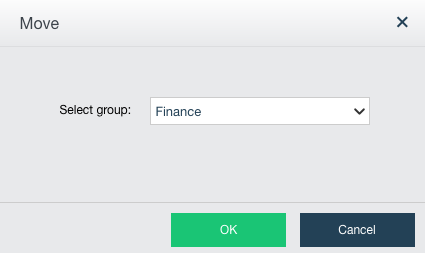
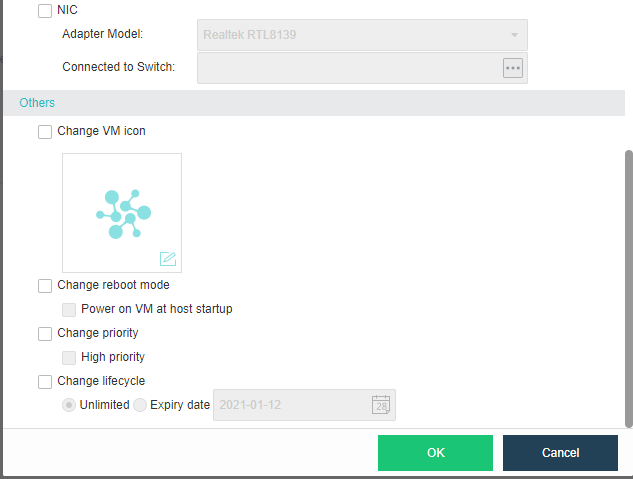
Edit : To edit virtual machines(s), select one or more than one virtual machines and then click on Edit. 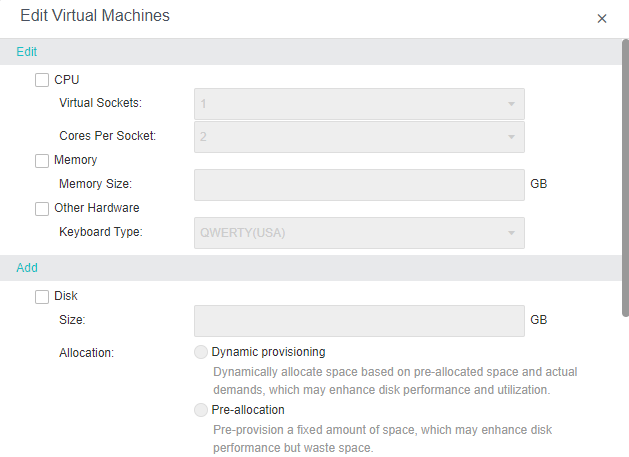
Delete : To delete virtual machines(s), select one or more than one virtual machines and then click on Delete. Virtual machines will go to Recycle Bin after being deleted and can be recovered within 30 days. To delete virtual machine(s) permanently, select the option Delete the data completely and never restore them. Thus, configuration files and disk files of virtual machines will be deleted completely and cannot be restored any more. 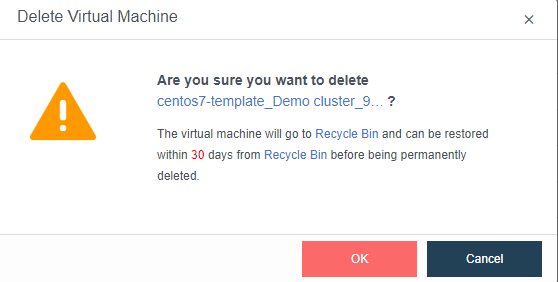
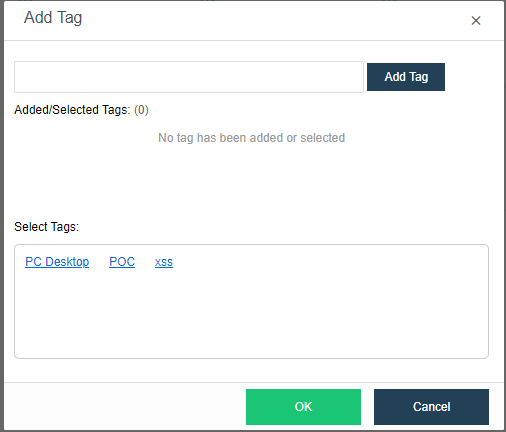
Add Tag : To add new tags to virtual machine(s), choose one or more than one virtual machines and select Add Tag. You can choose the existing tags or add new tags for those virtual machines. To remove tags of virtual machine(s), choose one or more than one virtual machines and select Remove Tag 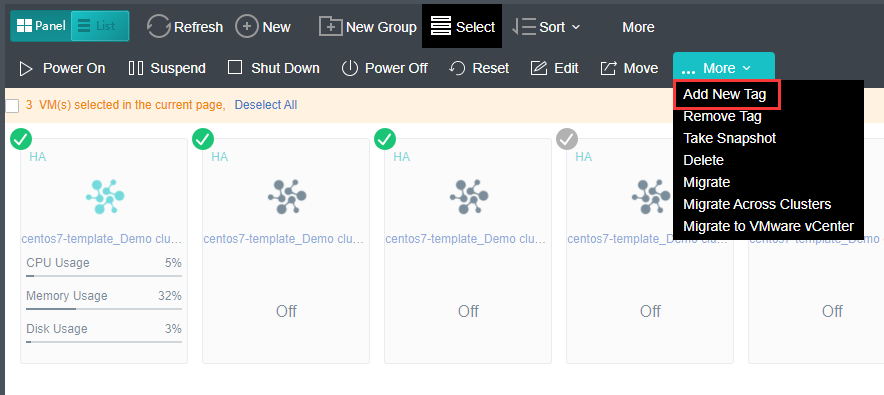
Take Snapshot : To take a snapshot according to the VM, choose one or more than one virtual machines and select Take Snapshot. 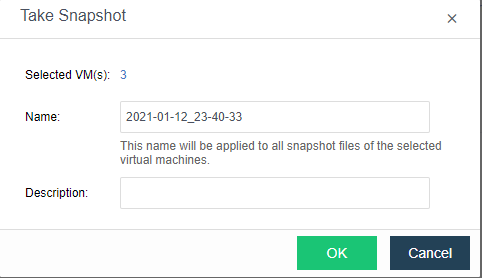
Migrate : To migrate the VM, choose one or more than one virtual machinese and select Migrate. 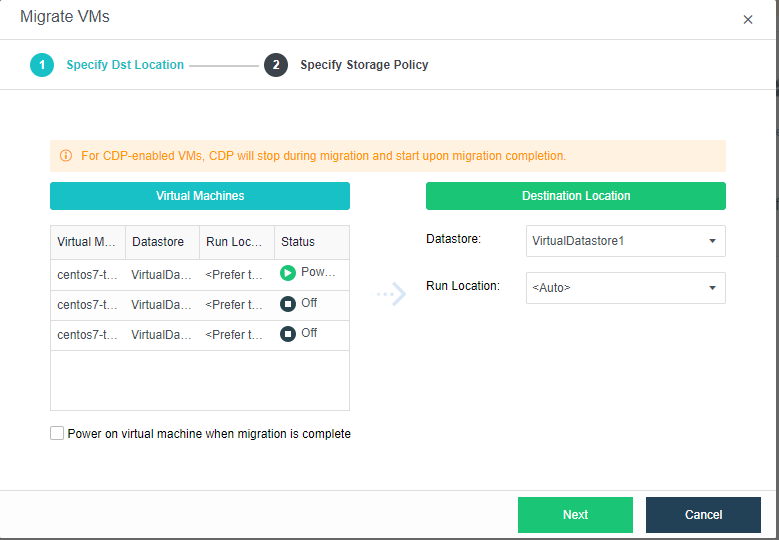
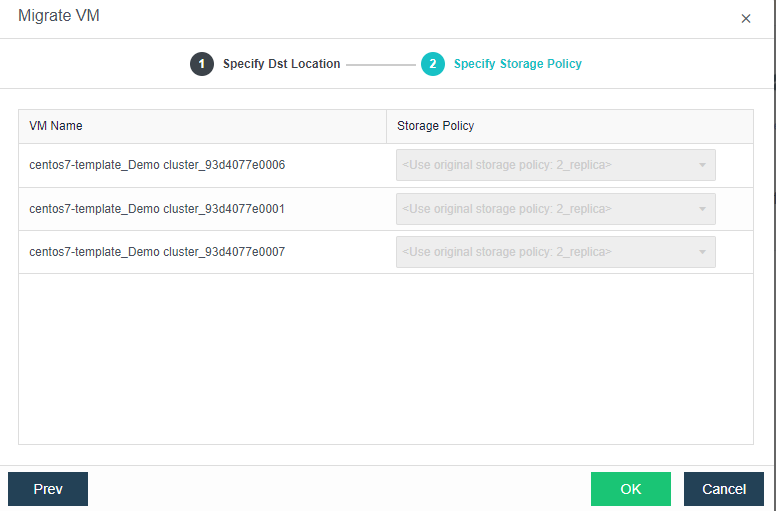
Migrate Across Cluster : To migrate the VM across cluster , choose one or more than one virtual machinese and select Migrate Across Cluster. 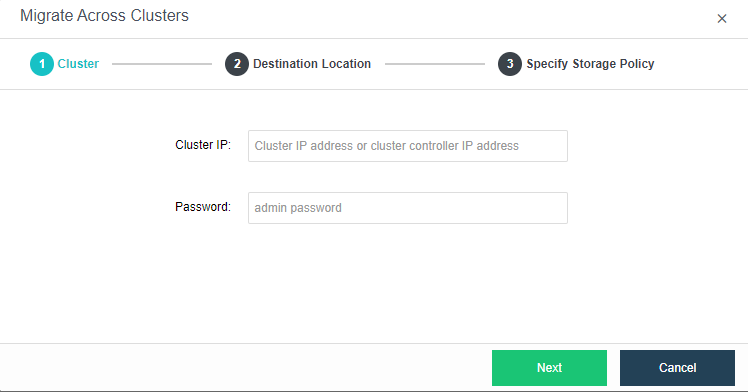
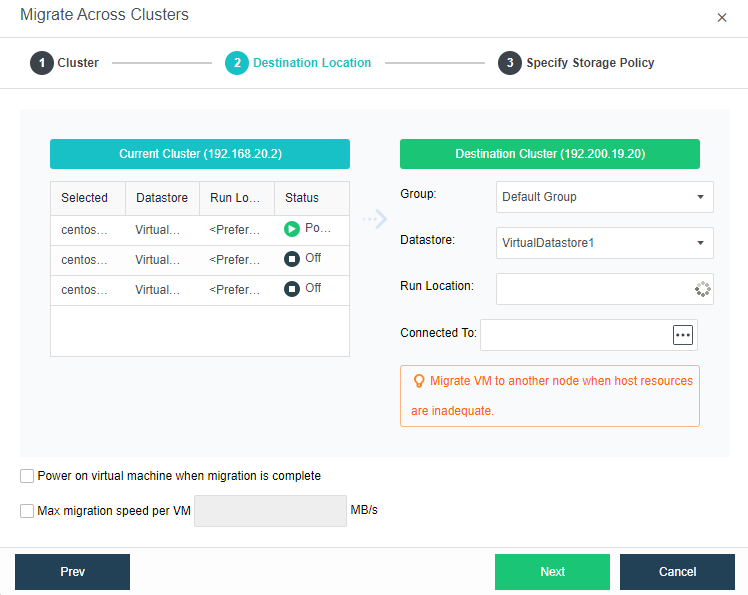
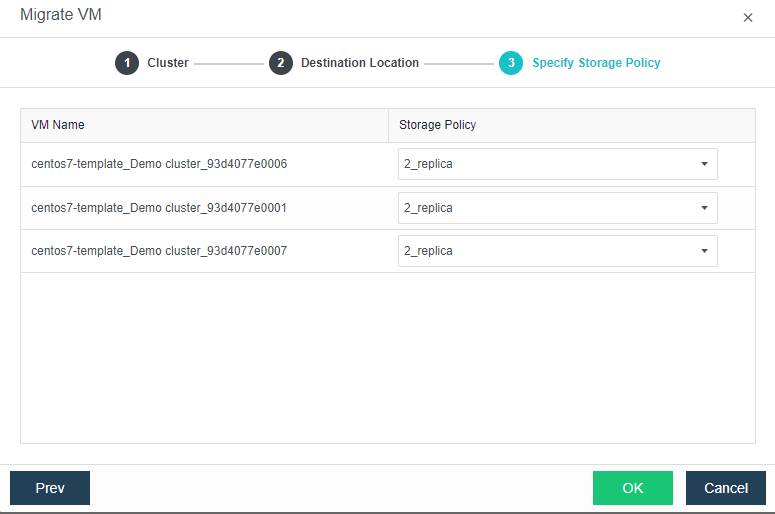
Migrate to VMware VCenter : To migrate the VM to VMware VCenter, choose one or more than one virtual machinese and select Migrate to Vmware VCenter. 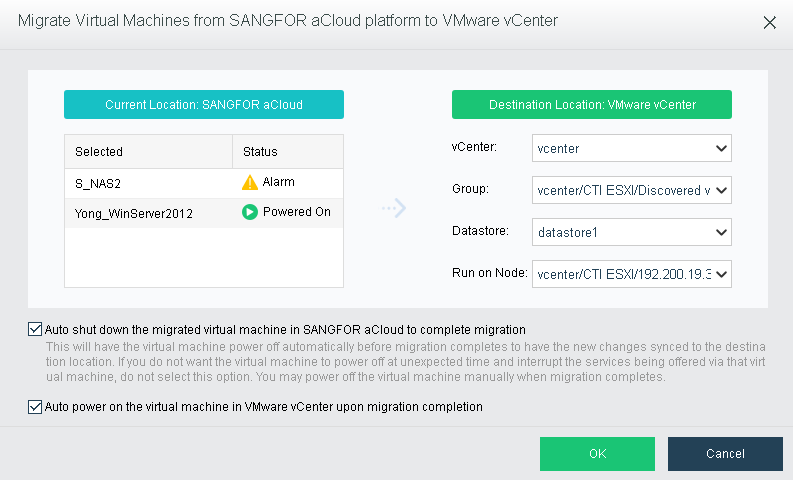
If a virtual machine is chosen, the color of the icon at the upper left corner of the corresponding card will turn to green from gray. 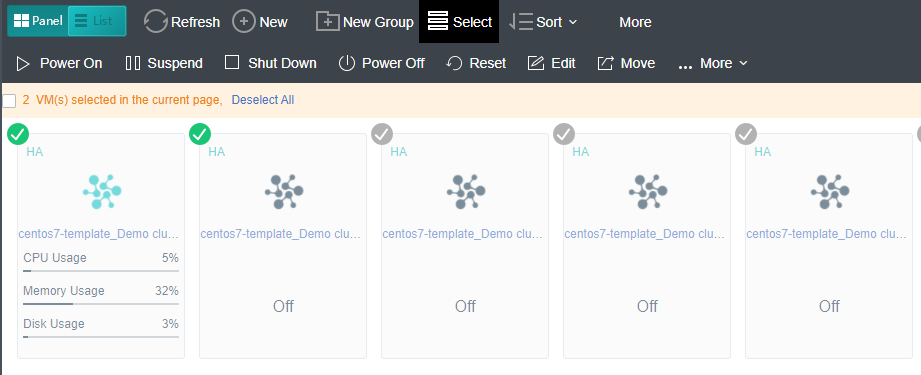
If a virtual machine is being powered on, suspended or shut down, there will be the corresponding information displayed on the panel. For example, Suspending, as shown in the following figure, shows that the virtual machine is being suspended. 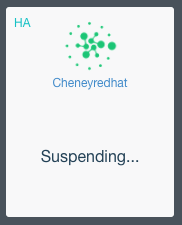
To exit from selecting the virtual machines, click on the Exit button on the upper right corner. 


 {{ $t('index.defaultHeader.chromeBrowserTip') }}