


{{ secondMenu.name }}






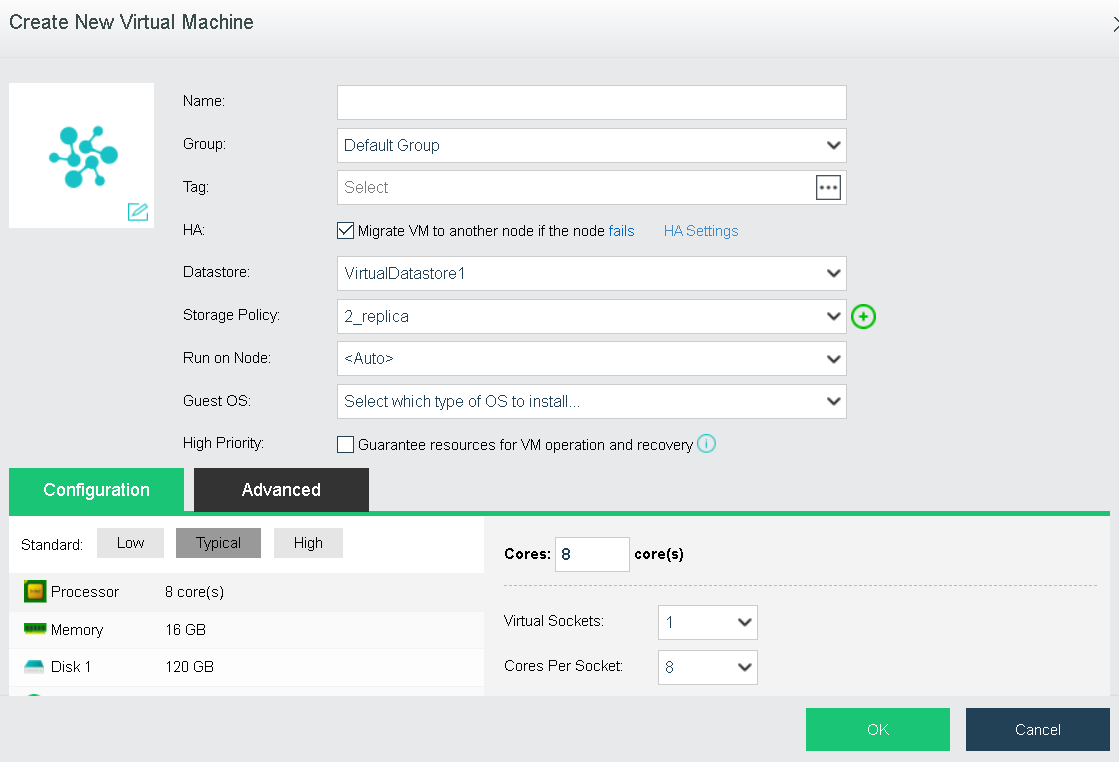
Information of the virtual machine that has been created will be displayed as follows: 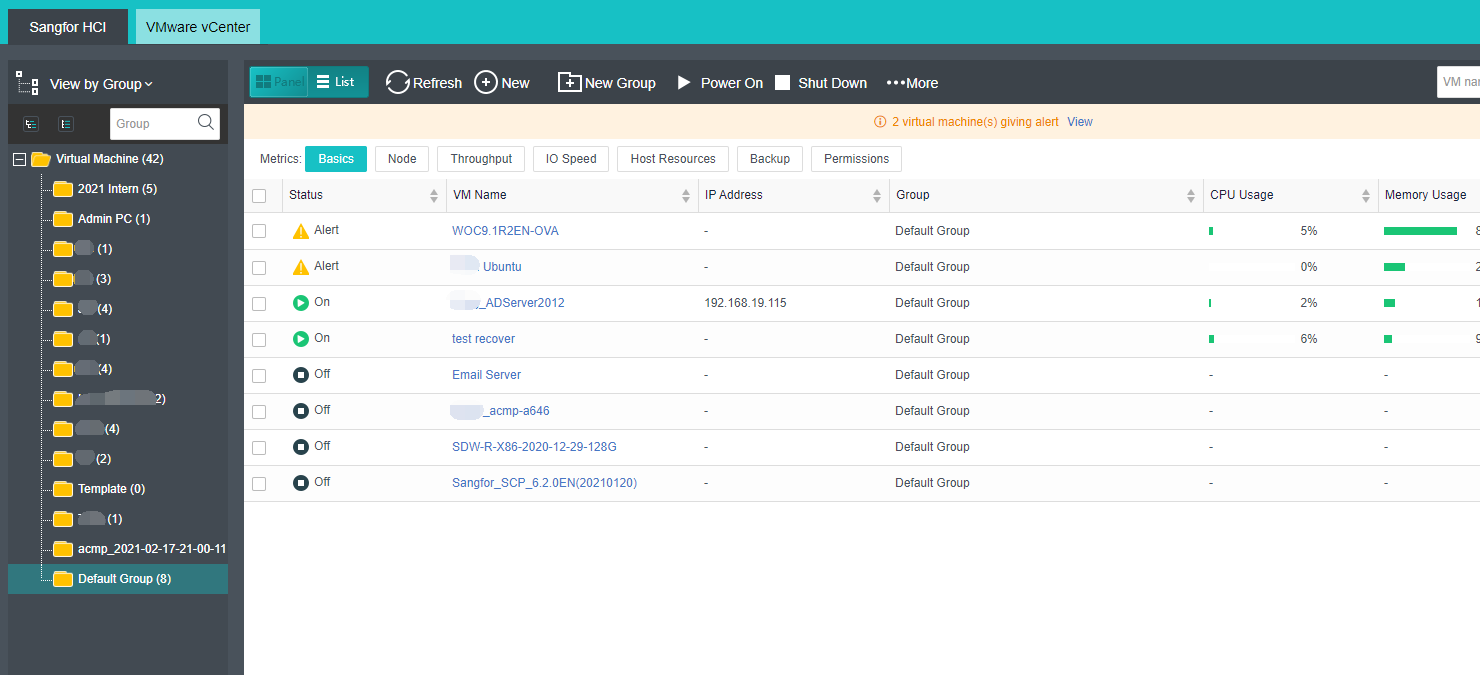
• Upload ISO Image
Method 1: Go to Compute > New > Create New Virtual Machine, click Create New Virtual Machine, and click CD/DVD 1 > Upload from this Local Disk, specify Image File and Datastore fields, and click Upload from this Local PC to start this operation. 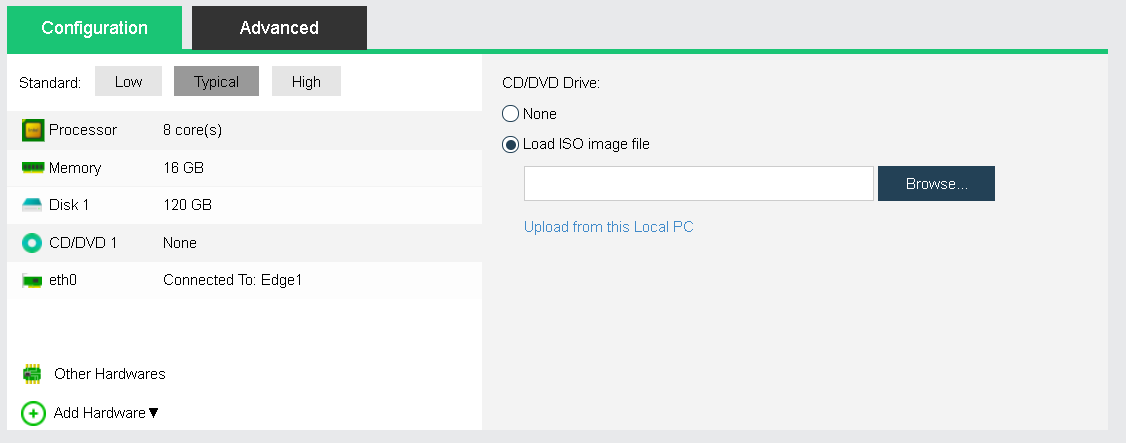
Method 2: Go to Nodes > Storage > Storage used to run VM(it may be virtual datastore, local storage, iSCSI storage or FC storage) > More > Manage, Click Upload to upload ISO image files to datastore.
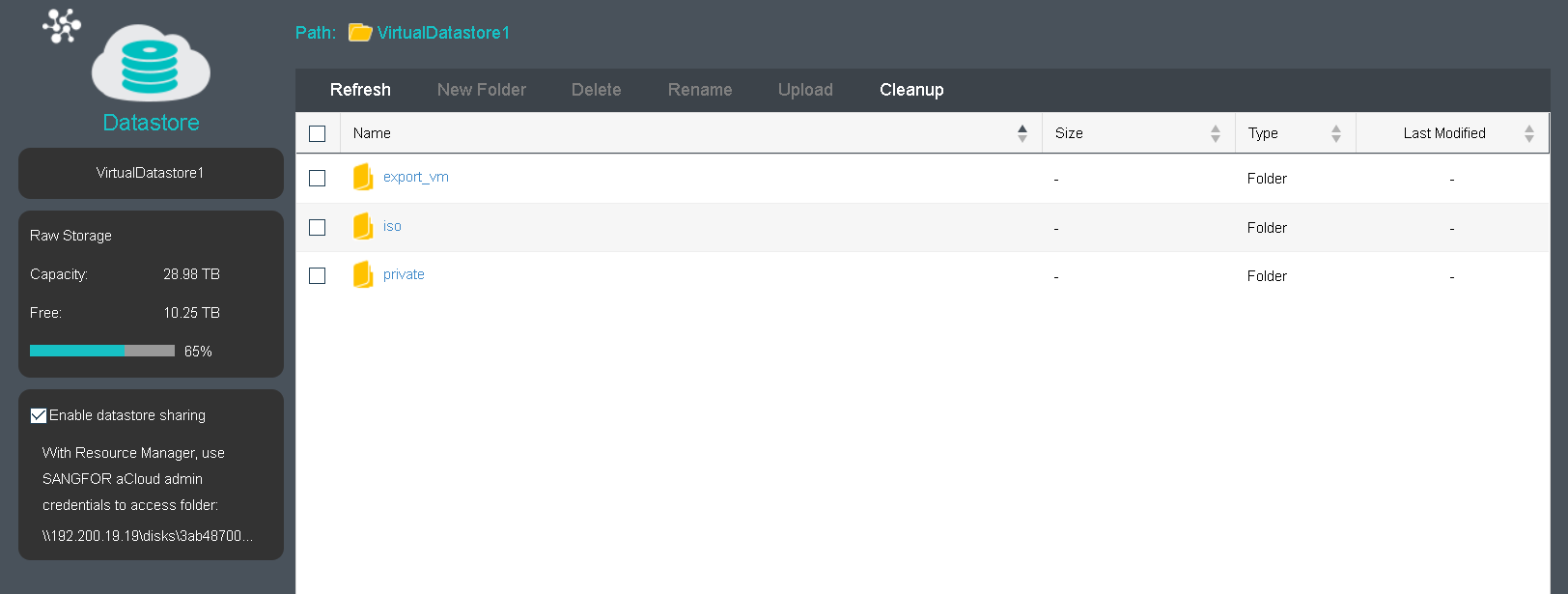
Method 3: Go to Compute > New > Create New Virtual Machine, click CD/DVD 1, and click Browse to enter the Select ISO Image page, and then click Upload ISO Image to enter the Upload Image file from this local disk to datastore page, click icon and enter \\IP address of the host in the address bar on the page that pops up and then you may be required to provide the admin account of that host. After entering the correct username and password, you get access to the files on that host, find the ISO image file and upload it to a specific datastore. Click CD/DVD 1 to enter the ISO image file that has been uploaded in the Load ISO image file field.
Then go to edit VM configurations, click CD/DVD 1 to enter the ISO image file that has been uploaded in the Load ISO image file field, save the changes and go back to the Compute.
Click Power On to power on the virtual machine, as shown below: 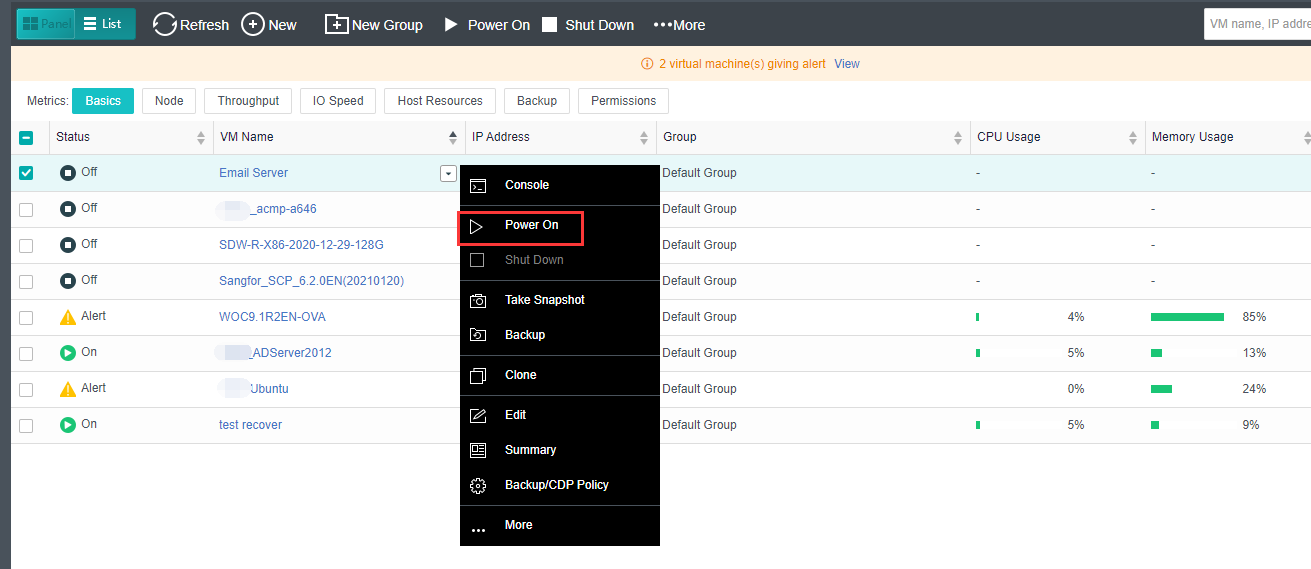
After powering on the virtual machine, click Console to enter VM console and install operating system and applications.


 {{ $t('index.defaultHeader.chromeBrowserTip') }}