Sangfor HCI and aSV provide a unified infrastructure combining compute, storage, networking, and built-in security to simplify deployment, operations, and services.
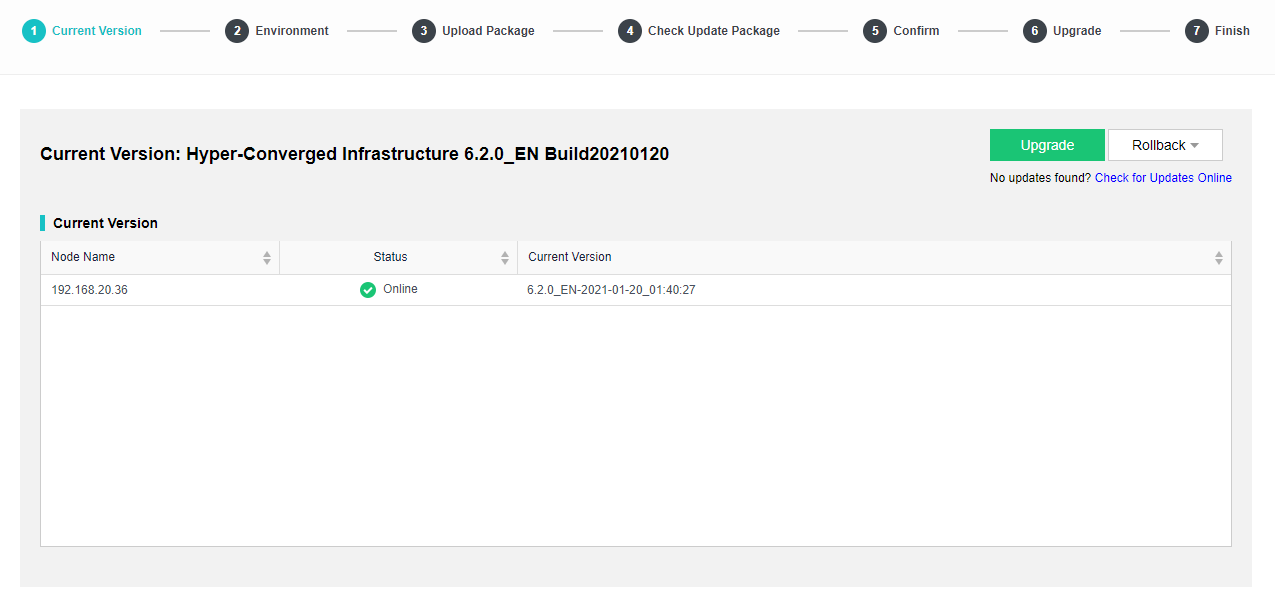
In System > Upgrade, you can see the upgrade page as below:
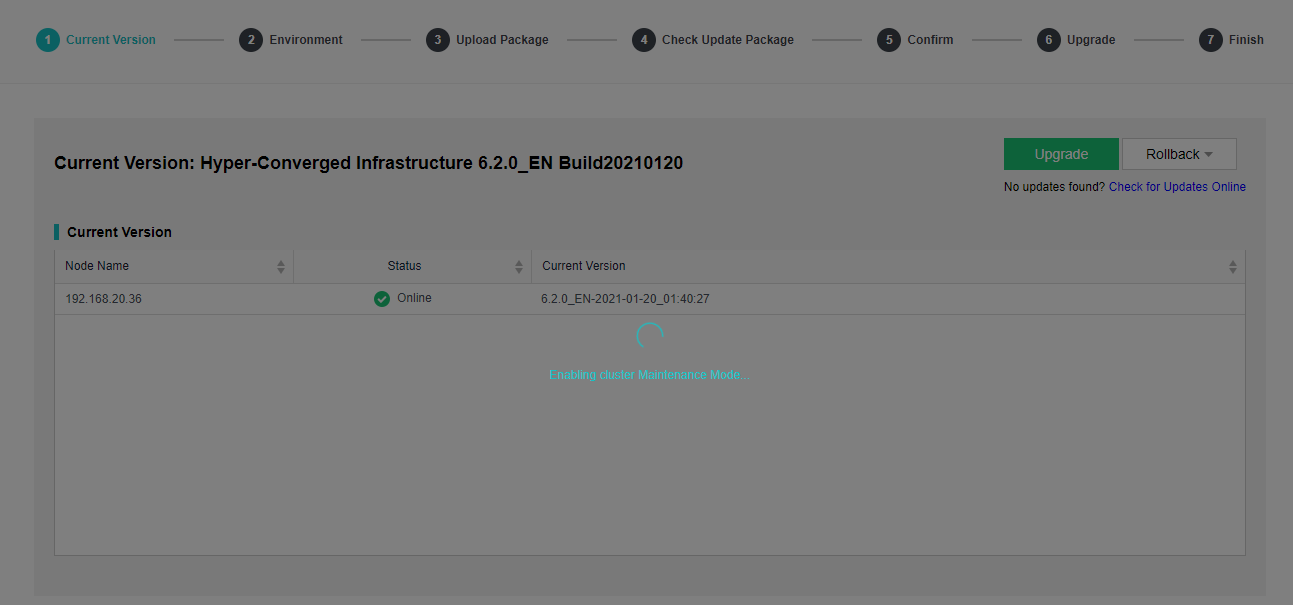
Click Upgrade and the device will enable the maintenance mode automatically as below:
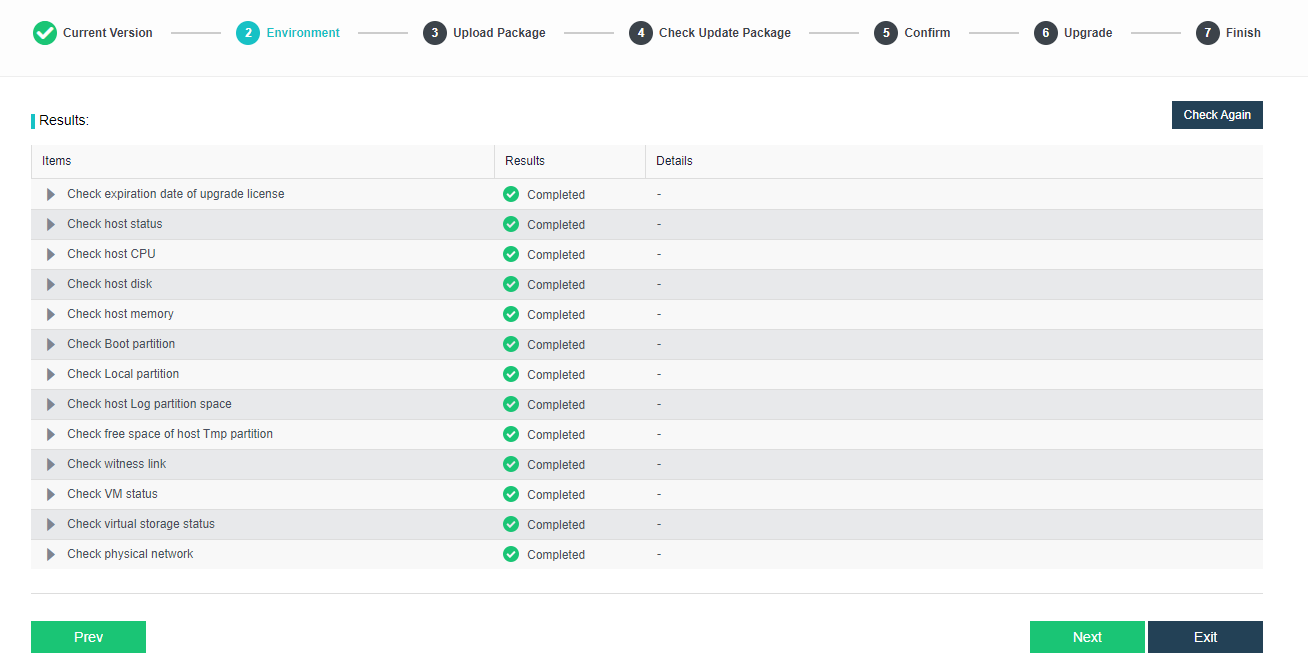
Then, the device will perform checking on the hardware status. If the devive pass all the check, it will display message as below:
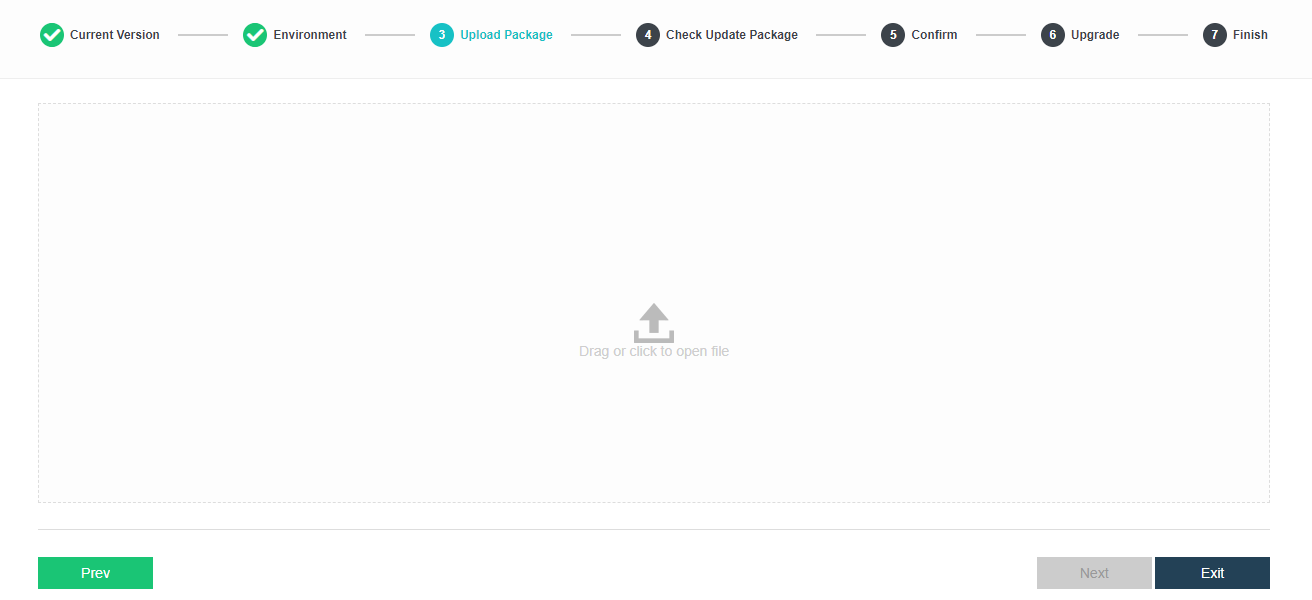
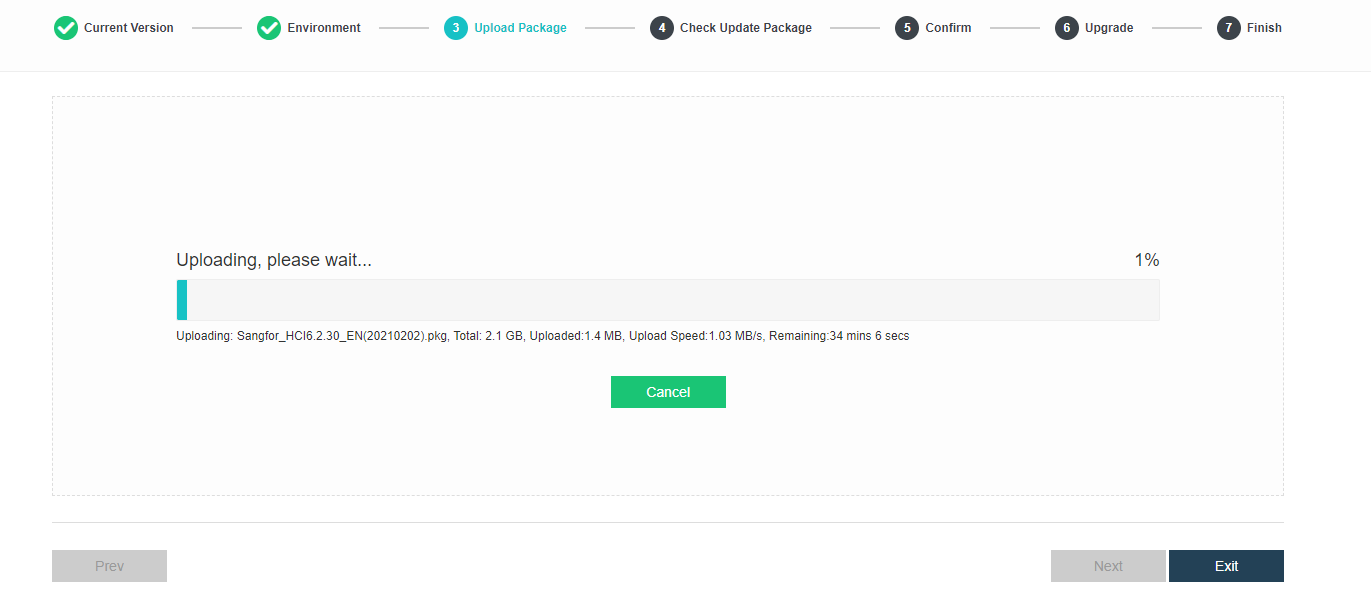
Click Next and enter into the Upload Package page as below:
In this step, we can either click on the Drag or click open file to upload the upgrade package, or directly drag and drop the file into the provided space:
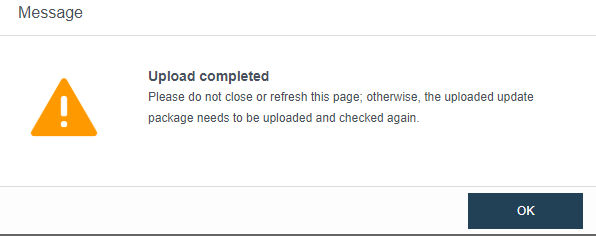
After upload completed, click OK and proceed to next step
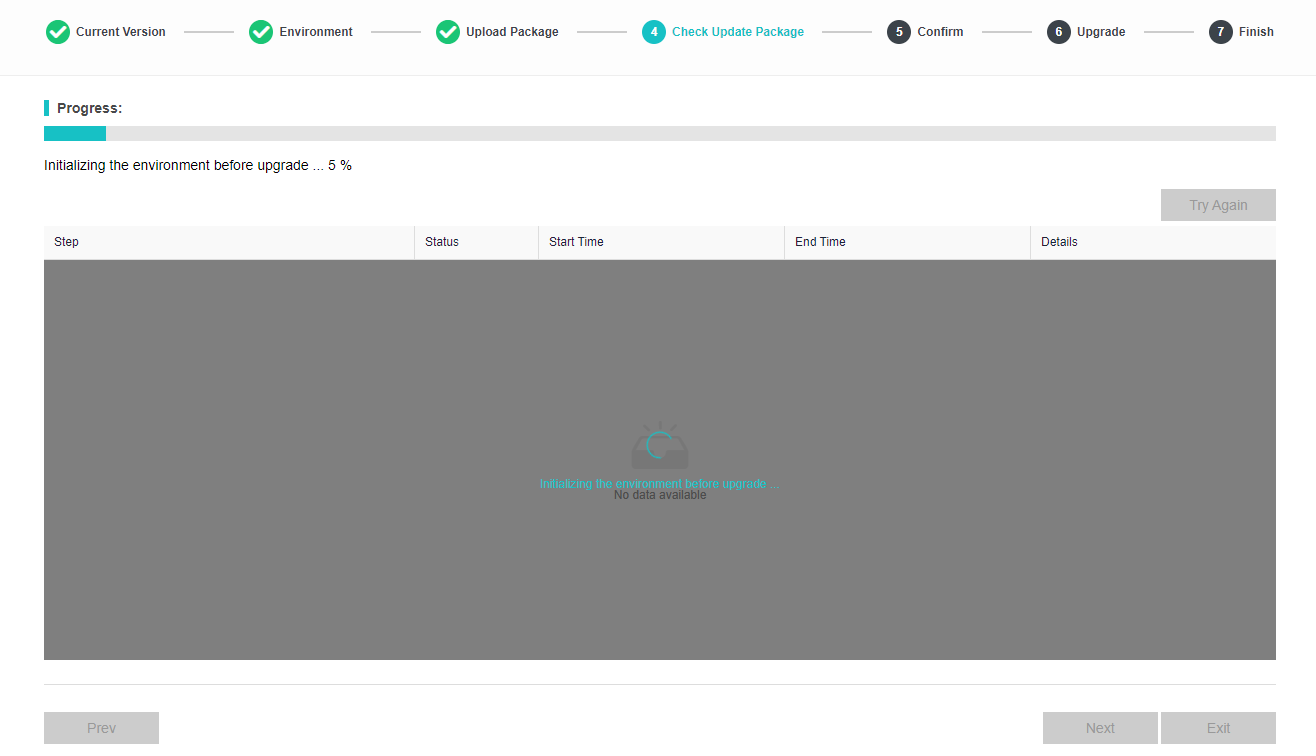
Click Next and then HCI will do initializing checking on the package.
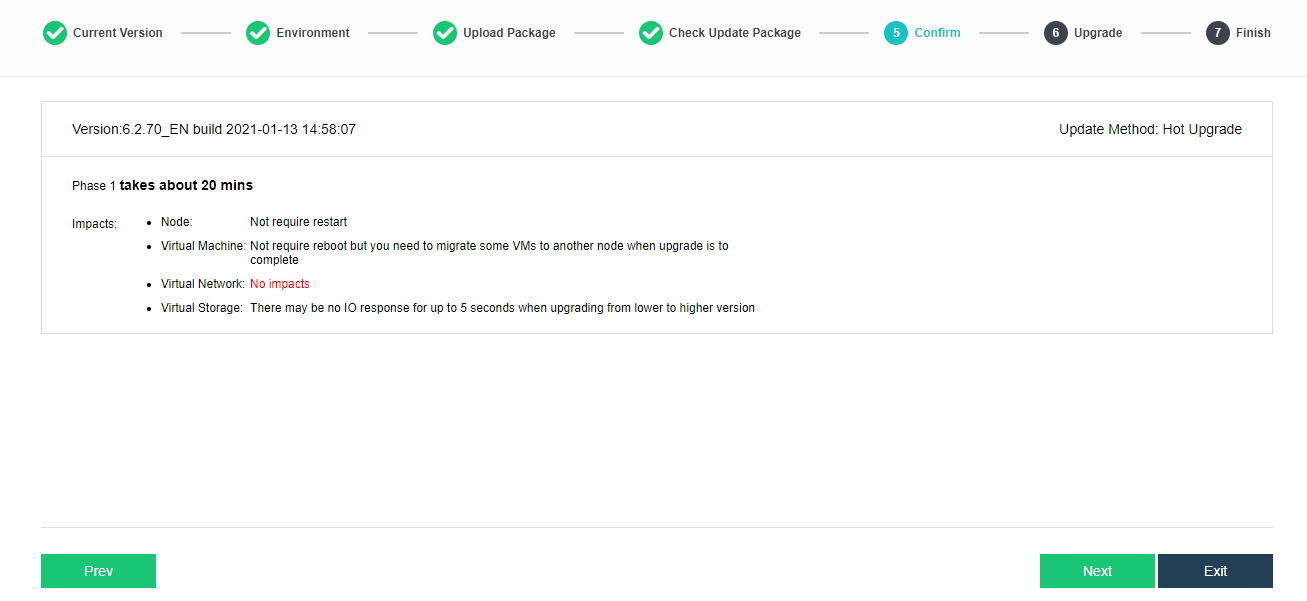
After the package done checking, the upgrade impact will be show.
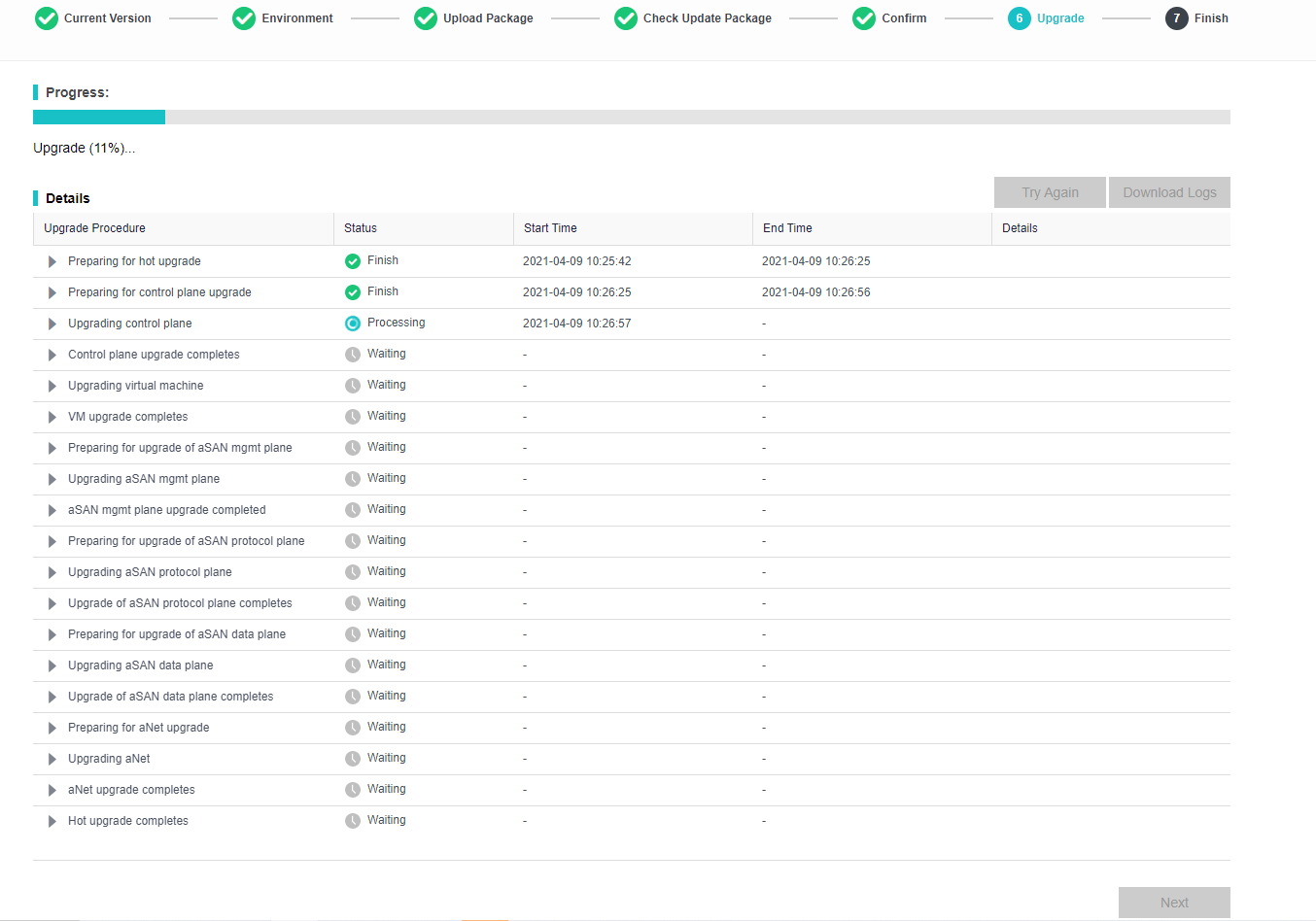
It will begin the upgrade and the page will display as below:
It will take some times for the device to finish upgrade:
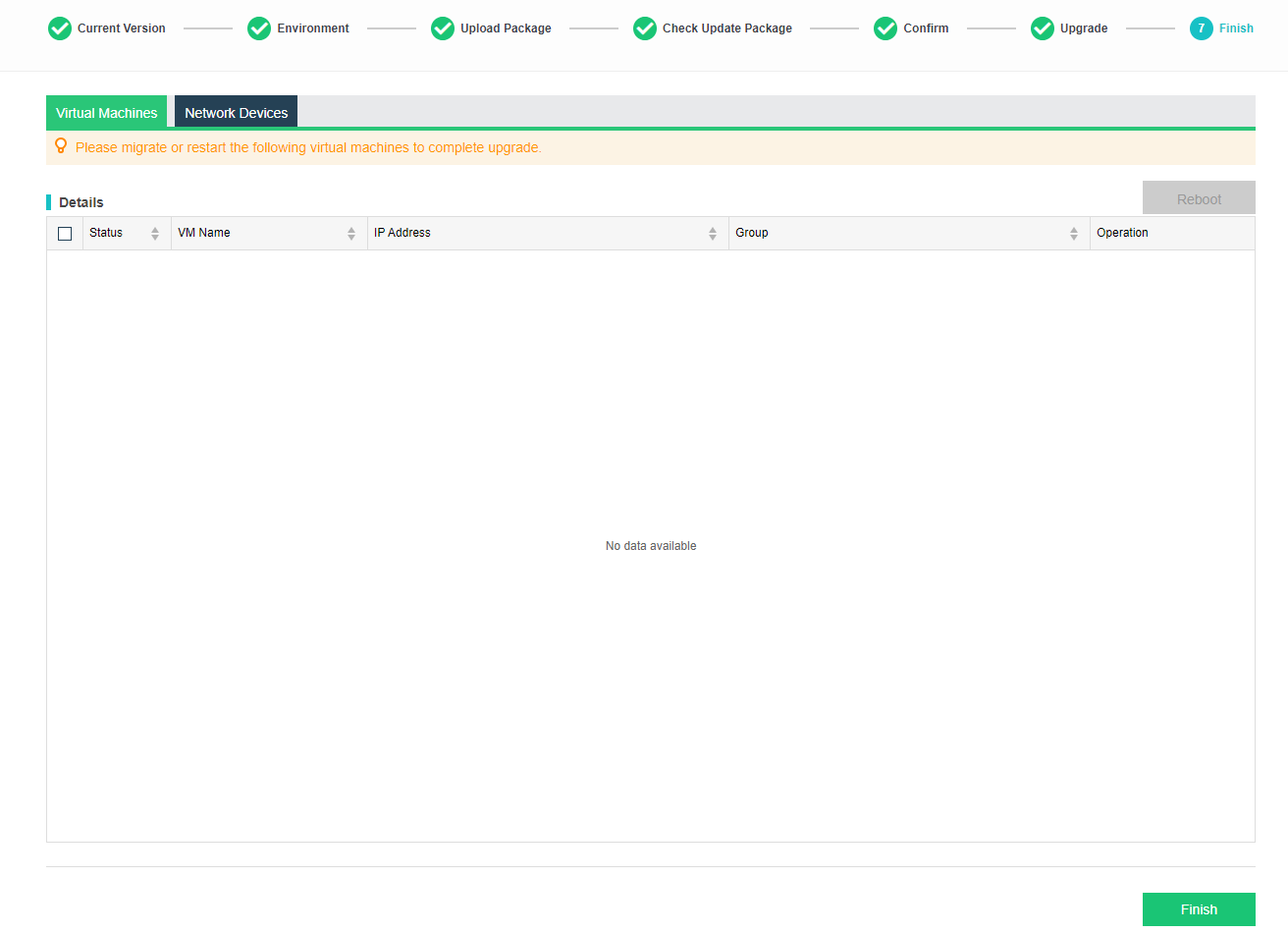
After upgrade completed, click Next.
Click Finish to quit from maintenance mode and upgrade.











 {{ $t('index.defaultHeader.chromeBrowserTip') }}