


{{ secondMenu.name }}






The Nodes page is shown below: 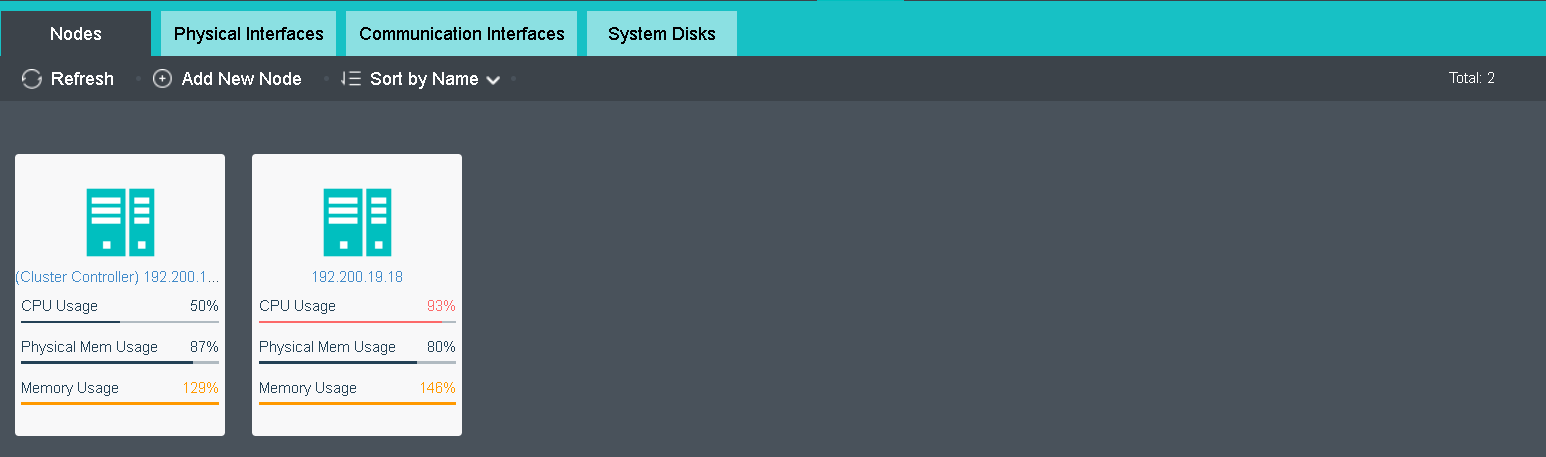
On the upper-right corner of the Nodes page, there is the total number of nodes.
The color of node panel indicates node status. Grey indicates the node is powered off, while blue indicates the node is powered on and red indicates the node is giving alarm. Additionally, there are more information on the node panel, such as CPU usage, memory usage and IO usage, etc. 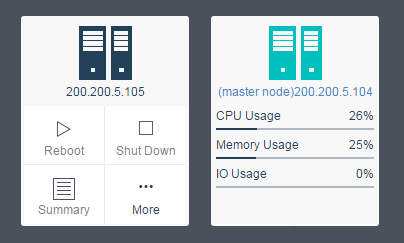
Move your cursor on the node panel and you will see the following buttons: Summary and More, as shown below: 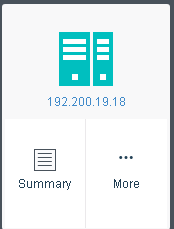
To enter node summary page, you may click on node name or Nodes > Summary 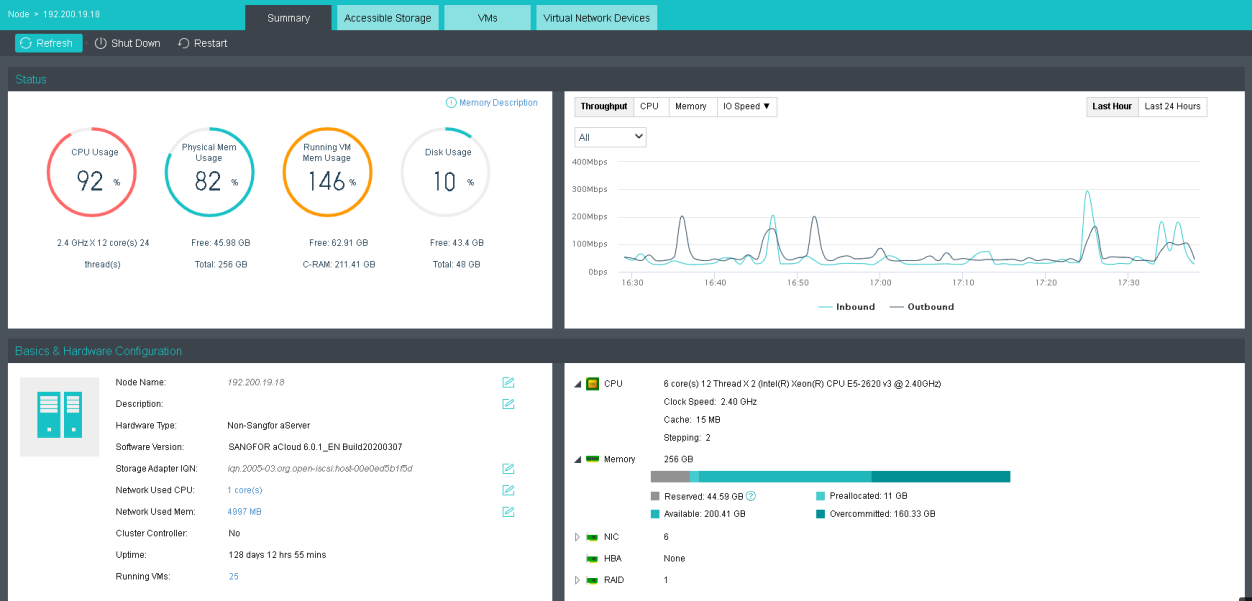
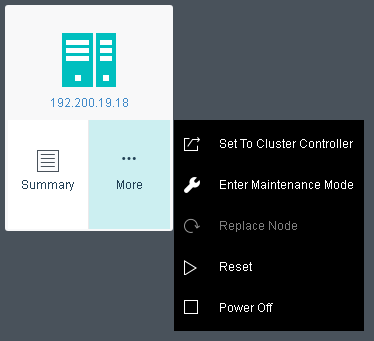
There are few more options under More which are:
a. Set To Cluster Controller: Set the selected node as the cluster controller node. This option is only available for non-controller node. 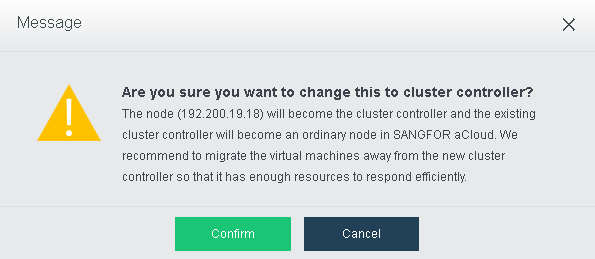
b. Enter Maintenance Mode: Enable to allow the selected node to enter the
maintenance node for hardware maintenance such as memory replacement. 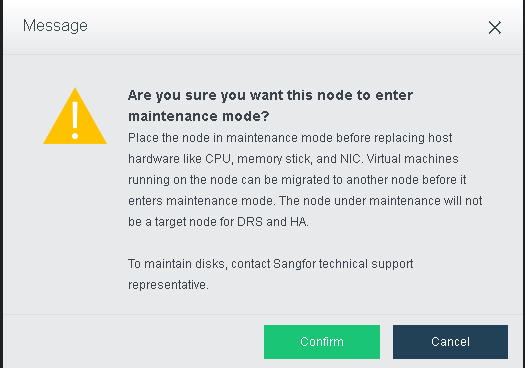
c. Replace Node: Allow to replace node when the node facing failure. Only available when the nodes is offline.
d. Reset: Reboot the selectd node. 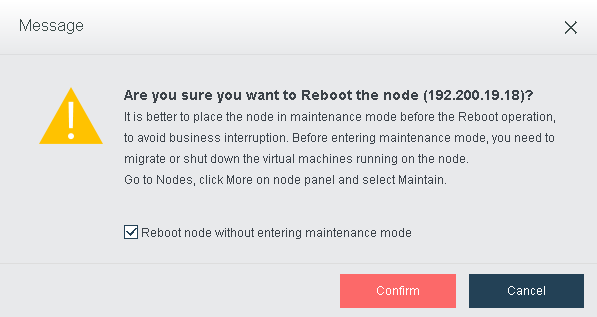
e. Power off: Power off the node.

A clustered node can be removed from cluster by clicking Delete if its disk is
not added to virtual storage.


 {{ $t('index.defaultHeader.chromeBrowserTip') }}