


{{ secondMenu.name }}






In Storage > Virtual Storage > Physical Disks, such information as disk name, status, virtual datastore, disk type, disk usage, read and write speed, IO reads and writes, IO latency are displayed, as shown below:
Panel style show as below : 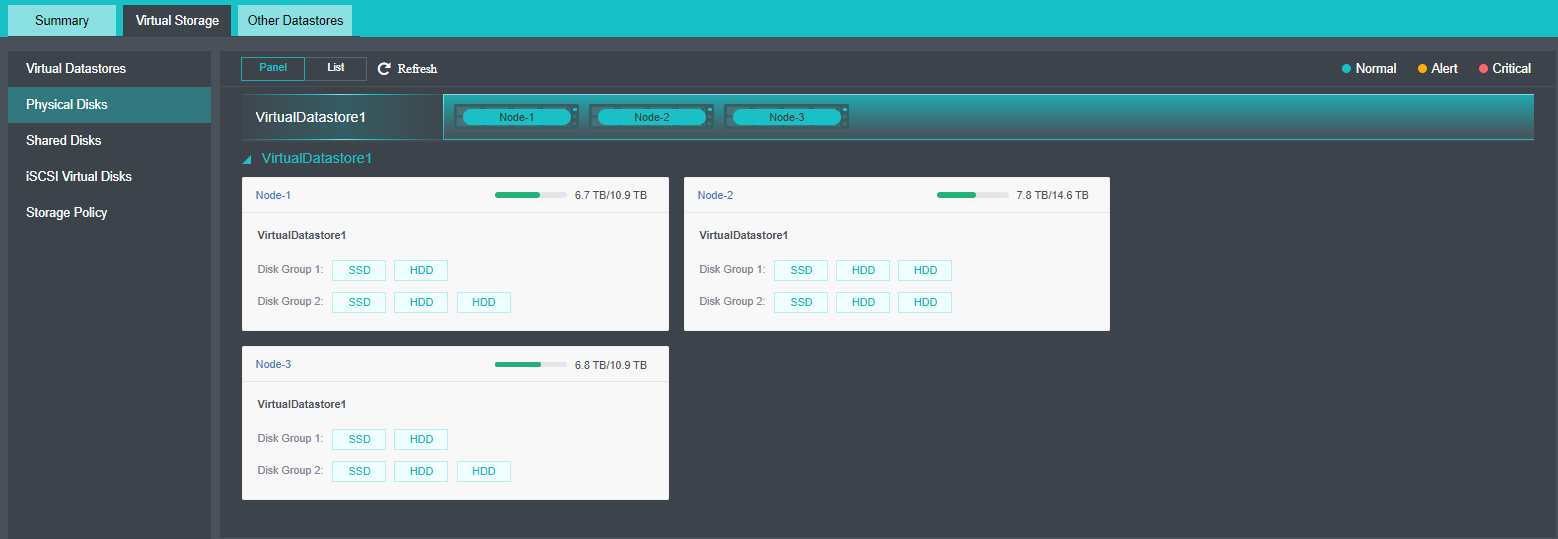
List style show as below : 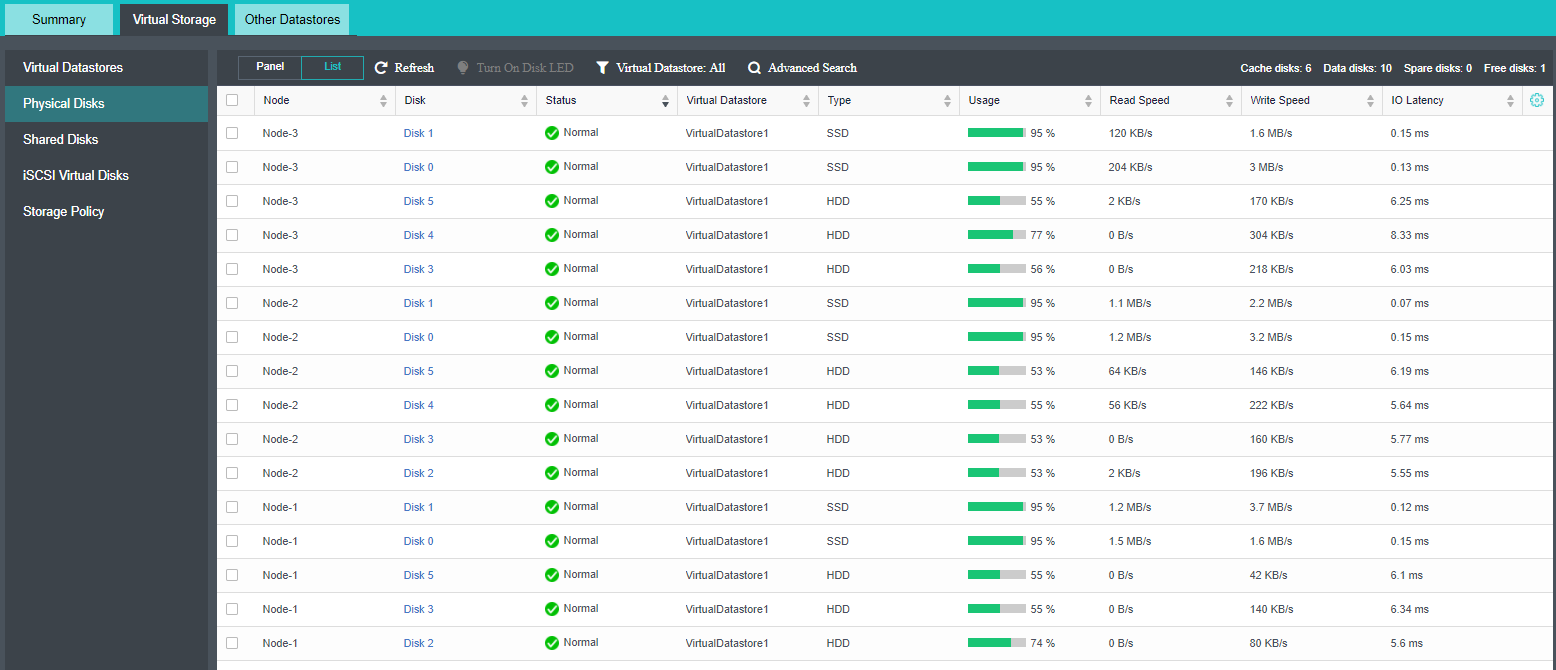
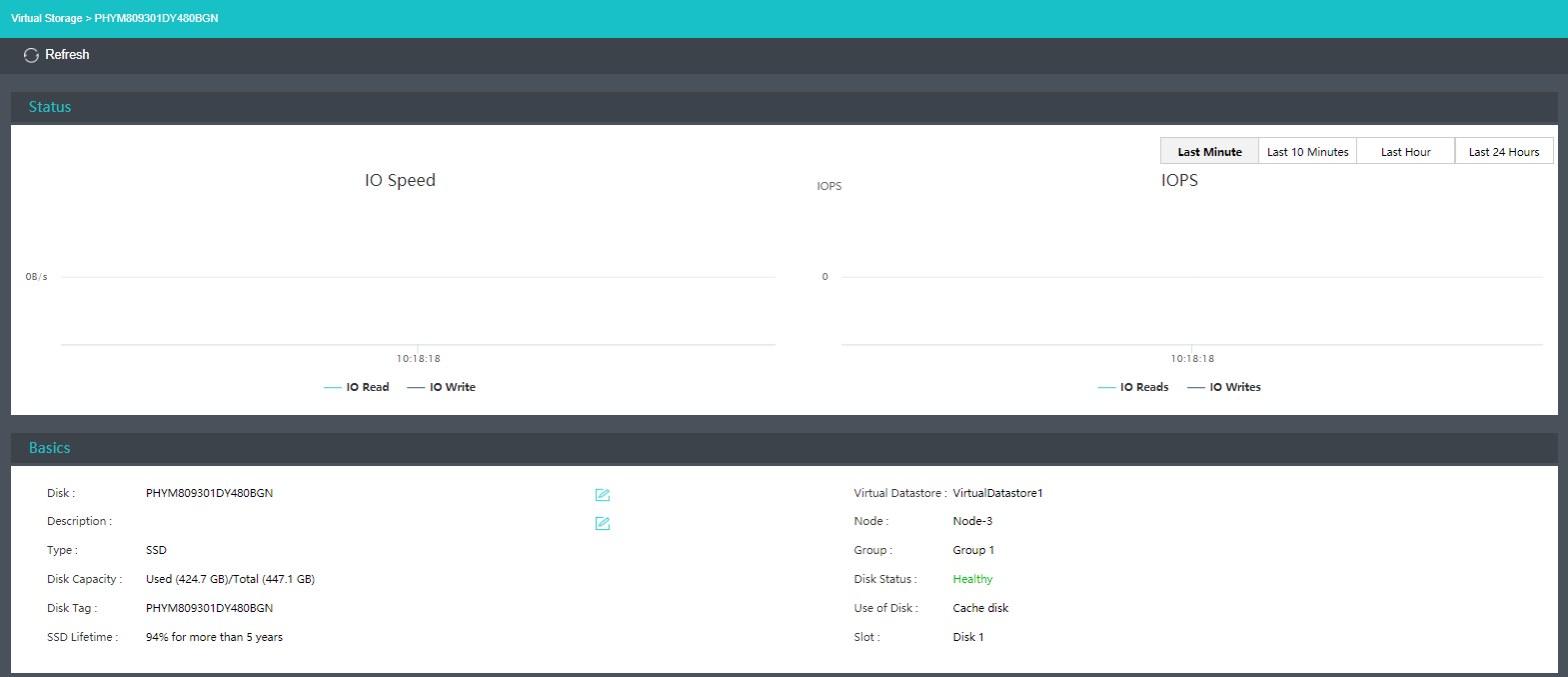
By clicking on a disk name, you may enter the summary page of that disk to view the disk details, such as disk IO throughput, IOPS, disk tag, disk status, etc. 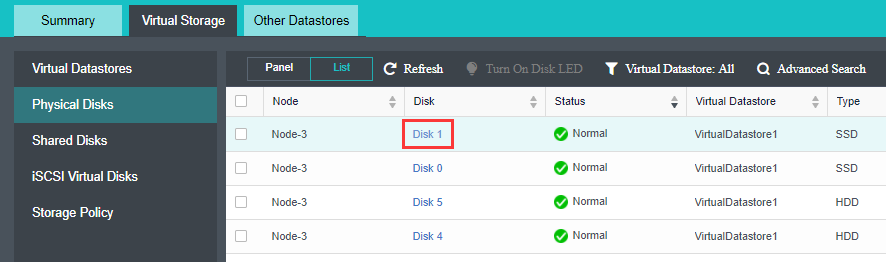
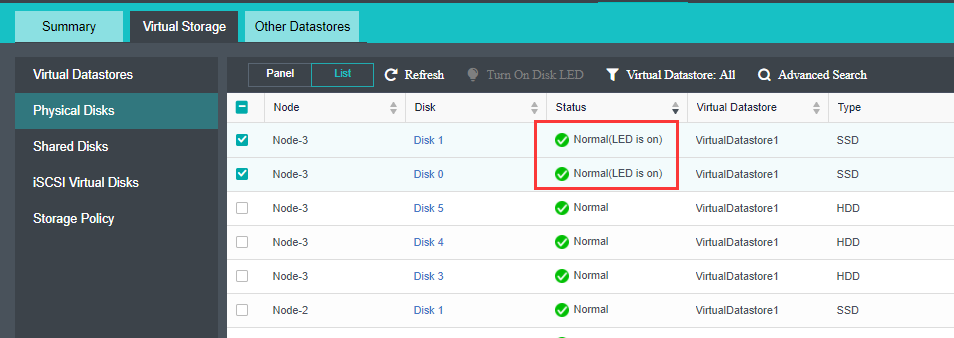
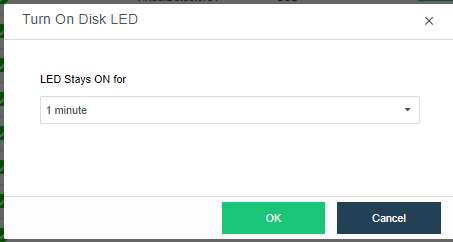
To turn on disk LED, you may select one or more disks, and click Turn On Disk LED so as to easily locate disks, and disk LED will be automatically turned off in one minute after it is turned on. 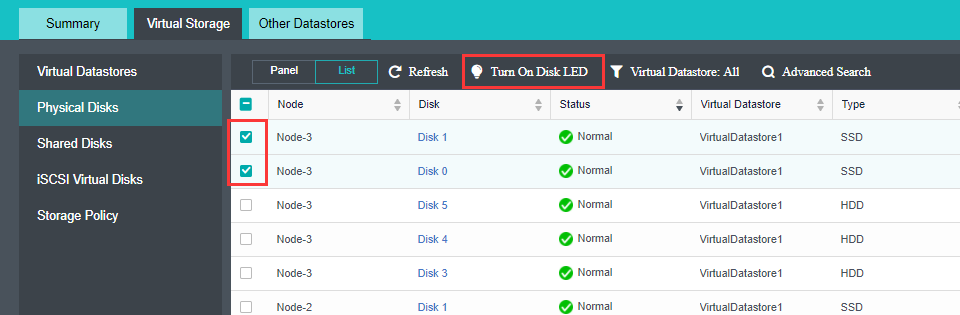
To display disks by datastore, click on the icon Virtual Datastore: All. You may also proceed to Advanced Search to filter disks by specifying certain conditions such as Node, Status (All, Normal, Error, Having ongoing task), Use of Disk (All, spare disk, data disk, cache disk), and Type (All, HDD, SSD) 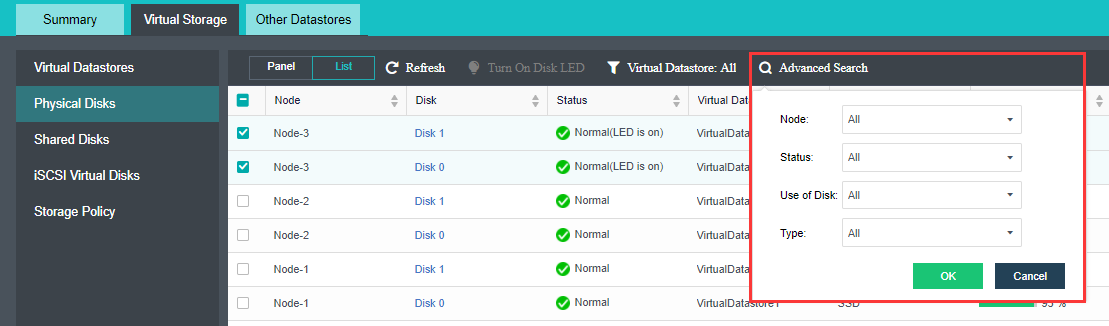


 {{ $t('index.defaultHeader.chromeBrowserTip') }}