


{{ secondMenu.name }}






Insert the USB drive into a server, and set the USB drive as the first boot device priority in BIOS settings. Reboot the computer and system enters the following page. Select Install Sangfor HCI on this machine, and then press ENTER to enter installation page. 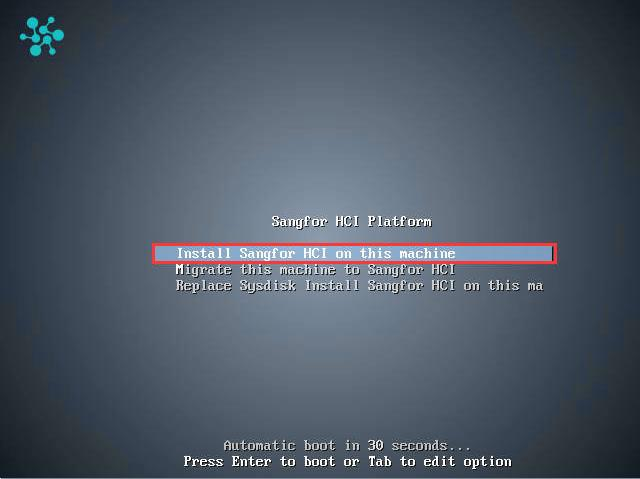
Select SANGFOR HCI Installer to begin installation. 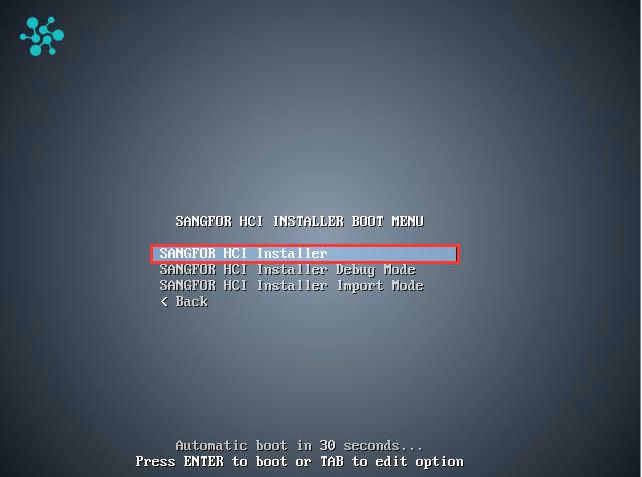

For versions earlier than Sangfor HCI5.0, only 64-bit Intel CPU processor is sup
Starting from Sangfor HCI5.0 and later versions, AMD processor is also supported.
Select a disk where you want to install Sangfor HCI software and then select OK. If there is only one disk, you can select OK directly. 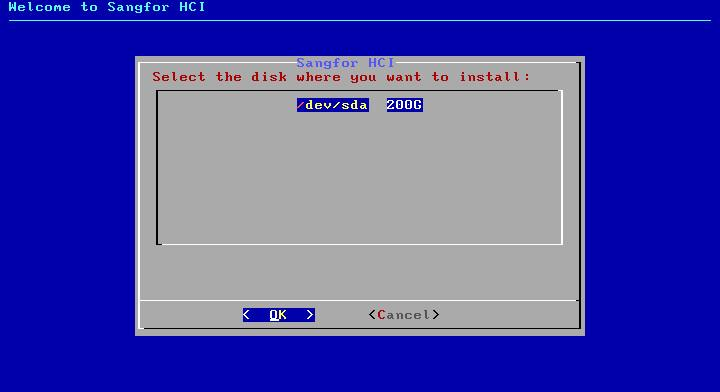
Capacity of the selected disk must be greater than 60GB. If it is greater than 2TB, it is better to use UEFI mode for installation.
After the disk is selected, you will be prompted to format the disk. Enter format to confirm formatting disk, and select OK to continue installation. After you select OK, the Disk Speed Tester page will appear. To test disk speed, select Yes. To skip this step, select No. 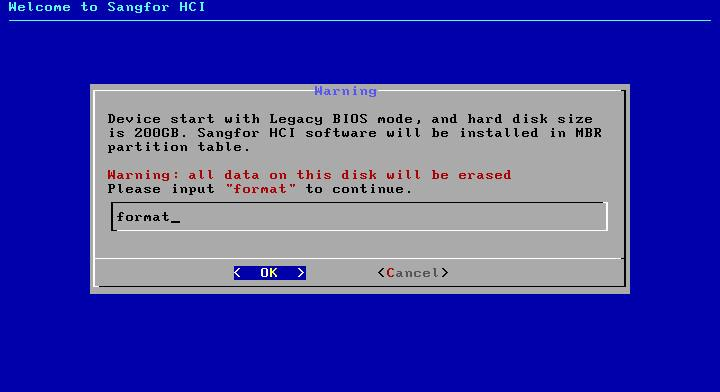
After installing the Sangfor HCI software, you will be prompted to select an Ethernet interface and configure IP address for that interface. 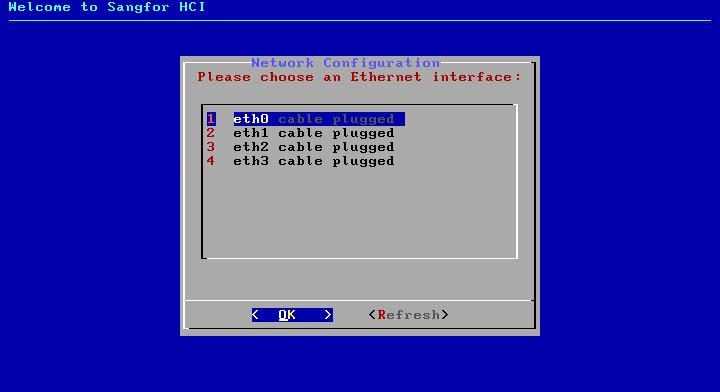
If you skip the step of configuring Ethernet interface, eth0 interface will be chosen and assigned with the IP address 10.250.0.7, and netmask will be set to 255.255.255.0 by default. If there are more than one servers having Sangfor HCI software installed but their NICs are not configured, a same default IP address will be assigned to those NICs, resulting in IP address conflict.
Select an Ethernet interface and set IP address, netmask and gateway address, then click OK 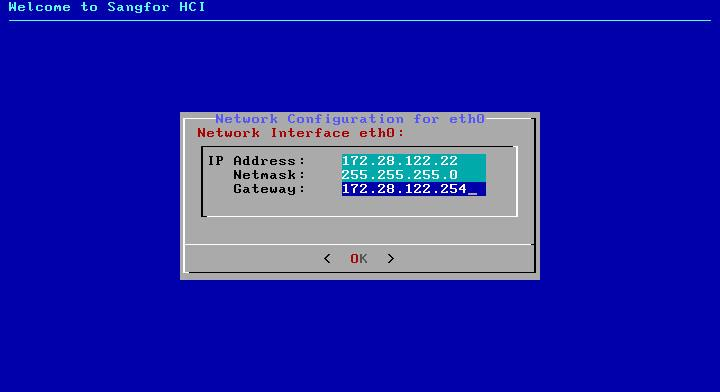
Default gateway can only be set for one NIC. IP addresses configured for the selected interface and gateway should be on a same network segment, otherwise error may occur.
After the selected interface is configured, you will be asked whether to continue to configure another interface. Select Yes to return to network configuration page. or select No to finish the installation.
After the installation completes, remove the USB drive and then select Reboot to restart the server 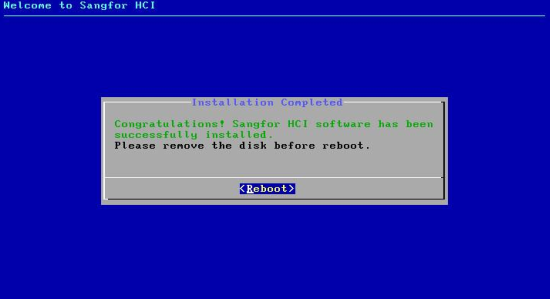
Administrator can log into Web admin console of Sangfor HCI platform by entering https://IP address into browser address bar(that IP address is the IP address of the Ethernet interface selected on the network configuration page)
Web admin console of Sangfor HCI platform can only be accessed through the following browsers: Chrome, Firefox, IE11, IE10


 {{ $t('index.defaultHeader.chromeBrowserTip') }}