


{{ secondMenu.name }}






Features:
The brand-new designed tenant network topology interface displays the virtual machine, subnet information, virtual network equipment, and other information the tenant uses in a graphical form. What you draw is what you get. What you draw is what you get.
Tenants can use the Virtual Private Cloud (VPC) network. Within the network topology, the environment can be constructed according to the actual needs. Including binding elastic IP, adding subnets, the basic configuration of VPC, and deployment of NFV equipment.
Tenants can use the classic network. The deployed virtual machine can directly communicate with the local data center in the classic network.
Precautions:
Features:
The supported virtual machine shortcut operations in the network topology, as below:
Features:
Tenants can create a subnet for virtual machine. The subnet in HCI corresponds to a network divided by an allocated switch under the VPC internal router. Tenant users can deploy virtual machines and NFV devices under the subnet.
Precautions:
N/A.
Prerequisite
N/A.
Steps:
Step 1.Login tenant account from https://SCP IP, and navigate to Network > Topology to enter the tenant’s network topology.
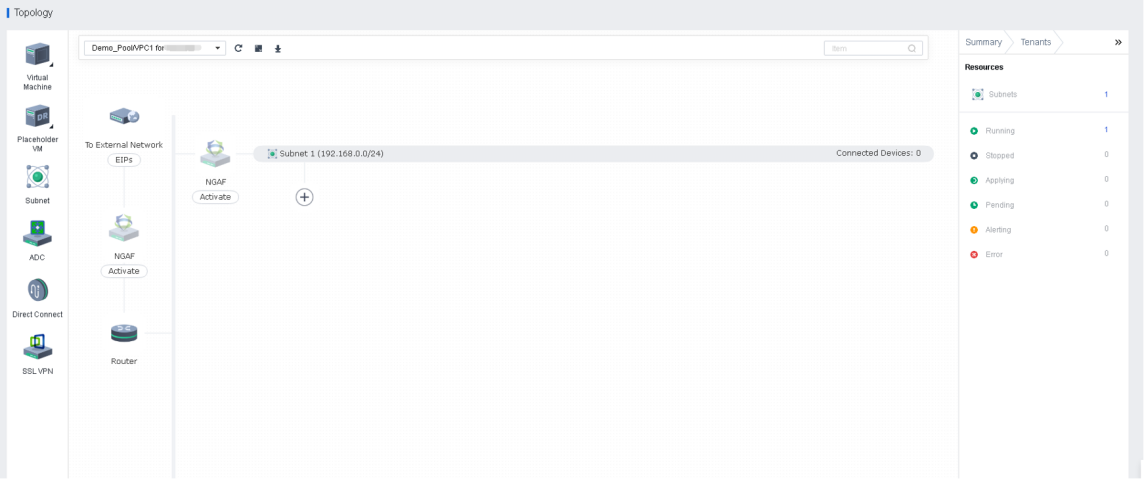
Step 2.Click the Virtual Machine on the leftmost to add the virtual machine that has not been added to the network to a particular subnet by drag and drop.
Step 3.Drag the Subnet icon on the left to create a subnet. The current version supports the creation of subnet 192.168.xx, 10.0-253.xx, and 172.16-28.xx network segments. If you need to create other network segment subnets, please contact Sangfor Technical Support.
Features:
After the router is bound to the public IP, it can be used for port mapping. (port mapping refers to mapping a port of the IP address of the external network to a machine in the internal network to provide corresponding services.)
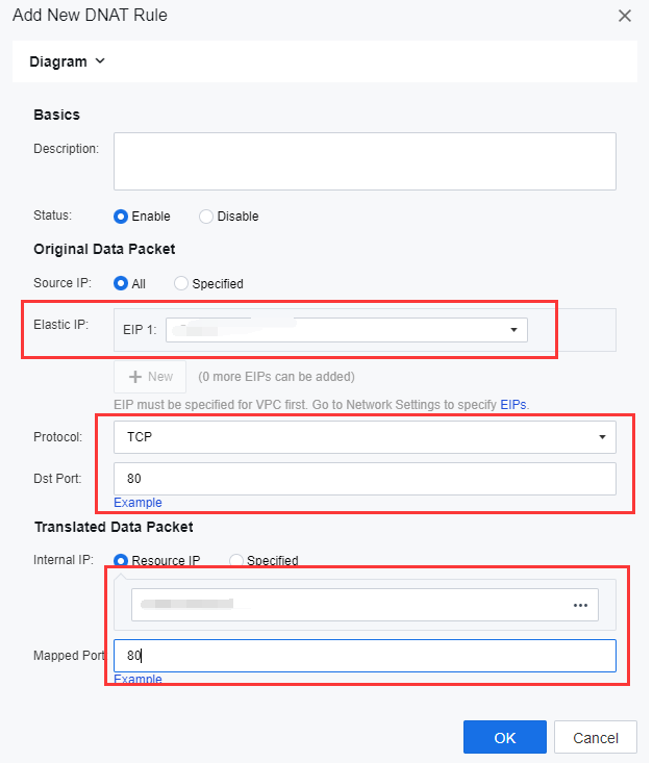
Let's take a case as an example to explain how to configure the port mapping function: map the router's elastic IP address TCP 80 port to the virtual machine port 80.
Precautions:
N/A.
Prerequisite
N/A.
Steps:
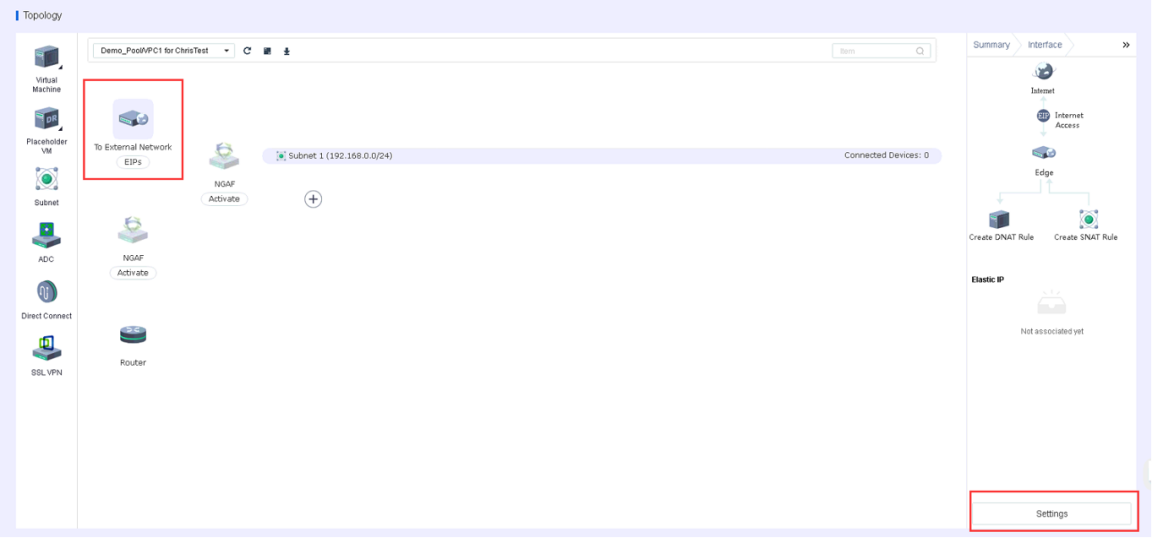
Step 1.Point and click the cursor on the To External Network and click on the Settings located in the lower right corner.
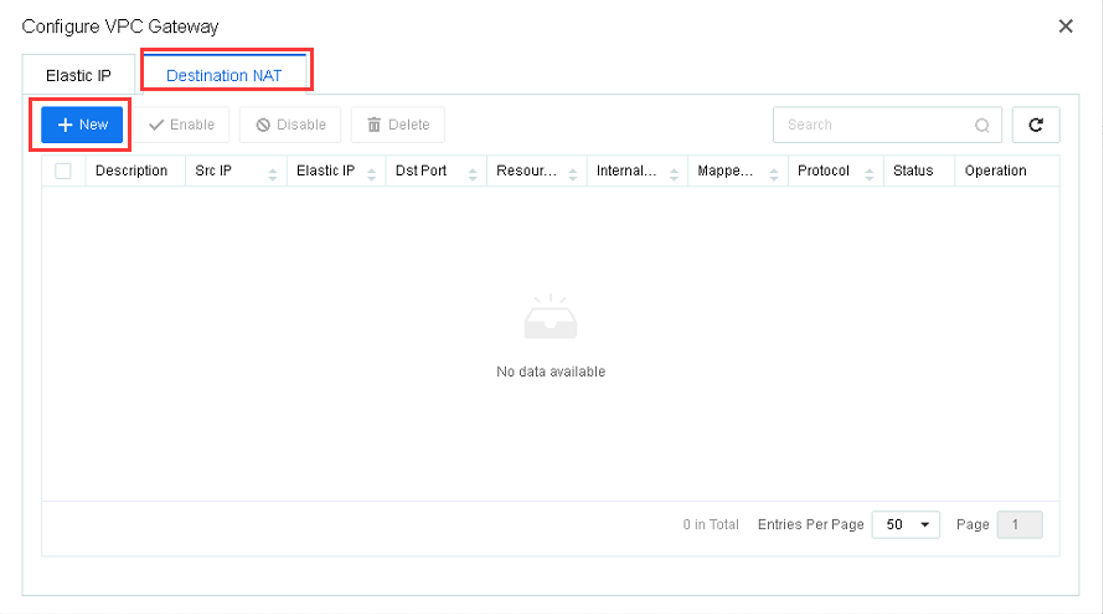
Step 2.Select the Destination NAT feature and click the New button.
Step 3.According to the actual situation, configure the Original Data Package information and the Translated Data Package information as follows.


 {{ $t('index.defaultHeader.chromeBrowserTip') }}