


{{ secondMenu.name }}






Scenario:
Sangfor SCP introduces an application center module to support rapid application deployment, testing, and operation and maintenance, deliver rapid application development and online and ensure future full life cycle operation and maintenance management.


 Topology Planning
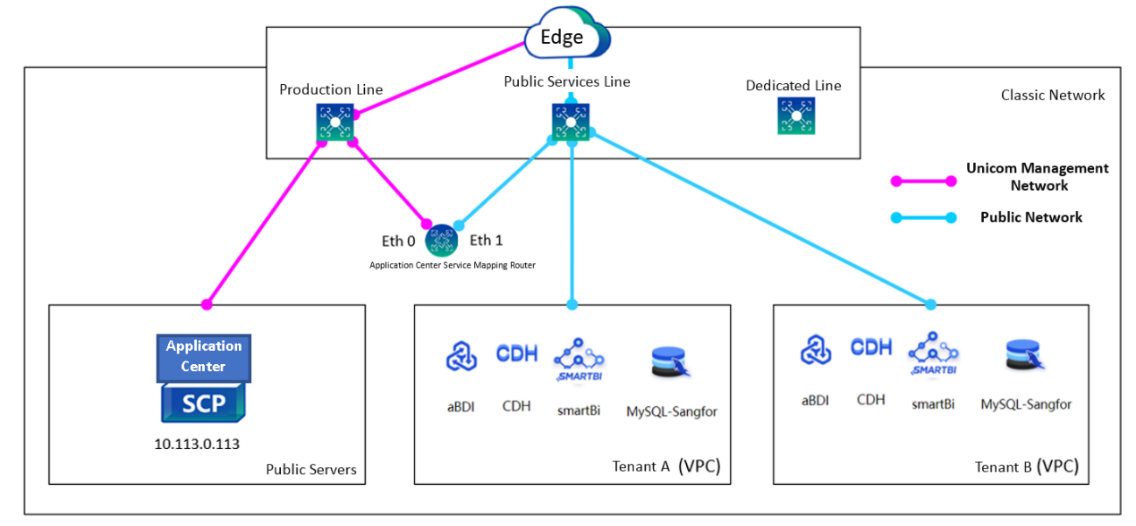
Precautions:
| Device |
Interface |
IP Address |
Remark |
| Application Center |
- |
192.168.1.100/24 |
SCP as Application Center |
| Elastic IP Pool |
- |
10.10.10.20 – 10.10.10.50/24 |
- |
| Application Center Service Mapping Router |
Eth0 |
192.168.1.101/24 |
Connect to the edge outgoing interface and SCP management interface. |
| Eth1 |
10.10.10.1/24 |
1. Connect to the shared network, and it is excluded from the public service elastic IP pool. 2. Bind and map this IP address to domain name appcenter.local.cloud.scp from shared service. |
Table 7:IP Details
Features:
Sangfor SCP introduces an application center module to support rapid application deployment, testing, and operation and maintenance, deliver rapid application development and online and ensure future full life cycle operation and maintenance management.
Precautions:
The domain name of the application center in the shared service network must be appcenter.local.cloud.scp, and the IP address is the public service address of the application center service mapping router, and this address must be in the same segment with the elastic.
IP of the shared service network and excluded from the elastic IP pool.
Prerequisite
Steps
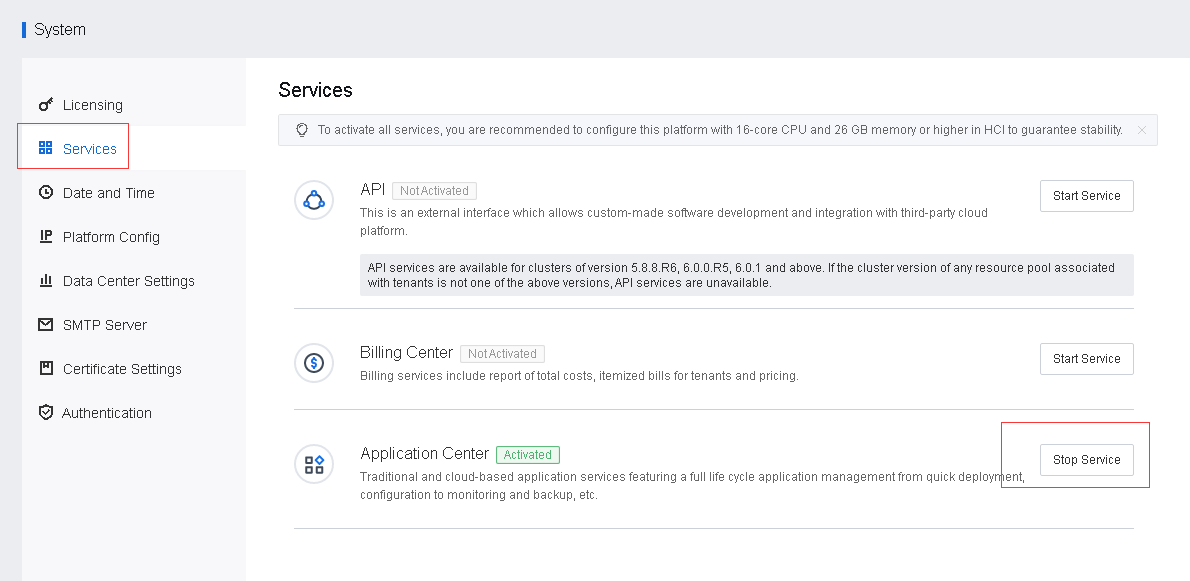
Step 1.Navigate to System > Services > Application Center and click Start Service.
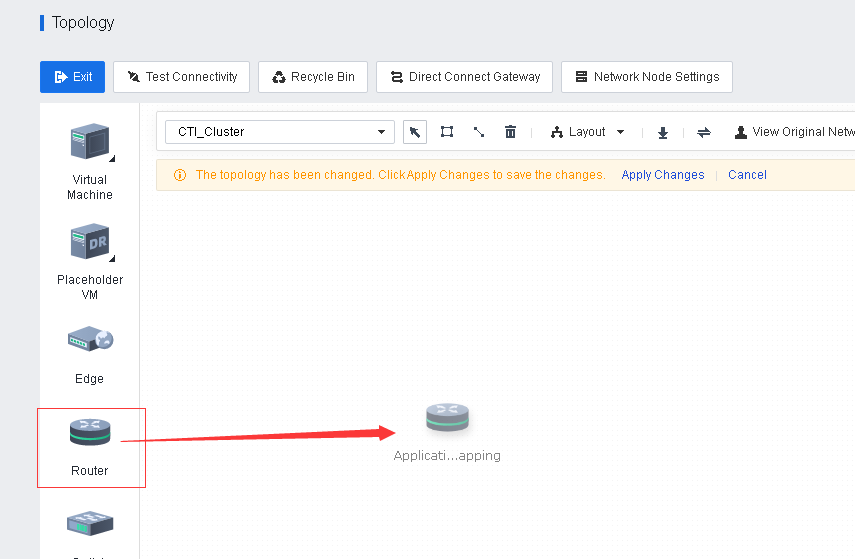
Step 2.Navigate to Networking > Topology to edit the virtual topology and add a Router with the name Application Center Service Mapping.
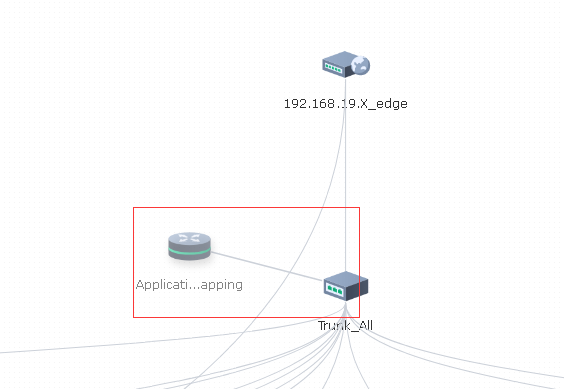
Step 3.Connect one router's interface to the physical network for communication with the shared service network and another interface to the management network for communication with the SCP.
Step 4.Configure the interface address according to the plan in the Application Center.
Network Planning section.
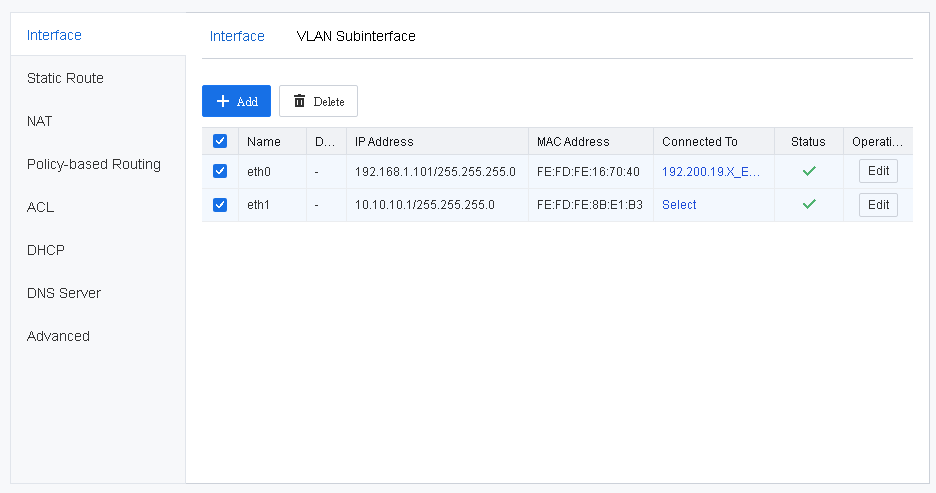
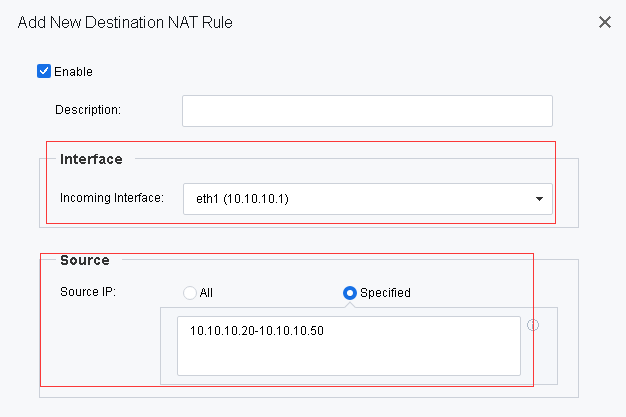
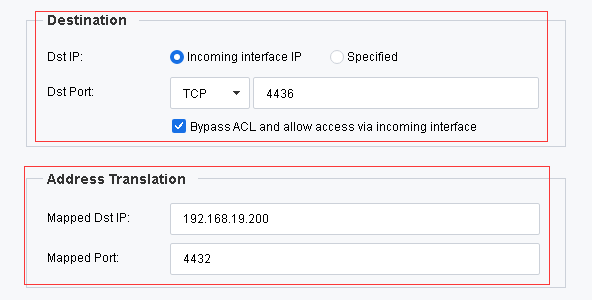
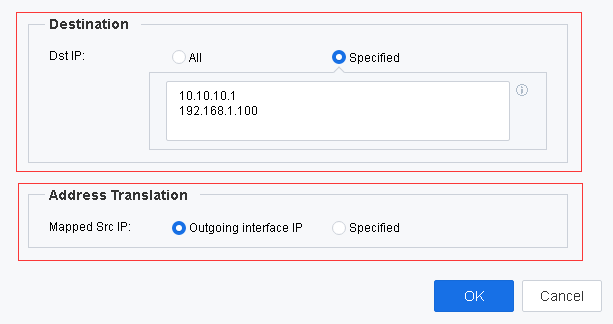
Step 5.Configure the DNAT policy to map ports 4436 and 5671 of the Application Center SCP on the Application Center Service Mapping Router to forward requests from the tenant to the Application Center after configuration.
Incoming Interface: The interface of the Application Center Service Mapping route to the shared service network.
Source IP: The IP in the resilient IP pool of the shared service network.
Destination IP: The IP of the inbound network interface.
Mapped Destination IP: The IP of the SCP.
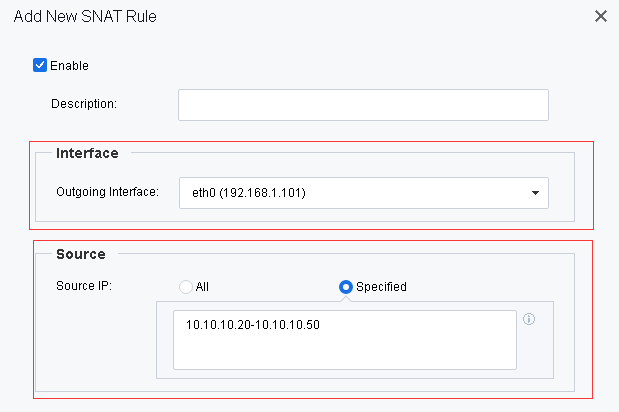
Step 6.Configure the SNAT policy to convert the source address of the packet after DNAT to the address on the router connecting to the service gateway so that the destination address of the SCP when it returns the packet is the address on the router.
Outgoing Interface: The interface of the Application Center Service Mapping route connects to the management network.
Source IP: The IP in the resilient IP pool of the shared service network.
Destination IP: The interface address to which the Application Center Service Mapping router connects to the shared service network and the SCP.
Mapped Source IP: The interface of the Application Center Service Mapping router to the management network.
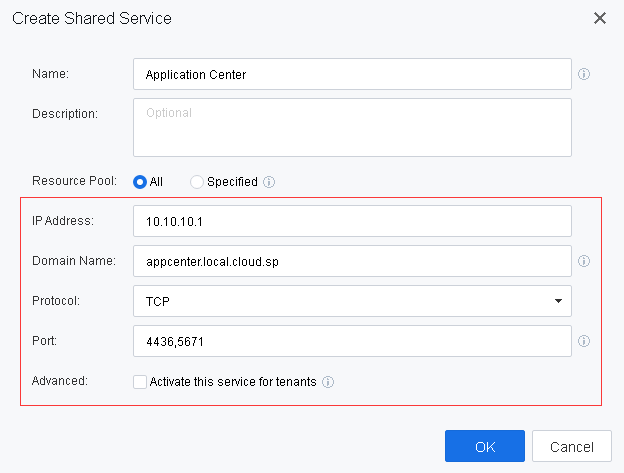
Step 7.Refer to chapter 3.7 Configure Shared Services Gateway. Refer to chapter 3.7 Configure Shared Service Network. Create a new application center shared service with the IP address of the application center service mapping router to connect to the shared service. The domain name must be appcenter.local.cloud.scp and the ports are TCP 4436 and 5671.
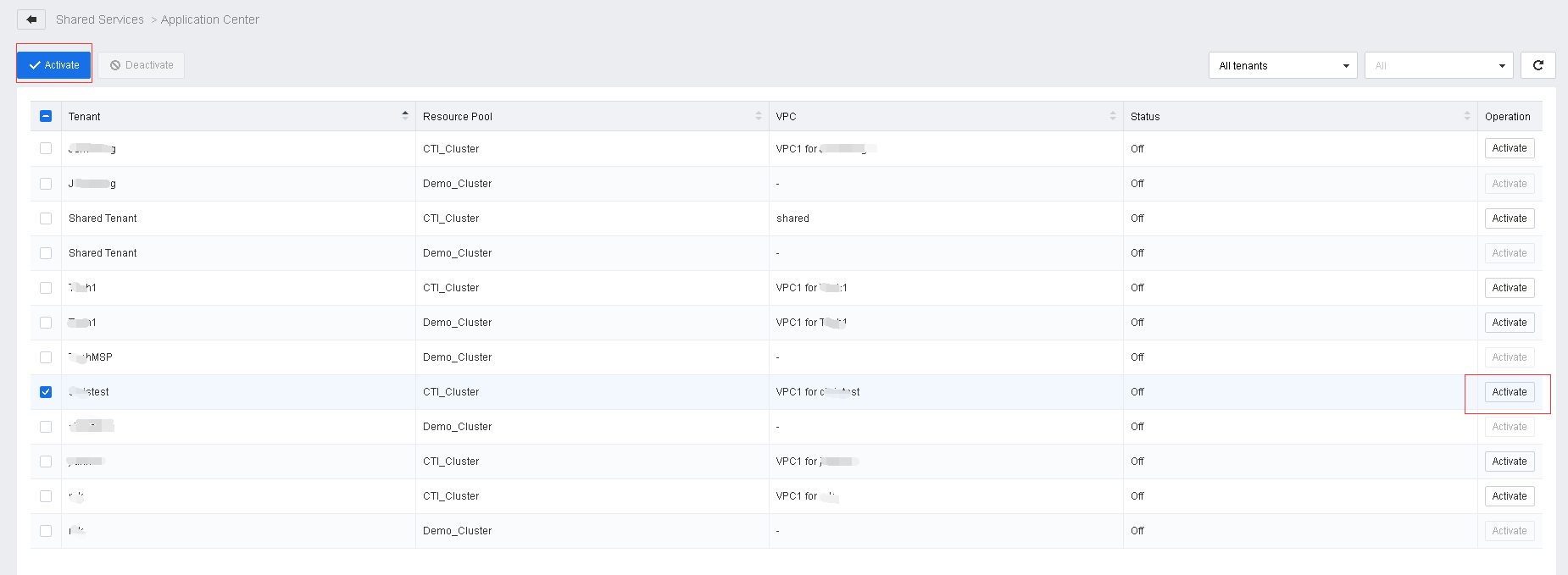
Step 8.Navigate to Resources > Networking > Shared Service Network. In Shared Services, click the created shared services named Application Center to enter the overview of tenant shared services to activate the shared services for tenants.
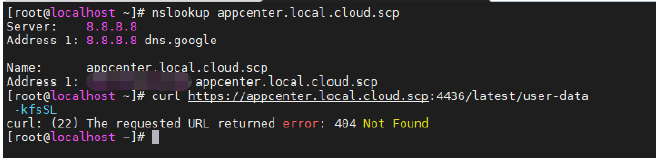
Step 9.Configuration Verification: Using a Linux VM on a tenant VPC, verify the domain name resolution using the command nslookup appcenter.local.cloud.scp. Besides, verify the application center network using the command curl
https://appcenter.local.cloud.scp:4436/latest/user data kfsSL. (as shown in the result of verification success).
Features:
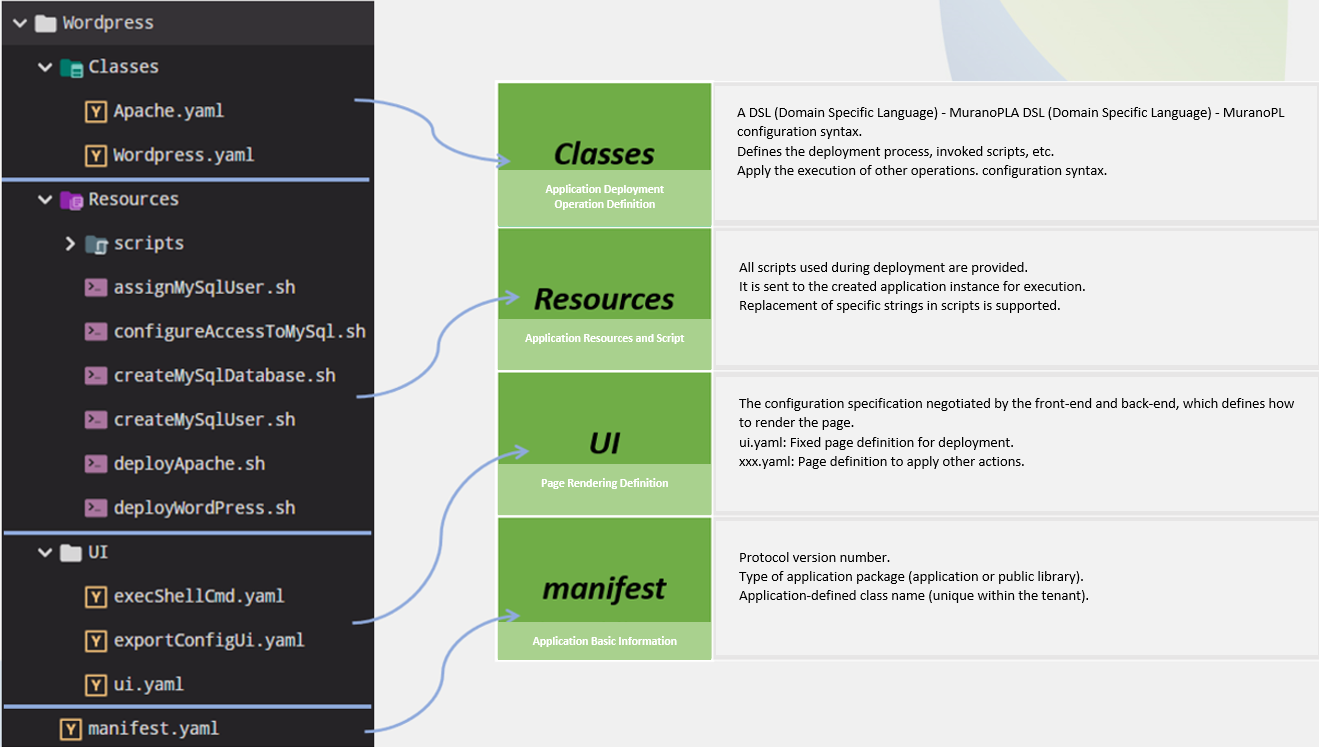
The overall structure of the application package is composed of yaml definition file and sh script file, which is allowed to be self-written and self-define. It is mainly used for configuration guidance when deploying applications.
Precautions:
Prerequisite
Steps
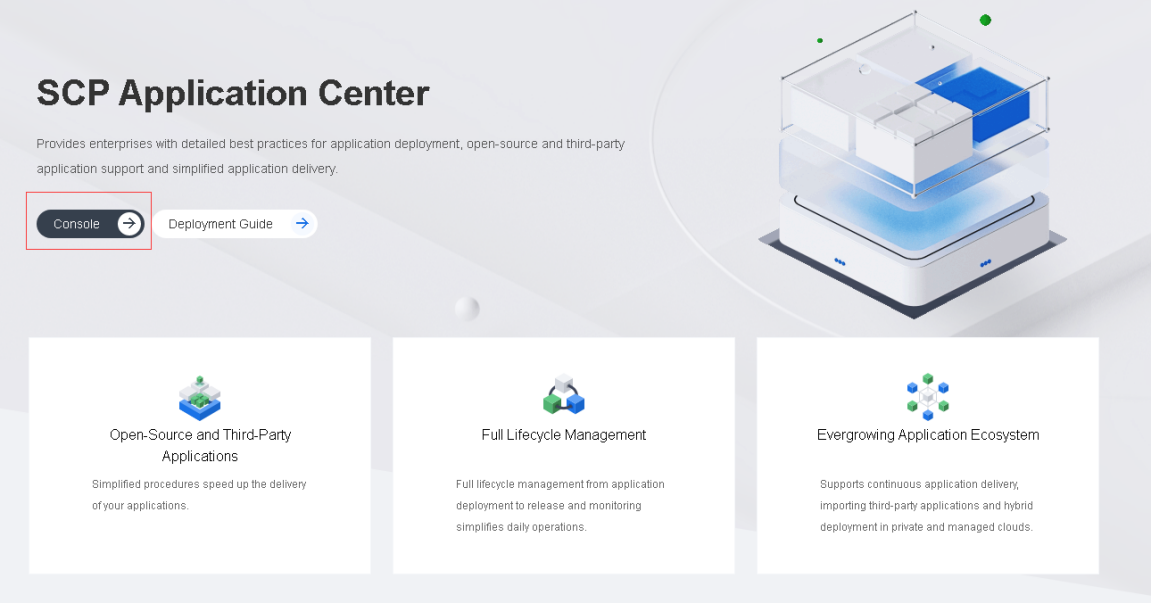
Step 1.Navigate to Resources > Application Service > Application Center, and click Console to enter the SCP Application Center portal.
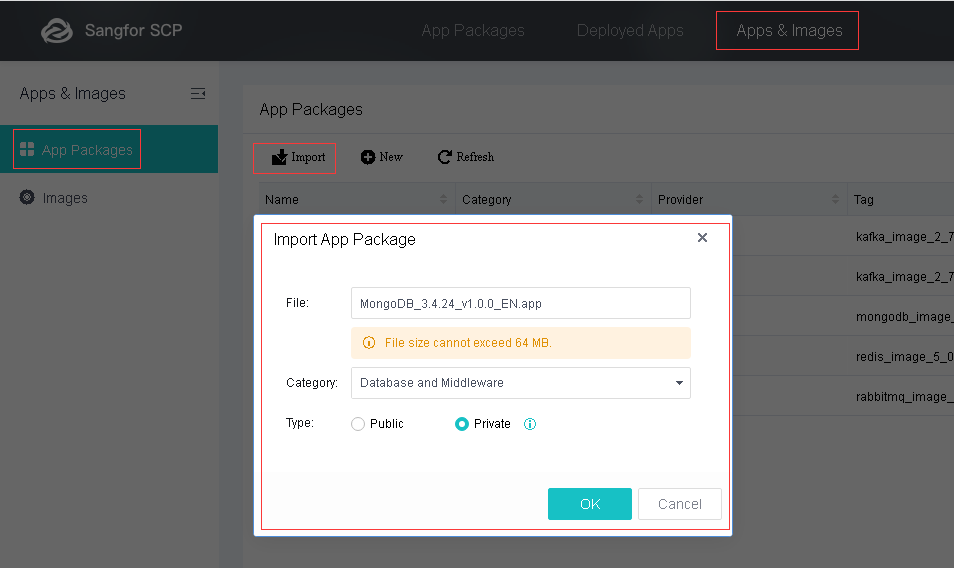
Step 2.On the SCP Application Center main page, go to Apps & Images and select App Packages. Then, click Import to upload the APP package.
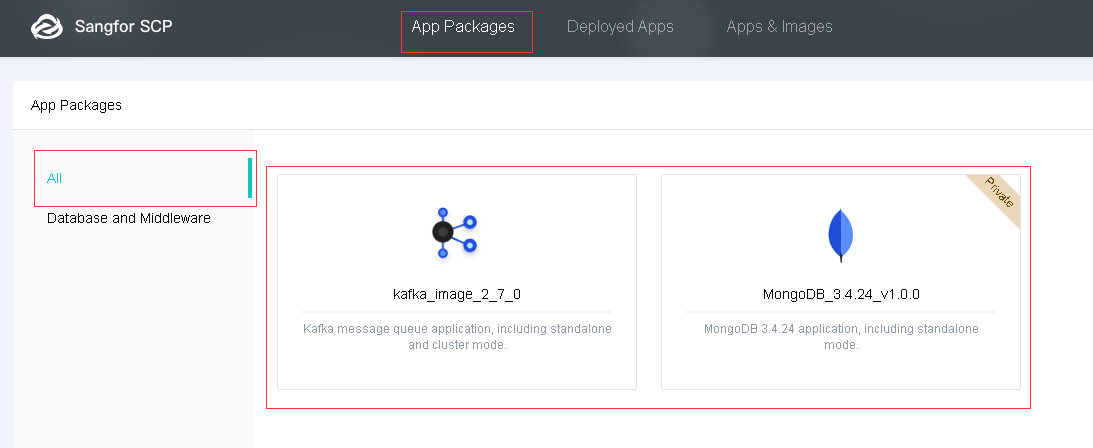
Step 3.After uploading the image, go to App Packages and look for All to view the uploaded components and application tag.
Feature description:
The Sangfor SCP platform requires the corresponding application image to create the application.
Precautions:
The application tag of the uploaded image must be the same as the tag of the application package. Otherwise, the application cannot be created.
Prerequisite
Steps
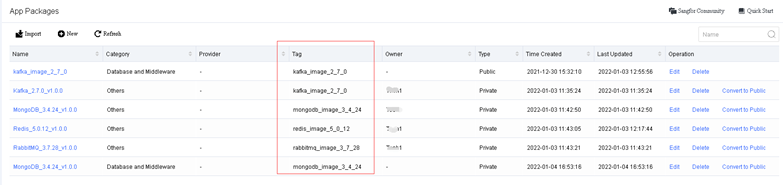
Step 1.Locate the appropriate application tag on the App Packages page.
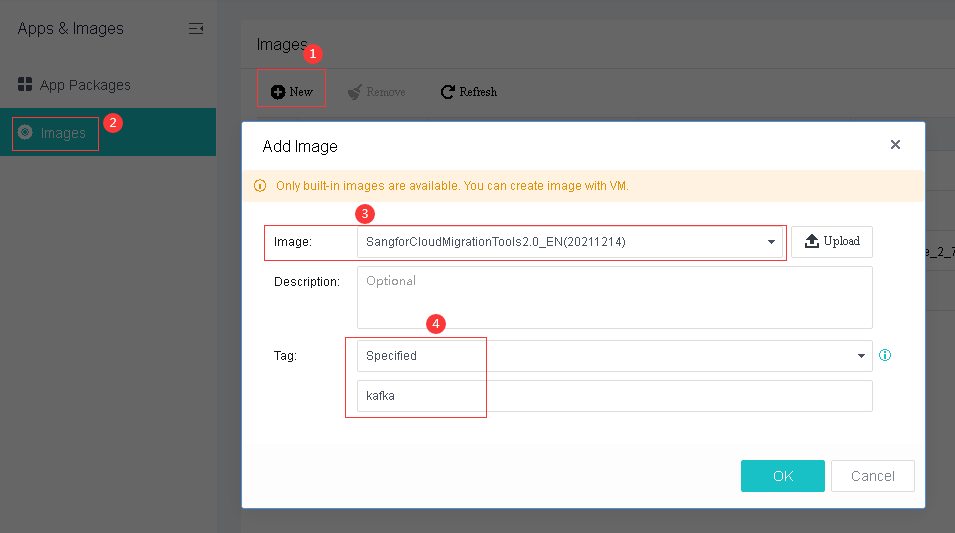
Step 2.In SCP Application Center, go to App & Images and select Images, click New to select the uploaded image, and then manually specify the application tag.
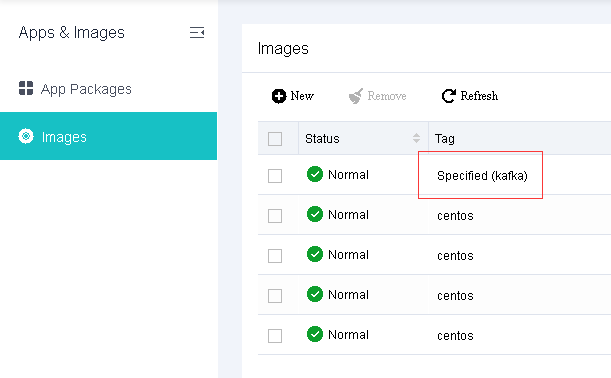
Step 3.Verify that the application tag of the image must be included in the application package's application tag.
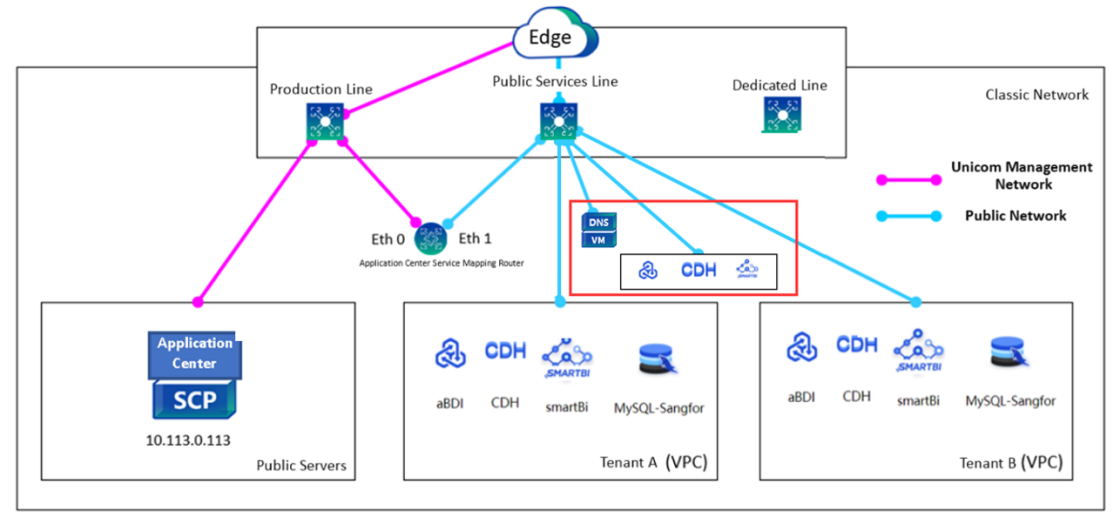
Feature Description:
When the SCP platform uses the application center to deploy applications in the classic network, a separate DNS server needs to be deployed to resolve the application center address appcenter.local.cloud.scp.
Precautions:
N/A.
Prerequisite
Steps:
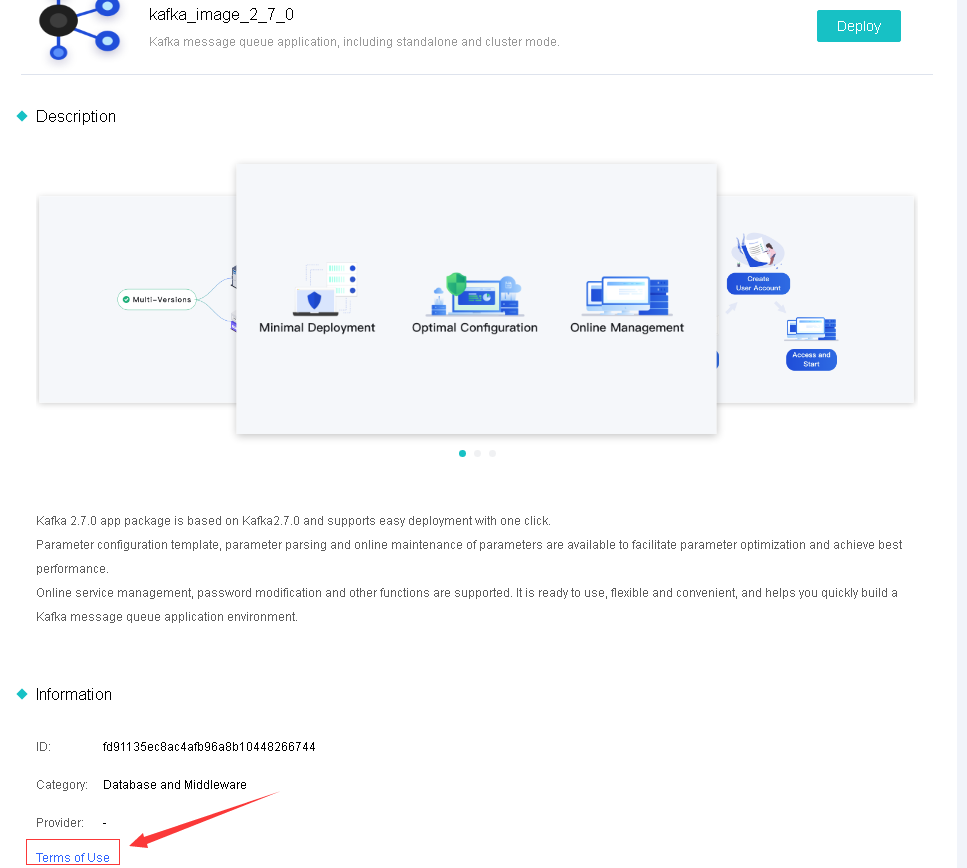
Step 2.Click the application's name to be deployed, click Deploy to configure the deployment information for the application, or click View Details, then click the Terms Of Use located at the bottom left to view the corresponding deployment document.
Features:
The application center supports rapid deployment in the application development, testing, operation and maintenance scenarios, and future routine operation and maintenance management.
Precautions:
None.
Prerequisite
Steps
Step 1.Click the application's name to be deployed, click Deploy to configure the deployment information for the application, or click View Details, then click the Terms Of Use located at the bottom left to view the corresponding deployment document.
Function Description:
Sangfor SCP can upgrade the application package so that the application instance can obtain the latest functions.
Precautions:
None.
Prerequisite
The latest version of the application package has been obtained.
Steps:
Step 1.Refer to the Chapter 4.12.1.4 Application Image Import to import the new version of the application package.
Step 2.After importing the new version of the application package, the version column of the existing application instance of the platform will display the word upgradeable, and the Details button can view the details of the new features of the version. Click the Upgrade button above to upgrade the existing application instance.


 {{ $t('index.defaultHeader.chromeBrowserTip') }}