


{{ secondMenu.name }}






Features:
Sangfor SCP platform will monitor the platform and virtual machine in real-time according to the alarm setting, and all generated alerts will be recorded. Administrators can view the latest alerts or old alerts according to actual need.
Precautions:
None.
Prerequisite
None.
Steps
Step 1.Login to the SCP and navigate to Resources > Monitor Center > Alerts to view the alerts.
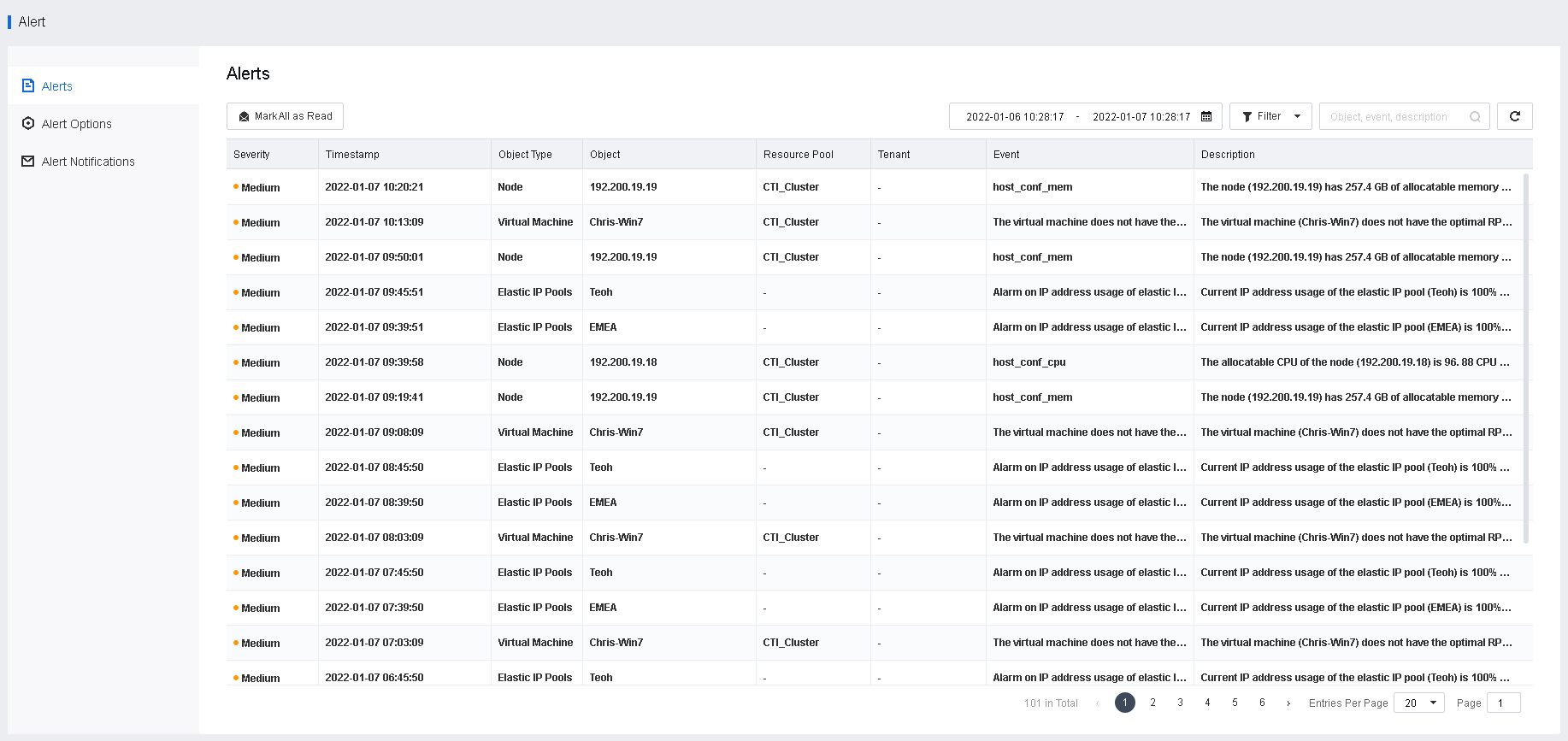
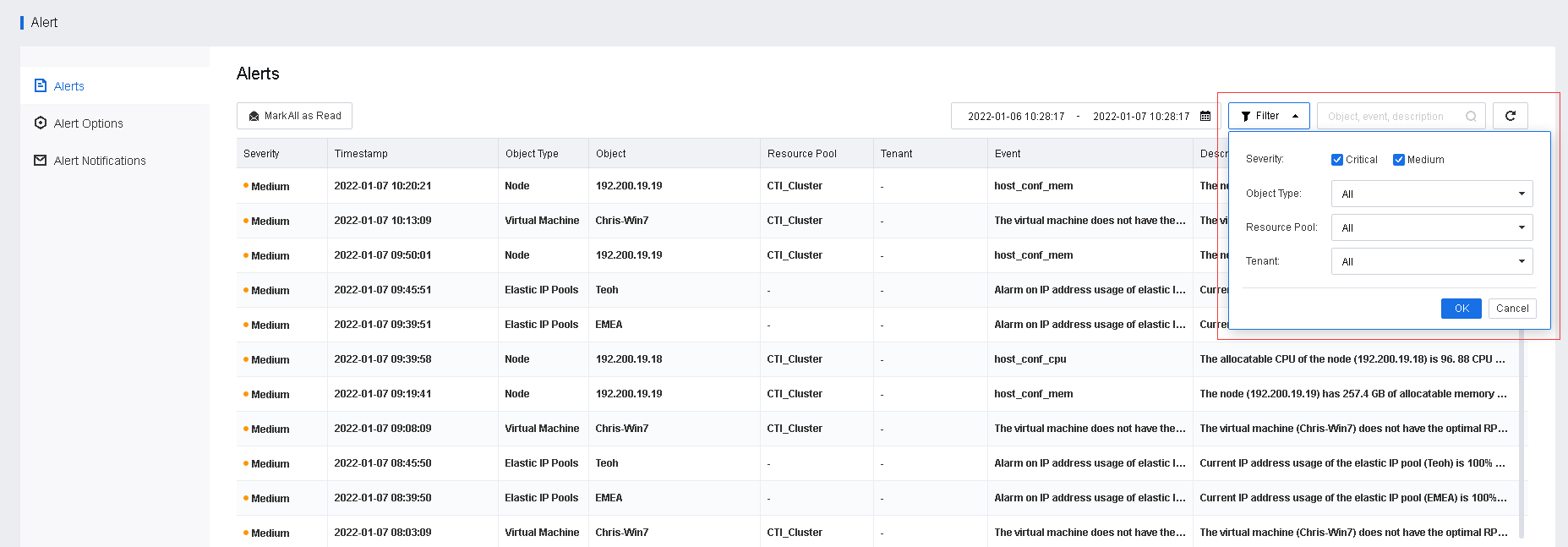
Step 2.You can view all the alert history on this page. The Severity on the left shows the severity level of the alert. You can filter the alerts log by clicking the Filter button.

Unread alerts will be shown in bold text format.
Function Description:
Sangfor SCP platform can detect and prompt alerts on virtual machines, physical hardware, network, and License Key information. It supports email notification and customization of alert conditions.
Precautions:
If the SMTP server is configured as a domain name, the DNS of the SCP platform must be able to resolve the domain name. Otherwise, the SMTP server can only be configured with an IP address.
Prerequisite
None.
Steps:
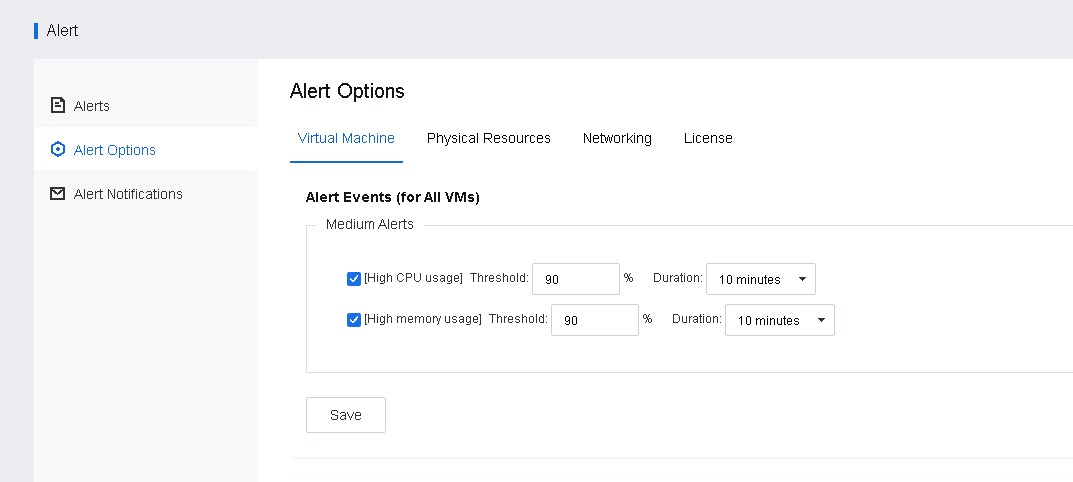
Step 1.Login to the SCP admin portal, navigate to Resources > Monitor Center > Alerts, and click Alert Options to customize the condition for the virtual machine, physical resources, and networking or license-related alert.
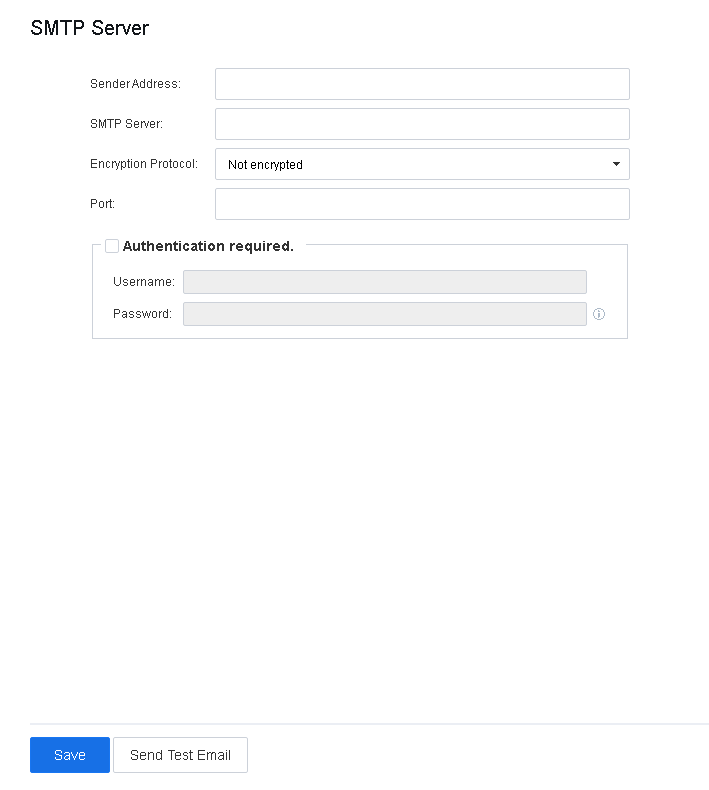
Step 2.Alert supports configuring alert notifications through email, Recipient Email Address can be enabled in Alert Notifications and configured on the SMTP server. When verifying the username and password of the outgoing server, if the email password verification fails, may try to use the email client authorization code for verification.
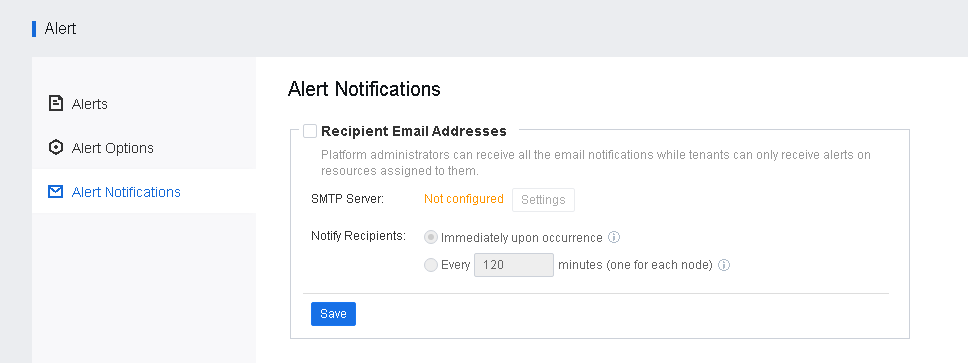
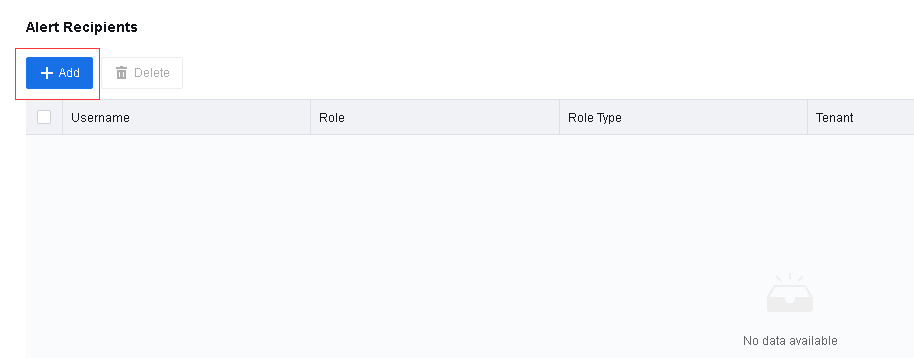
Step 3.It supports sending alert notifications to designated alert recipients. Click Add to add designated alert recipients to receive alert notifications.

Email notification requires SCP to be able to connect to the Internet.


 {{ $t('index.defaultHeader.chromeBrowserTip') }}