Scenario Description
Sangfor Object Storage Service (OSS) is a secure, highly reliable, and low-cost object-based storage service that allows you to store large amounts of data. OSS integrates Sangfor Enterprise Distributed Storage (EDS) to provide users with object storage and cloud data storage and processing capabilities.
Precautions
- OSS needs to work with EDS 3.0.6 with the EDS 3.0.6.263-20210819204439.zip service pack or EDS 3.0.8 or later.
- OSS requires the Enterprise Edition or Enterprise Plus Edition license.
- OSS Network Settings
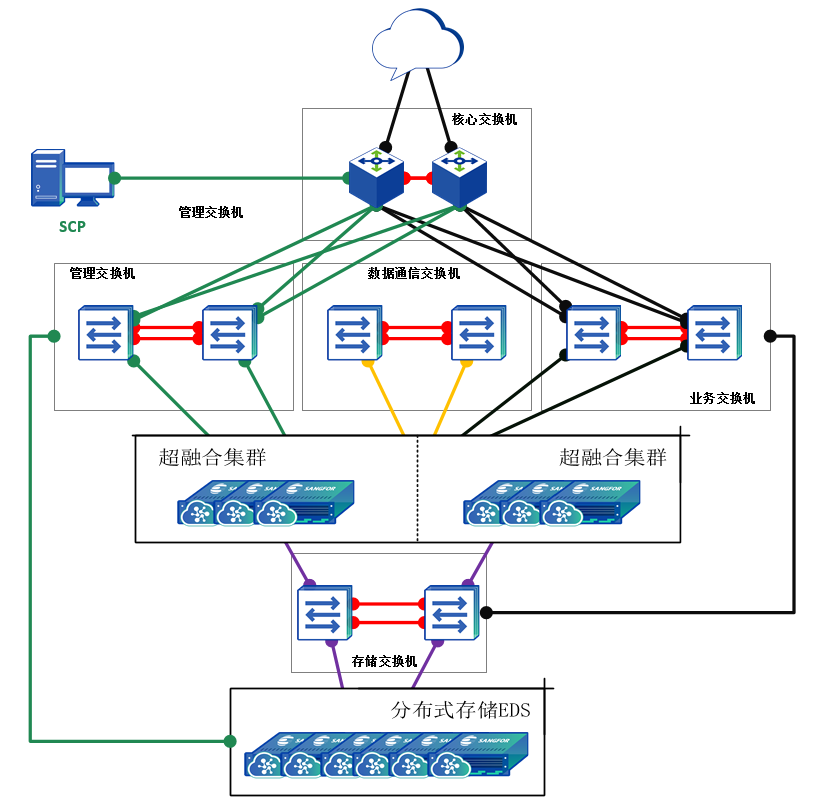
This function connects to the object storage service of EDS via SCP to provide object storage access capabilities for VMs. Specifically, EDS object storage buckets and accounts are created and managed on SCP over the management network. In this case, VMs can access object storage over the storage WAN of EDS through the business interface of HCI.
4.10.1.2Physical Network Topology Settings
- Connect the storage WAN of EDS used for providing object storage services to the business switch group of an HCI cluster.
- Share or connect the management switches for HCI and EDS.
Virtual Network Settings
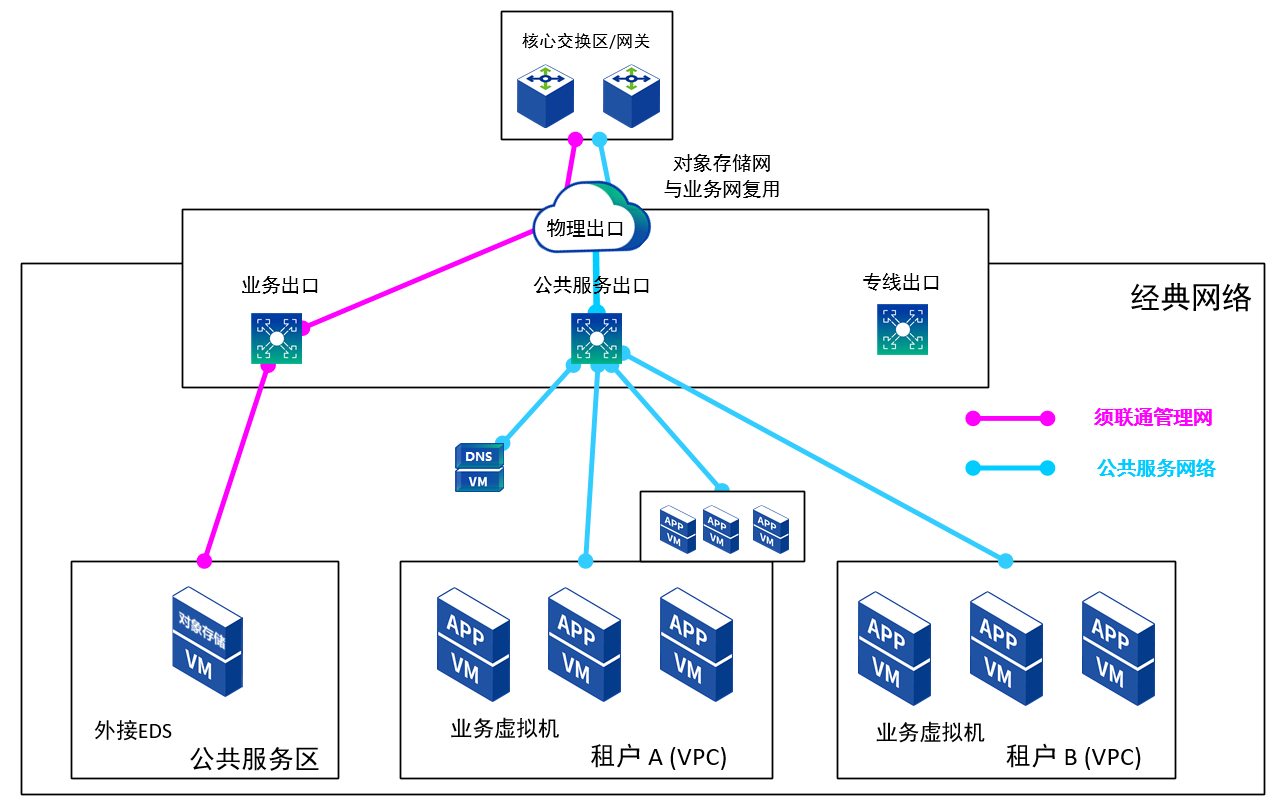
- Ensure that the EDS management network is connected to the SCP management network.
- Ensure that the business network is connected to the shared service network of SCP in a tenant VPC.
- If the business traffic is heavy, you are advised to add a physical NIC separately as the shared service gateway and avoid reusing the outbound business interface as the shared service gateway.
4.10.1.3Activate OSS
Function Description
This section instructs how to activate OSS.
Precautions
None
Prerequisites
EDS has been deployed.
Procedure
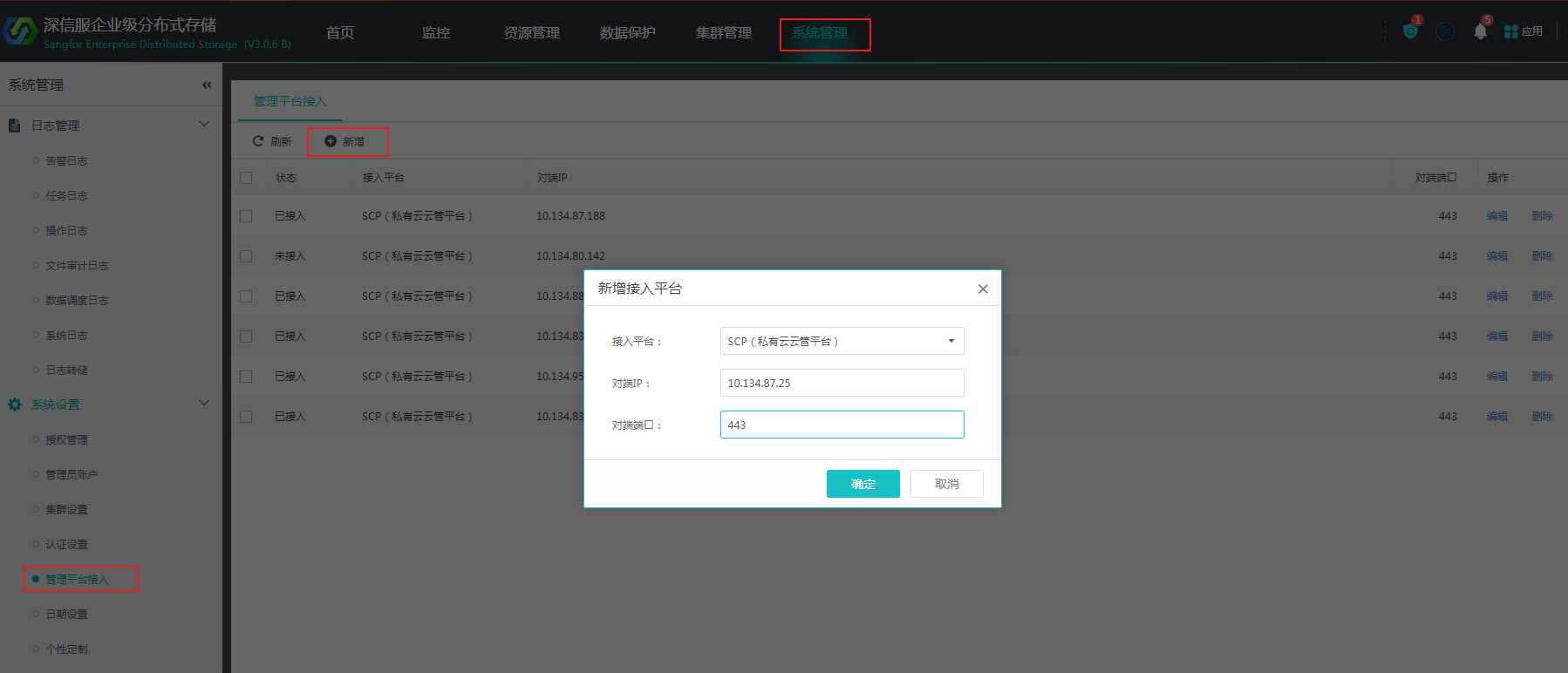
- Log in to the EDS console, go to System Management > System Settings > Platform Connection, and click Add to connect to SCP.
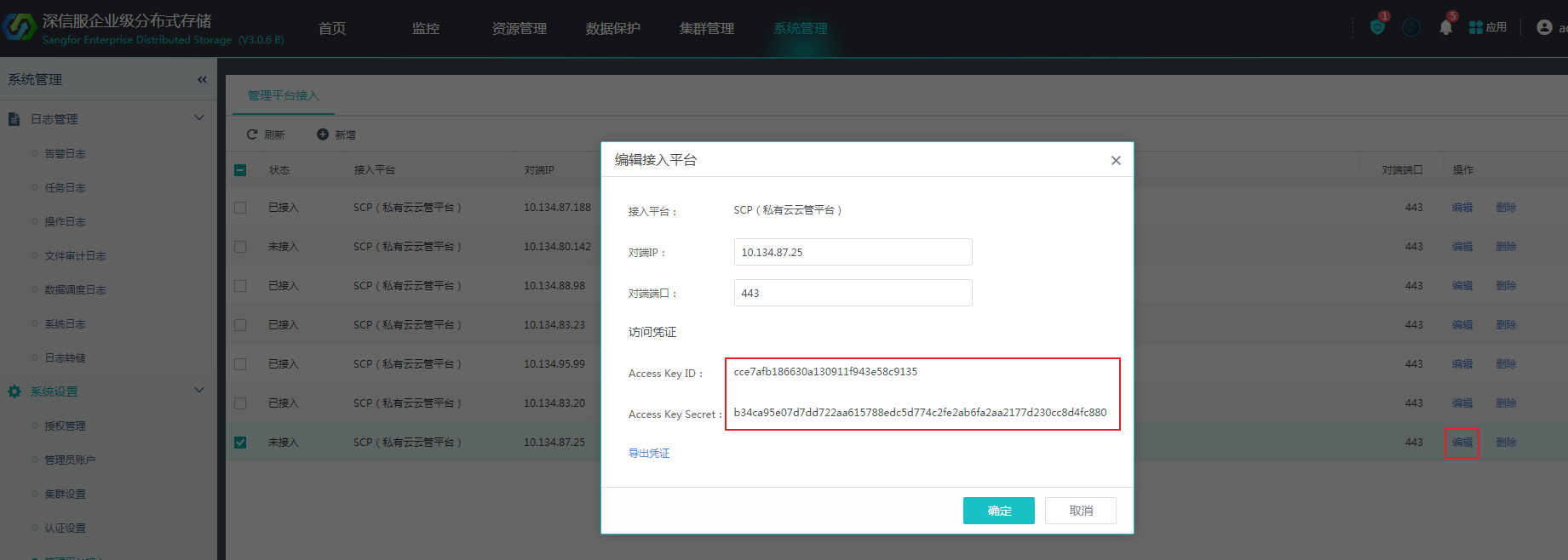
- After the connection is successful, click Edit in the Operation column and obtain the access key ID and secret access key.
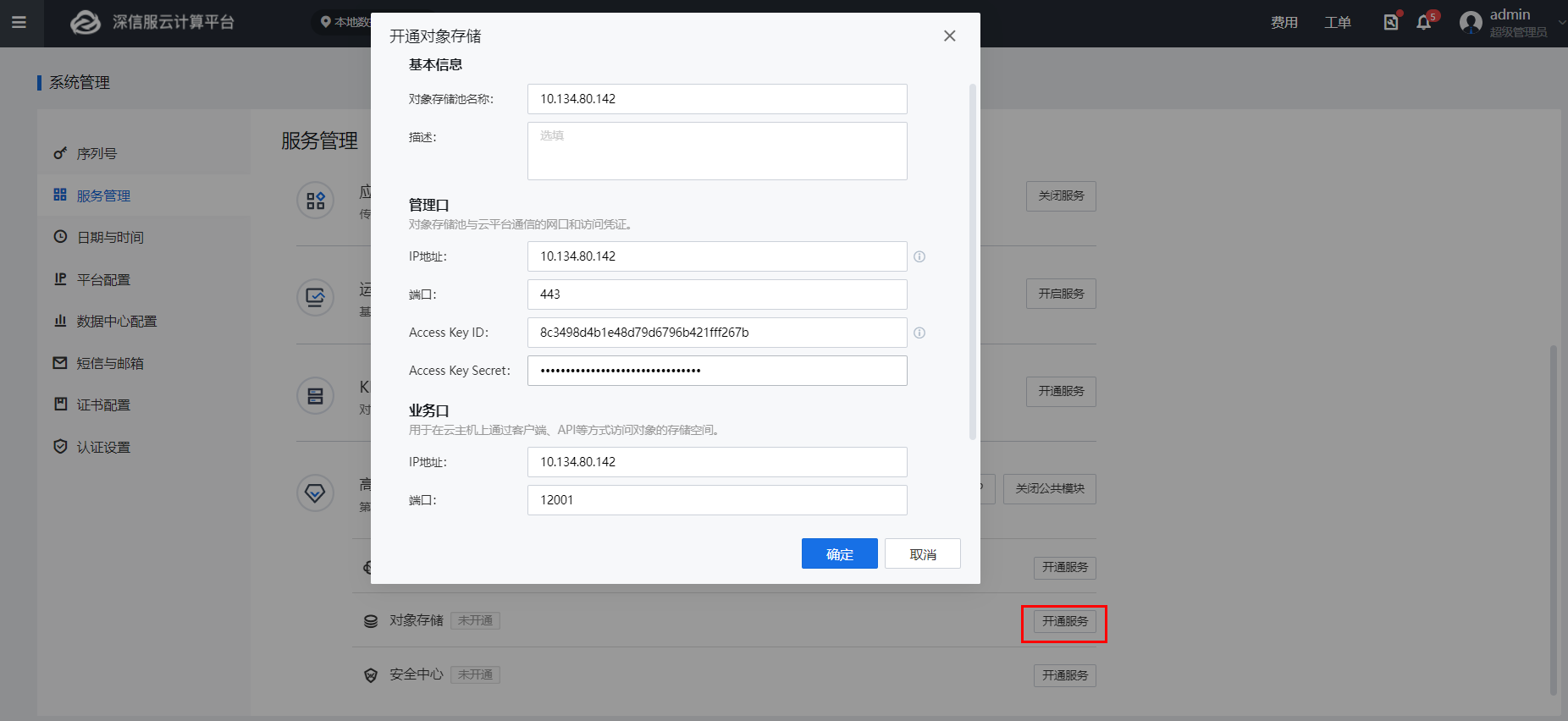
- Go back to SCP and go to Resources > Management > System > Services. Select Enable Public Module for Advanced Services and select Activate Service for Object Storage. In the Activate Object Storage pop-up window, configure the IP addresses and port numbers for the management interface and interface for storage access (the port for which is 12001), and paste the access key pair obtained in the previous step.
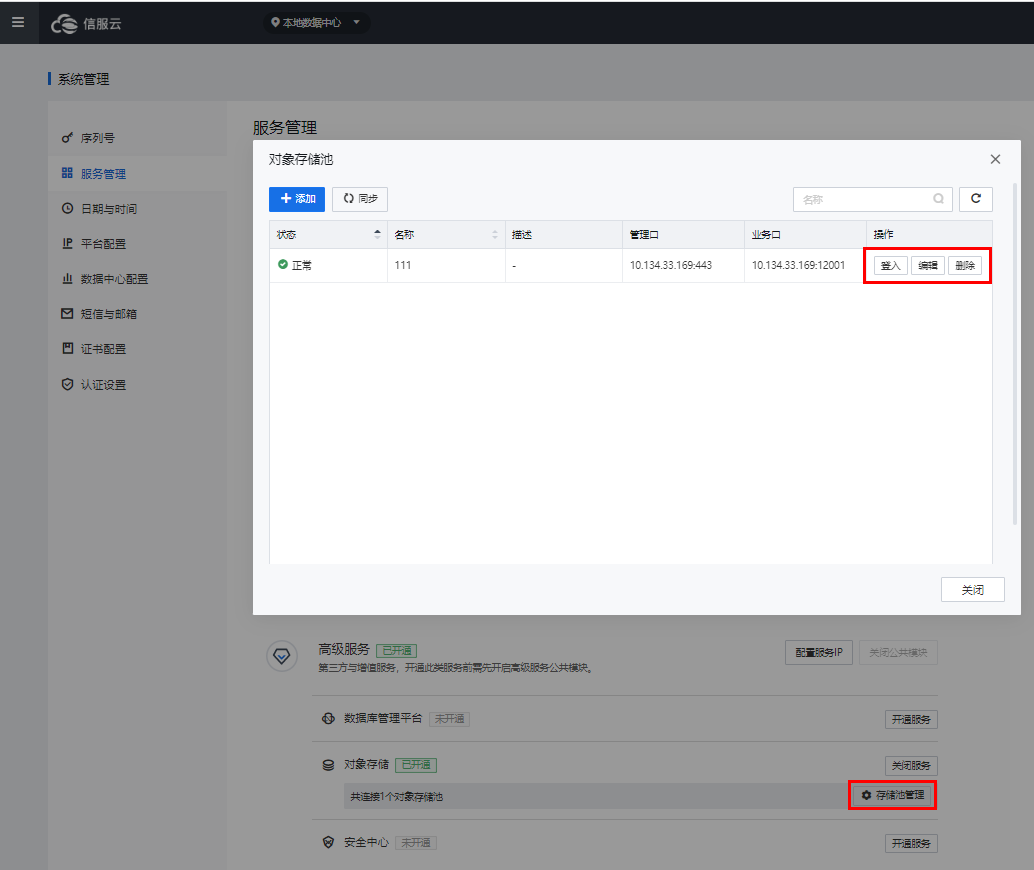
- After Object Storage is activated, click Storage Pool Management to add, edit, or delete an object storage pool.
4.10.1.4OSS Account Management
Function Description
This section instructs how to manage OSS accounts.
Precautions
- You can download the secret access key of your OSS account only once when creating the account. If it is lost, you need to generate it again and reconnect all clients to EDS.
- An SCP user can have multiple OSS accounts.
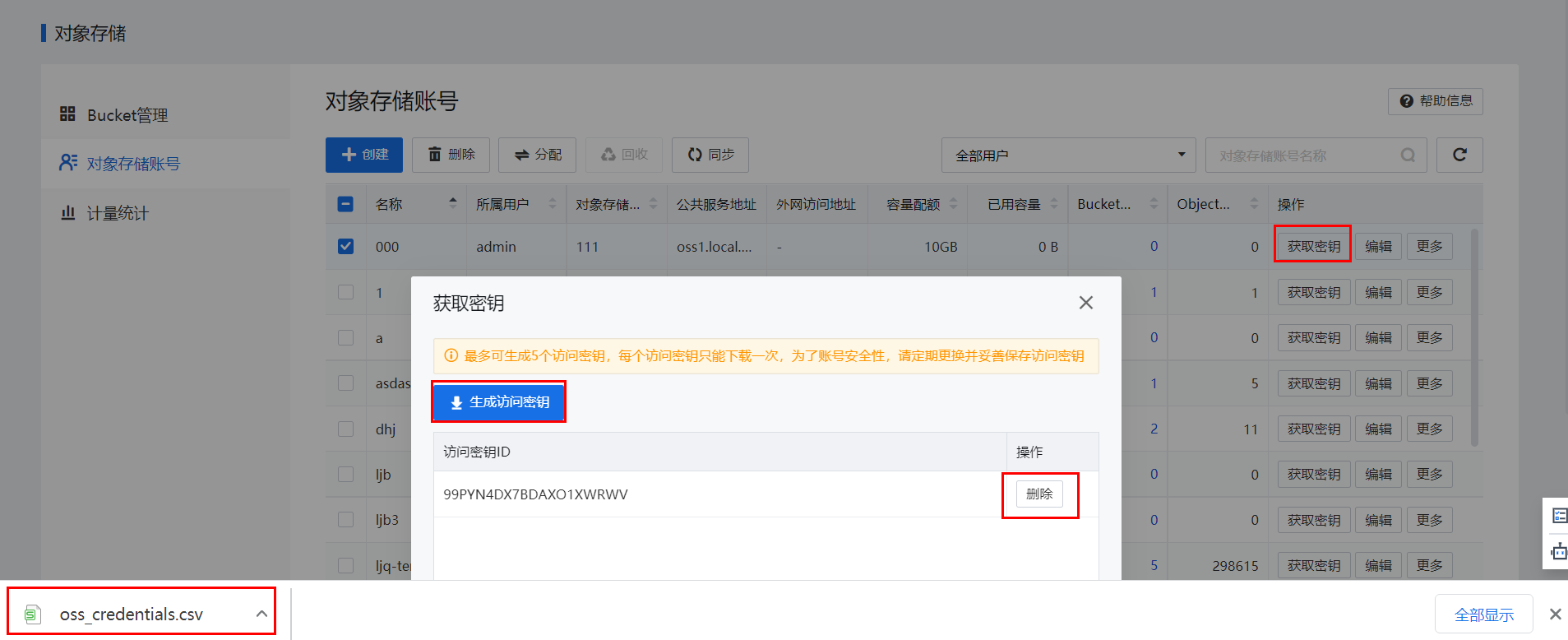
- Up to five secret access keys can be generated for each account, and each of them can be downloaded only once. For account security, you are advised to change the secret access key regularly.
Prerequisites
None
Procedure
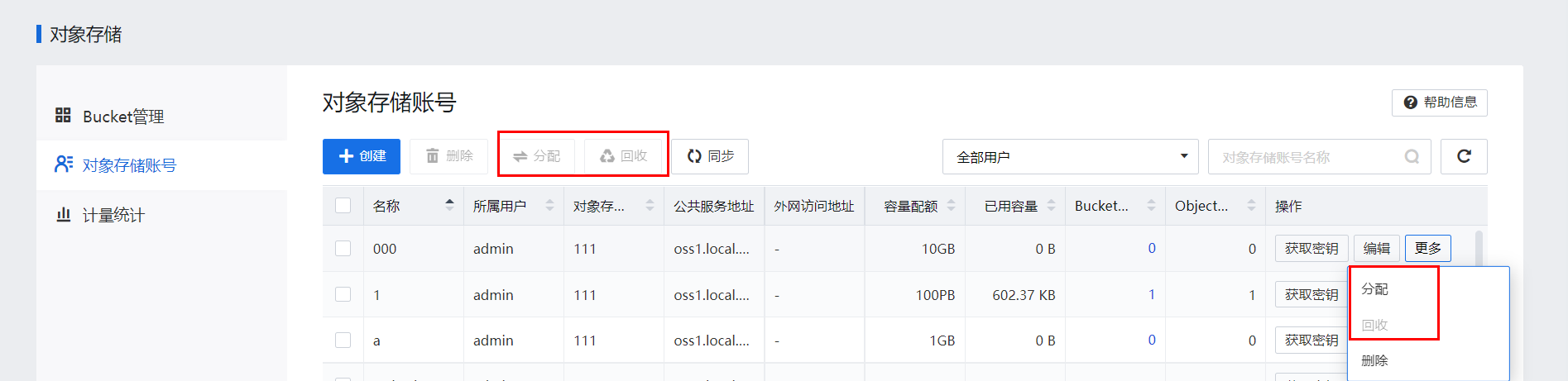
- Go to Resources > Storage > Object Storage > Accounts. EDS object storage accounts are automatically synchronized to SCP once every 10 minutes. You can also click Sync to start a synchronization.

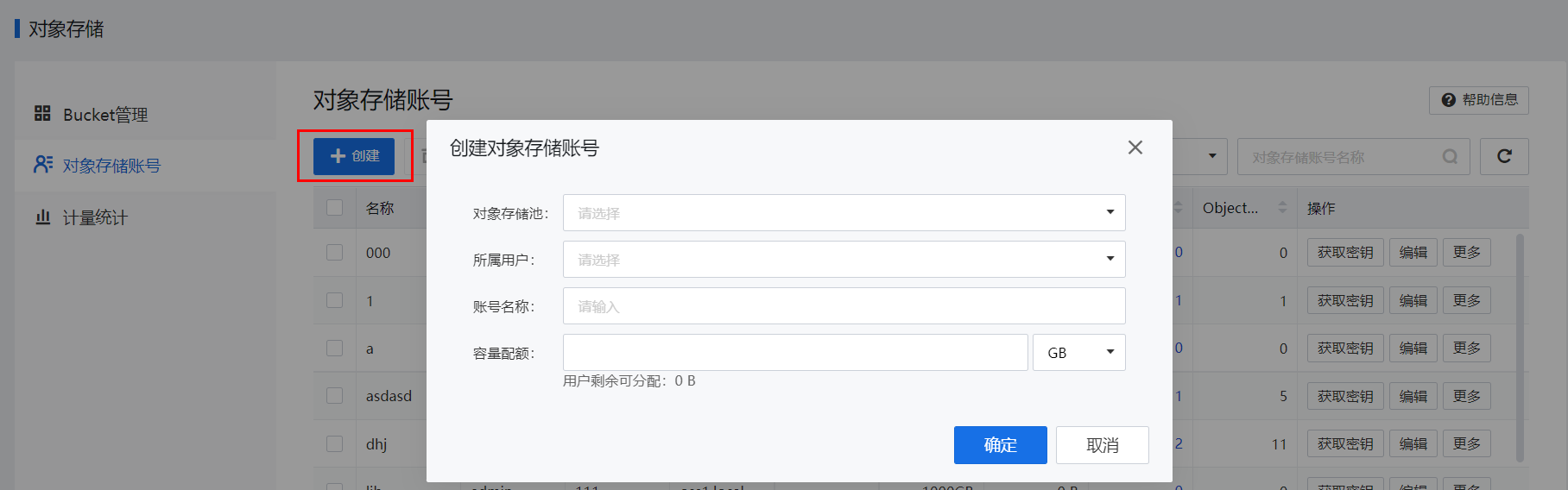
- Click Create. In the Create OSS Account pop-up window, select the resource pool, user (which can be an administrator or a tenant account), and quota.
- After the account is created, click Generate Secret Access Key, and then the system will automatically download the key file. Keep the key file properly, as it can be downloaded only once. Up to five key files can be generated for each account. If the number of downloaded key files exceeds this limit, you need to delete outdated keys and generate them again.
- Administrators or MSP users can click More > Allocate or More > Revoke in the Operation column to allocate an account to a tenant or revoke the account from the tenant. Clicking Revoke or Allocate can implement bulk operations.
4.10.1.5OSS Bucket Management
Function Description
This section instructs how to manage buckets.
Precautions
- An OSS account needs at least one access key pair to create and associate with buckets.
- An OSS account can have multiple buckets. A bucket can be associated with only one OSS account.
Prerequisites
None
Procedure
- Go to Resources > Storage > Object Storage > Buckets and select an object storage pool from the Object Storage Pool drop-down list.
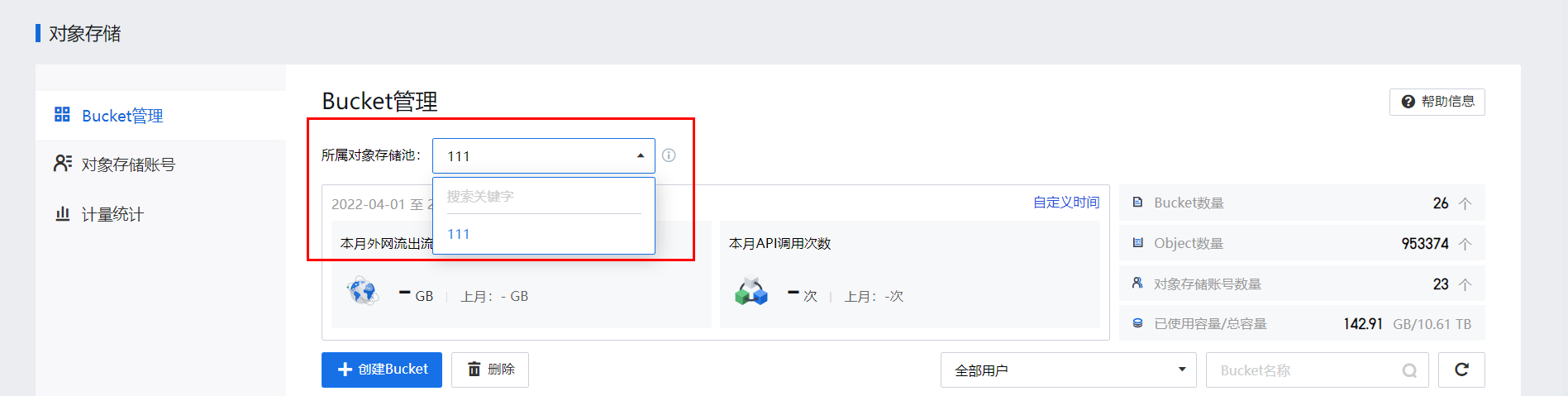
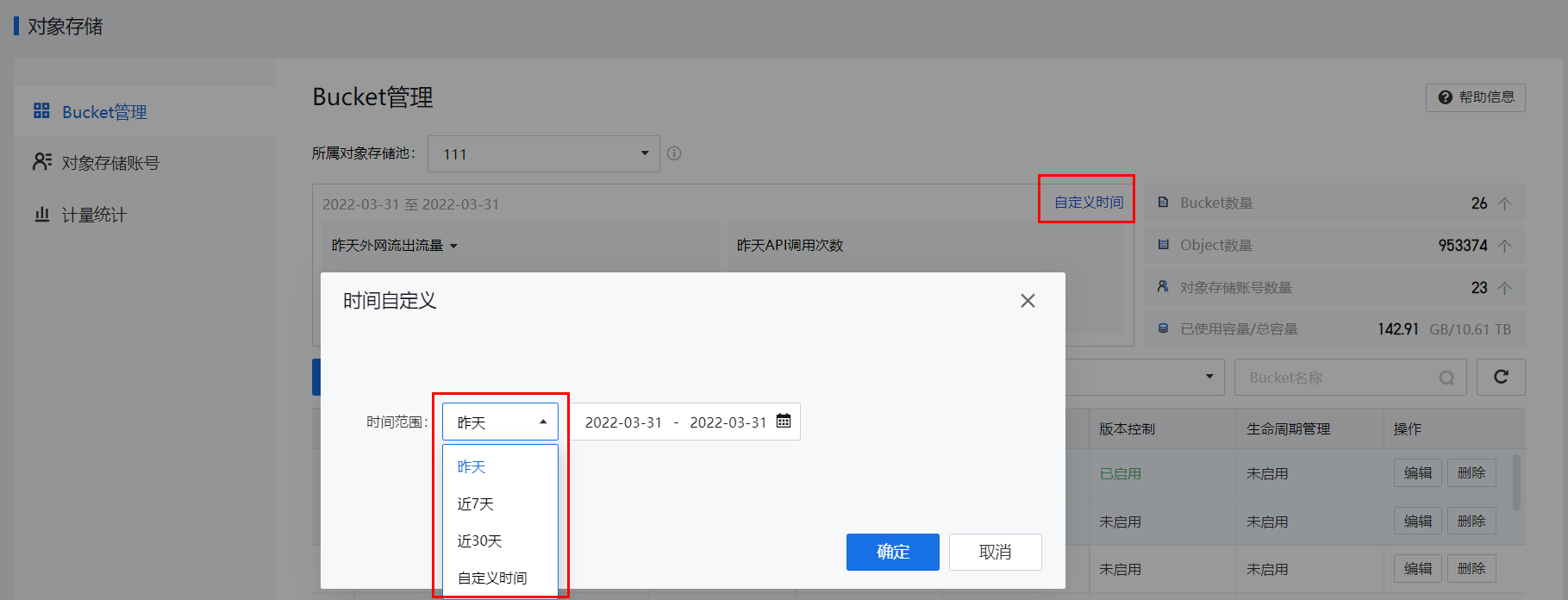
- Then, you can view the WAN outbound traffic and the number of API calls of the object storage pool. You can click Specify Time to specify a time range. Data is synchronized between 00:00 AM and 06:00 AM every day.
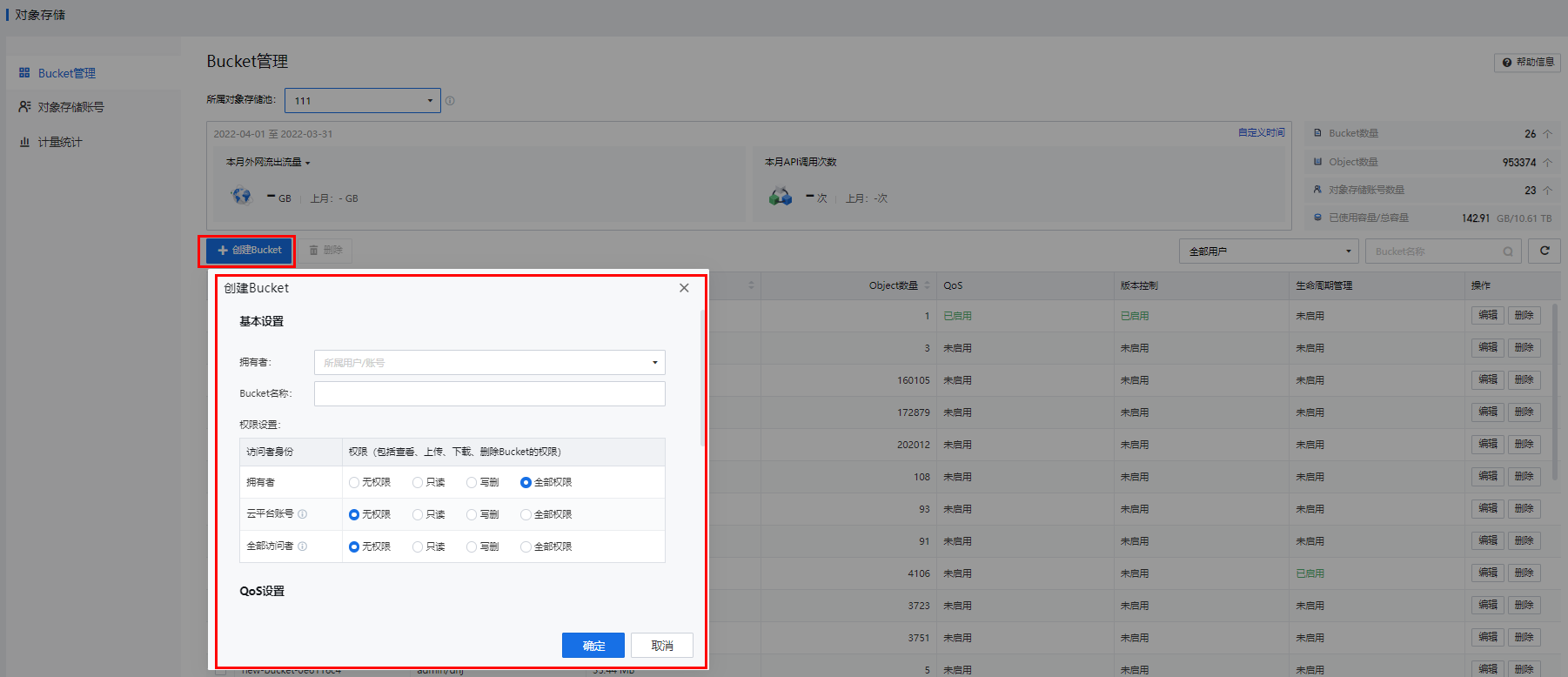
- Click New to create a bucket.
• Basic Settings
Owner: Select an OSS account for bucket association. An account can be associated with multiple buckets.
Permission Settings: You can grant permissions to Owner (the account you select), Platform Accounts (all OSS accounts in the list), and All Accessing Users (all users accessing the storage pool of the bucket).
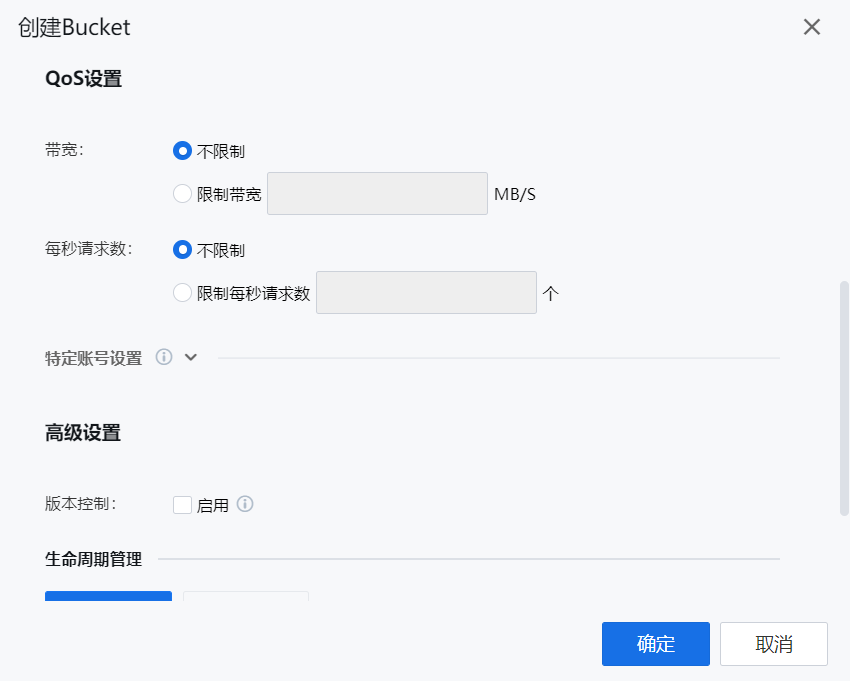
• QoS Settings
Bandwidth: No limit is selected by default. You can also specify the bandwidth as needed.
QoS: No limit is selected by default. You can also specify the QoS as needed.
Settings for Specific Accounts: You can specify the bandwidth and QoS for specific accounts, and the settings for these accounts have a higher priority than general settings.
• Advanced Settings
Version Control: It is disabled by default. If it is enabled, all versions of objects with the same name will be retained in the bucket.
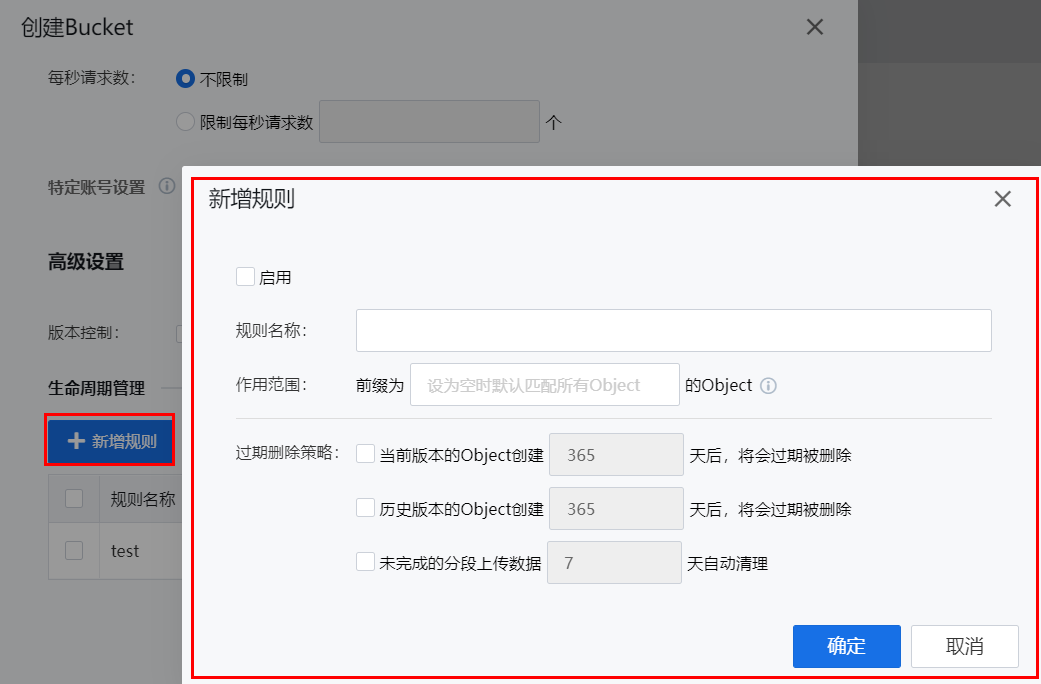
• Lifecycle Management
Click New to create a lifecycle management rule for objects in the bucket.
4.10.1.6Access OSS
Classic Network
After the OSS service is activated, you can access and use it by using the IP address and port number of the interface for storage access configured in section Activate OSS and the access key pair generated in section OSS Account Management.
VPC
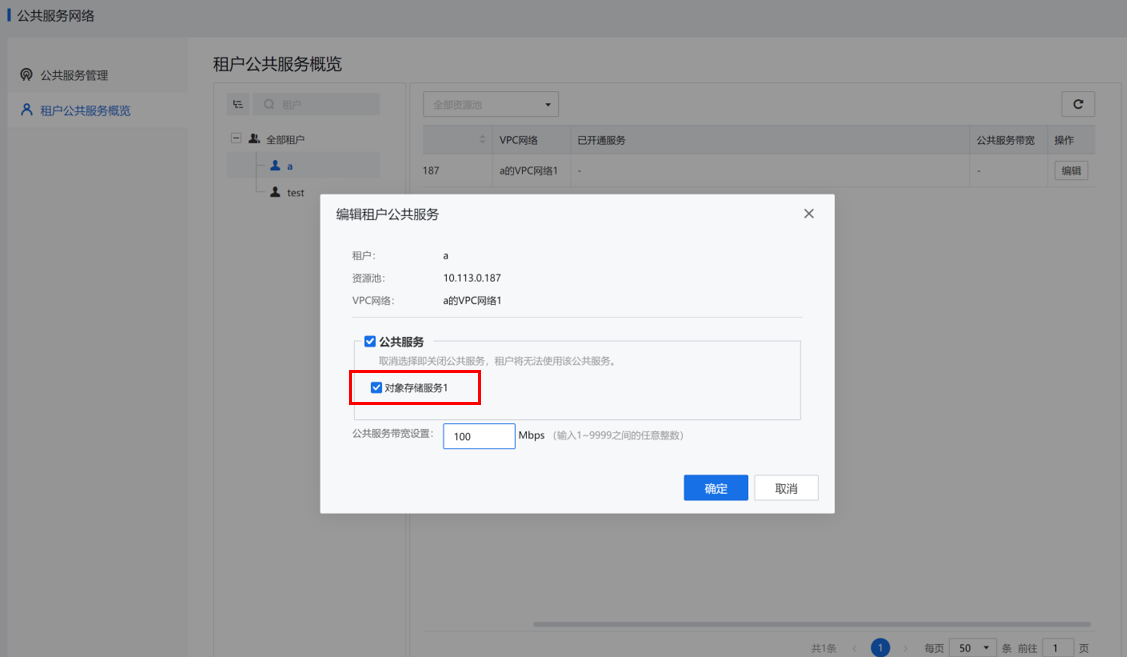
- After the OSS service is activated, you can find a record in the list of shared services automatically generated for the managed object storage pool from Resources > Networking > Shared Service Network.

- Enable Object Storage in the Shared Services section for the tenant. For more information, see section 4.3.5 "Shared Service Network."
- Access and use the OSS service by using the domain name of the shared service and the access key pair generated in section OSS Account Management.
- Metrics Statistics
Function Description
This section instructs how to collect information such as WAN outbound traffic, WAN inbound traffic, and the number of API calls.
Precautions
None
Prerequisites
None
Procedure
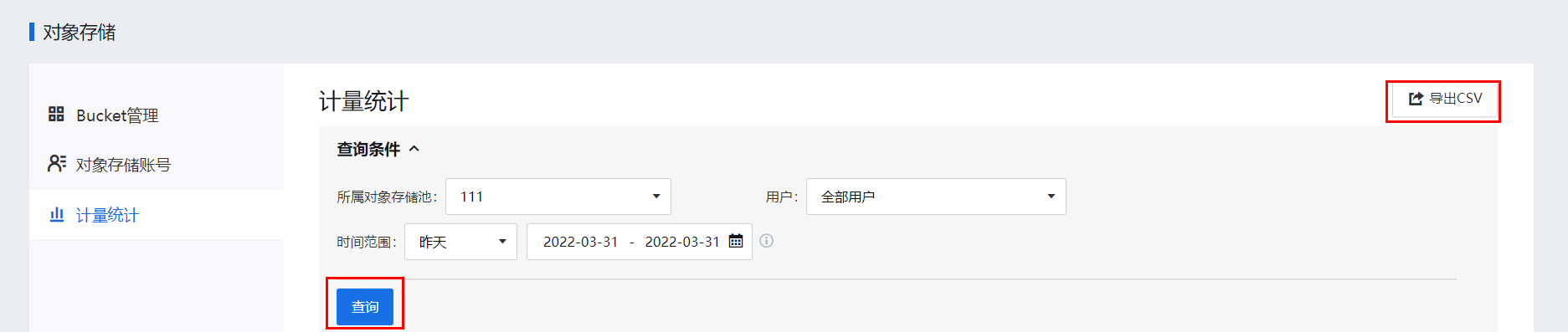
Go to Resources > Storage > Object Storage > Metrics Statistics. Select the object storage pool, user, and time range (data is synchronized between 00:00 AM and 06:00 AM every day) and click Query. Click Export CSV to export the queried list.










 {{ $t('index.defaultHeader.chromeBrowserTip') }}