


{{ secondMenu.name }}






Function Description:
When a tenant or tenant user applies for quota change, application, or change of virtual machine, it needs to apply through a work order, and the corresponding administrator can approve it after receiving the work order. The admin administrator can set the approval process of the work order according to the actual situation.
Precautions:
Prerequisite
The corresponding approver account is created.
Steps:
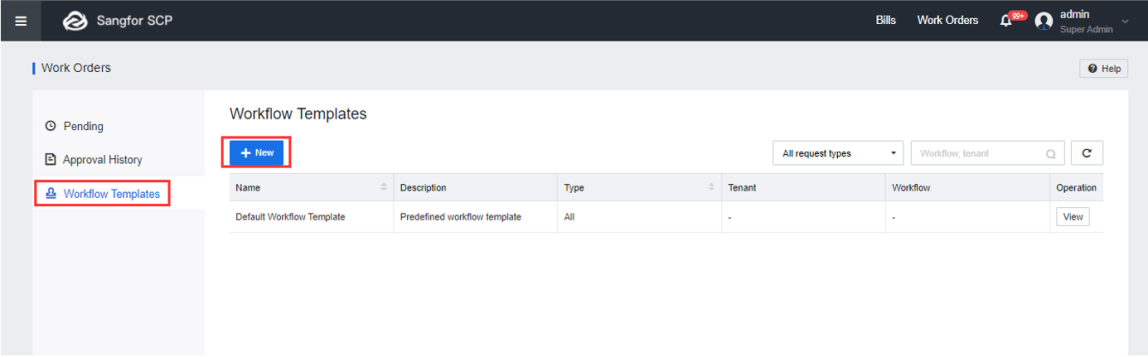
Step 1.Log in to the SCP platform, select Work Orders > Workflow Templates (the system has a built-in default template before the workflow template is created, all work orders are approved according to the default template), and click New.
Step 2.Enter the name and description of the workflow template, select the Request Type and Tenant, and click Next.
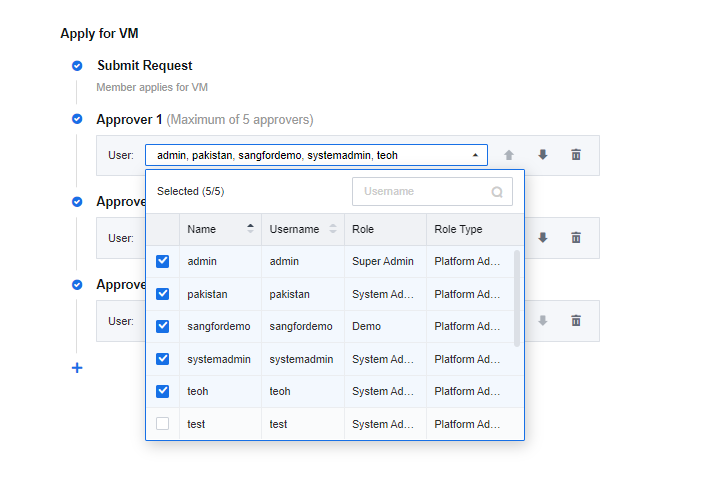
Step 3.Select an approver. If multi-level approval is required, click + to add an approver. The position of each level of approver can be adjusted by clicking ↓↑, and up to 10 levels of approvers can be added. The current version supports parallel approval. A maximum of 5 approvers can be selected for every request. 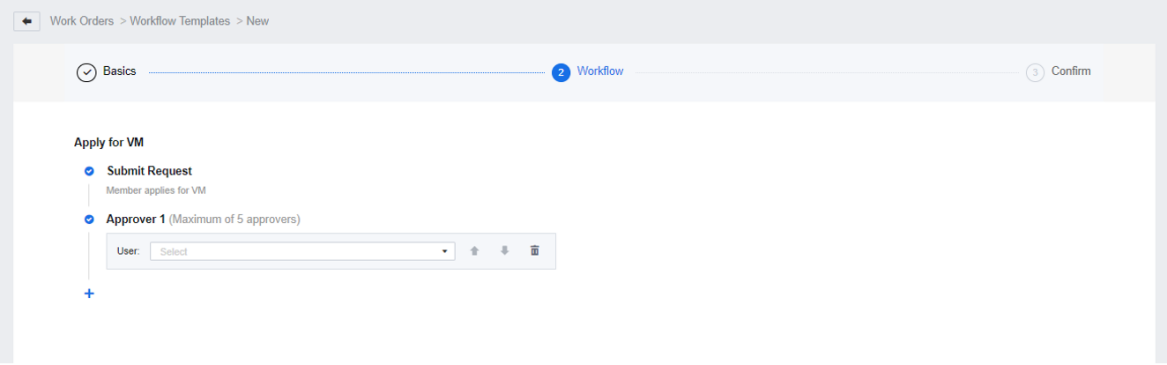
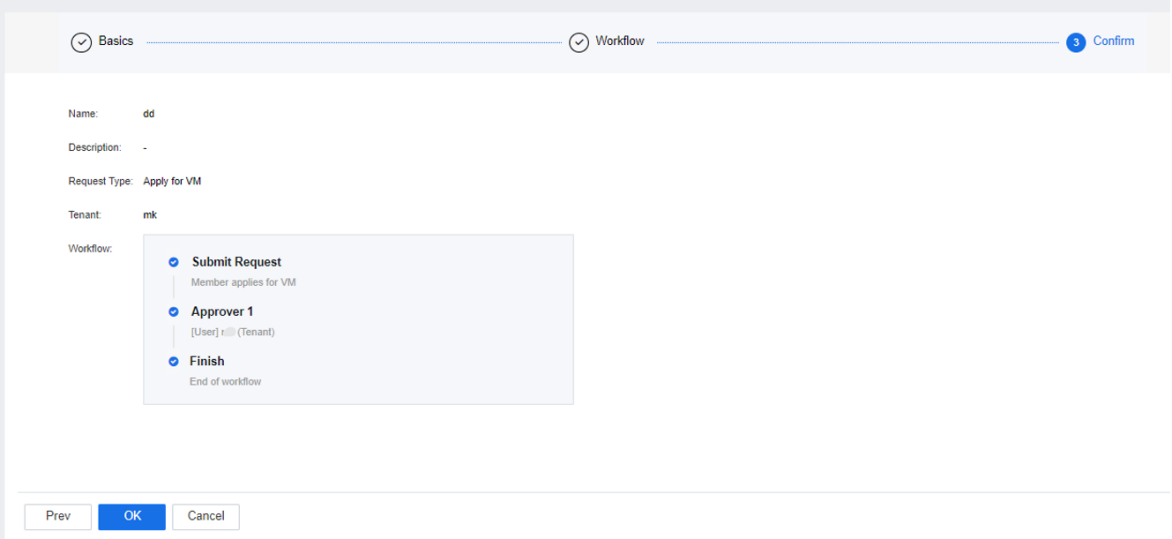
Step 4.Click OK.
Function Description:
Precautions:
None.
Prerequisite
None.
Steps:
Step 1.Apply for quota
• From the IP address of https://SCP, log in to the tenant administrator, select Work Order > My Requests, and click New to create a work order.
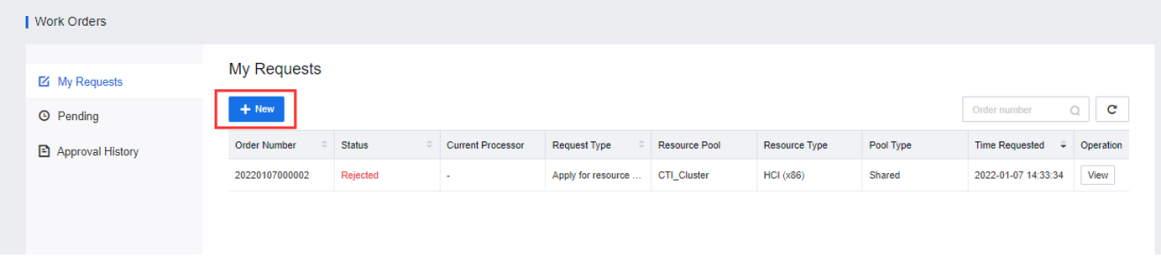
• Enter the application's content and the reason for the application, and click Apply Now to complete the work order creation.
Step 2.Apply for virtual machine
• From the IP address of https://SCP, log in to the tenant user account, select Virtual Machines, and click Request.

• Select the resource pool to which the virtual machine belongs, the appropriate image, and the number of virtual machines, configure computing, storage, and network parameters, and enter the basic information of the virtual machine, the period of use, and the reason for the application, and click OK to complete the application.
Step 3.Change Virtual Machine
• From the IP address of https://SCP, log in to the tenant user account, select Virtual Machine, find the virtual machine that needs to be changed, click More, select Change Configuration, and configure computing, storage, network, etc. change.
Function Description:
If the platform administrator and tenant account are added to the workflow template as approvers, they can view the approval application to approve and reject the work order and can modify the virtual machine configuration applied by the requester.
Precautions:
Prerequisite
Steps:
Step 1.The platform administrator approves/checks the work order.
• Log in to the SCP platform, click Work Order at the top right, and enter the workflow approval interface. On the Pending page, you can see the work orders that the platform administrator has not approved.
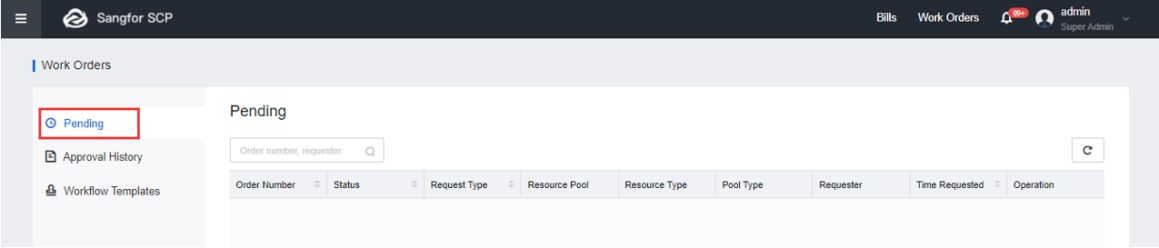
• Select a work order, and click Approve. Select a work order, and click Approve. You can see the work order's basic information and application content, modify the approval content according to the actual situation, and fill in the approval comments. The approval result can be Rejected, Approved, and Cancel(for Work Order Initiator only).
Step 2.Tenant approval/check work order.
• From the IP of https://SCP, log in to the tenant and select Work Order > Pending. You can see the currently unprocessed work order, select the work order, click Approve, and see the basic information of the work order according to the actual content of the application, modify the approval content and fill in the approval comments. The approval result can be Rejected, Approved, and Cancel (for Work Order Initiator only).


 {{ $t('index.defaultHeader.chromeBrowserTip') }}