


{{ secondMenu.name }}






Function Description:
Sangfor SCP cloud management platform requires administrators to manage the platform, and the platform has a built-in super administrator admin. Super administrators can create three administrator roles: system administrator, security administrator, and audit administrator, assign different permissions to manage the cluster, and assist super administrators in managing the SCP platform.
Precautions:
Prerequisite
None.
Steps:
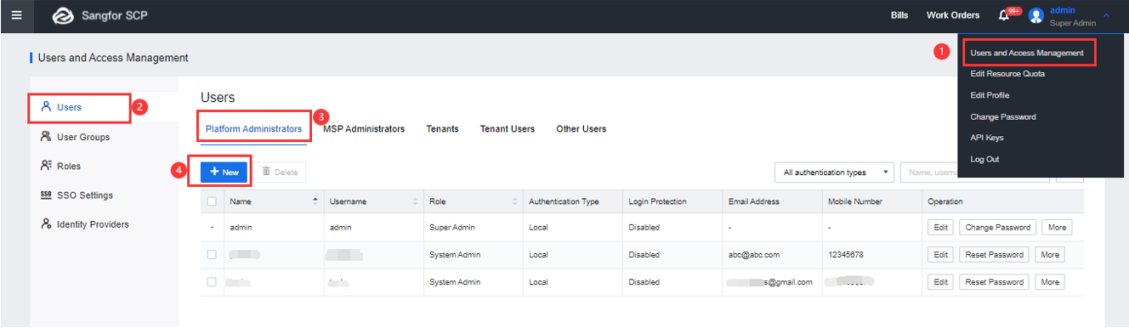
Step 1.Log in to the SCP platform as admin, select User and Access Management > Users > Platform Administrators, and click the New button to create a platform administrator.
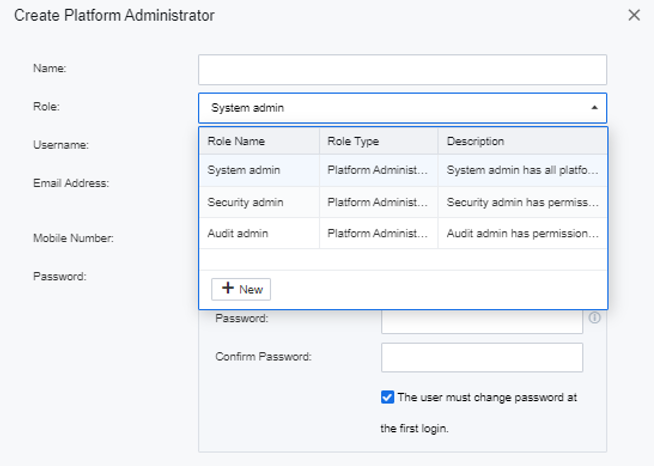
Step 2.Enter the name of the platform administrator, select the appropriate role, and enter the username, email, mobile phone number, and password.
Step 3.The super administrator admin can edit, reset the password, and delete the platform administrator. The super administrator can click Edit to modify the platform administrator's name, role, email, and mobile phone number. The super administrator can reset the password when the platform administrator forgets the password.
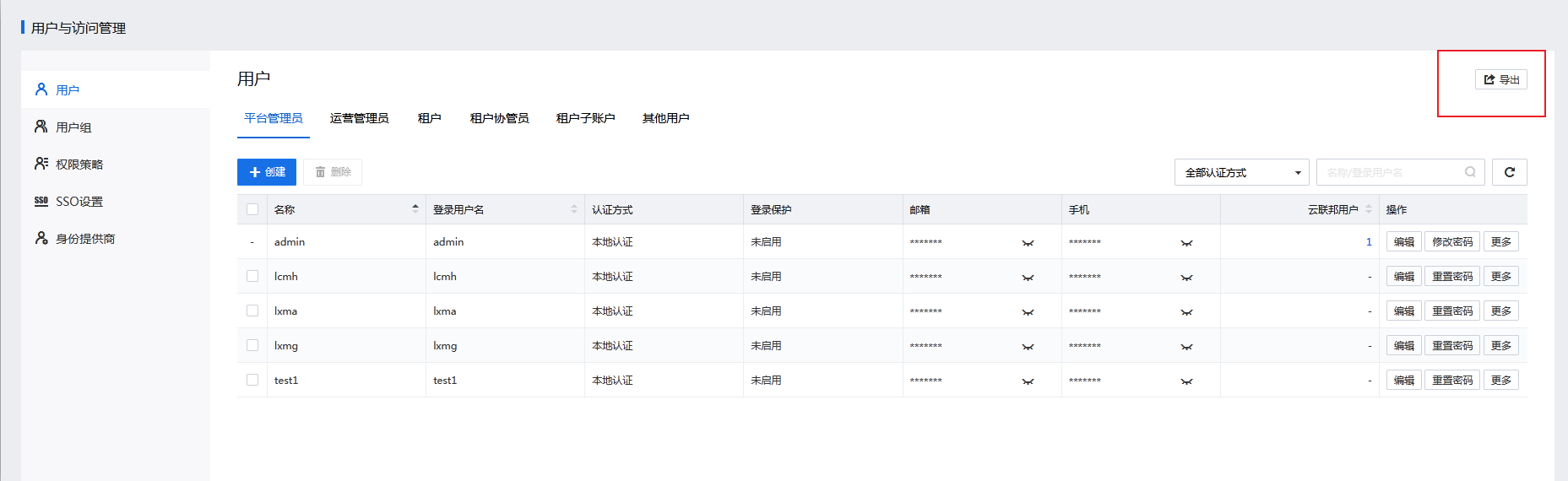
Step 4.Click Export in the upper-right corner to bulk export user information.
Function Description:
Sangfor SCP platform supports the role of the MSP administrator. The platform administrator establishes the role of the MSP administrator and issues resource pool quotas to the operation administrator, allowing the MSP administrator to assign them himself. For example, in a hosting cloud/operator scenario, the company headquarters has purchased a large-scale resource pool, and resources need to be allocated to each branch. The branch needs to create tenants for each department or group.
Precautions:
Prerequisite
None.
Steps:
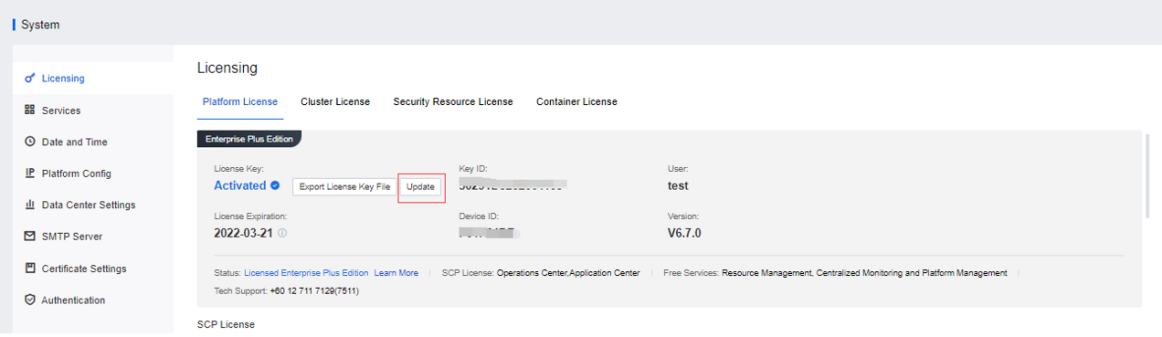
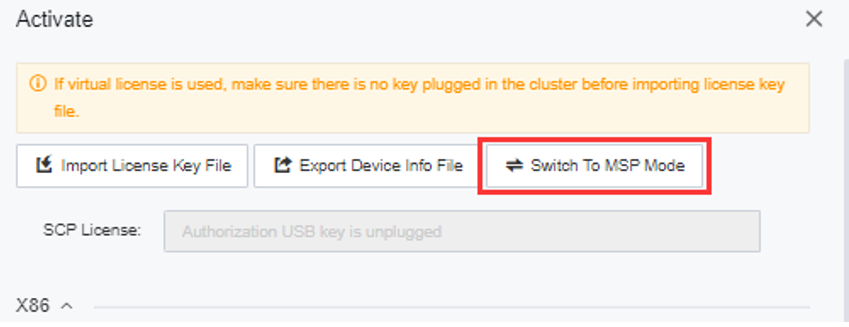
Step 1.Enter the System > Licensing > Platform License, and click the Update button.
Step 2.Click Switch to MSP Mode in the pop-up window.
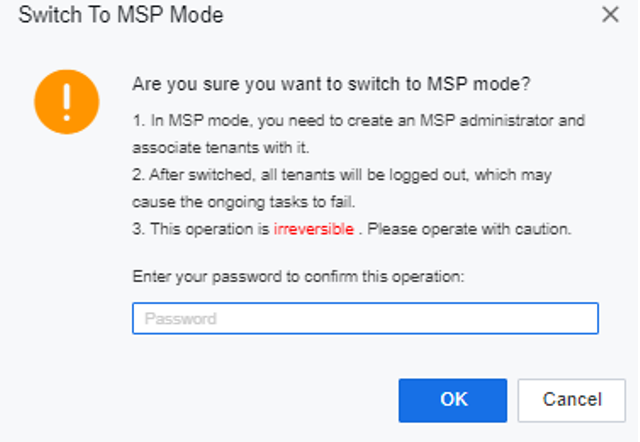
Step 3.Enter the administrator password.
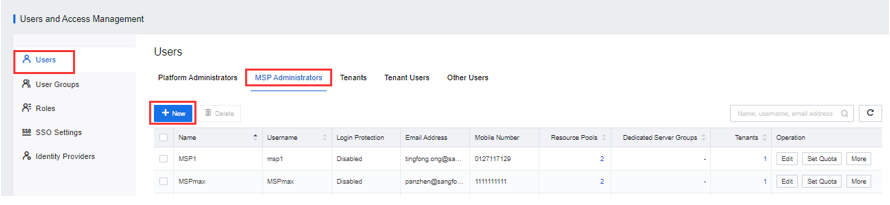
Step 4.The conversion to operation mode is completed. You can see the MSP Administrator page in the User and Access Management interface and the MSP Administrator Quota page in the Quota Management interface. Enter the MSP Administrator interface and click the New button to create a new operation administrator.
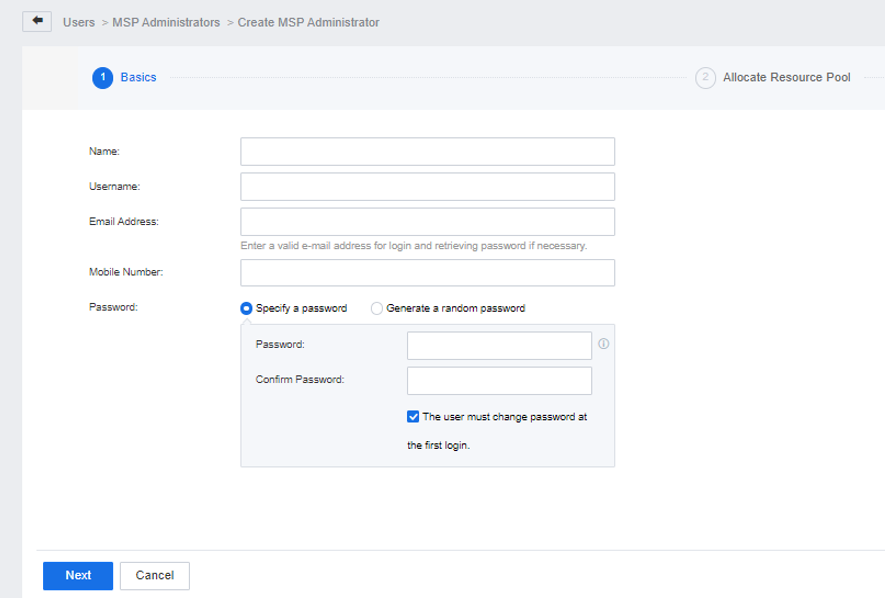
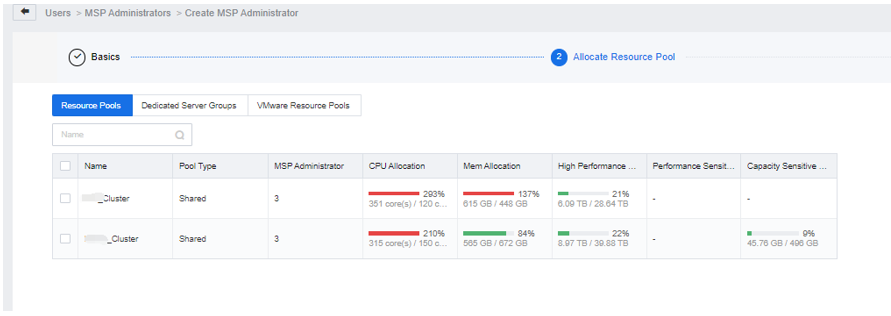
Step 5.Click Next to allocate resource pools. It supports the allocation of HCI Resource Pools, Dedicated Server Groups, and VMware Resource Pools for MSP administrators.
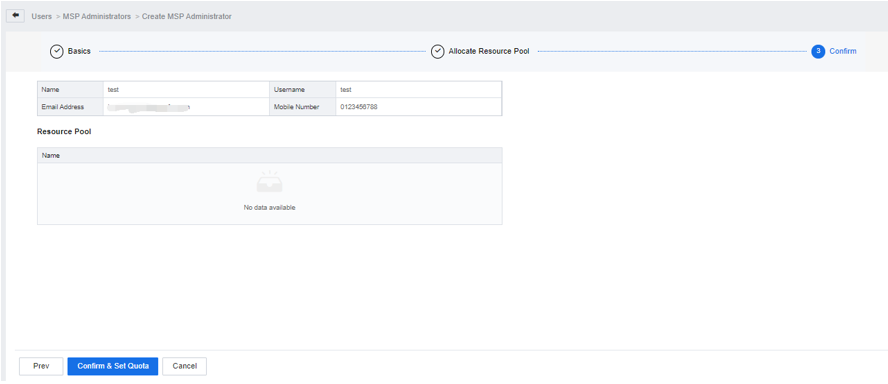
Step 6.Click Confirm and Set Quota to complete the operation administrator creation.
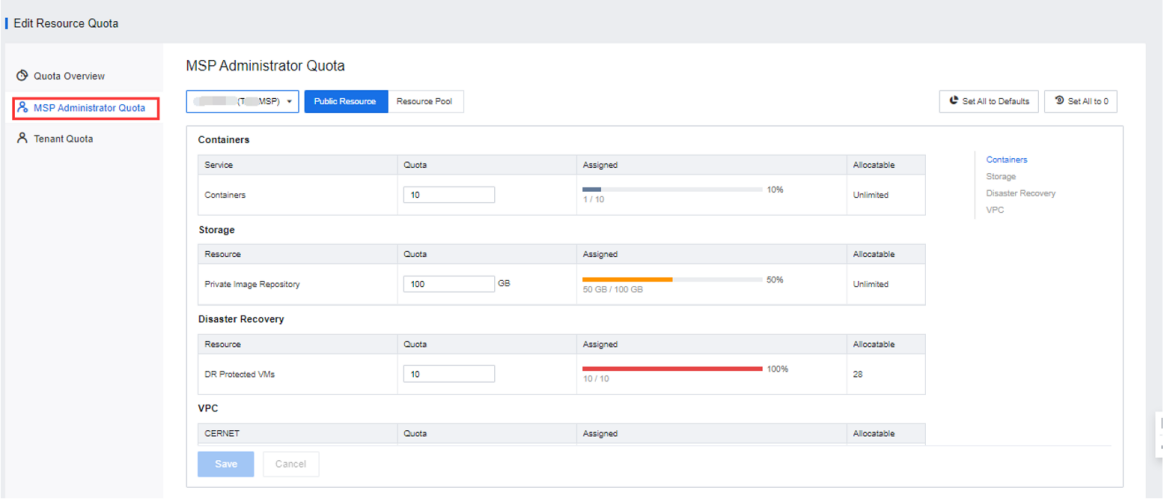
Step 7.After the MSP administrator is created, enter the MSP Administrator Quota interface to set the quota for the operation administrator.
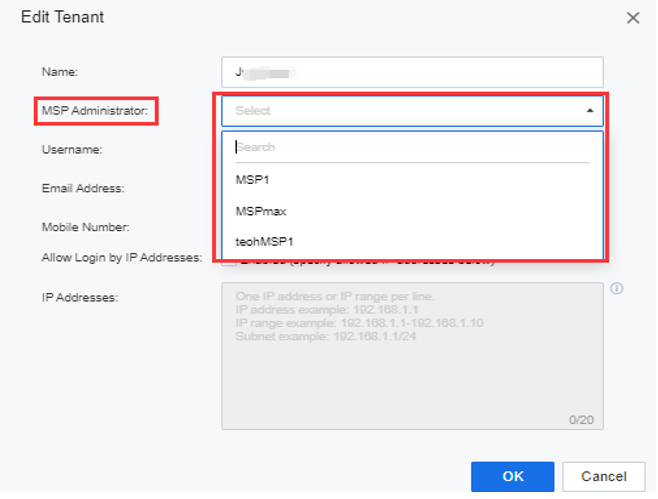
Step 8.Go to the User and Access Management > User > Tenant interface, find the tenant for which an operation administrator is not specified, and click Edit to specify an MSP administrator.
Function Description
Super admin can grant different users and organization administrators more than 100 permissions on resources such as VMs, resource pools, and NFVs.
Precautions
Super admin can grant permissions to platform administrators but not tenants. The tenant can grant permissions to tenant co-administrators but not tenant users.
Prerequisites
Permission policies are available on SCP 6.9.0 and later versions.
Steps[11]
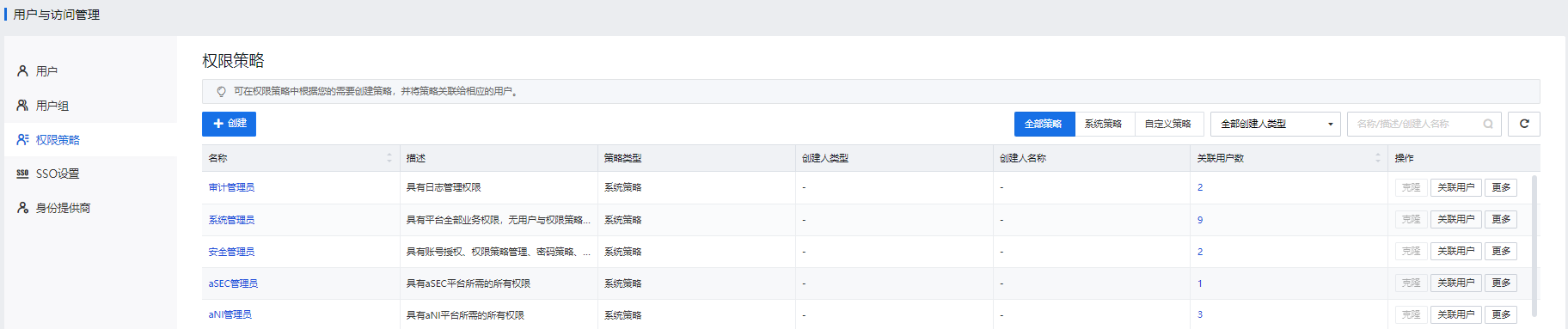
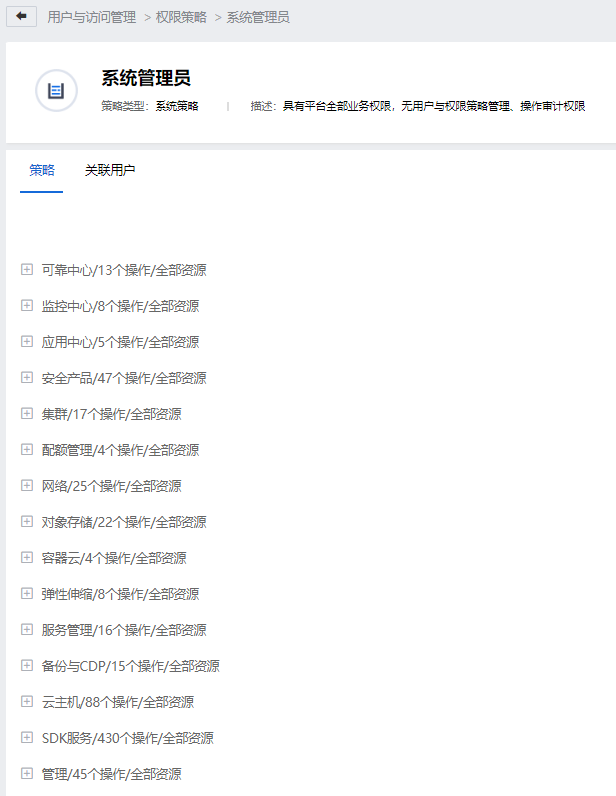
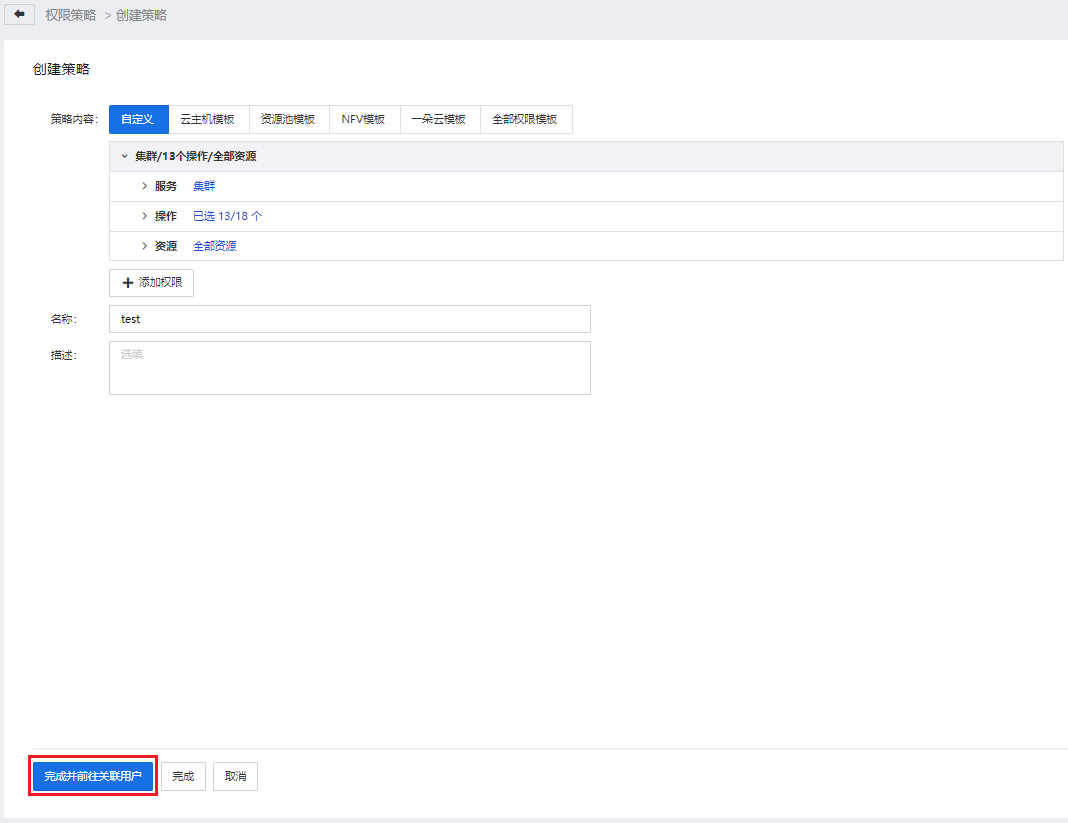
There are three roles in SCP's multi-tenant management model: platform administrator (admin), tenant, and tenant user account. For example, a company (platform) has multiple departments (tenants), and each department has several employees (tenant user). Several tenants can be allocated on the Sangfor cloud computing platform, corresponding to each department. Several tenant sub-accounts can be allocated under the tenants, corresponding to the department's employees. The company needs to designate a platform administrator (admin), and each department needs to designate a tenant.
Function Description:
Guide the platform administrator to create a tenant.
Precautions:
None.
Prerequisite
• Sangfor SCP has managed the cluster and created the resource pool.
• When creating a tenant VPC network, you need to plan the VPC network egress of the resource pool associated with the tenant in advance.
Steps:
Step 1.Log in to the SCP platform, and select User and Access Management > User > Tenants. Then, click the New button to create a tenant.
Step 2.Enter the tenant's name, login username, email address, mobile phone number, and password, and click Next.
Step 3.Allocate resource pools and select the resource pool resources that the tenant can use. The resource pool attributes are divided into Shared Resource Pools and Dedicated Pools. A shared resource pool can be assigned to multiple tenants, and one tenant can be associated with multiple shared resource pools. However, a dedicated pool can only be assigned to one tenant, and a tenant can only be associated with one dedicated resource pool. (VMware resource pools can only be used as shared resource pools, not dedicated pools)
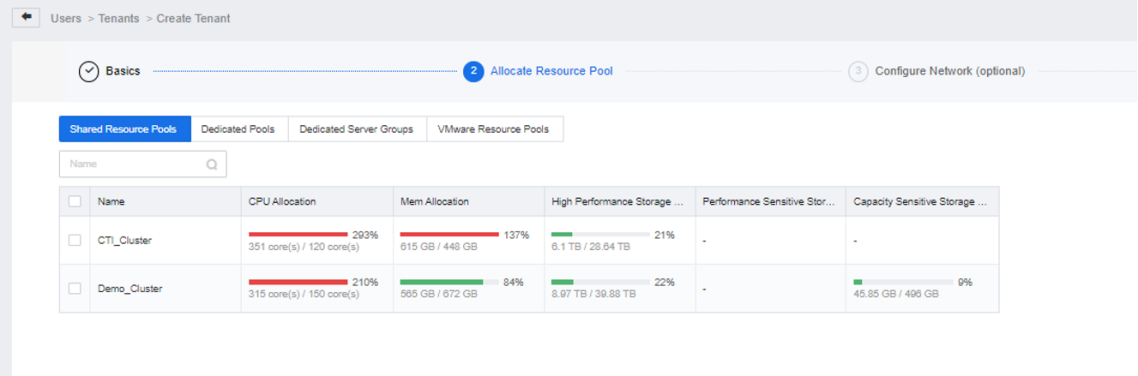
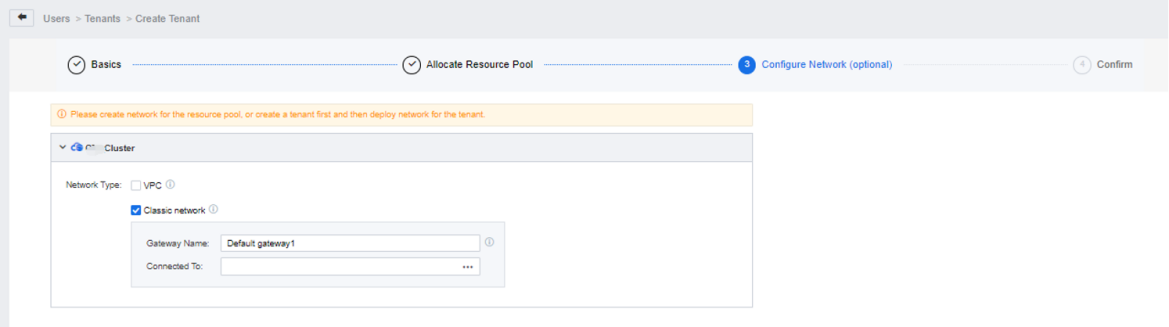
Step 4.Configure the network type of the tenant. VPC is selected by default. You can select the Classic network if you want to, fill in the Gateway Name, and select the Connected To device.
Step 5.Set quotas for tenants based on actual needs.
Step 6.Confirm the information. Click OK to create the static route.
Function Description:
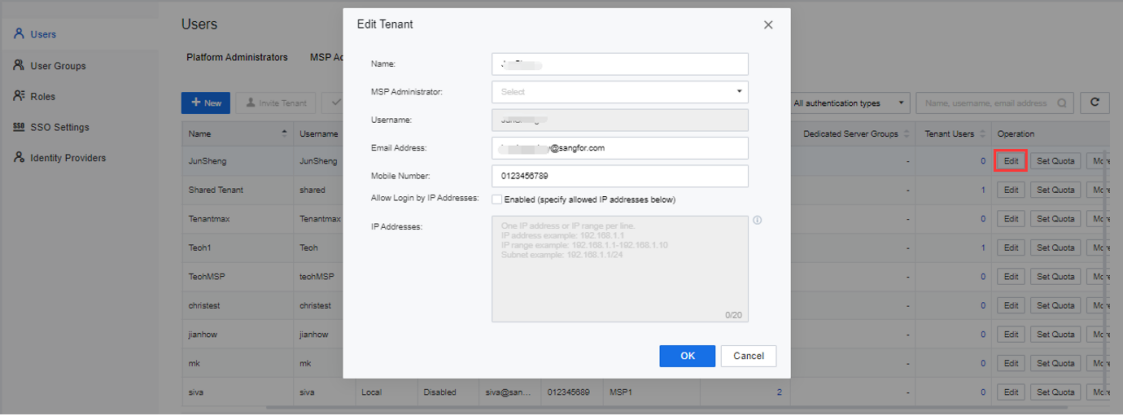
The platform administrator can edit the tenant and modify the tenant's name, email, and mobile phone number.
Precautions:
None.
Prerequisite
None.
Steps:
Log in to the SCP platform, and select User and Access Management > User > Tenants. Then, click Edit to edit the tenant.
Function Description:
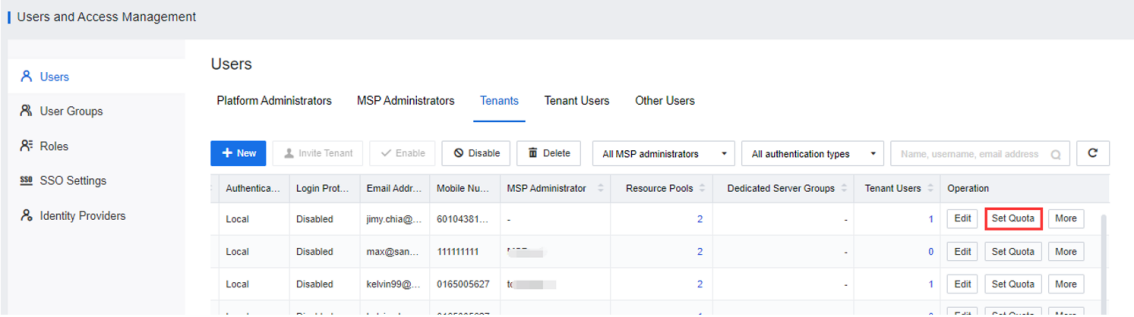
Platform administrators can Set Quota for tenants. Quotas are subdivided into Public Resource and Resource Pool. Resource pool quotas are related to virtual devices running on resource pools, such as computing, storage, and security devices. Public resource quotas are those unrelated to resource pools, such as elastic IP, disaster recovery licensing, and container.
Precautions:
None.
Prerequisite
None.
Steps:
Log in to the SCP platform, select User and Access Management > User > Tenant, and click Set Quota to modify the tenant's quota.
Function Description:
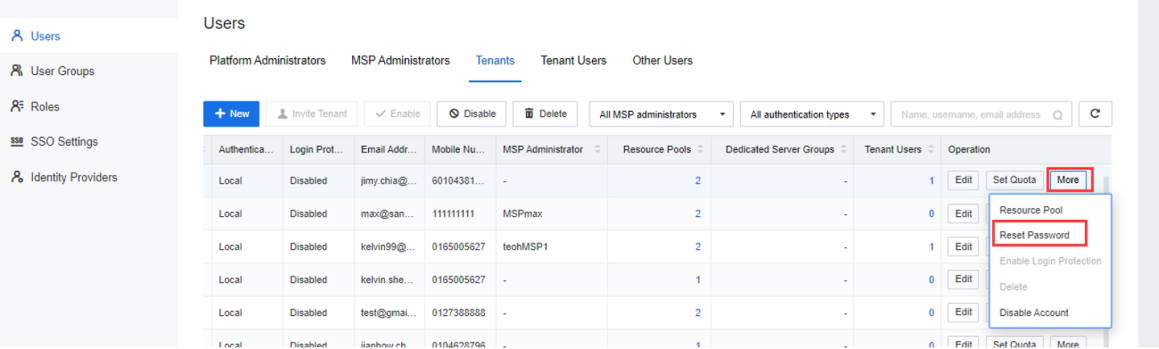
The platform administrator can reset the password of the tenant.
Precautions:
None.
Prerequisite
None.
Steps:
Log in to the SCP platform, select Users and Access Management > Users > Tenants, click More, and select Reset Password. Then, enter a new password and click OK.
Function Description:
Platform administrators can disable tenants.
Precautions:
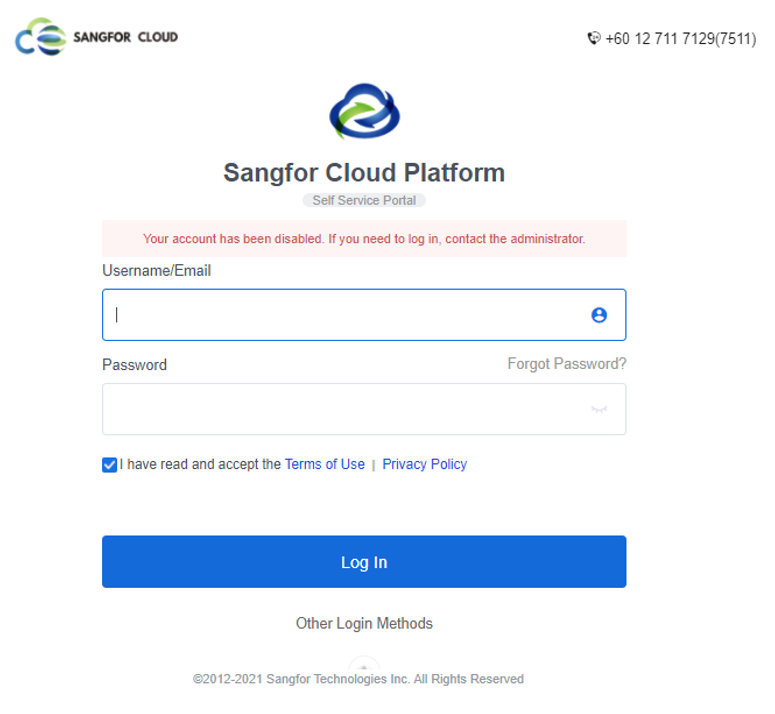
After the tenant is disabled, the tenant and all users under the tenant are not allowed to log in to the SCP platform, which does not affect the normal operation of the virtual machine.
Prerequisite
None.
Steps:
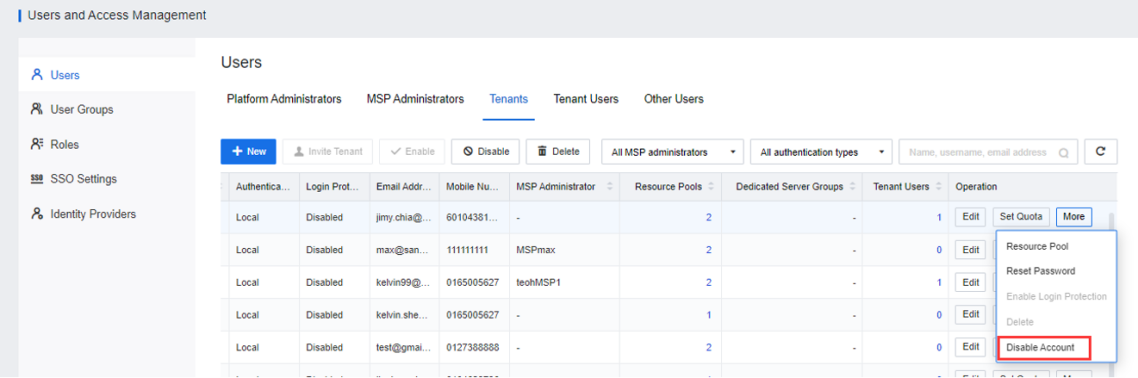
The platform administrator logs in to the SCP platform selects User and Access Management > Users > Tenants, clicks More, selects Disable Account, and enters the platform administrator's password to confirm and disable it.
Function Description:
Platform administrators can delete tenants.
Precautions:
A tenant cannot be deleted when there are tenant users.
Prerequisite
None.
Steps:
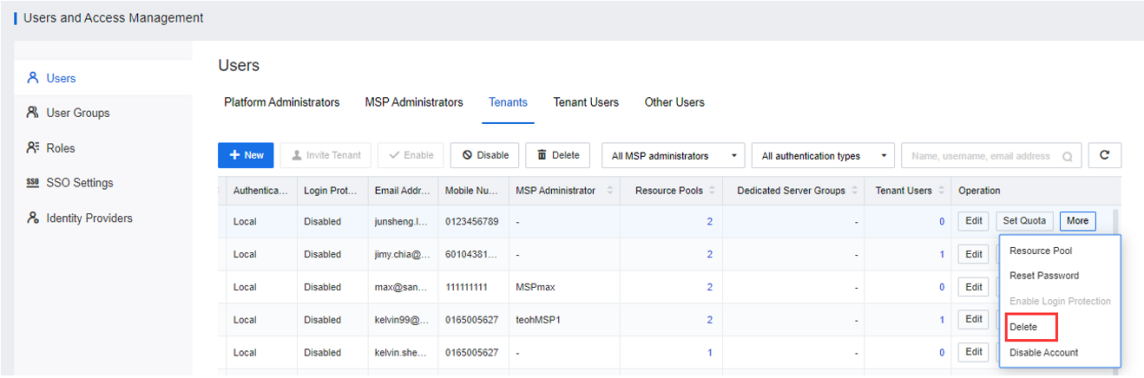
The platform administrator logs in to the SCP, selects User and Access Management > User > Tenant, clicks More, selects Delete, and enters the platform administrator's password to delete.
Function Description:
Platform administrators can delete tenant users.
Precautions:
None.
Prerequisite
None.
Steps:
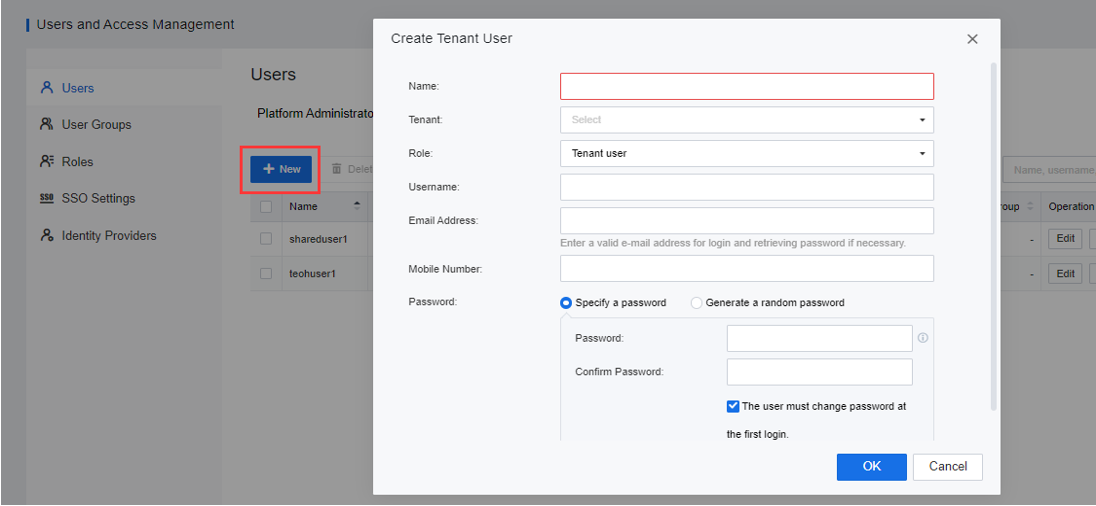
The platform administrator logs in to the SCP platform, selects User and Access Management > User > Tenant Users, clicks New, enters the corresponding information, selects the tenant to be associated with, and clicks OK.
Function Description:
The platform administrator can edit the tenant user and modify the name, email, mobile phone, and the tenant of the tenant user.
Precautions:
None.
Prerequisite
None.
Steps:
The platform administrator logs in to the SCP platform, selects User and Access Management > User > Tenant User, and clicks Edit on the tenant user you wish to edit.
Function Description:
The platform administrator can reset the password of the tenant user.
Precautions:
None.
Prerequisite
None.
Steps:
The platform administrator logs in to the SCP platform selects User and Access Management > User > Tenant User, selects the tenant user who needs to reset the password and clicks Reset Password.
Function Description:
Platform administrators can delete tenant users.
Precautions:
None.
Prerequisite
It cannot be deleted when the tenant user has a virtual machine. However, you can delete or deallocate the virtual machine to the tenant and platform and then delete the tenant user account.
Steps:
The platform administrator logs in to the SCP platform selects User and Access Management > Users > Tenants, clicks More, selects Disable Account, and enters the platform administrator's password to confirm and disable it.


 {{ $t('index.defaultHeader.chromeBrowserTip') }}