


{{ secondMenu.name }}






Function Description:
After this function is enabled, the system schedules the virtual machine's running location according to each node's resource load to ensure continuous and stable business operation.
Precautions:
None.
Prerequisite
None.
Steps:
Step 1.Log in to the SCP platform and select Reliability > DRS to enter the dynamic resource scheduling configuration interface.
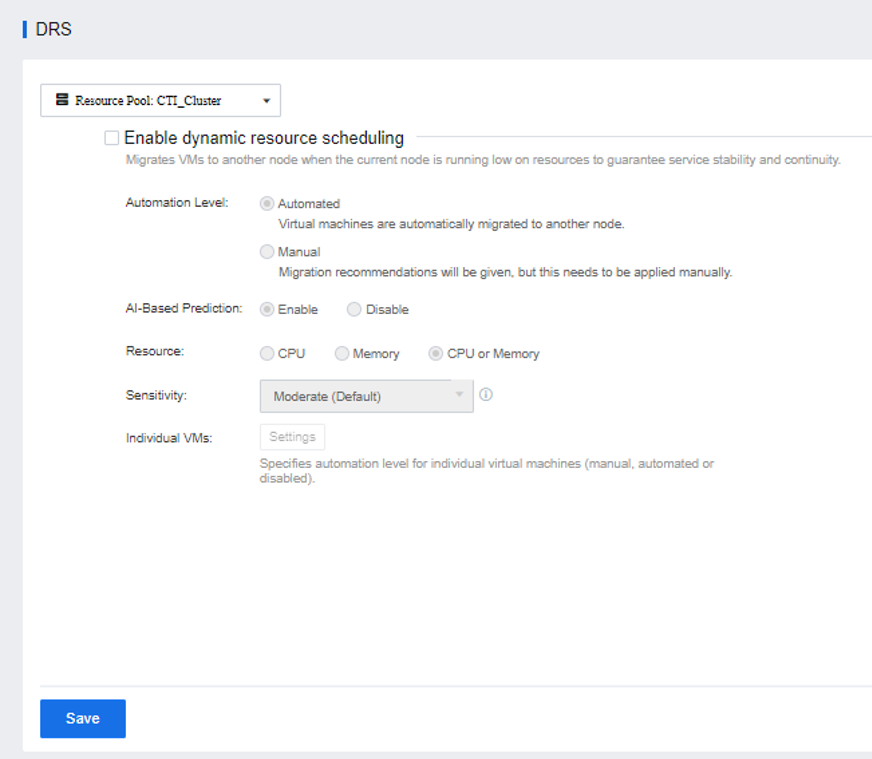
Automated Level:
• Automated: The system will automatically schedule according to the rules according to the cluster resource load.
• Manual: Migration recommendations will be provided, but the user needs to apply them manually.
AI-Based prediction:
The AI prediction module estimates the load of the node or virtual machine in the past seven days to perform intelligent DRS scheduling (including CPU demand and memory demand) in the next two days. It sends the predicted load data to the scheduling module. The scheduling module combines real-time data and predicted data. Calculate the migration cost and migrate the corresponding virtual machine to balance the cluster load.
Resource:
Variables that trigger scheduling execution or give scheduling recommendations. It can be set to CPU, Memory, CPU, or Memory.
Sensitivity:
Trigger conditions that trigger schedule execution or provide schedule suggestions.
Grading strategy:
In the corresponding mode, the system detects that the measurement factor reaches the threshold for a certain period and will schedule the cluster resources.
Specific VM scheduling: Configurable scheduling method for specific virtual machines during dynamic resource scheduling (manual/automatic/disabled).
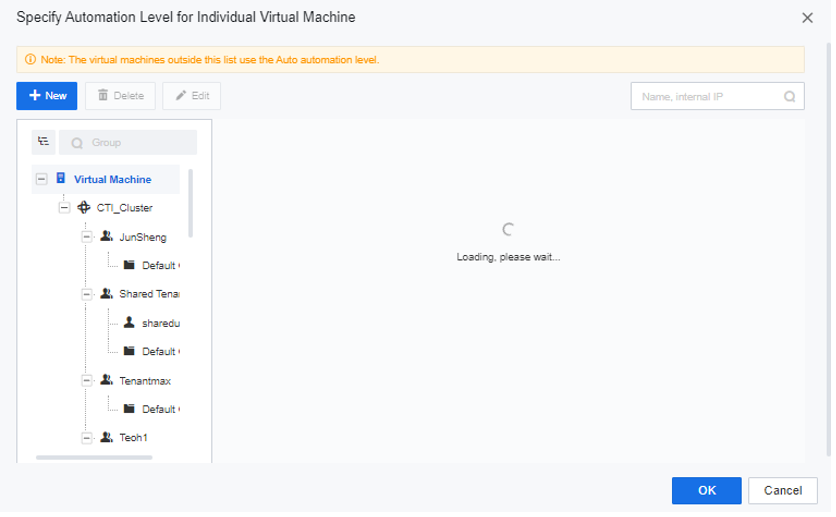
Step 2.Click the Settings button of Individual VMs to configure the corresponding automation method for a specific virtual machine.
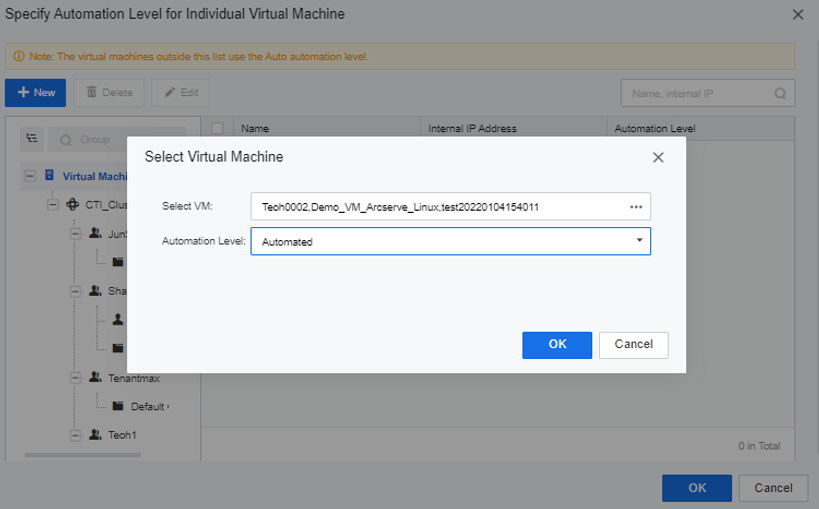
Step 3.At the same time, you can also configure virtual machines in batches, click the New button, select the virtual machine and Automation Level, then click OK.
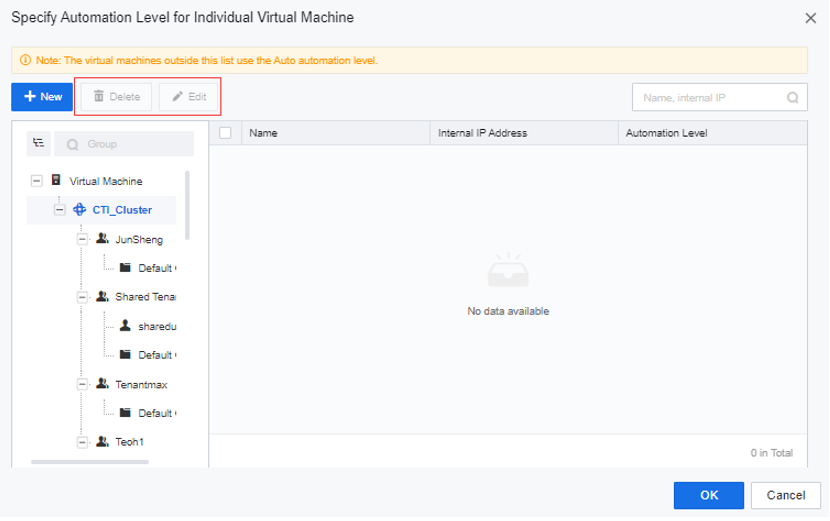
Step 4.You can Edit or Delete the existing configuration.


 {{ $t('index.defaultHeader.chromeBrowserTip') }}