{{ $t('productDocDetail.guideClickSwitch') }}
{{ $t('productDocDetail.know') }}
{{ $t('productDocDetail.dontRemind') }}
{{sendMatomoQuery("Sangfor Cloud Platform (SCP)","Backup and CDP")}}

Backup and CDP

{{ $t('productDocDetail.updateTime') }}: 2026-01-08

4.8.3.1Scheduled Backup

Function Description:

Provide scheduled backup services for the virtual machine to regularly back up data.

Precautions:

  1. After the SCP manages the HCI resource pool, backup can only be performed on the SCP platform.
  2. Backup protection of raw disks in virtual machines is not supported.
  3. The virtual machine can be backed up when powered on or off.
  4. The first backup is a full backup. Other backups within the backup retention period are incremental backups.
  5. Only one full backup is retained in each backup retention period. At the start of the next backup retention period, the system will automatically merge the first full backup and multiple incremental backups into a new full backup.
  6. The virtual machine can be quickly pulled up during backup and recovery when the backup repository is virtual storage, FC storage, or iSCSI storage.
  7. Each virtual machine can only add one backup policy.
  8. When compression is enabled for backup archives, the compressed archive time will increase by three times or more than the uncompressed case, and the data sorting time after recovery will increase by about three times or more than the uncompressed case. It is recommended to choose whether to compress according to the actual situation.
  9. VMs from specified groups can be automatically added to a backup policy:

This feature takes effect only when you create, clone, or import VMs on SCP. The backup policy does not change for original VMs in the group or when VMs are moved to other groups.

A VM group can be added to the group list with only one backup policy.

VMs of a tenant user are VMs in the default group of the tenant.

  1. The backup in quiesced mode feature is available only to the following Windows operating systems.

Windows 7 32-bit/64-bit

Windows 8 32-bit/64-bit

Windows 10

Windows 11

Windows Server 2003 32-bit/64-bit

Windows Server 2008 32-bit/64-bit

Windows Server 2008 R2

Windows Server 2012

Windows Server 2016

Windows Server 2019

Windows Server 2022

  1. When the quiesced mode is enabled for a backup policy, if the target VM does not support this feature or fails to be quiesced, the backup will be created in non-quiesced mode and a description will be recorded in the operation log file.
  2. When backups are created in quiesced mode, consistency can be ensured for the NTFS and the applications that support this mode.
  3. To ensure proper backup in quiesced mode, you need to verify the running status of the Windows services on which this feature depends to ensure that:

The COM+ System Application service has been started, with the startup type set to Manual.

The COM+ Event System service has been started, with the startup type set to Automatic.

The Volume Shadow Copy service is not running, with the startup type set to Manual.

Prerequisite

  1. A third-party backup repository has been Backup Repositoryconfigured (it is recommended to configure a third-party backup repository).
  2. When using the archive function, separate archive storage is required, and the archive needs to be added to the backup pool before configuring the archive. Windows shared folder, and the storage in the same repository as the backup repository cannot be selected for the archive storage.
  3. Backup in quiesced mode is available for SCP 6.9.0 and later versions. Before enabling Quiesce Guest File System, you need to install vmTools for the VM, and the VM needs to be in the running status during backup.

Steps:

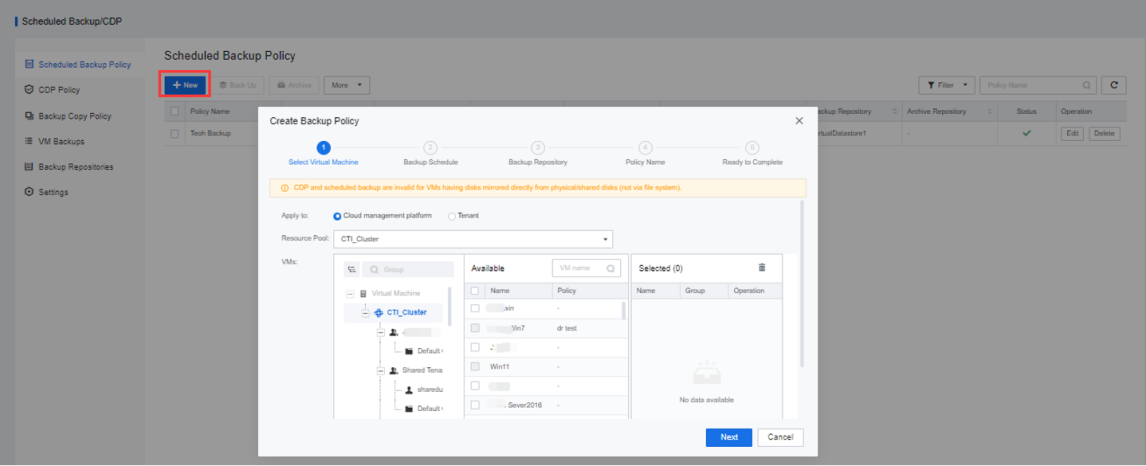
Step 1.Log in to the SCP platform, select Reliability > Scheduled Backup/CDP, and click New to add the planned backup repository to the backup repositories.
Graphical user interface, application  Description automatically generated

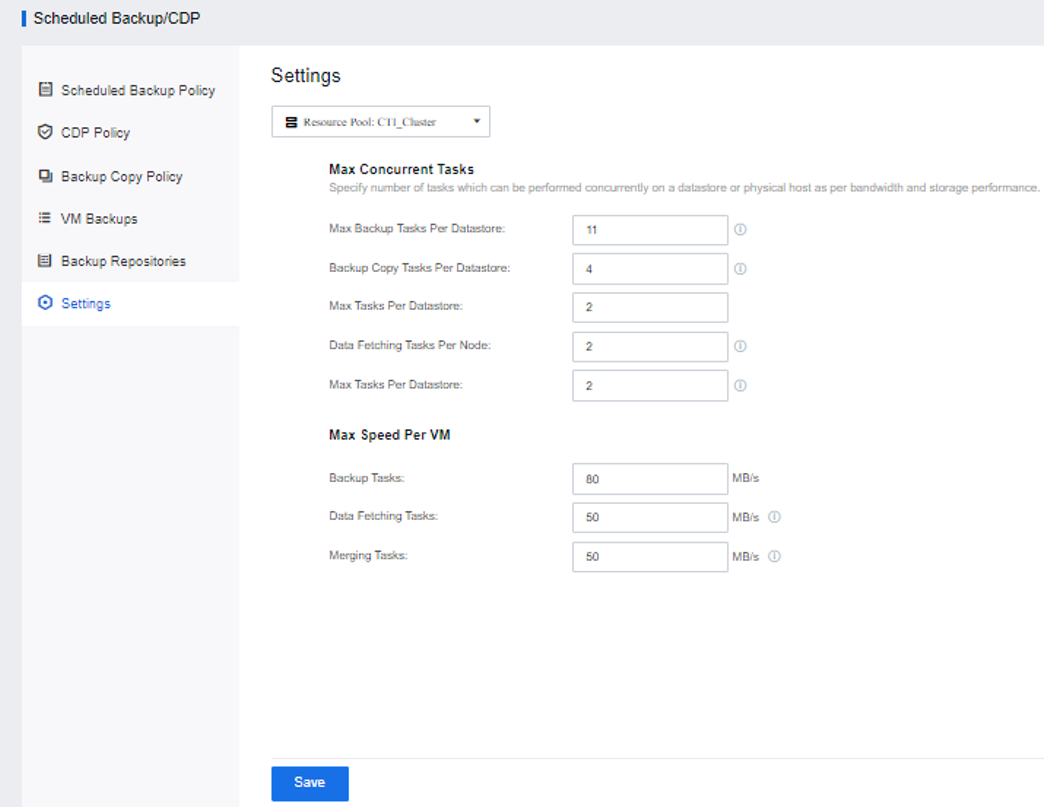
Step 2.Click Settings to limit the number of concurrent backups for the resource pool.
Graphical user interface  Description automatically generated

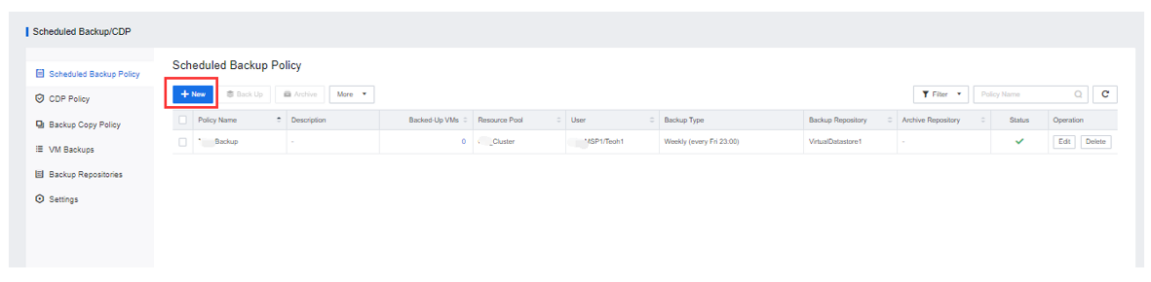
Step 3.Enter the Scheduled Backup/CDP interface and click New to add a new local backup policy.
Graphical user interface, text, application, email  Description automatically generated

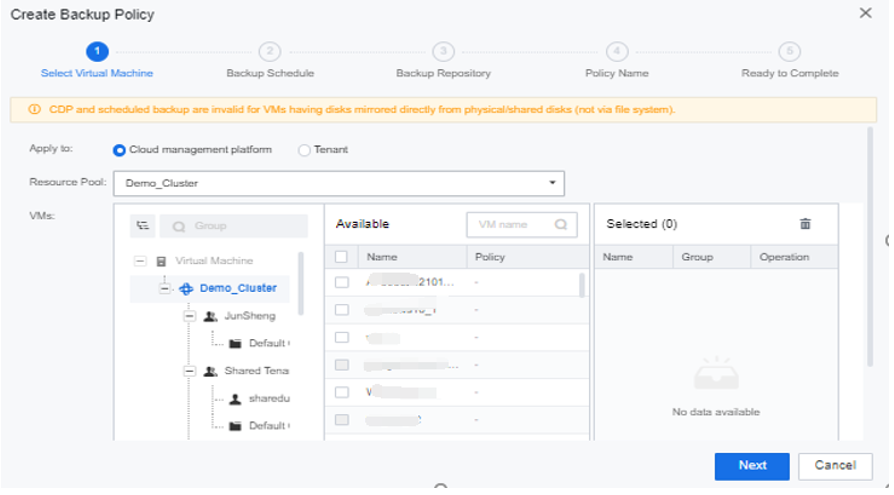
Step 4.Select the target resource pool, select the virtual machine to be backed up, and click Next.Or select Auto add VMs in specified groups as needed. If it is selected, newly created, cloned, and imported VMs in the group will be automatically added to the backup policy.
Graphical user interface, application, website  Description automatically generated

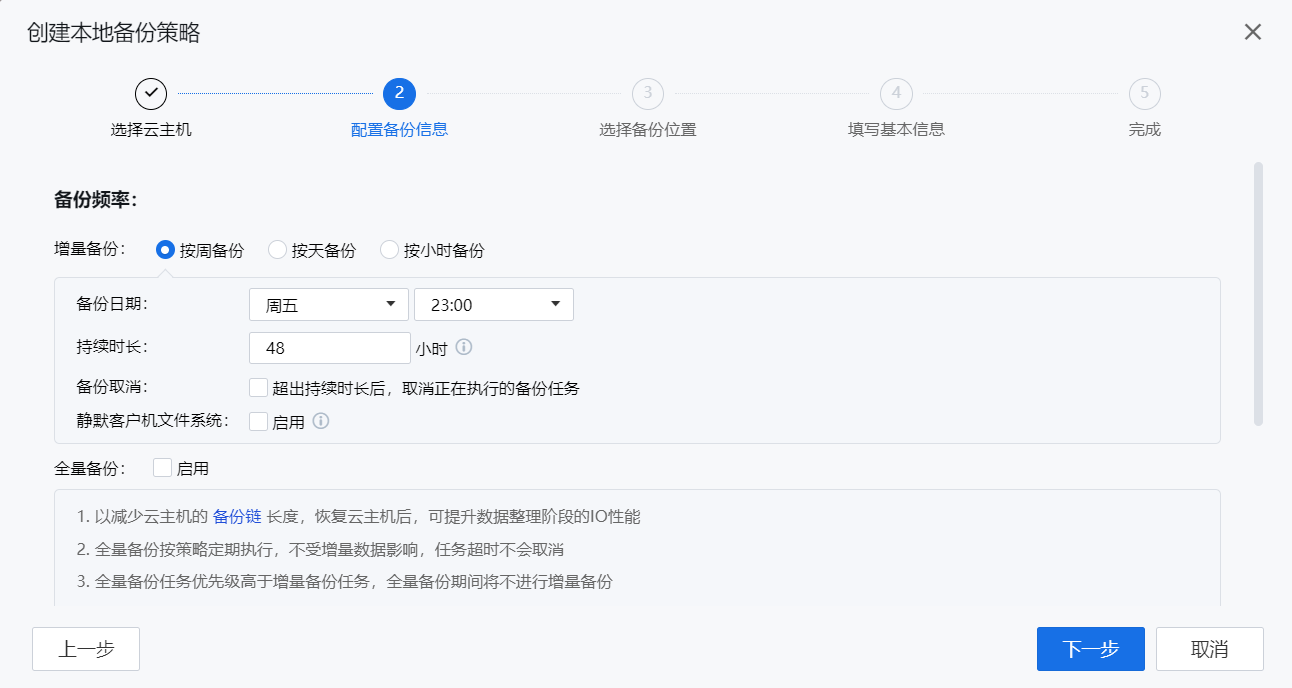
Step 5.Set the backup schedule, backup date, and duration. Choose to Enable the Full Backup according to actual needs.Or select Enable for Quiesce Guest File System as needed.
[7]

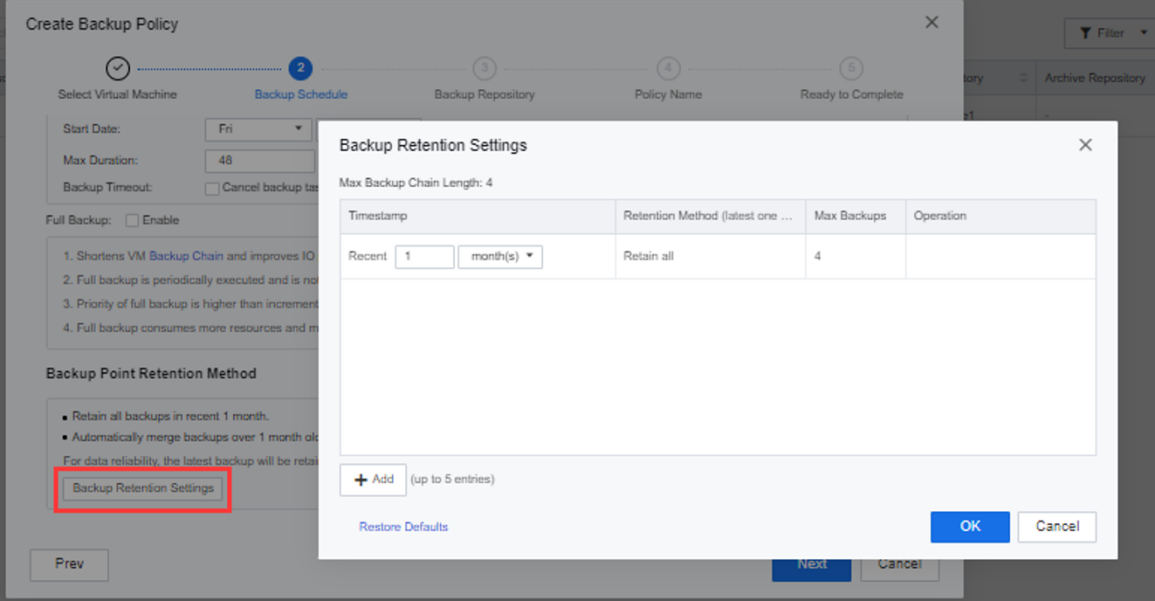
Step 6.Click Backup Retention Settings to manually set the backup retention mode as follows: keep all the backups of the last month, keep one backup per month for one month to six months, and keep backups over six months to two years. Keep one copy per year. Keep one copy per year.
Graphical user interface, application  Description automatically generated

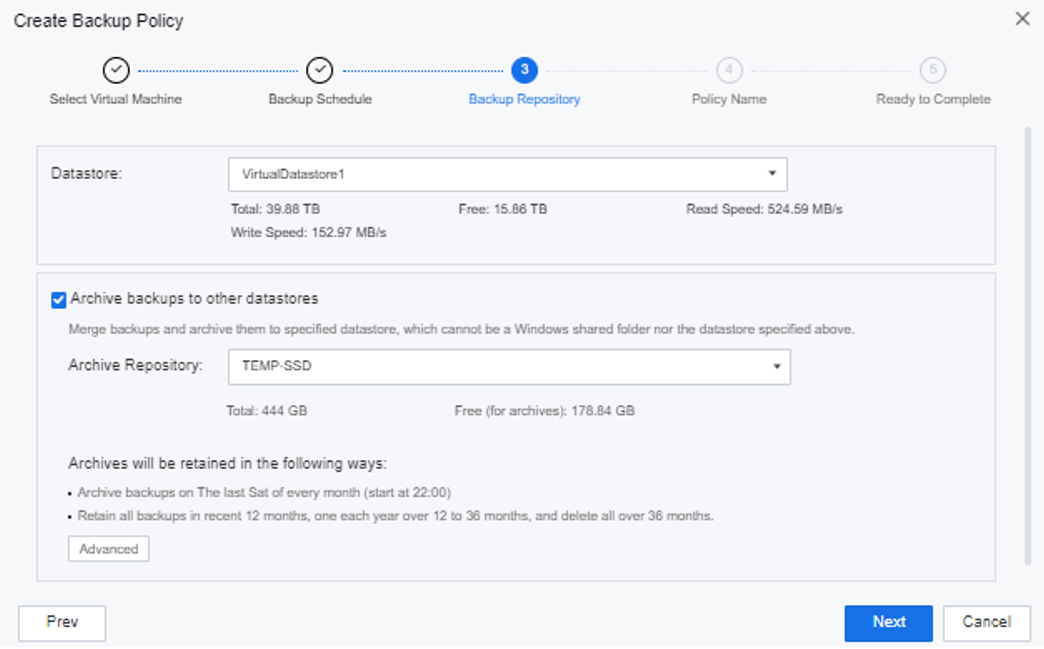
Step 7.Manually specify the backup repository, and choose virtual storage or external storage. Archiving is not allowed when there is only one backup datastore.
Graphical user interface, text, application, email  Description automatically generated

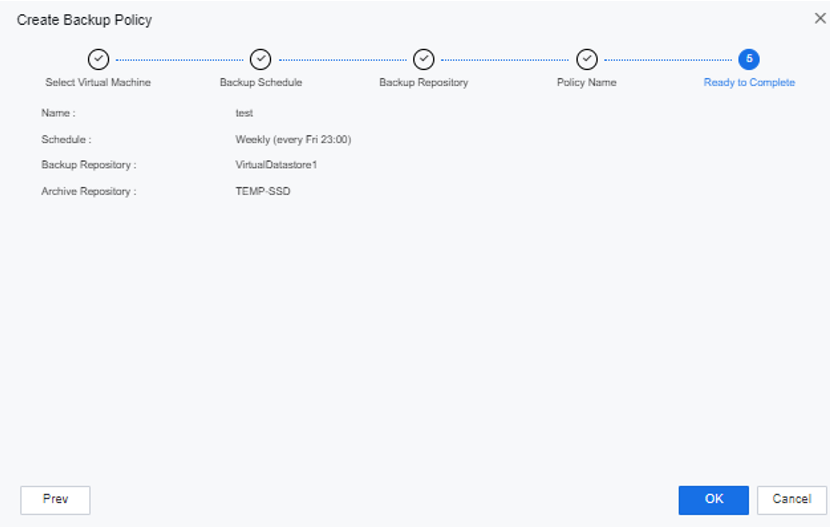
Step 8.Complete backup configuration.
A picture containing diagram  Description automatically generated

Step 9.Select the created backup policy to enable, disable, and backup now.

Graphical user interface, text, application, chat or text message  Description automatically generated

Step 10.After the backup policy is added, you can see the backup virtual machine list and status on the VM Backups interface.

4.8.3.2Backup Recovery

Function Description:

This task guides administrators in restoring backup files.

Precautions:

After restoring the virtual machine (whether it is a new one or overwriting the original virtual machine), the disk allocation mode changes to thin provisioning, which will lead to performance degradation. You can manually go to Virtual Machine > More > Edit > Configuration > Storage to adjust the disk settings to pre-allocation.

Prerequisite

  1. The virtual machine that needs to restore the backup has backup files before the operation.
  2. Manual recovery is not supported for backup files moved to the recycle bin.

Steps:

Step 1.On the virtual machine page, click More in the virtual machine list, and then click More > Backups.

Step 2.Click Backup and DR to find the backup file of the virtual machine.
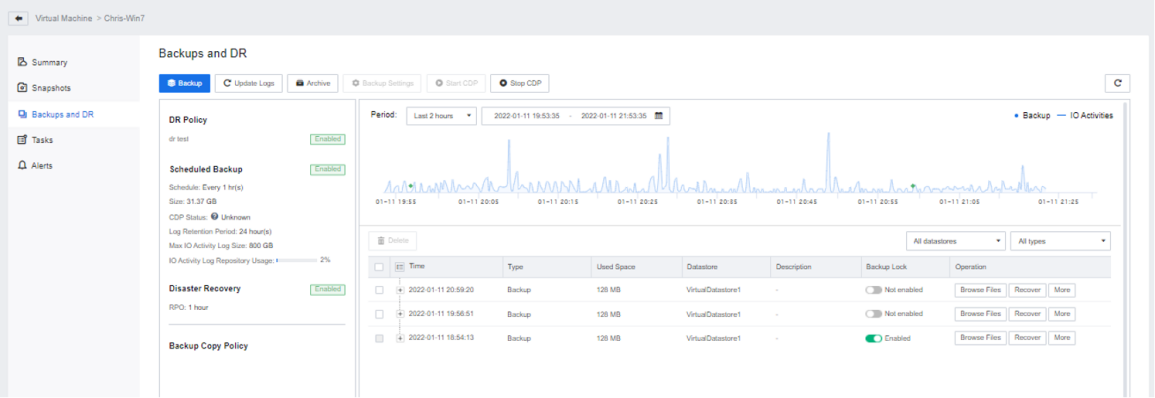
Graphical user interface, text, application  Description automatically generated

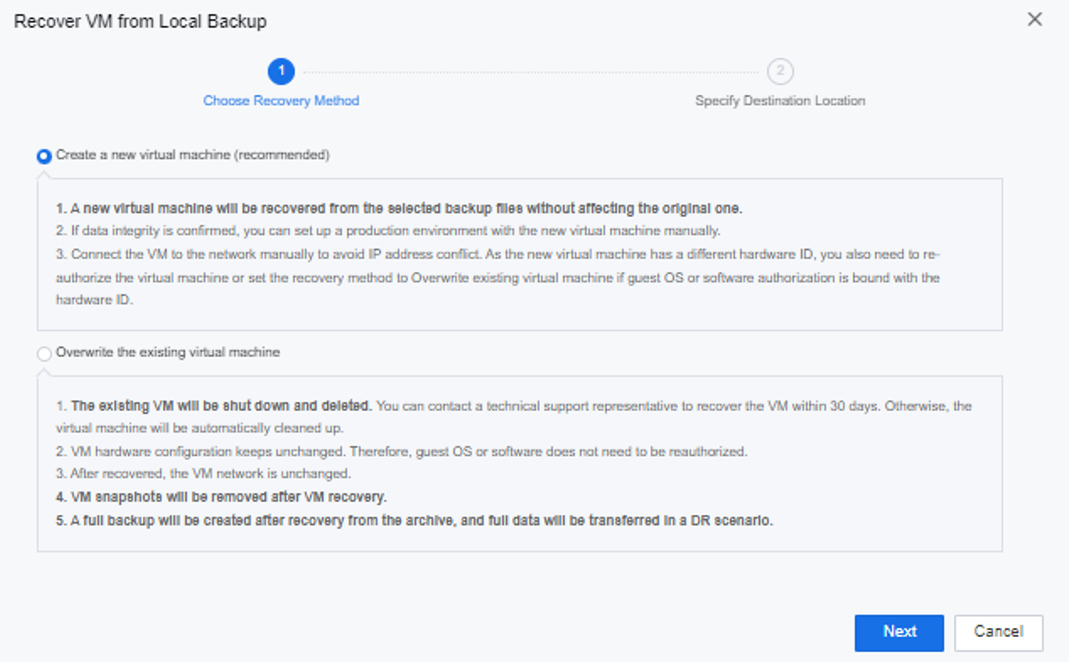
Step 3.Click Restore under Operation to restore the corresponding backup file. You can choose to Create a new virtual machine or Overwrite the existing virtual machine.
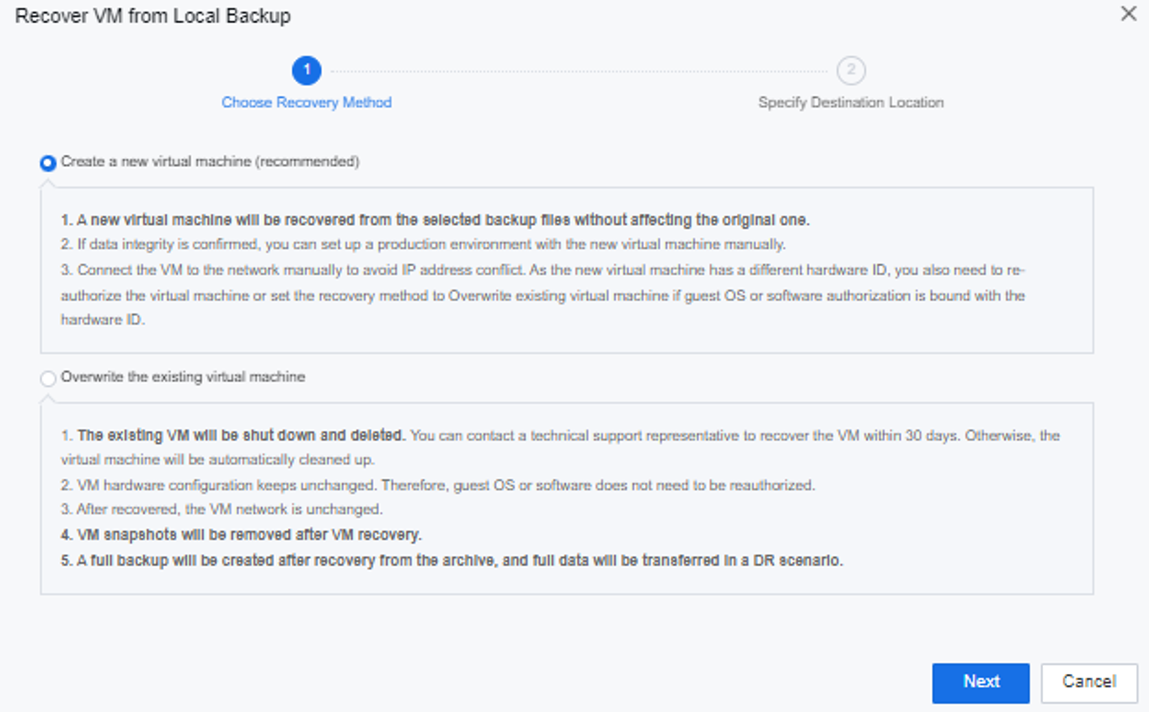
Graphical user interface, text, application, email  Description automatically generated

4.8.3.3Backup Copy Policy

Function Description:

Provide backup replication policy services for the virtual machine and regularly replicate backups. Backups have copies on multiple storages to meet the data security requirements of some customers.

Precautions:

  1. The destination storage for backup replication does not support local storage.
  2. The source and destination storage of backup replication cannot be the same.

Prerequisite

A local backup policy has been created for the virtual machine that needs to be backed up and replicated.

Steps:

Step 1.Log in to the SCP platform, go to Reliability > Scheduled Backup /CDP > Backup Copy Policy, and click New to create a backup copy policy.
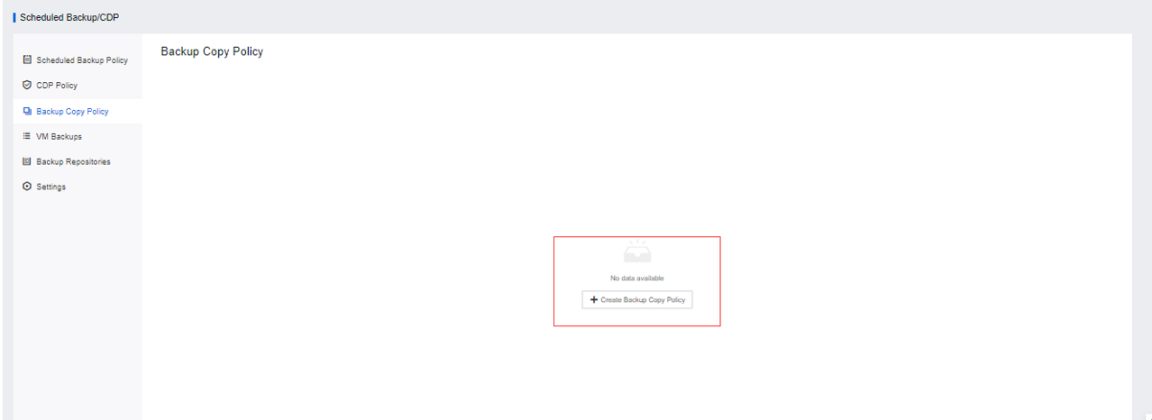
Graphical user interface, application  Description automatically generated

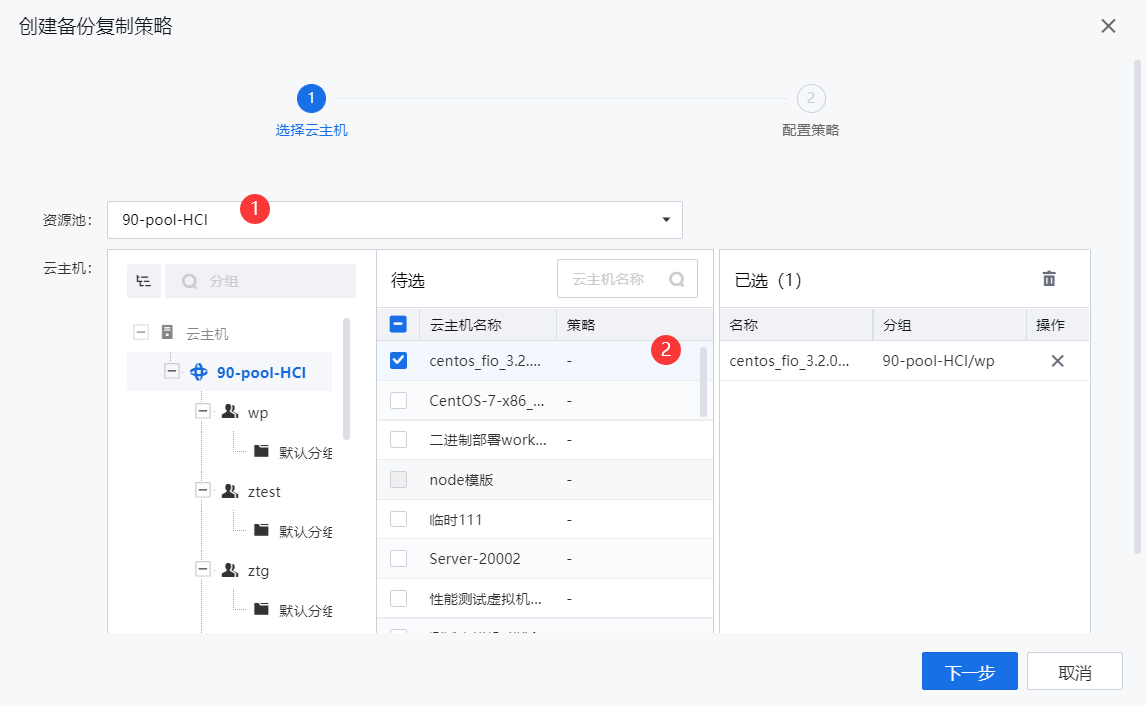
Step 2.Select the Resource Pool, select the VMs to which the backup replication policy needs to be added, and click Next.
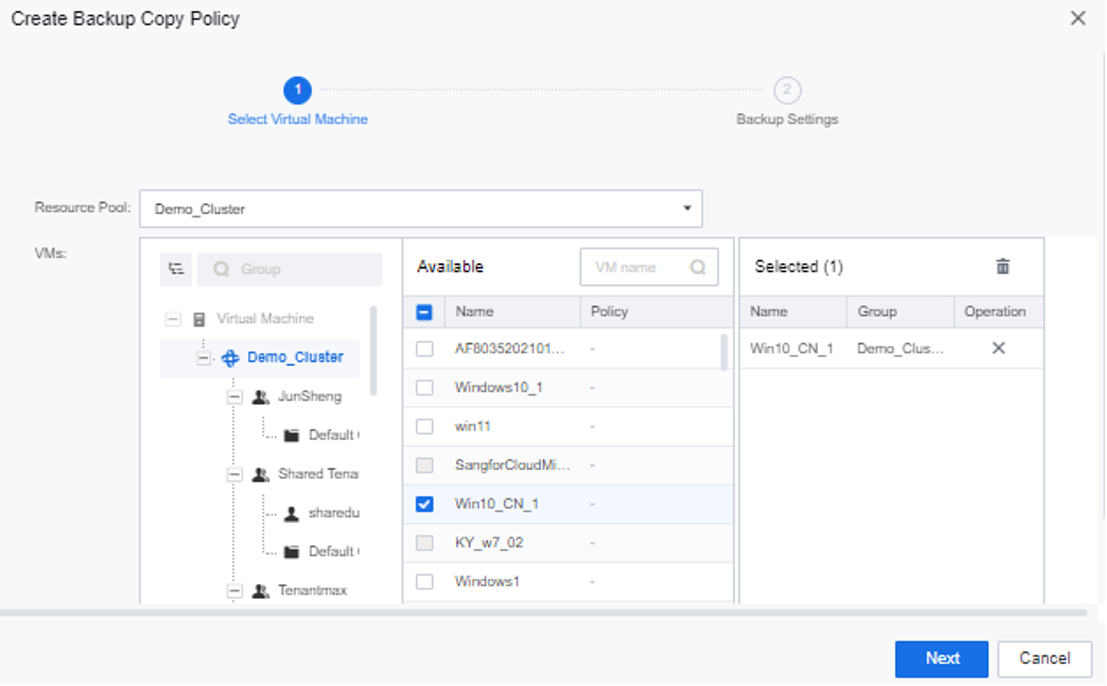
Graphical user interface, application  Description automatically generated

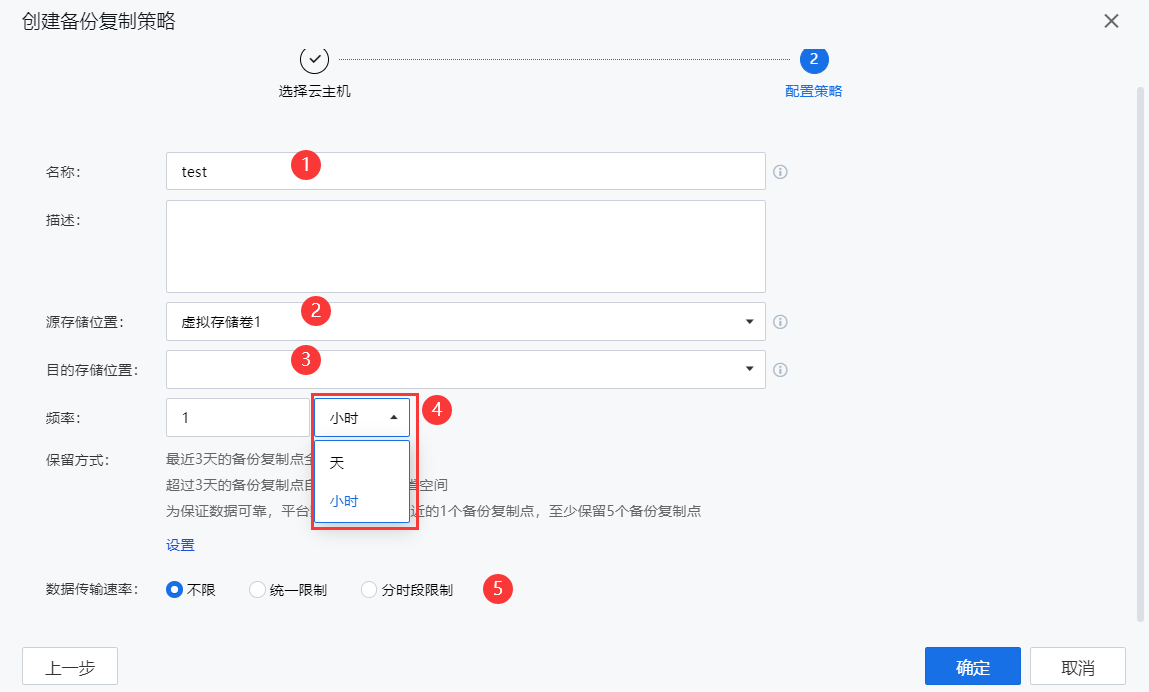
Step 3.Select the Source and Destination Datastore and set the Interval. The backup replication frequency supports hourly or daily.
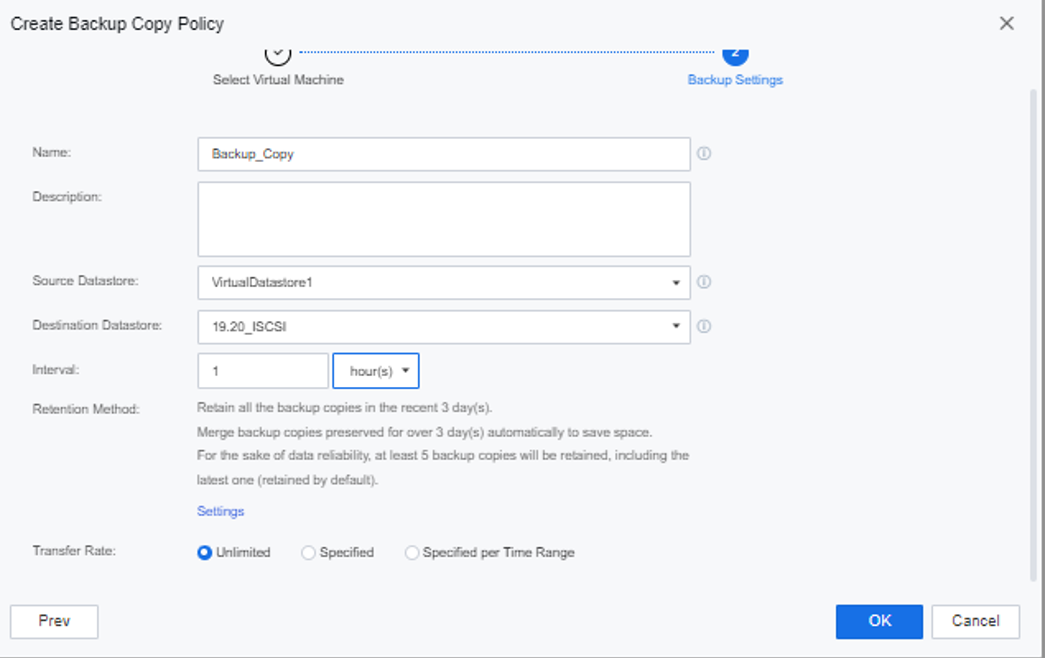
Graphical user interface, text, application, email  Description automatically generated

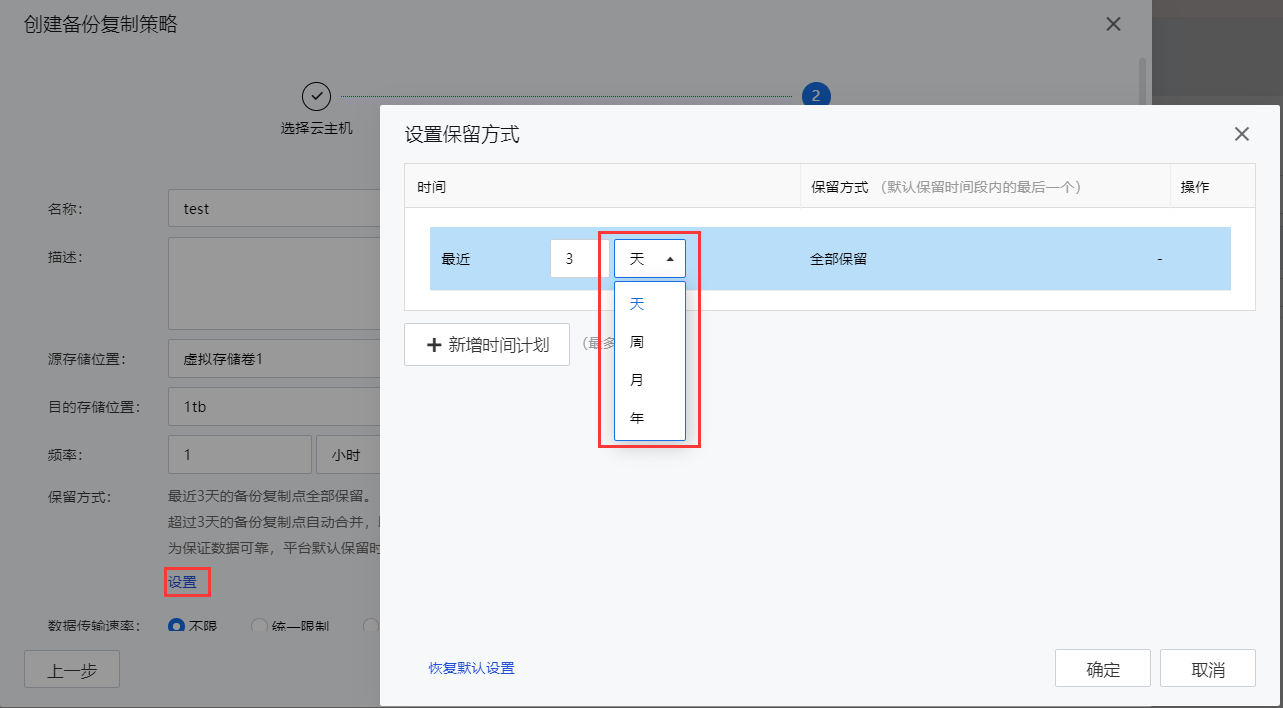
Step 4.You can manually set the backup retention mode, click the Settings button, and support setting the backup replication cycle by day, week, month, and year. Click the Add button to set up to 5-time plans. The last backup within the time plan will be retained by default if multiple time plans are added.
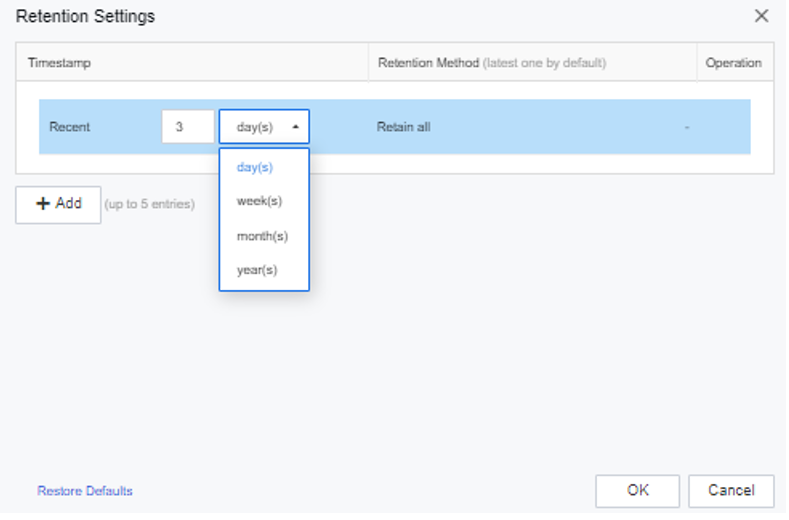
Graphical user interface, application  Description automatically generated

Step 5.Select whether to limit the data Transfer Rate according to the actual needs and click the OK button after the setting is complete.

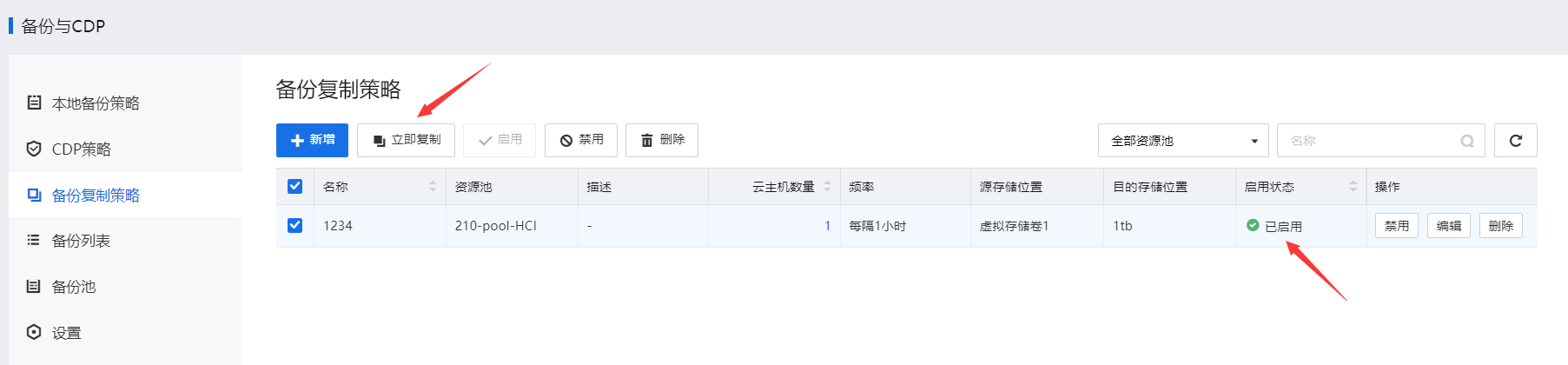
Step 6.Select the created backup copy policy to Enable, Disable, and Copy now.

4.8.3.4CDP

Function Description:

By distinguishing different service levels, provide CDP services for virtual machines and real-time data protection for businesses.

Precautions:

  1. After the SCP manages the HCI resource pool, backup can only be performed on the SCP platform.
  2. The formula for calculating the maximum space used by IO logs: Average write IO speed * 3600 (one hour and seconds) * retention time (hours) / 1024 = GB. For example, if the average writes IO speed of the business system is 10MB/s, the retention time is one day, and the interval is 1 hour, the maximum space used by the IO log is 10 * 3600 * 24 / 1024 = 844 GB.
  3. CDP protection is not supported for raw disks mapped in the virtual machine.
  4. Only the destination storage of CDP is supported to be configured on iSCSI, FC, and aSAN.
  5. Only NTFS and FAT32 file systems support file retrieval functions, and the Linux system does not support file retrieval operations.
  6. Using the CDP function, if the backup and I/O logs are placed on the external storage because the I/O logs and backups occupy space, the I/O logs cannot be stored in time, and the I/O log buffer is exhausted, resulting in CDP interruption. Therefore, it is recommended not to place backups and logs in the same storage. Therefore, it is recommended not to place backups and logs in the same storage.
  7. The backup in quiesced mode feature is available only to the following Windows operating systems.

Windows 7 32-bit/64-bit

Windows 8 32-bit/64-bit

Windows 10

Windows 11

Windows Server 2003 32-bit/64-bit

Windows Server 2008 32-bit/64-bit

Windows Server 2008 R2

Windows Server 2012

Windows Server 2016

Windows Server 2019

Windows Server 2022

  1. When the quiesced mode is enabled for a CDP policy, if the target VM does not support this feature or fails to be quiesced, the backup will be created in non-quiesced mode and a description will be recorded in the operation log file.
  2. When backups are created in quiesced mode, consistency can be ensured for the NTFS and the applications that support this mode.
  3. To ensure proper backup in quiesced mode, you need to verify the running status of the Windows services on which this feature depends to ensure that:

The COM+ System Application service has been started, with the startup type set to Manual.

The COM+ Event System service has been started, with the startup type set to Automatic.

The Volume Shadow Copy service is not running, with the startup type set to Manual.

  1. If the quiesced mode is enabled for the CDP policy, only CDP logs, but not I/O logs, are backed up in quiesced mode.

Prerequisites

  1. The backup datastore is added to the backup repository.
  2. Backup in quiesced mode is available for SCP 6.9.0 and later versions. Before enabling Quiesce Guest File System, you need to install vmTools for the VM, and the VM needs to be in the running status during backup.

Steps:

Step 1.Log in to the SCP platform, select Reliability > Scheduled Backup/CDP > Backup repositories, and click Add to add the planned backup location to the backup repositories.
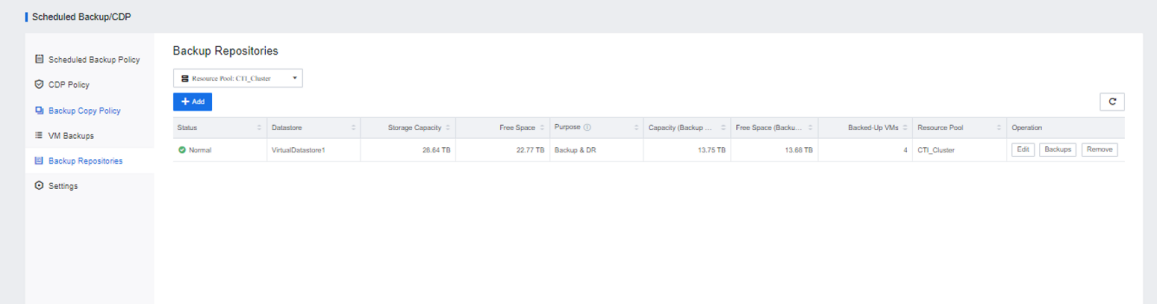
Graphical user interface, text, application  Description automatically generated

Step 2.Click Settings to limit the number of concurrent backups for the resource pool.
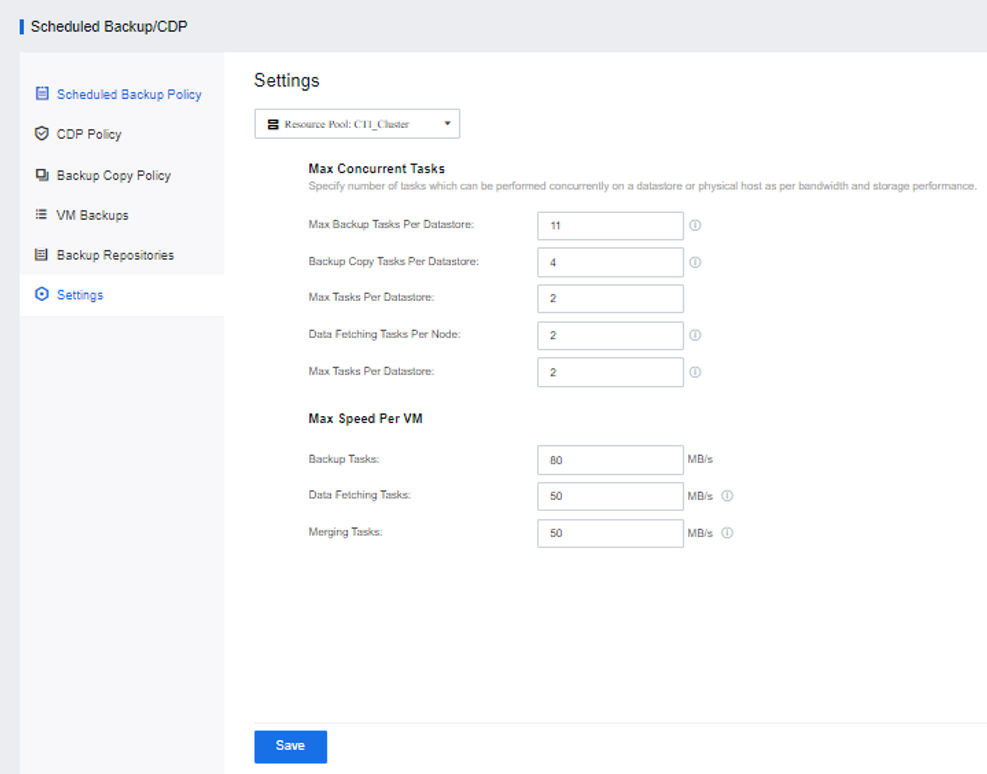
Graphical user interface, application  Description automatically generated

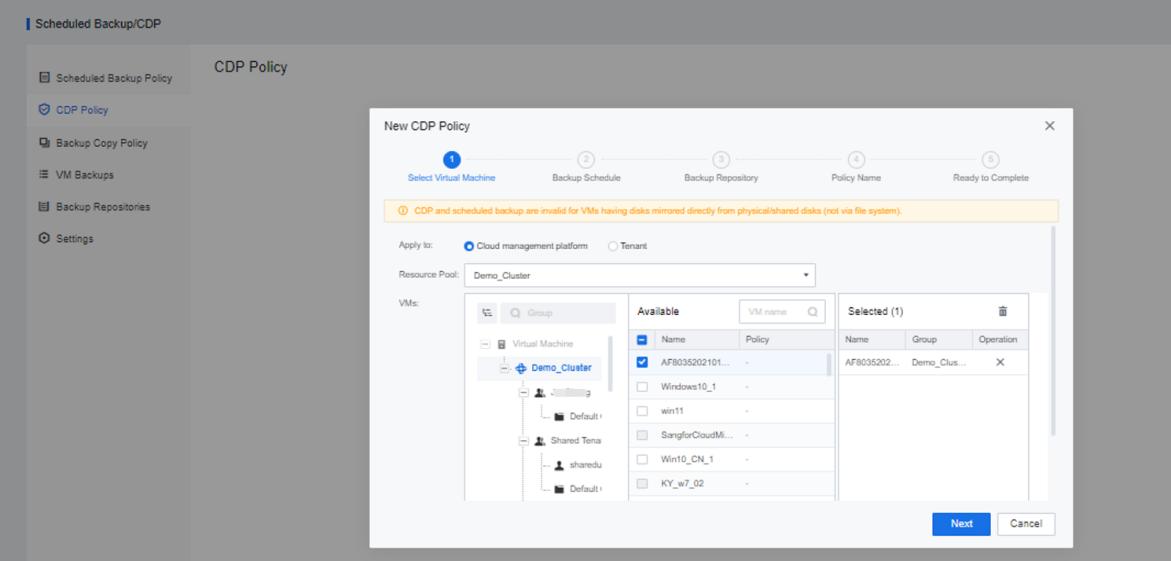
Step 3.Enter the CDP Policy interface, click New, and select the virtual machine to be backed up.
Graphical user interface, application  Description automatically generated

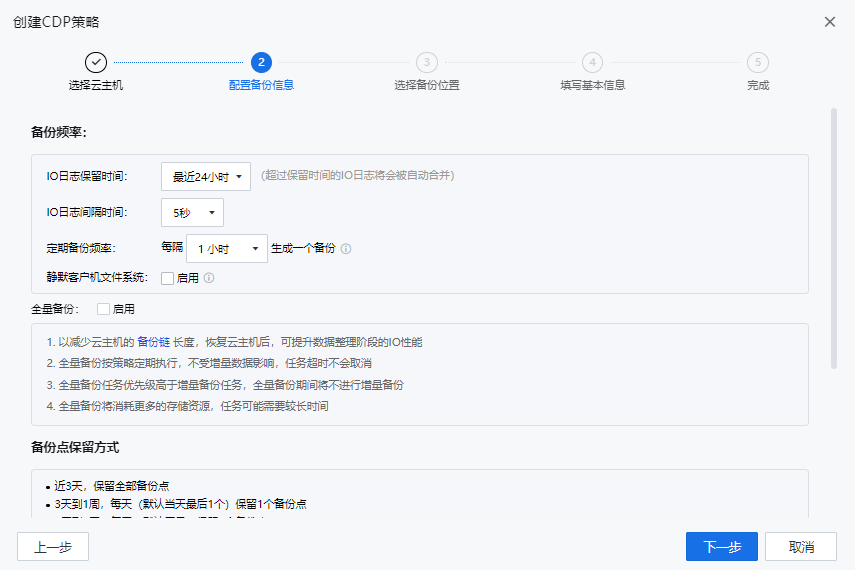
Step 4.Configure the backup schedule, backup date, and duration. Then, select whether to check the Enable checkbox according to the actual needs to start a regular Full Backup or select Enable for Quiesce Guest File System as needed.
[8]

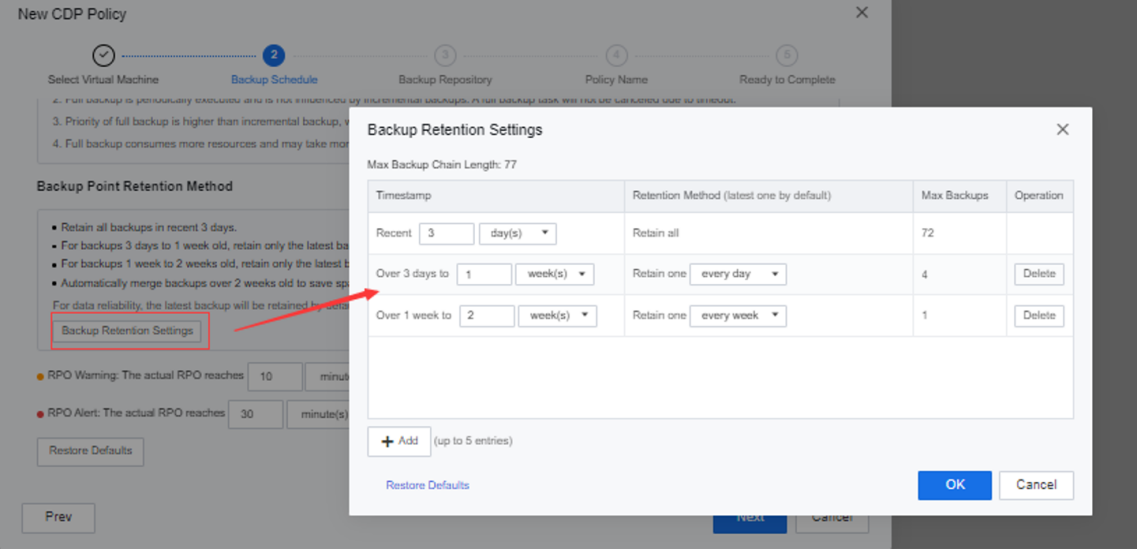
Step 5.Click Backup Retention Settings to manually set the backup retention mode as follows: keep all the backups of the last month, keep one backup per month for one month to six months, and keep backups over six months to two years. Keep one copy per year.
Graphical user interface, application  Description automatically generated

Step 6.Configure the early warning and alarm thresholds for RPO in CDP.

Graphical user interface, application  Description automatically generated

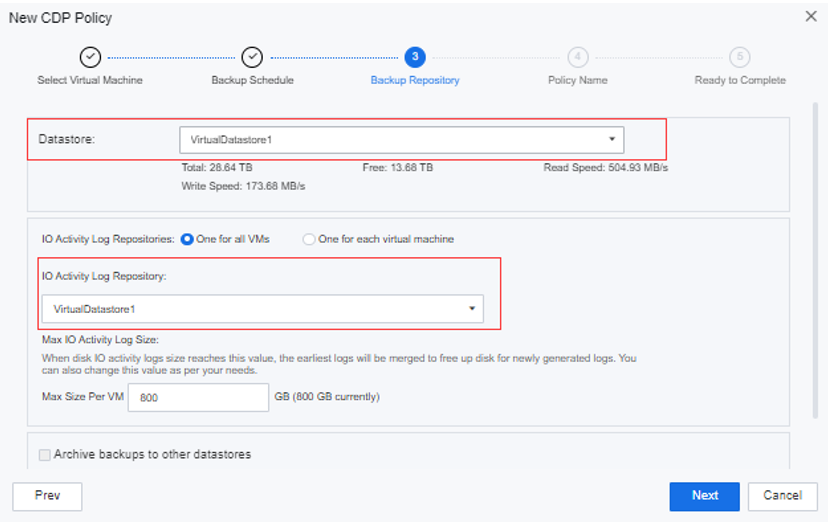
Step 7.Define the backup repository and IO Datastore for the CDP Policy.
Graphical user interface, text, application, email  Description automatically generated

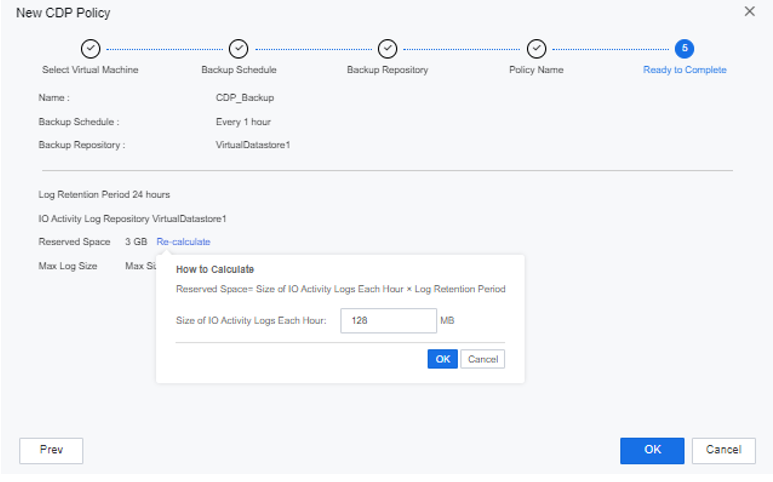
Step 8.Complete the backup policy configuration. At this time, manually writing business increments will automatically calculate the estimated backup space.
Graphical user interface, application  Description automatically generated

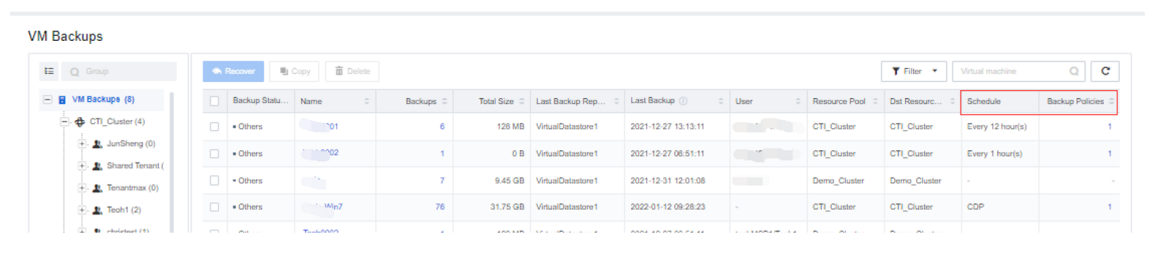
Step 9.After the backup policy is added, you can see the backup virtual machine list and status on the VM Backups interface.
A screenshot of a computer  Description automatically generated

4.8.3.5Backup Copy Policy

Function Description

The backup copy policy service is provided for VMs to regularly copy backups to multiple datastores for data security.

Precautions

  1. The destination storage for backup copies cannot be local storage.
  2. The source storage and destination storage for backup copies cannot be the same.
  3. You can create multiple backup copy policies on multiple external datastores.

Prerequisites

A local backup policy is created for the target VM.

Steps
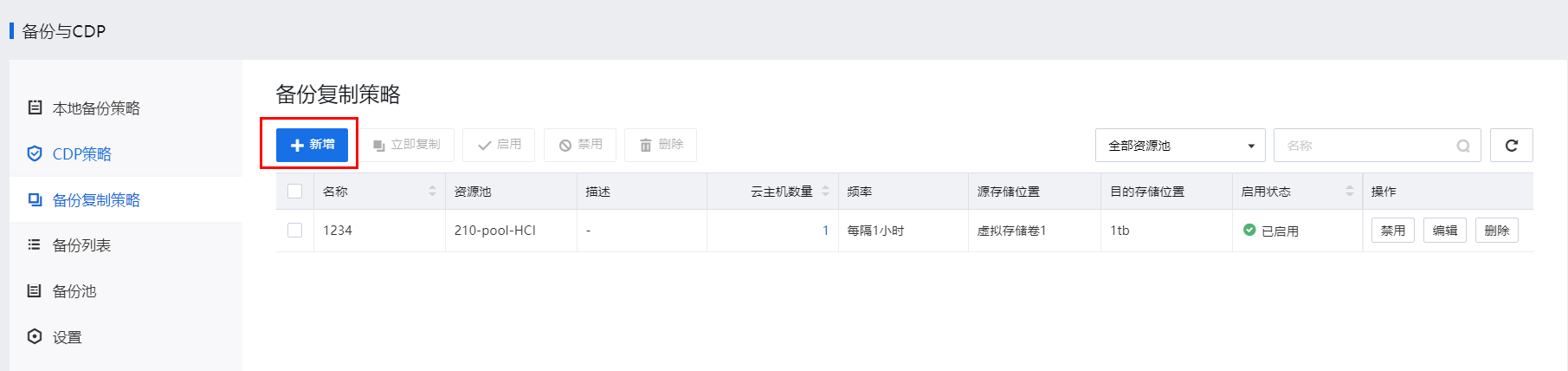
  1. Log in to the SCP console, go to Disaster Recovery > Scheduled Backup/CDP > Backup Copy Policy, and click New.

图形用户界面, 文本, 应用程序, 电子邮件

描述已自动生成

  1. Select the target resource pool and VM and click Next.

图形用户界面, 应用程序, Teams

描述已自动生成

  1. Specify Source Datastore, Destination Datastore, and Interval in days or hours.

图形用户界面, 应用程序, Teams

描述已自动生成

  1. Click Settings to specify the backup retention period by day, week, month, or year. Click Add to configure up to five schedules. If multiple schedules are configured, the latest backup within the retention period is retained by default.

图形用户界面, 应用程序

描述已自动生成

  1. Specify whether to limit the transfer rate and click OK.
  2. Select the created backup copy policy and perform one of the following actions: Enable, Disable, and Copy.图形用户界面, 应用程序

描述已自动生成
    1. CDP Recovery

Function Description:

This task guides the administrator in restoring the backup file. CDP supports recording every IO of the business system and supports restoring to the business system state 5 seconds ago.

Precautions:

  1. Support quick recovery of the virtual machines during backup and recovery.
  2. After restoring the virtual machine (whether it is a new one or overwriting the original virtual machine), the disk allocation mode changes to thin provisioning, which will lead to performance degradation. You can manually go to virtual machine > More > Edit to adjust the settings to pre-allocation.

Prerequisite

The virtual machine that needs to be backed up has a CDP backup file.

Steps:

Step 1.On the Virtual Machine page, click the virtual machine name in the virtual machine list and click More > Backup.

Step 2.Click Backups and DR to find the backup file point of the virtual machine, and click the arrow of the backup file point to see the recovery point.
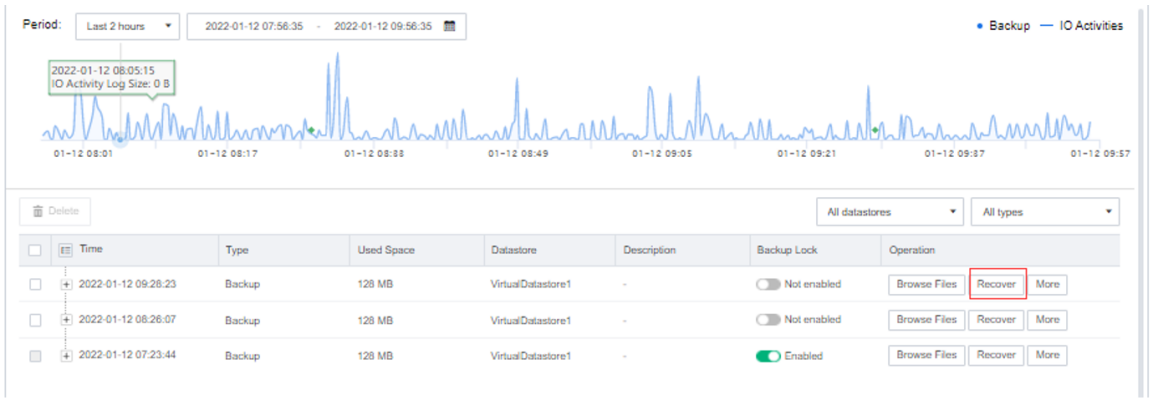
A screenshot of a computer  Description automatically generated

Step 3.Click Restore under Operation to restore the corresponding backup file. You can choose to Create a new virtual machine or Overwrite the existing virtual machine.
Graphical user interface, text, application, email  Description automatically generated