


{{ secondMenu.name }}






Function Description
aSecurity detects security events on VMs in real time, such as brute-force attacks, WebShell backdoors, ransomware, and Trojans. Then, it sends emails to the email address you specified to notify you of the detected security events.
Prerequisites
You have configured the Simple Mail Transfer Protocol (SMTP) server.
Precautions
aSecurity does not support alert notifications via SMS.
Steps
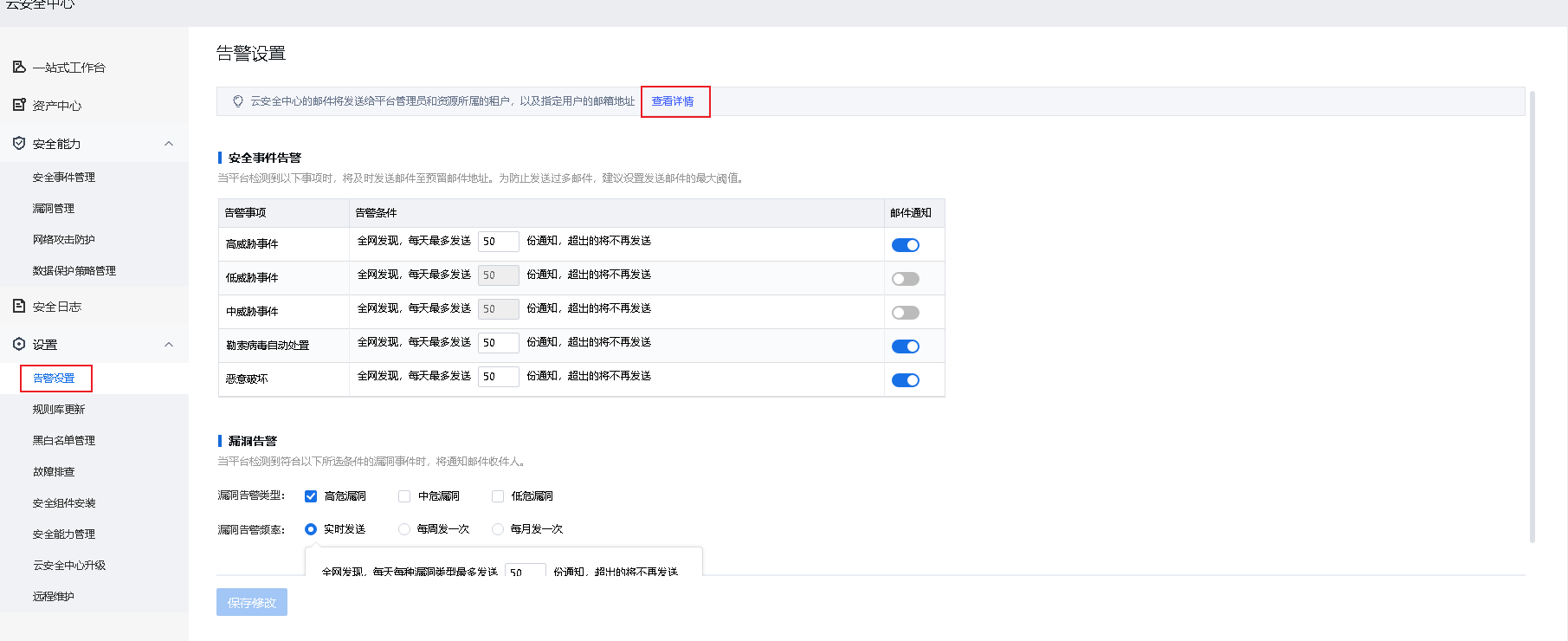
• Security event alerts: You can set the maximum number of alert emails, which ranges from 1 to 1,000.
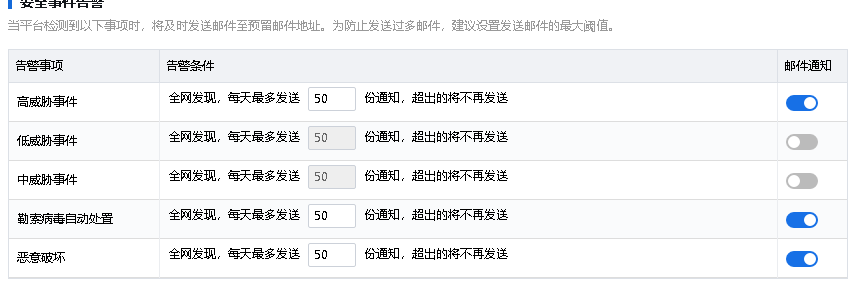
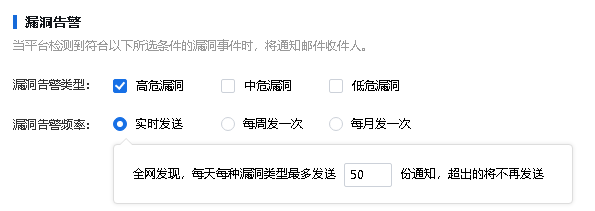
• Vulnerability alerts: You can set Vulnerability Type and Alert Frequency. If you select Real-Time for Alert Frequency, you can set the maximum number of alert emails, which ranges from 1 to 1,000.
Function Description
aSecurity supports the automatic and manual updates of the web vulnerability signature database and IPS database, ensuring that new threats are identified and blocked in a timely manner and enhancing system security.
Prerequisites
The edge-connected interface of the aSecurity VM can connect to the following WAN servers, or the .zip file of the latest signature database has been obtained.
Cloud firewall signature databases:
• Guangdong: upd.sangfor.com.cn
• Hong Kong: upd.snagfor.com
• Manual update: https://sec.sangfor.com.cn/index/abroad?lang=EN-US
Precautions
N/A
Steps
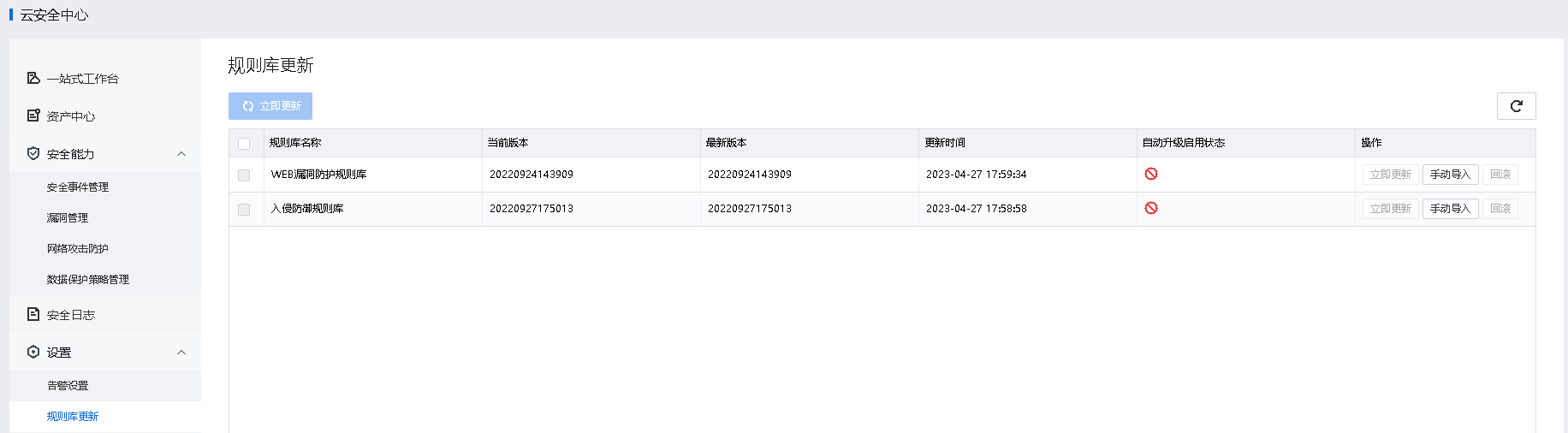
Go to aSecurity > Security Settings > Signature Database Update. On the page that appears, you can view the information of current signature databases, including Name, Current Version, Latest Version, and Update Time. You can perform operations such as online updates, manual import, and rollback.
Function Description
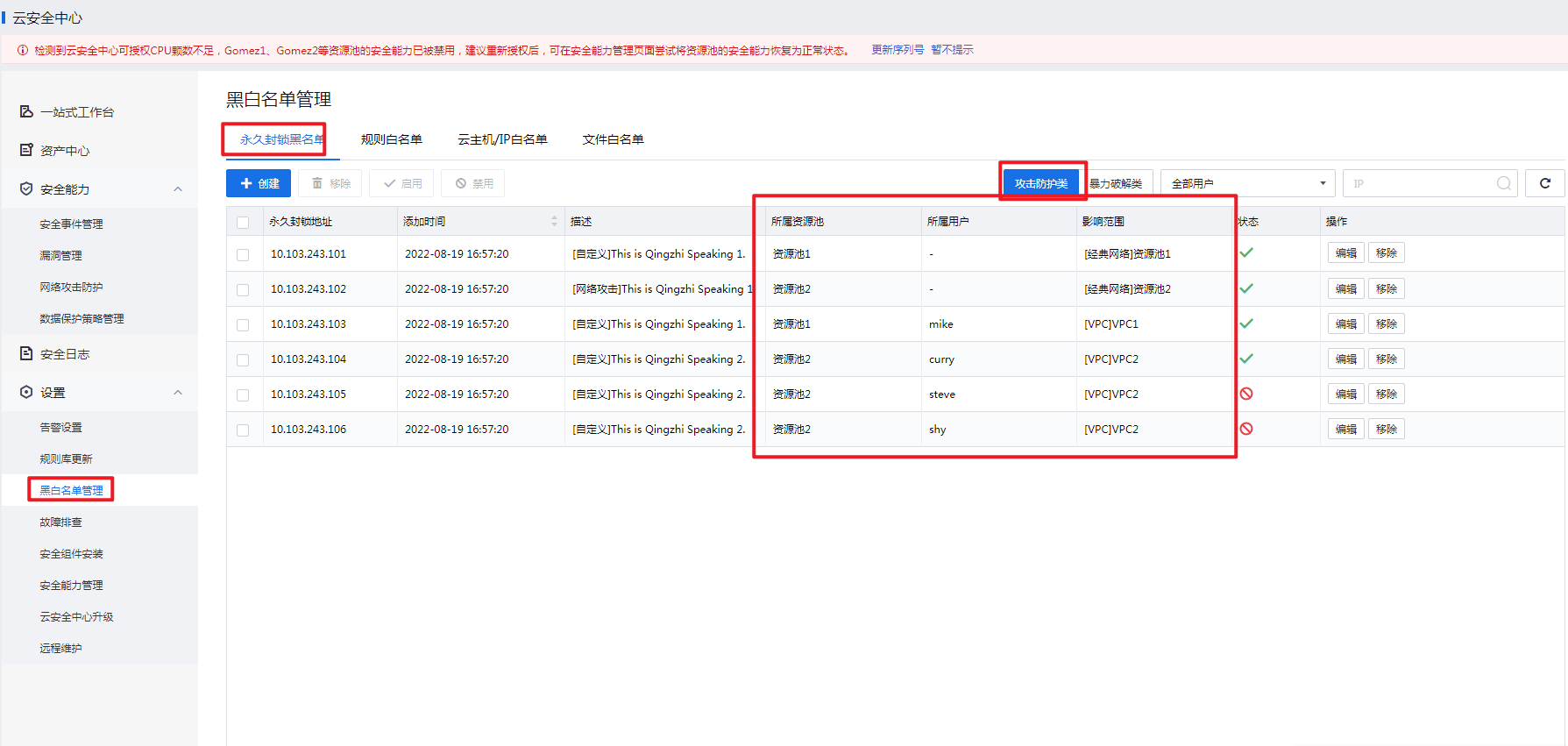
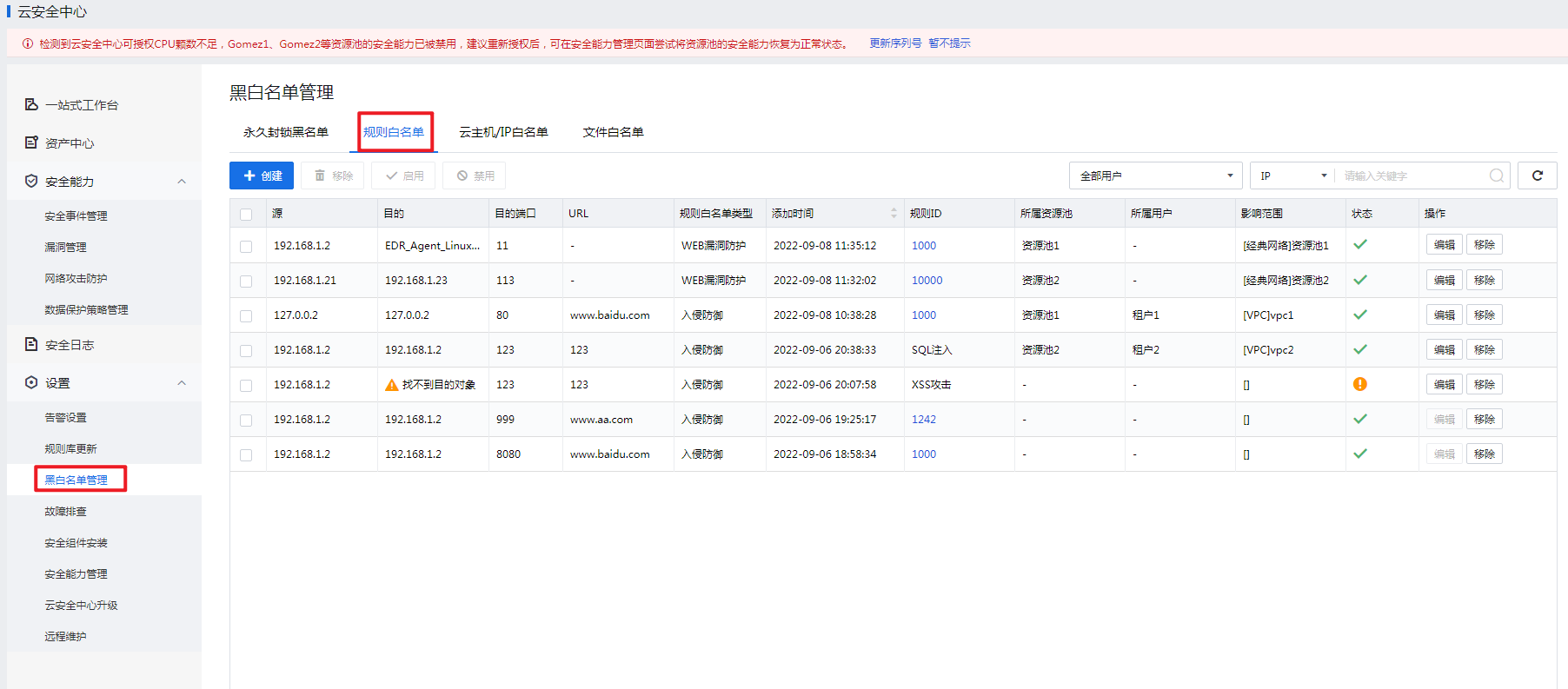
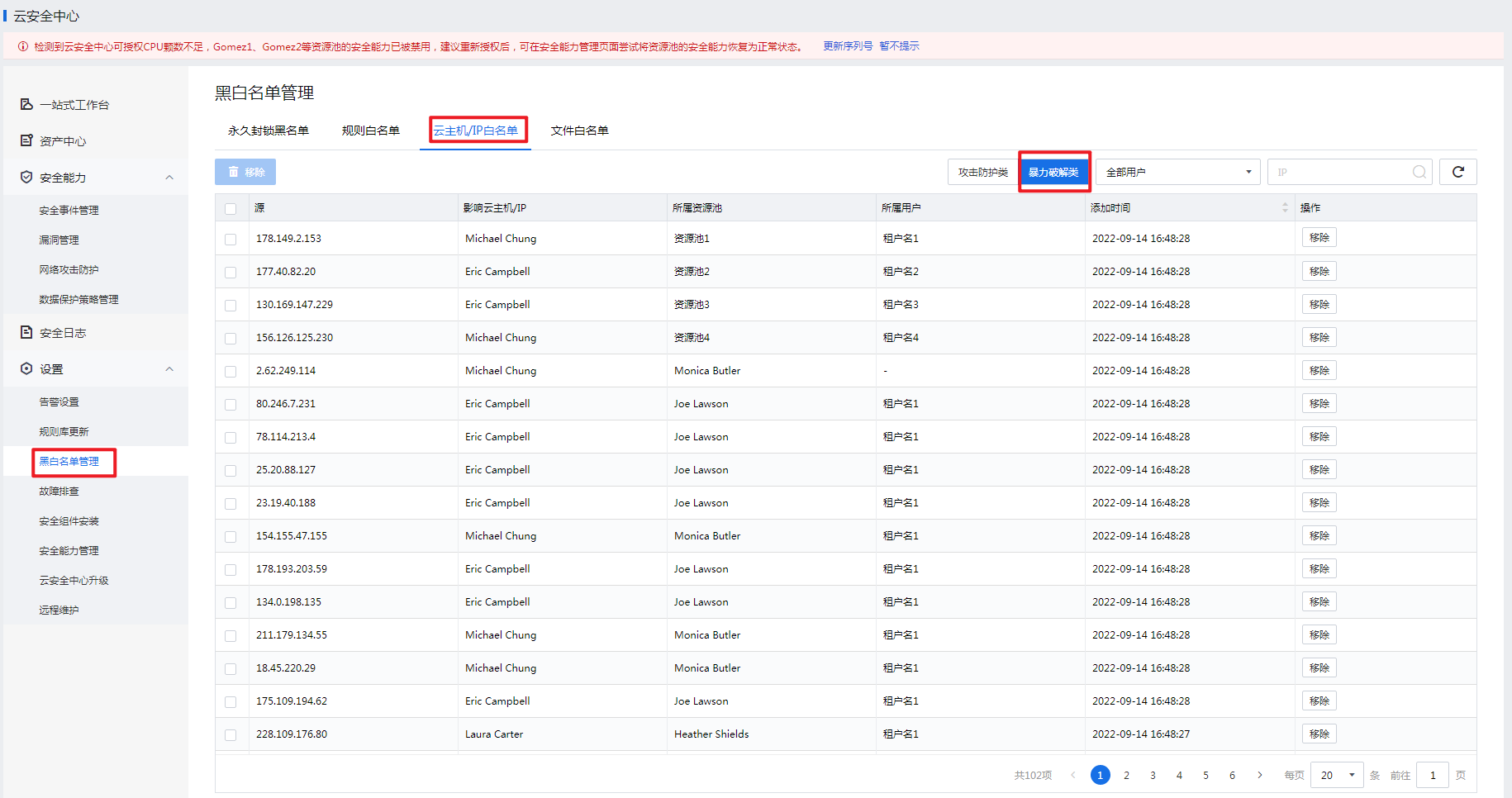
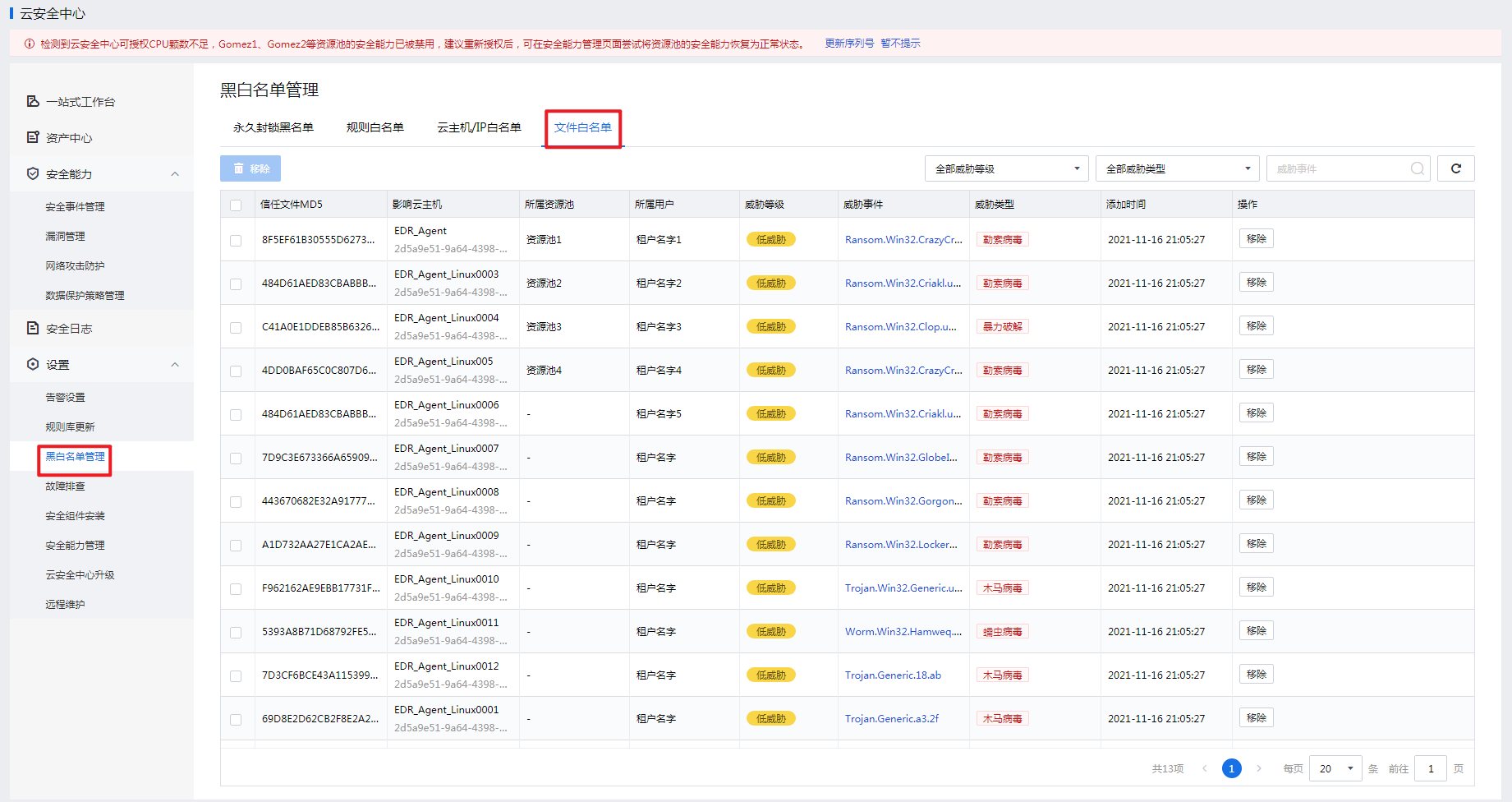
aSecurity supports blacklist management for attack protection or brute-force attack events and whitelist management for IP addresses, VMs, security policies, or threat events.
Prerequisites
Allocate a quota and enable aSecurity for a tenant before creating a blacklist and whitelist for the tenant.
Precautions
Steps
Function Description
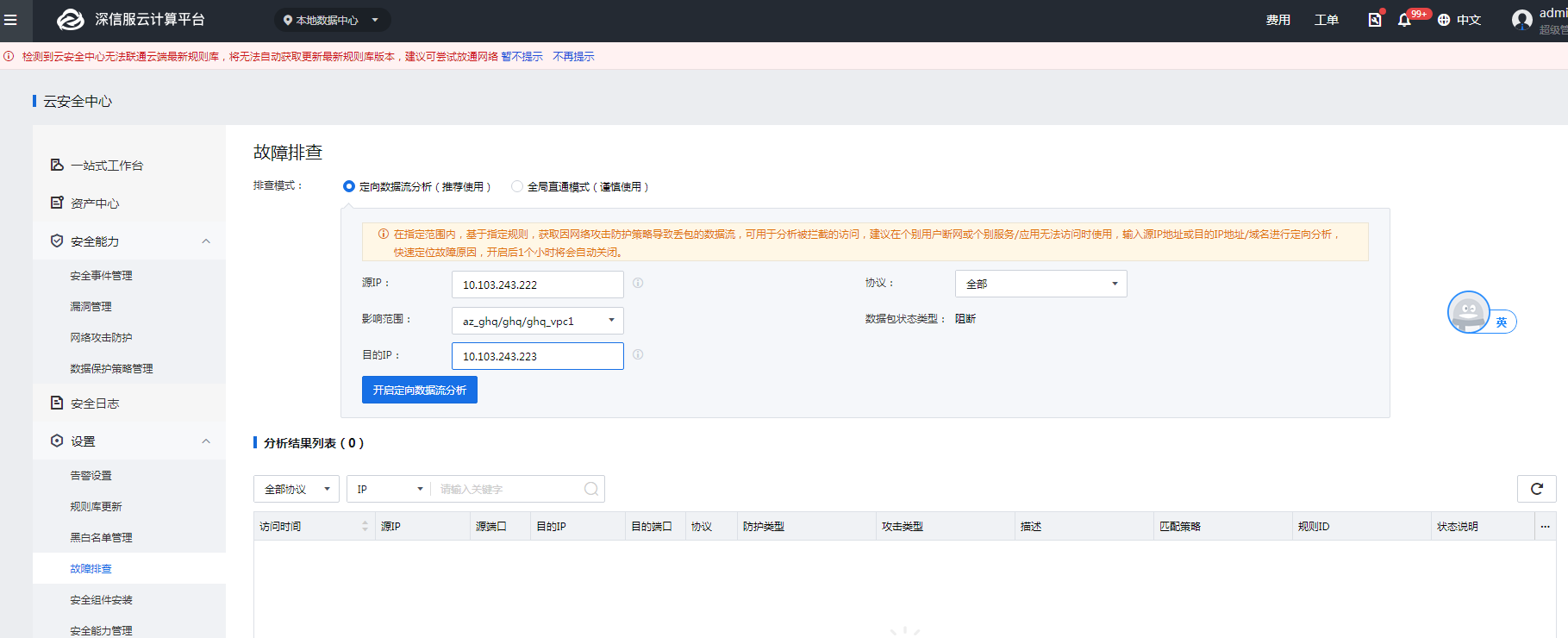
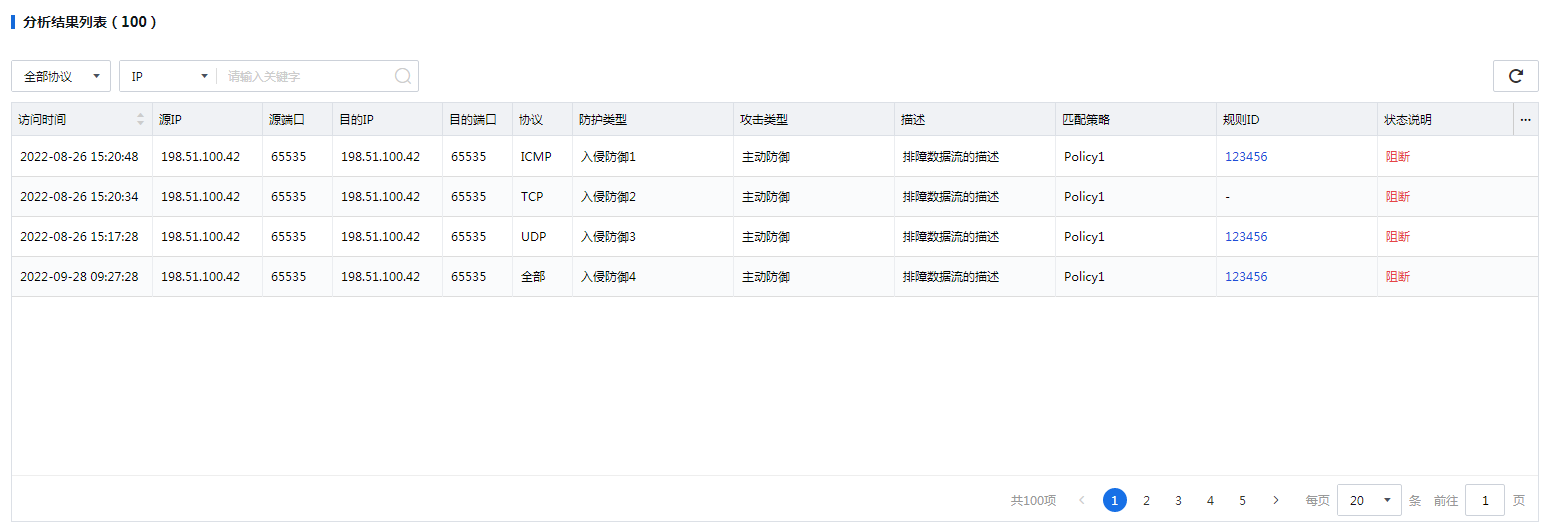
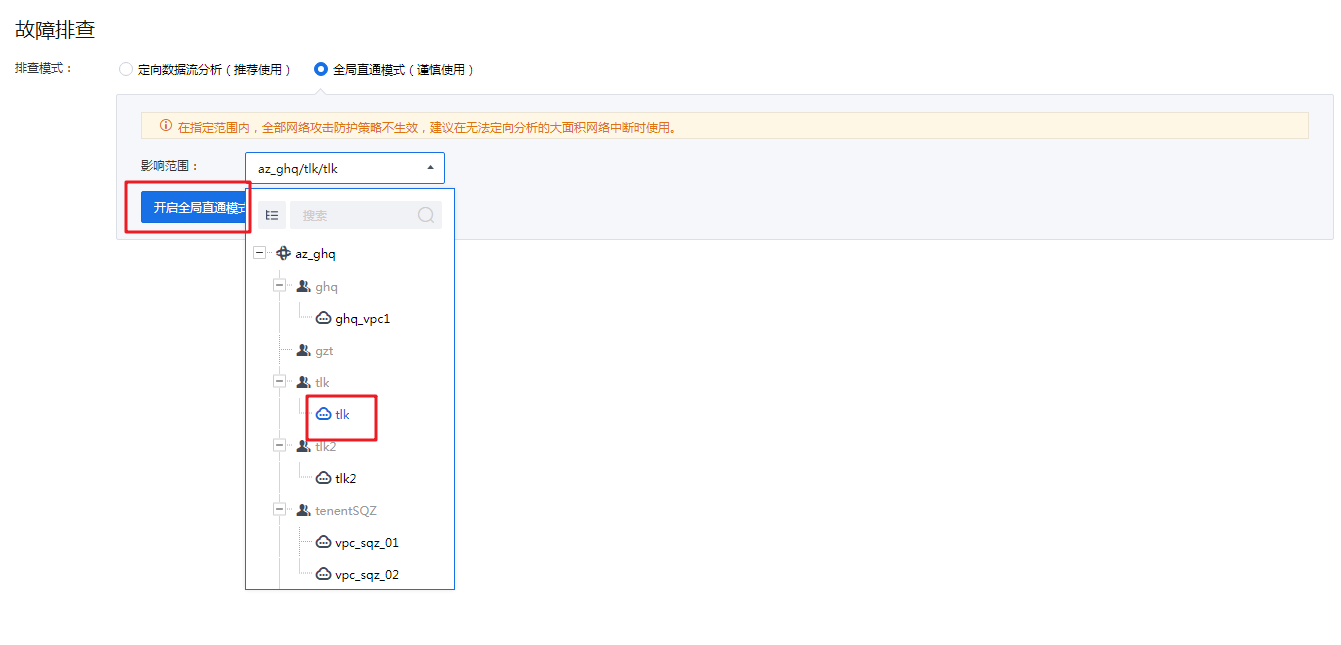
This feature allows you to troubleshoot network disconnections or service or application inaccessibility on aSecurity. Currently, precise traffic analysis and global passthrough modes are supported.
• Precise traffic analysis: Data packets dropped due to the firewall policy are obtained based on the specified rules, which can be used for analysis of blocked access.
• Global passthrough: All firewall policies are ineffective within the specified scope. This mode is applicable in the case when the firewall policy that blocks the business access cannot be identified. It disables global firewall policies to ensure the proper connection of the business network.
Prerequisites
N/A
Precautions
Steps
Function Description
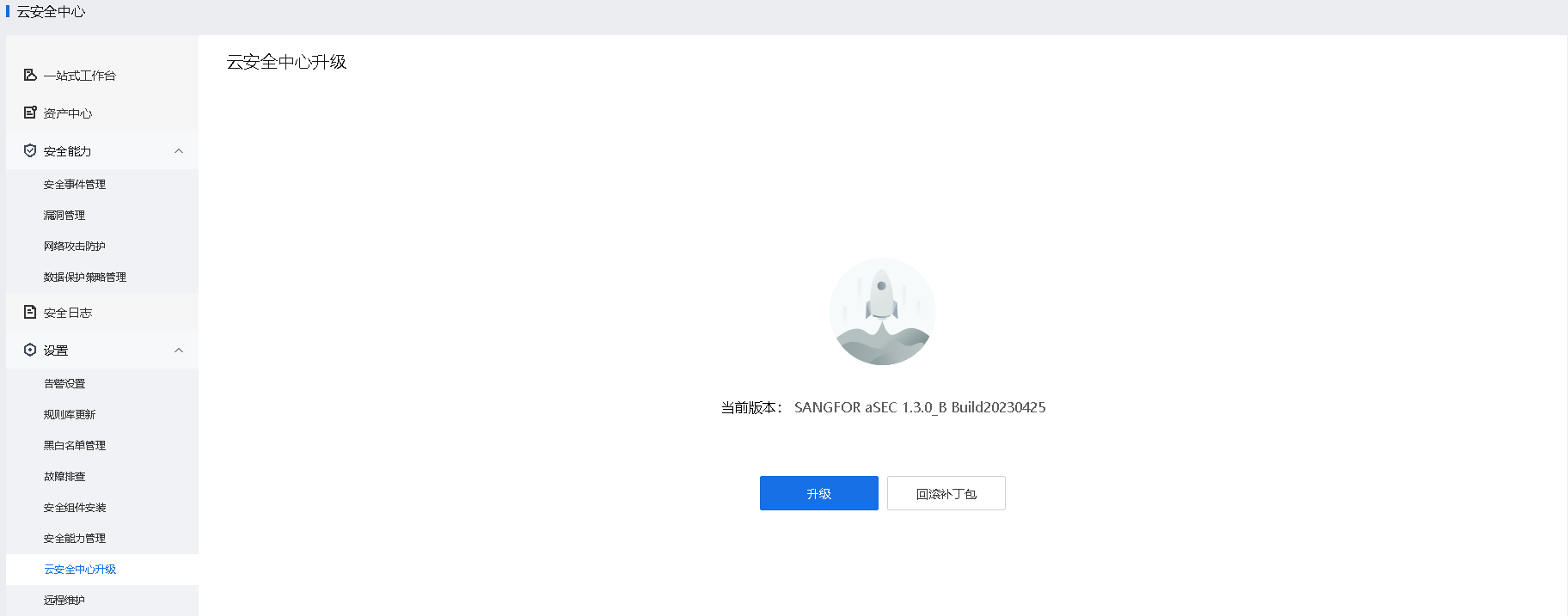
This section provides guides on how to upgrade aSecurity.
Prerequisites
The latest service pack or upgrade package has been obtained.
Precautions
Steps
Go to Security Settings > aSecurity Upgrade, click Upgrade or Roll Back, and perform operations as instructed.

Function Description
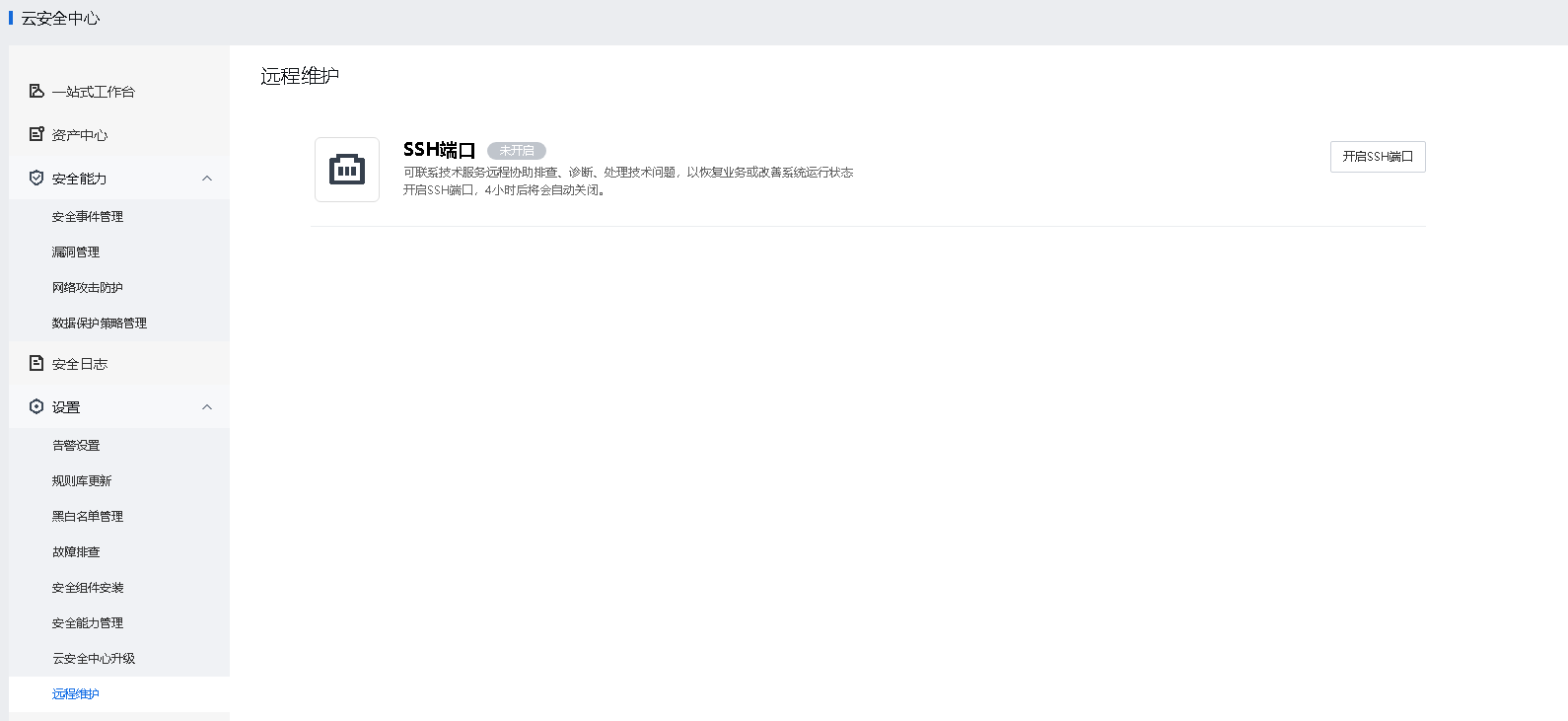
You can contact technical support for remote diagnostics, troubleshooting, and fixing to improve system performance or recover businesses.
Prerequisites
N/A
Precautions
SSH Port will be automatically disabled 4 hours after it is enabled.
Steps
Go to Security Settings > Remote Maintenance and click Enable SSH Port. Then, aSecurity can be remotely maintained via SSH.


 {{ $t('index.defaultHeader.chromeBrowserTip') }}