


{{ secondMenu.name }}






Function Description:
Precautions:
Prerequisite:
None.
Steps:
Step 1.Log in to the SCP admin platform and navigate Resources > Security Services > Distributed Firewall to enter the distributed firewall configuration page. The Platform passthrough policy and Global control policy are the default policies and cannot be edited.
• Platform passthrough policy: Contains the platform passthrough rule, which ensures the connectivity between the SCP and the resource pool.
• Global control policy: Contains global control rules, which ensure overall traffic is released.
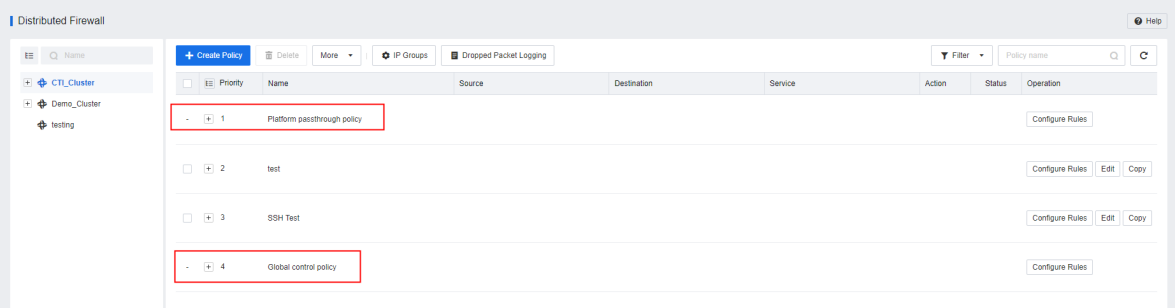
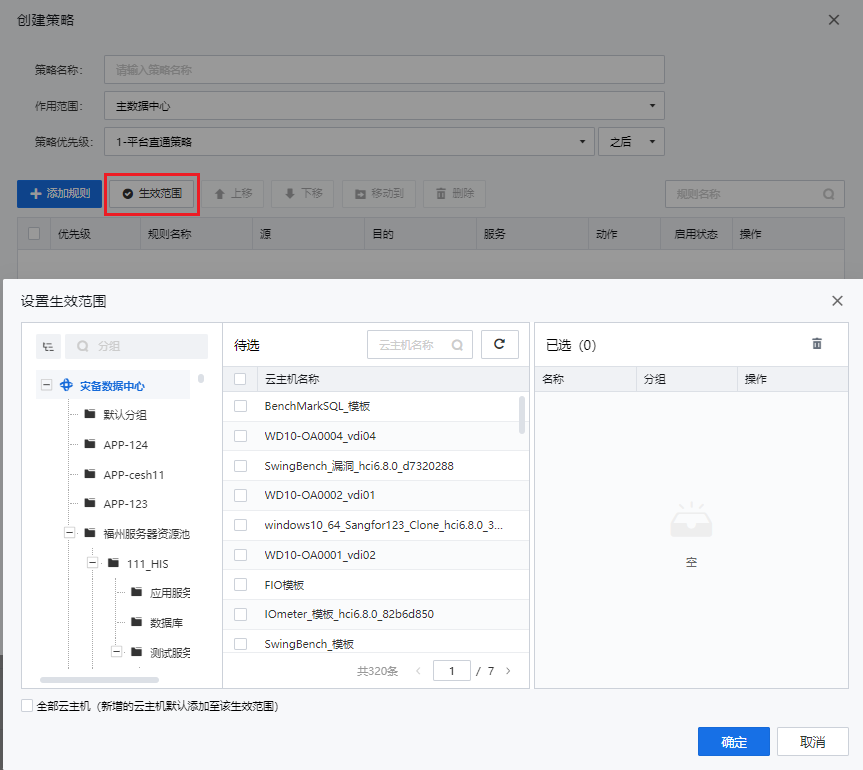
Step 2.Select the resource pool name or tenant name on the left list to enter the corresponding page, and click the Create Policy button to create a firewall policy for the resource pool or tenant network.
• Name: The firewall policy name.
• Scope: The effective domain of the firewall policy. It can be the entire resource pool, the tenant's classic, or the VPC.
• Priority: The policy created by the administrator is between the platform default policies, and other policy priorities can be adjusted manually.
• Click Applicable Scope to set the applicable scope of the policy, which can be a custom group of VMs.

 [4]
[4]
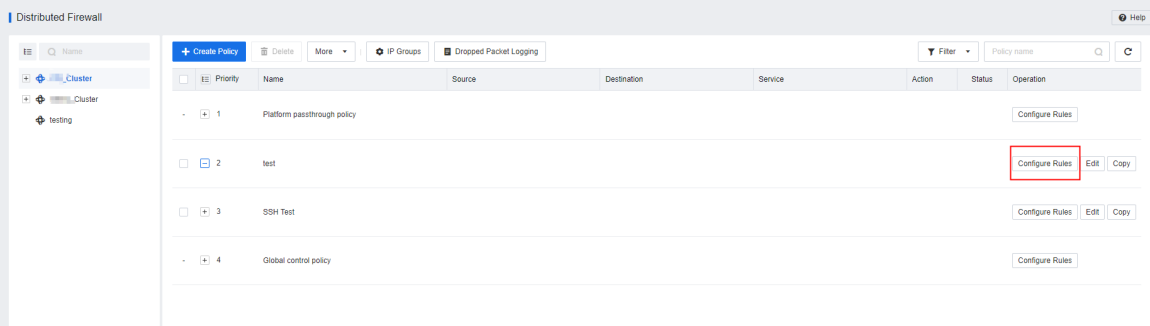
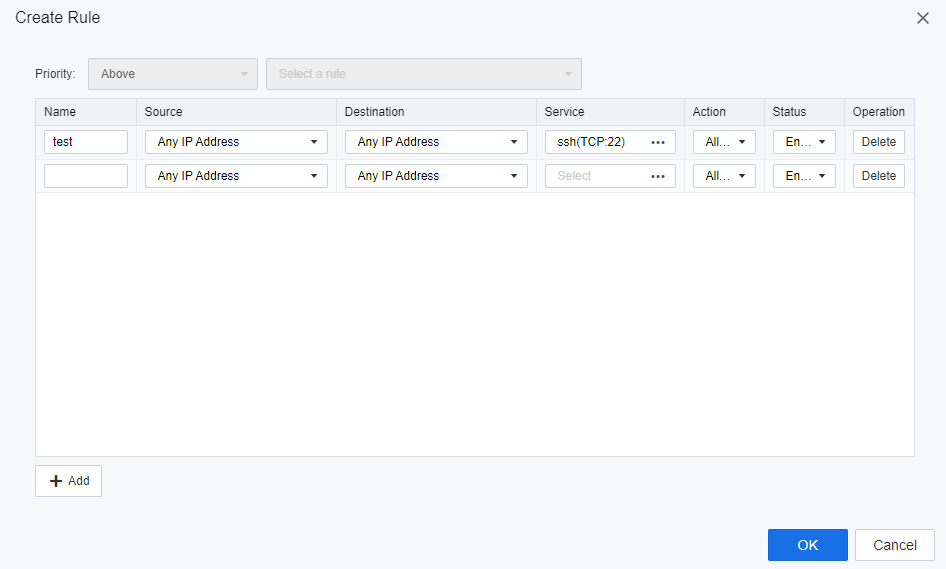
Step 3.You can manage firewall rules in groups after adding them to a created distributed firewall policy. Select a policy and click Edit. Then click New Rule. Note that all the rule configurations are within the applicable scope of the policy.

This applies to the effective scope where the policy is located.
• Source/Destination condition: Support configuring Any IP Address, IP Group and Range, Virtual Machine, and VM Group.

When the source/destination selects a virtual machine, if the virtual machine does not have vmTools installed, the system cannot automatically obtain the virtual machine’s IP, and the underlying firewall rules cannot perform effective IP conversion. As a result, the rules are ineffective for the virtual machine. Therefore, in this case, you need to configure an IP for the virtual machine before using it as the source/destination of firewall rules.
• Service: It supports the selection of Predefined Service on the platform and Custom Service based on protocols and port numbers. Multiple rules can share custom services in the same effective scope.
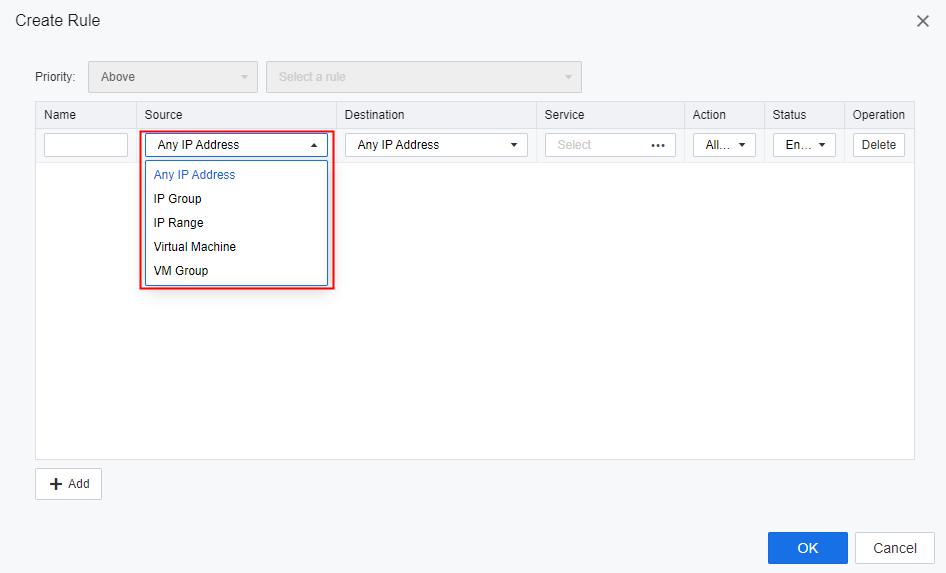
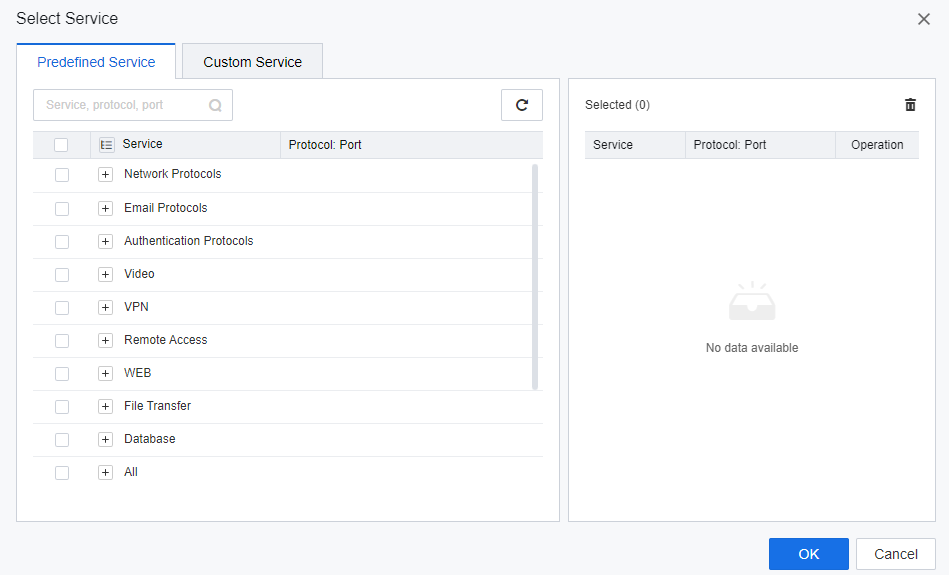
Step 4.Return to the Create Rule page, and click the Add button to continue adding other rules.
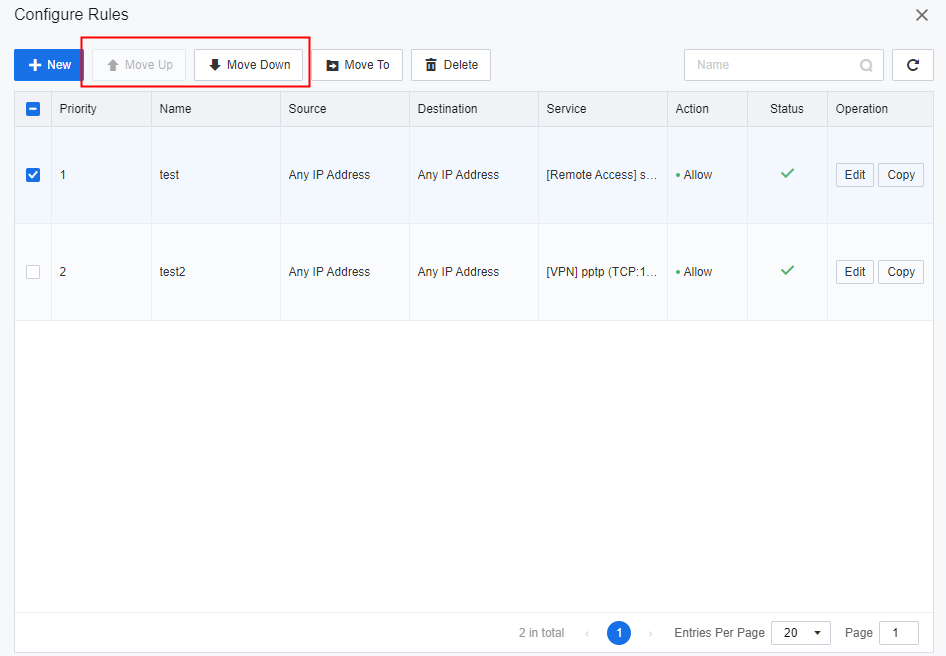
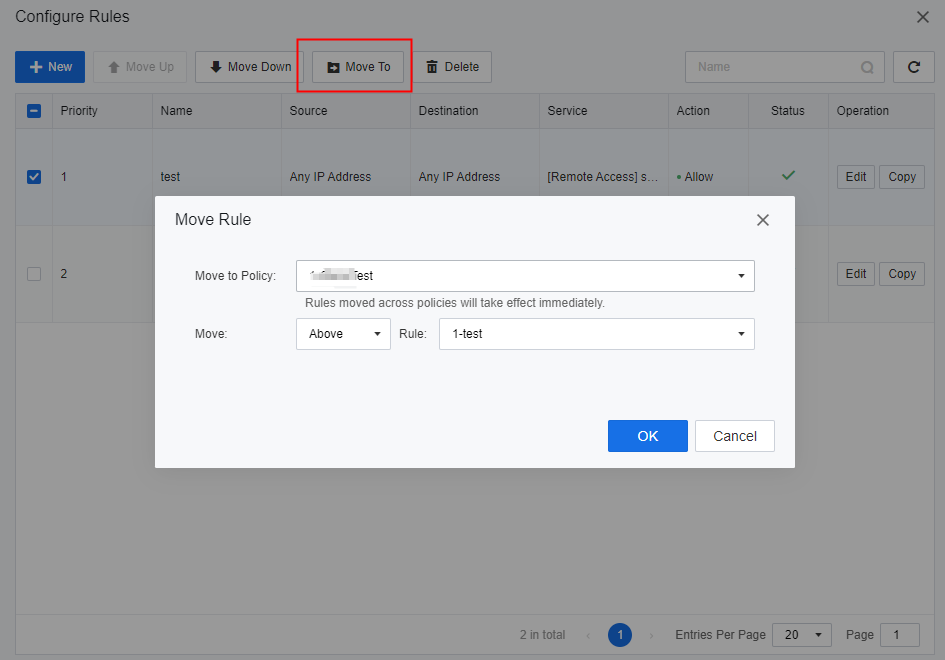
Step 5.After confirming that all rules are added correctly, click OK to create. On the Configure Rules page, select a rule record and click the Move Up or Move Down button to adjust the priority of the created rule. Click Move To to move the rule to another policy group.
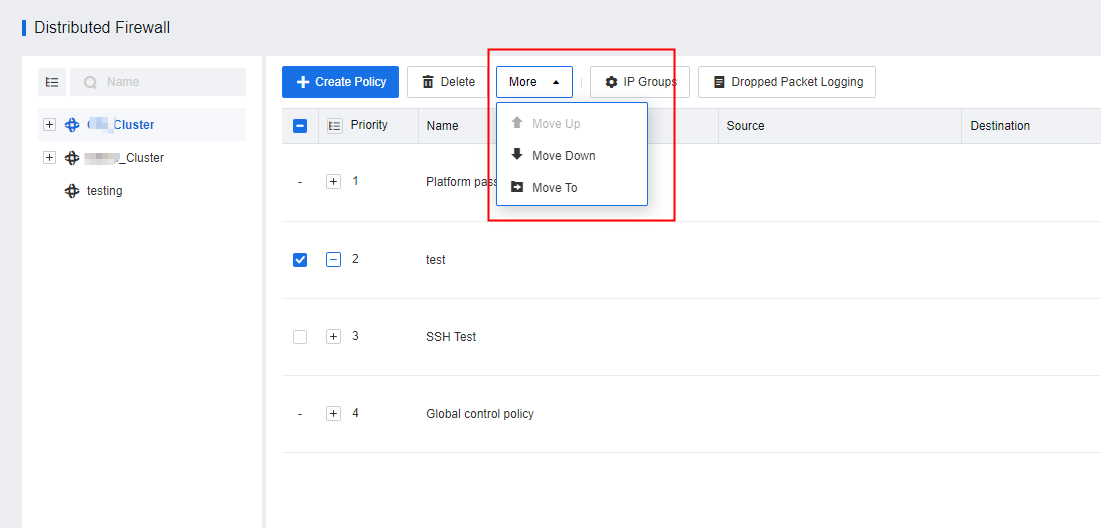
Step 6.It also supports the priority adjustment of distributed firewall policies. Select the policy's priority that needs to be adjusted in the list, and click More to adjust.
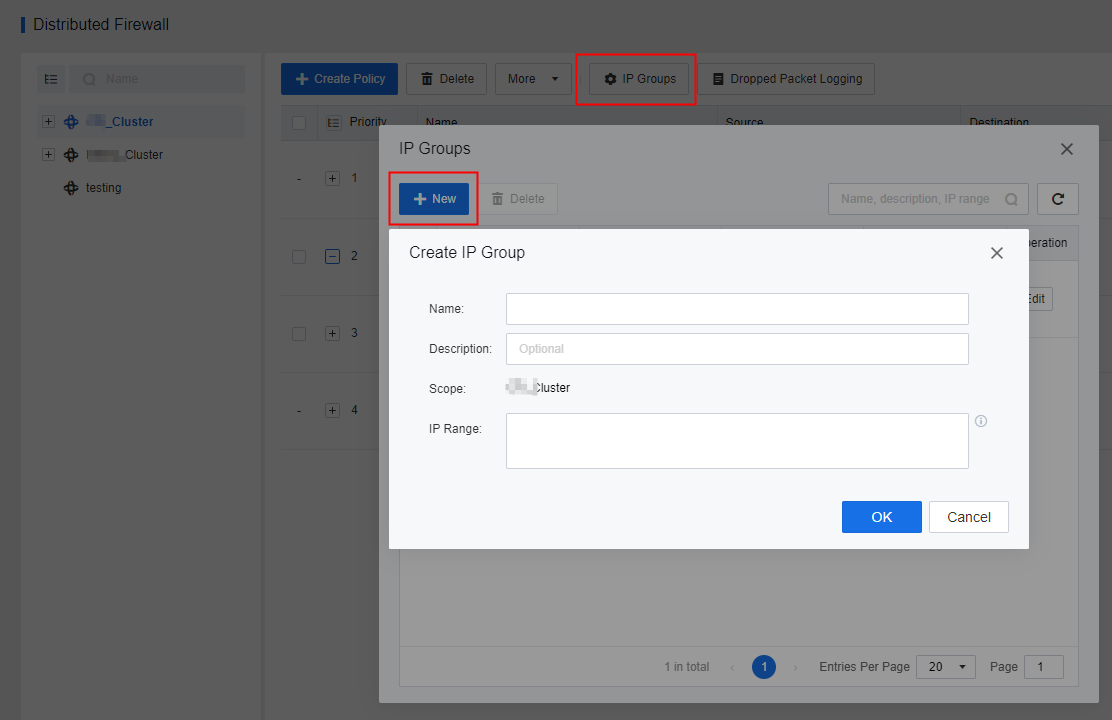
Step 7.IP Groups: The platform administrator can manage the IP groups in the distributed firewall policy. Click the IP Groups button, click the New button, and enter the Name, Description, and the IP Range to complete the IP groups creation.

Multiple rules can share a custom IP group in the same effective domain.
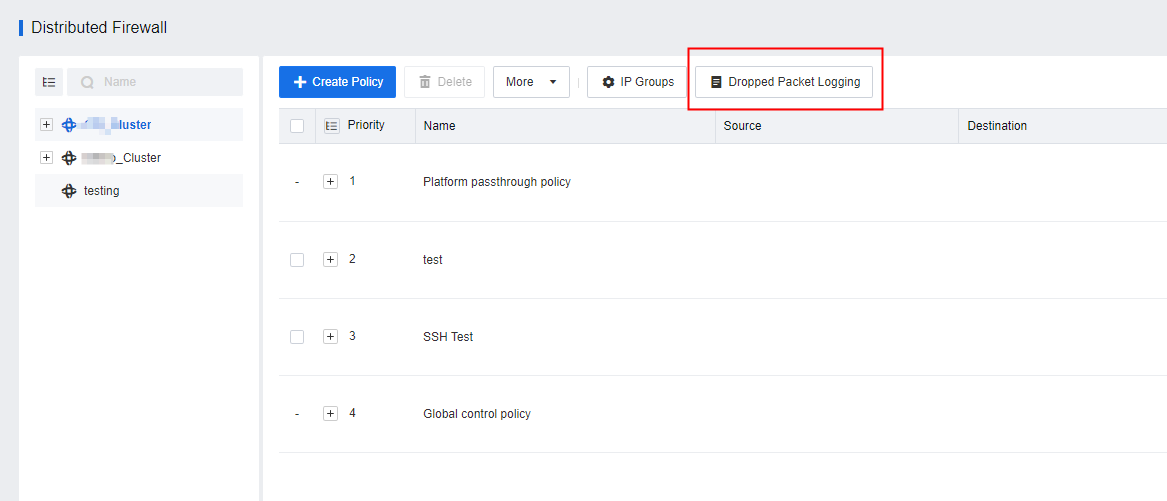
Step 8.After configuring the firewall policy, you can configure the Dropped Packet Logging.
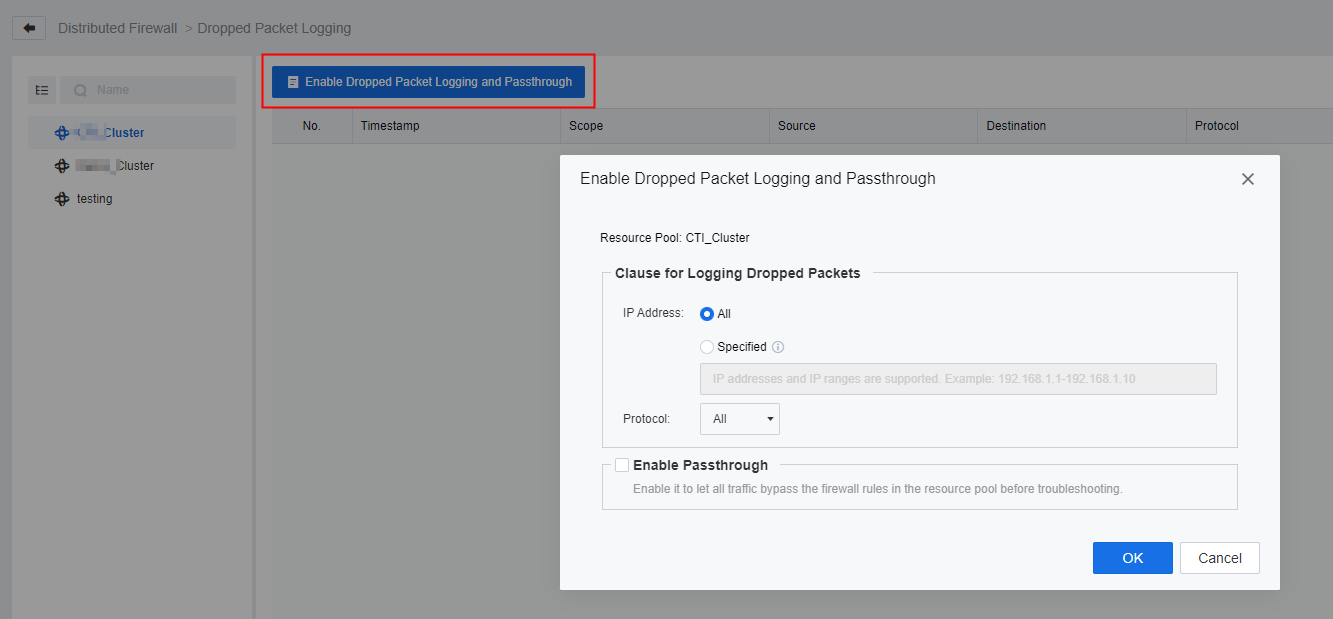
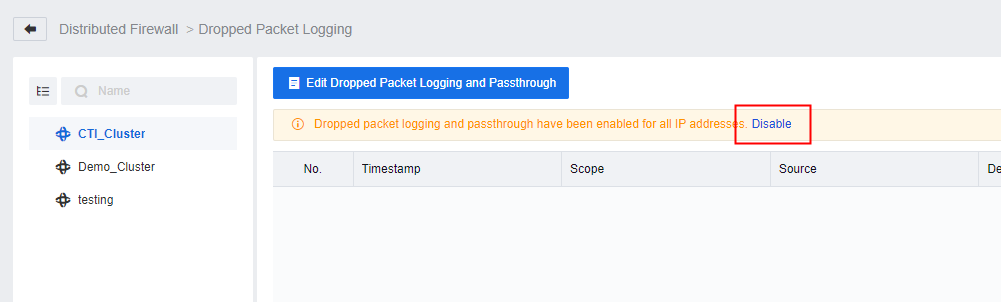
• Click the Dropped Packet Logging button to enter the dropped packet logging page. Then, click Enable Dropped Packet Logging and Passthrough to configure the clause for logging dropped packets, only the logs that meet the clause will be recorded.
• Check the Enable Passthrough checkbox to enable dropped packet logging and passthrough at the same time. After enabling, all firewall policies in the resource pool will not take effect, which can be used for temporary troubleshooting.
• Click the Disable button on the interface to disable the dropped packet logging and passthrough feature.


 {{ $t('index.defaultHeader.chromeBrowserTip') }}