


{{ secondMenu.name }}






Function Description:
Elastic IPs are independent public IP resources bound to devices such as virtual machines, routers, ADC (application delivery controller), and SSL VPNs in the VPC. They can be dynamically unbound to realize the decoupling of public IPs and these devices. Meet the requirements of flexible management and dynamic allocation.
Precautions:
Prerequisite
When it comes to operator lines, you need to plan the line type in advance.
Steps:
Step 1.Log in to the SCP platform, select Resources > Networking > Shared Service Network > Shared Services, and click New.
Step 2.Fill in the name and description of the elastic IP pool, select the tenant to be associated, line type, network egress, set the total bandwidth, add the elastic IP, and click OK to complete the creation.
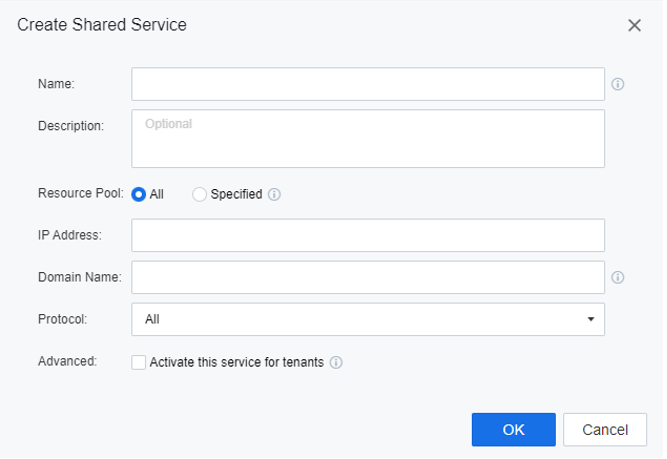

Step 3.After the elastic IP pool is created, the platform administrator can edit and delete it.
Function Description:
SCP supports associating a unified virtual IP (VIP) to multiple virtual machines and then performs elastic IP association.
Precautions:
Prerequisite
None.
Steps:
Step 4.Navigate to Resources > Networking > IP and Bandwidth, then select Virtual IP.
Step 5.Click New to create a new virtual IP, select the Tenant, Resource Pool, VPC, Subnet, Virtual IP support both Random and Specified and click OK to create the virtual IP.
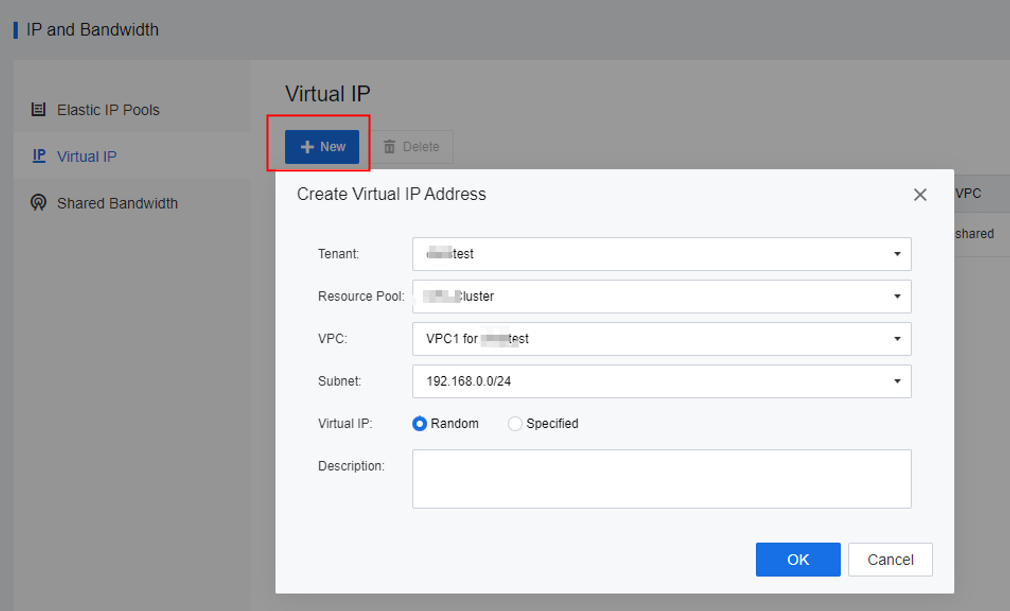
Step 6.Click Associate VM to associate or disassociate the virtual IP.
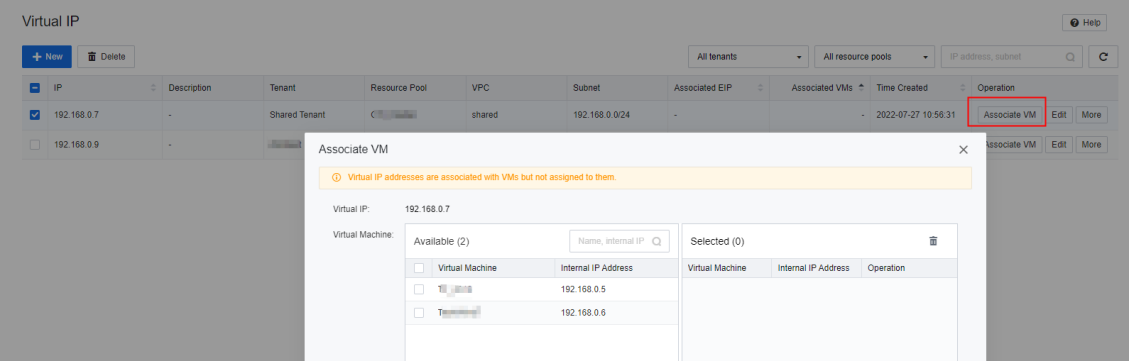
Step 7.Click More to associate EIP or delete the virtual IP.

Function Description:
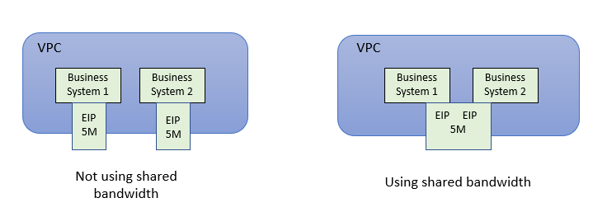
Shared bandwidth enables multiple elastic IPs to share the same bandwidth: virtual machines, routers, and NFV instances bound to elastic IPs under the same tenant share the same bandwidth resources. It can improve the bandwidth utilization rate and facilitate administrators' management.
Precautions:
Prerequisite
None.
Steps:
Step 1.Log in to the SCP platform, select Network > IP and Bandwidth > Shared Bandwidth to enter the shared bandwidth list.
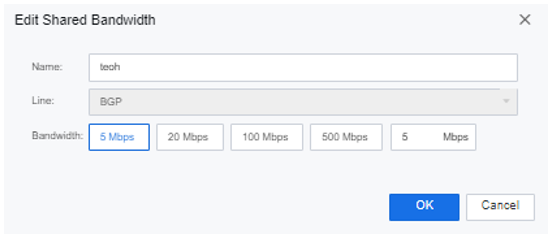
Step 2.Select a shared bandwidth and click Edit to set the name and bandwidth of the shared bandwidth.

Step 3.Click Delete to delete the shared bandwidth.
Function Description
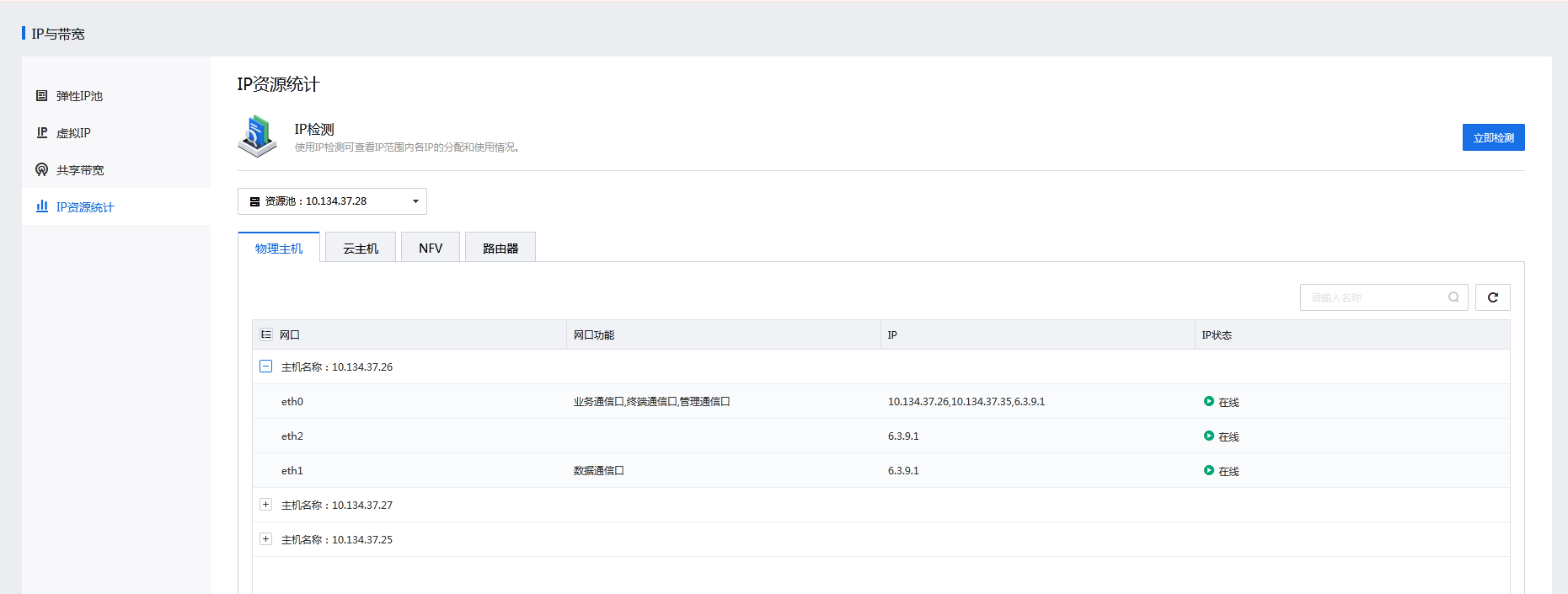
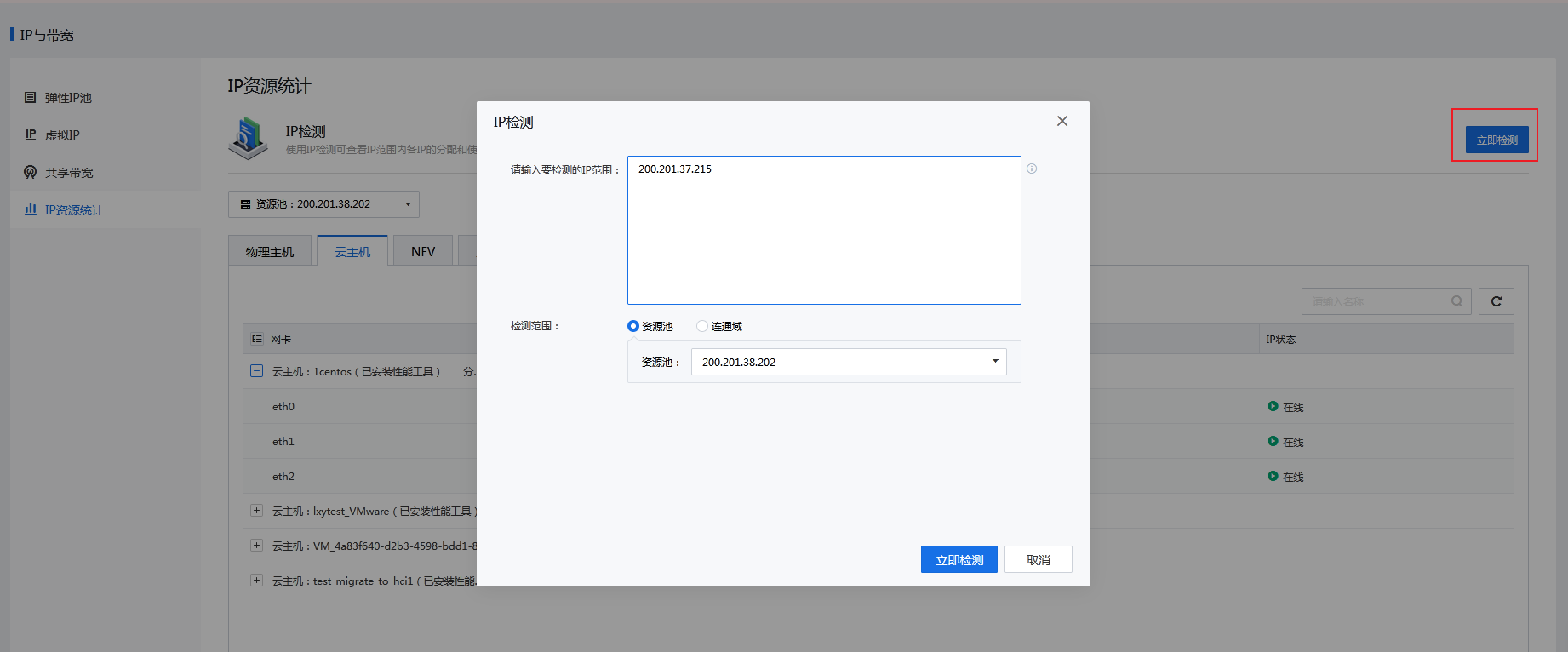
You can make statistics on IP resources, including physical machines, VMs, NFVs, routers, and IP conflicts.
Prerequisites
N/A
Precautions
You can detect up to 255 IP addresses at a time.
Steps[3]


 {{ $t('index.defaultHeader.chromeBrowserTip') }}