


{{ secondMenu.name }}






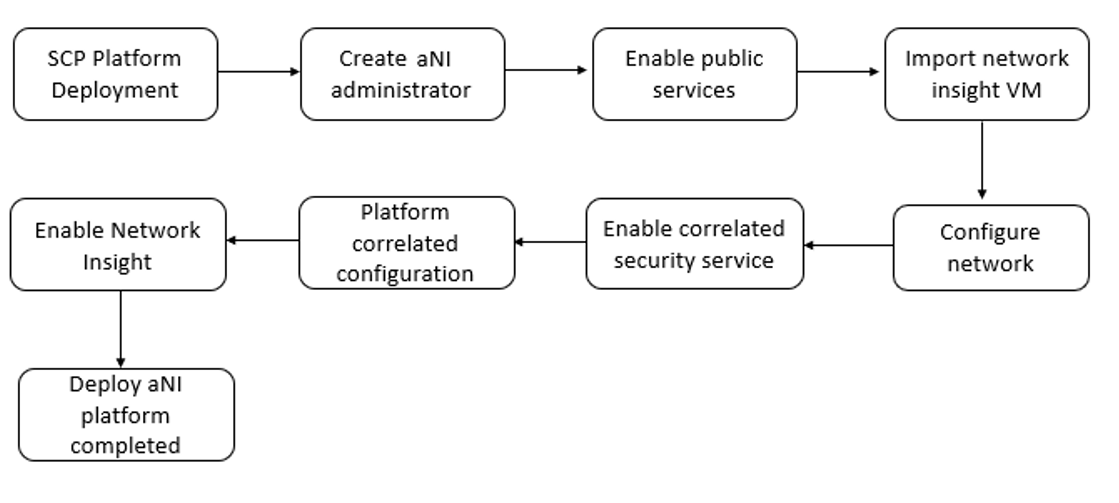
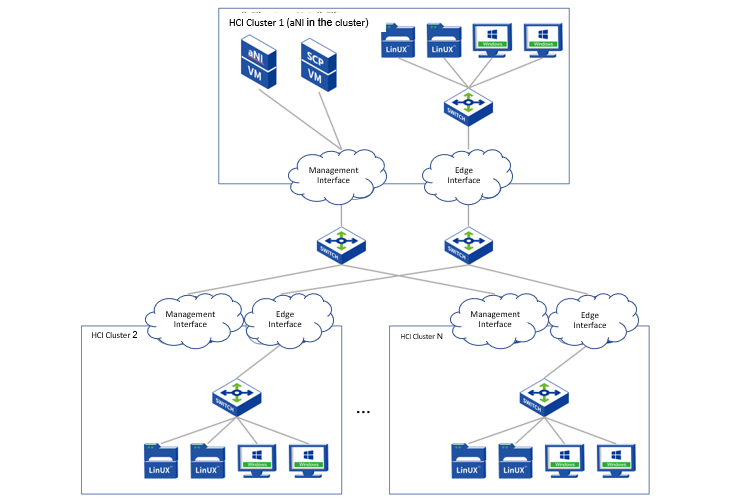
Advanced Network insight (aNI) realizes automatic collection and sorting of virtual machine access relationships, automatic addition and display of new assets, and timely synchronization of asset status. From a business perspective, it provides an intuitive and clear access relationship topology diagram and access details between virtual machines. It is convenient for optimizing policy configuration, discovering business access risks, and reducing risk port exposure. SCP supports the deployment of network visualization by importing virtual machines. This chapter mainly introduces the installation and deployment of aNI, including installing the aNI virtual machines.
| Type |
Cores |
Memory |
Storage |
Total of applicable VM |
| Small |
8 |
16GB |
500GB |
100 |
| Medium |
32 |
64GB |
1T |
1000 |
| Large |
64 |
128GB |
1.5T |
3000 |
Precautions:
Prerequisite
None.
Steps:
Step 1.Log in to the SCP platform as admin, select User and Access Management > Users > Platform Administrators, and click the New button to create a platform administrator. 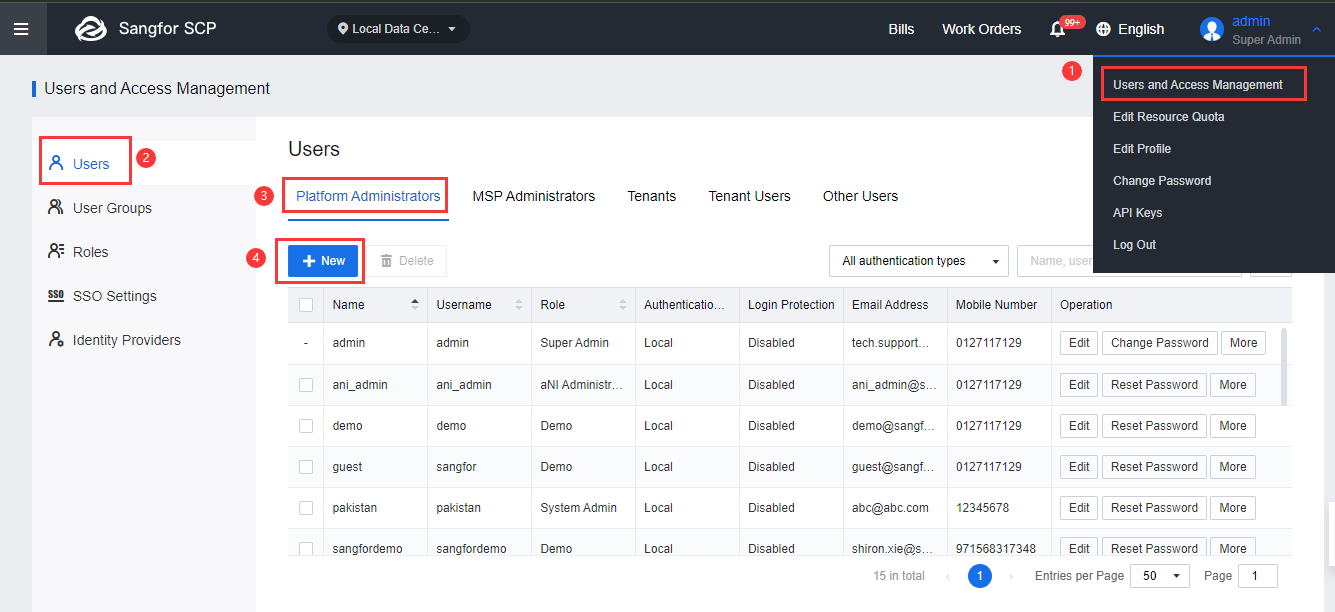
Step 2.Configure the following information to complete the creation of the platform administrator.
Name: ani_admin
Role: aNI administrator
Login username: ani_admin
Email: custom
Mobile: Custom
Password: custom 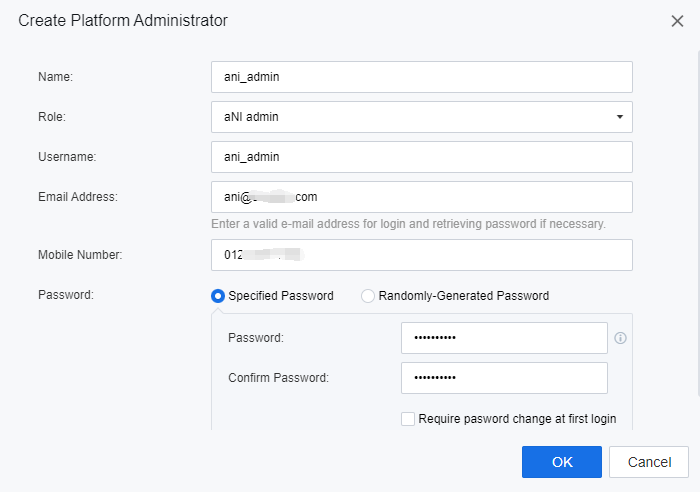
Step 3.Enter the System > Services interface, select Advanced Services, and click Enable Public Module, Start Network Insight services. 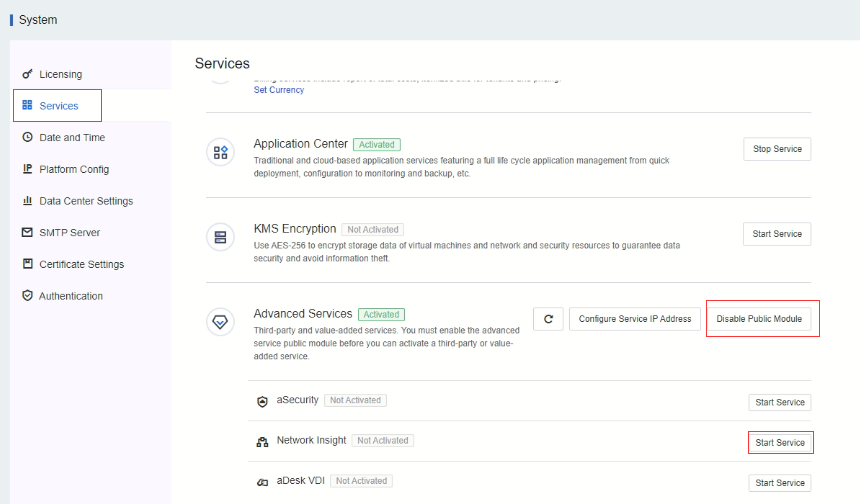
Step 4.Go to the Compute > Virtual Machines page, click New, select Import Virtual Machine, or enter the Network Insight interface and click the Deploy Now button.
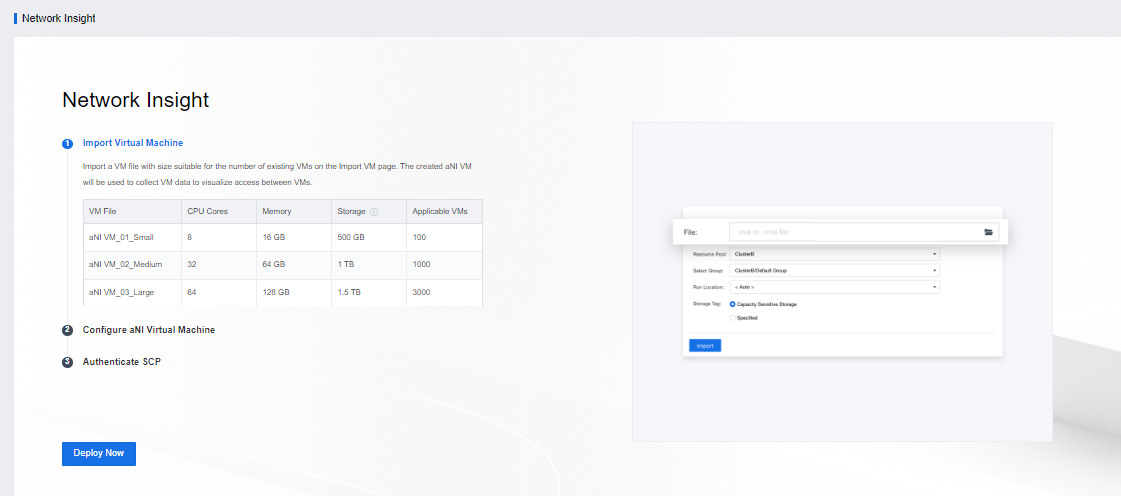
Step 5.Import the vma file, and select the resource pool, Virtual machine group, running location, storage performance, and network card. 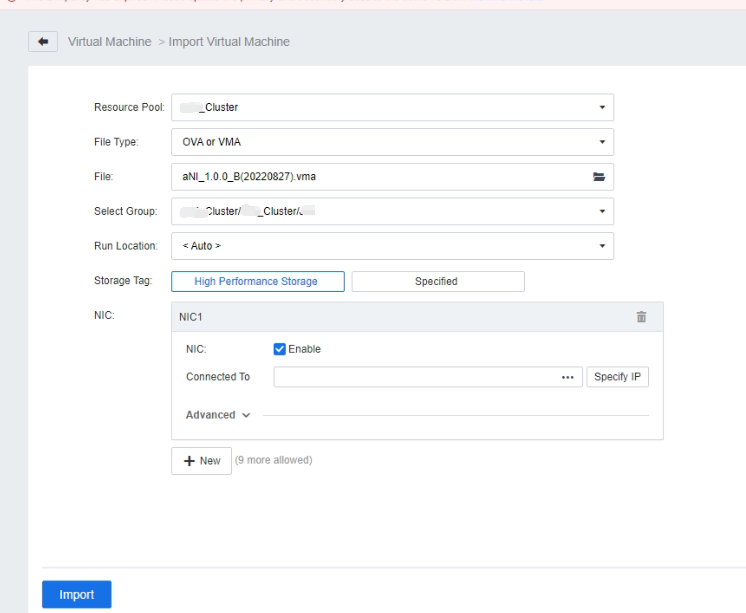
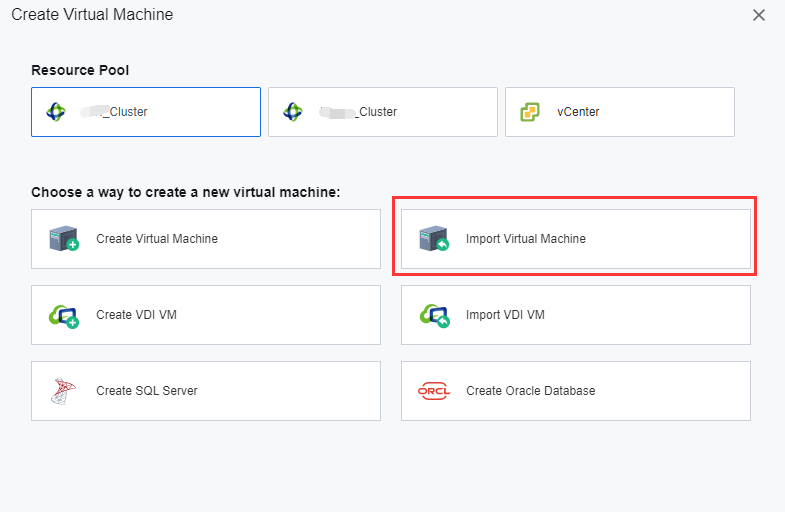
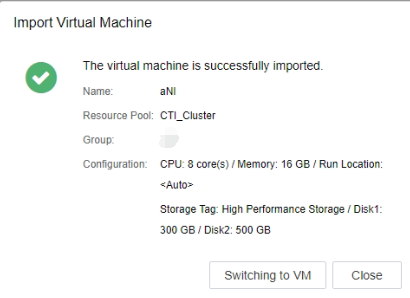
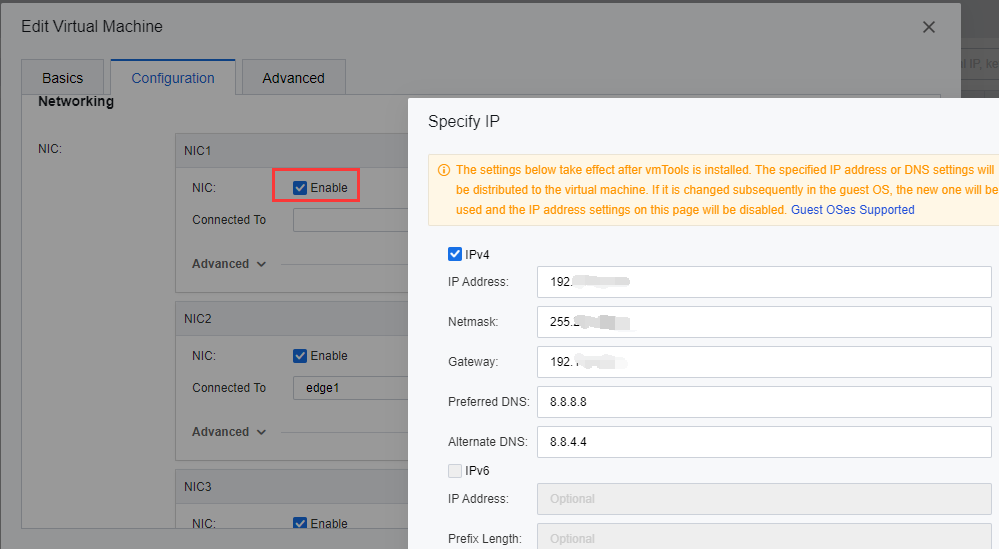
Step 6.After the import is successful, enter the Edit virtual machine interface to configure the network card. Check Enable, connect to the physical edge, click the Specify IP button, select IPV4, and configure the IP address of the aNI virtual machine as the aNI management network (it is necessary to plan to be able to communicate with the SCP management network segment, It is recommended to be on the same network segment as the SCP management network).
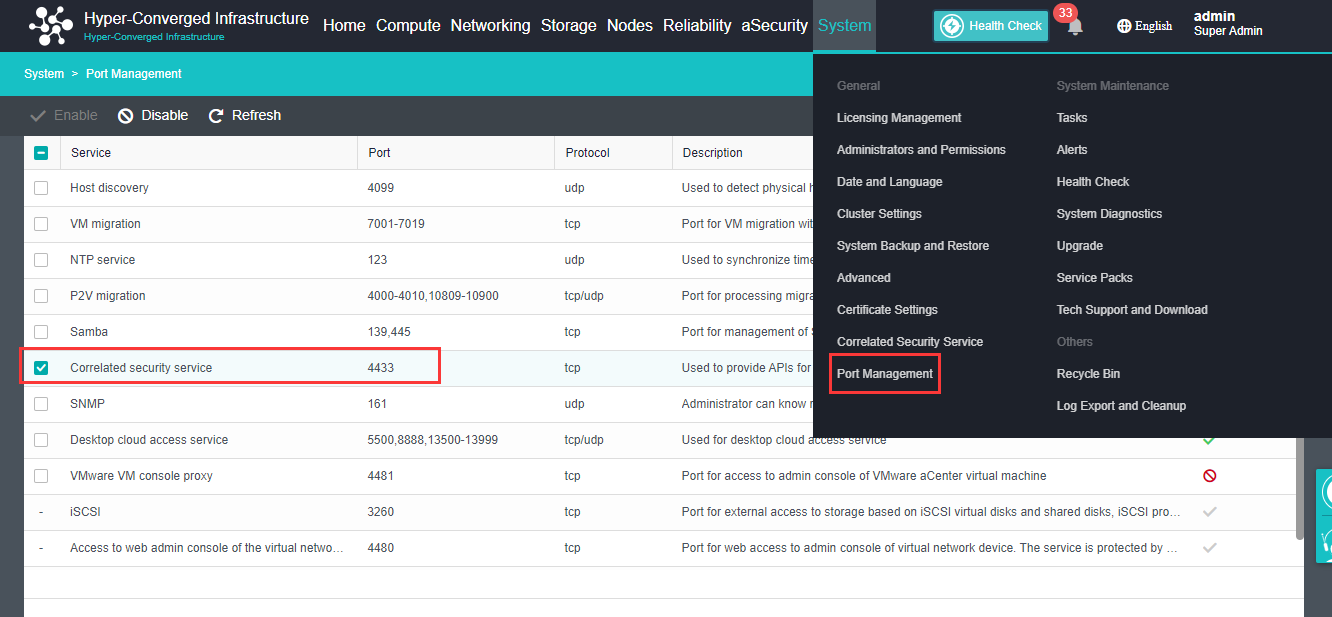
Step 7.Log in to the HCI cluster where the aNI is located, enable the correlated service port, and enable the Correlated security service. Otherwise, the network insight service will not be accessible.
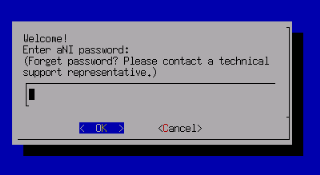
Step 8.Power on the virtual machine, enter the VM console and configure the platform security linkage.
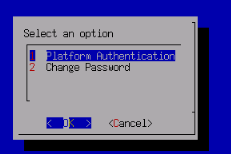
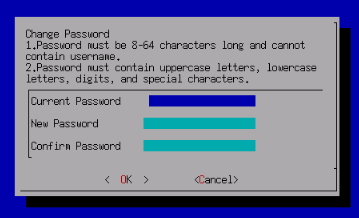
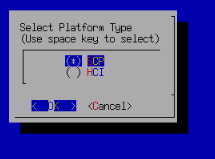
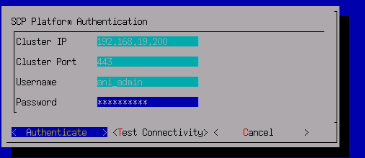
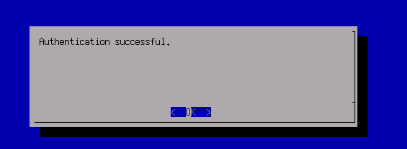
Step 1.After completing the aNI installation, enter the Network Insight page and click Go Now.
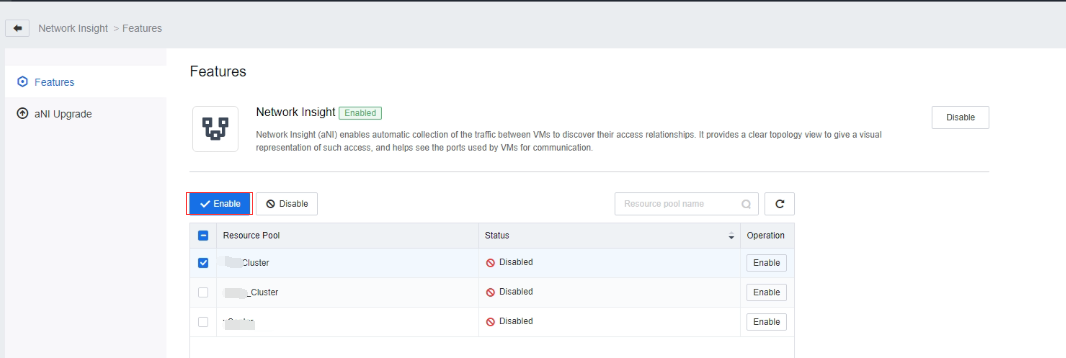
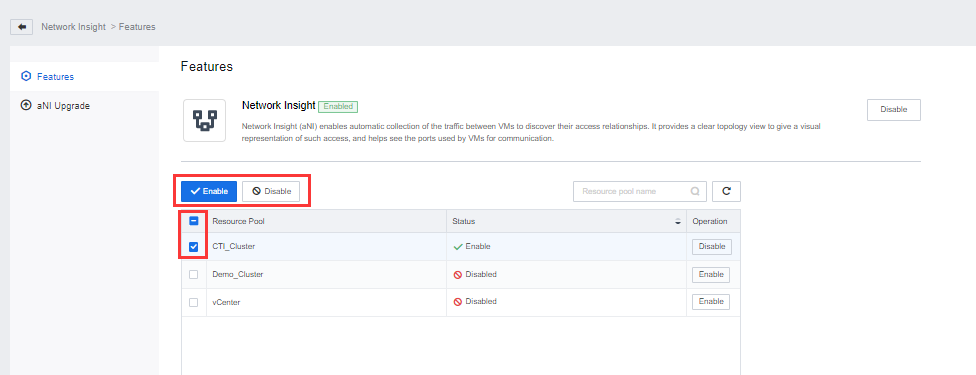
Step 2.Proceed to the Networking > Network Insight page, select the resource pool for which network visualization needs to be enabled, and click Enable to enable the resource pool network visualization function. 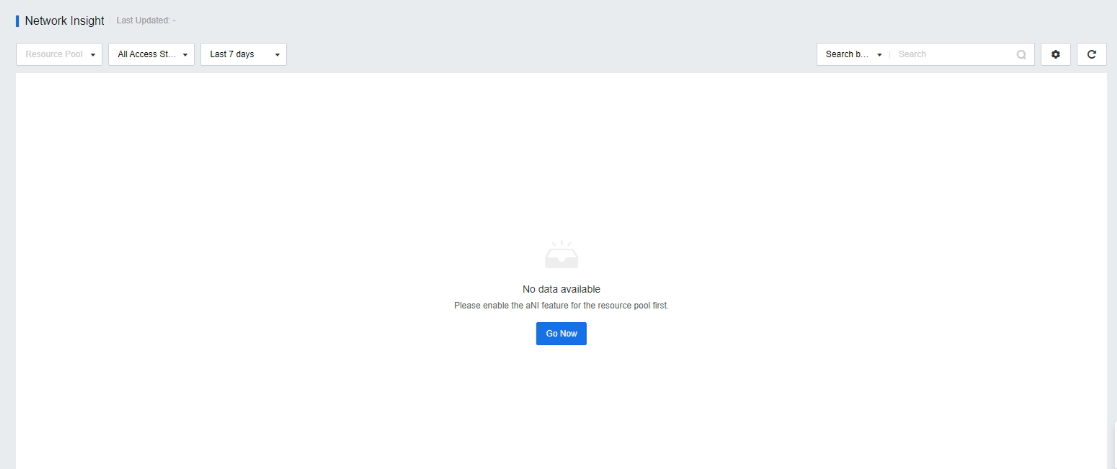
• Filter by access status: You can select All, Allowed, Denied, or No Policy Matched.
• Filter by time: You can select Last 30 days, Last 7 days, Last 3 days, or Today.
• Access details: Click the card in the upper-right corner of the page to enter the Access Details page, where you can quickly export an access list.
• Time screening: last 30 days, last 7 days, last 3 days, today. 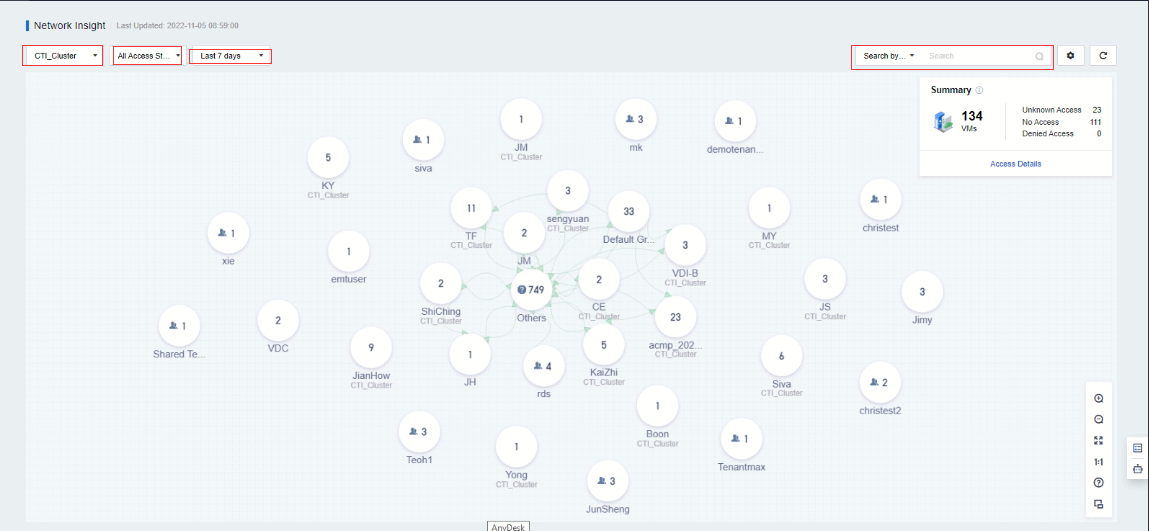
Step 3.Select a group to enter the virtual machine group display page. The card in the upper right corner displays the access relationship information of the virtual machines in the current group, including the total number of virtual machines, location communication, no access, and intercepted access. Click the zoom out button to collapse back to the initial interface.
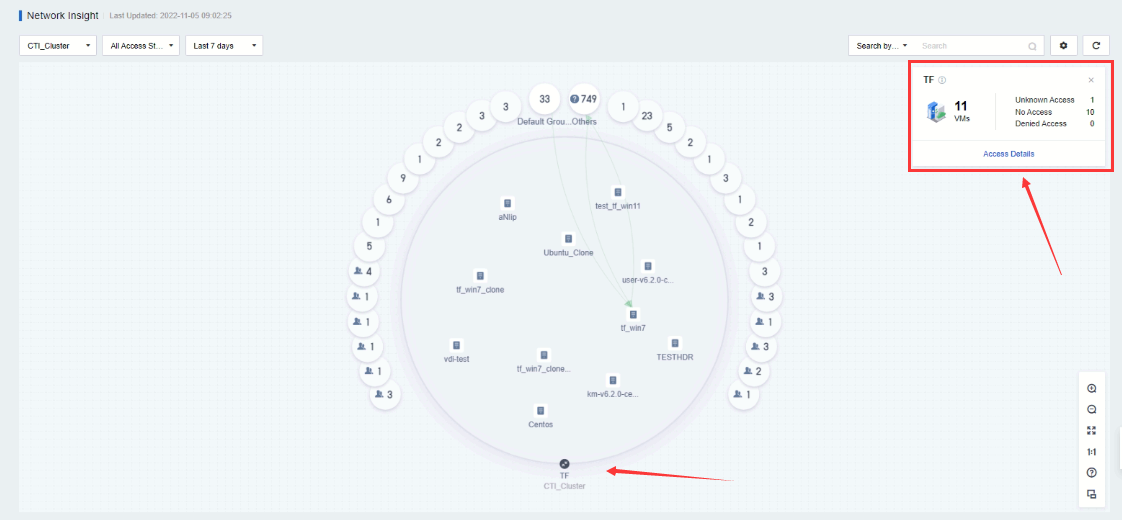
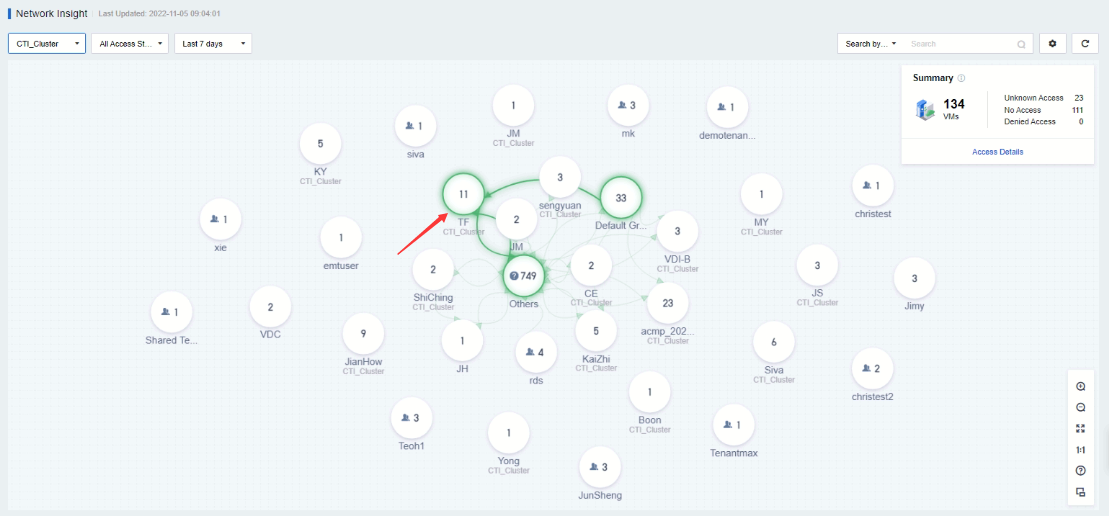
Step 4.Click the Access Details button to enter the details page, and click the operation bar View Details to obtain the detailed information of each record, including the firewall policy quintuple information: Src Object, Src IP, Dst Object, Dst IP, and Service. 
Step 5.Click the View Policies button to jump to the Distributed Firewall page, where you can add, delete, modify, and check access policies. 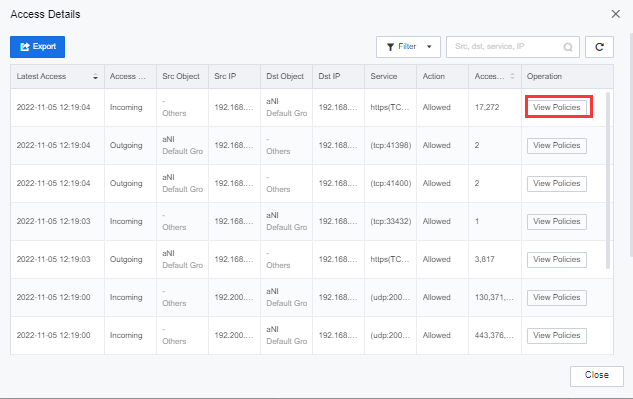
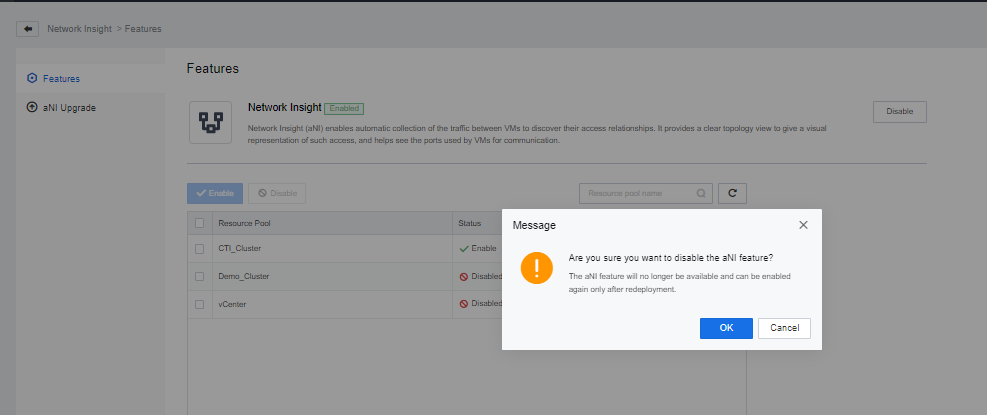
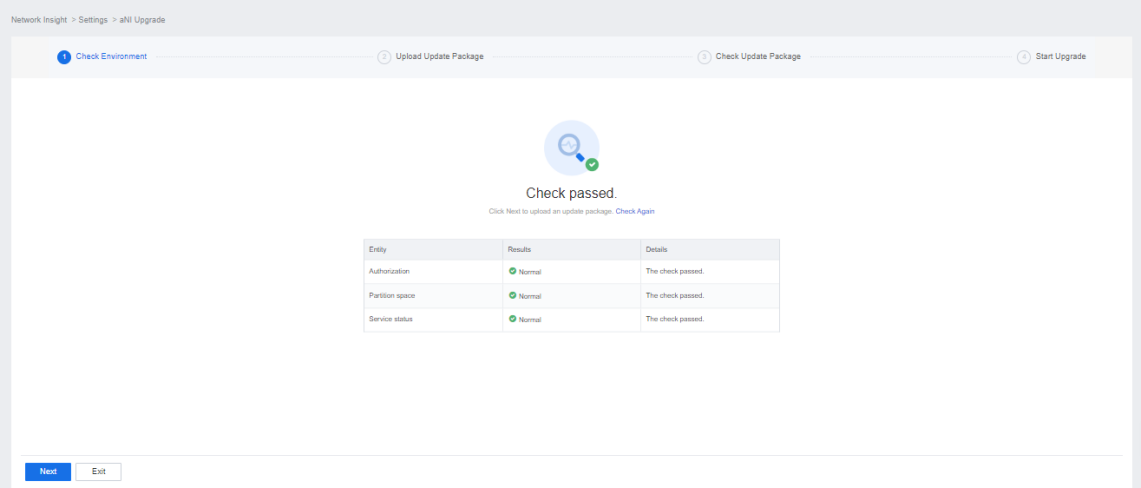
Step 6.The platform also supports setting operations for network insight services. Click the Settings button to enable, disable, upgrade and other settings for the service.

After the network insight service is closed, the function can no longer be used. If the function needs to be enabled, it must redeploy. 



 {{ $t('index.defaultHeader.chromeBrowserTip') }}