{{ $t('productDocDetail.guideClickSwitch') }}
{{ $t('productDocDetail.know') }}
{{ $t('productDocDetail.dontRemind') }}
{{sendMatomoQuery("Sangfor Cloud Platform (SCP)","aDesk VDI")}}

aDesk VDI

{{ $t('productDocDetail.updateTime') }}: 2026-01-08

Function Description:

By combining virtualization technology, Sangfor VDI migrates all desktops, applications, and data originally running and stored locally on traditional PCs to the data center for unified hosting and management. The data center deploys HCI in aServer, and the storage resources are virtualized into desktop virtual machines according to the needs of different users. They are transmitted to the user's access device in the form of images through the desktop delivery protocol operating system interface, forming a desktop environment that is the same as the PC.

Prerequisite

  1. Sangfor HCI 6.8.0 and SCP 6.8.0 have been correctly deployed or upgraded.
  1. Prepare an IP address for the VDI on the same network segment (or network) as the HCI and SCP management interfaces.
  2. The virtual machine or resource package quota has been allocated to the tenant.
  3. The template VM has been deployed on the VDC platform.
  4. The aSV or aSV for aDesk license has been imported into the SCP. One of the licenses can exist at the same time.

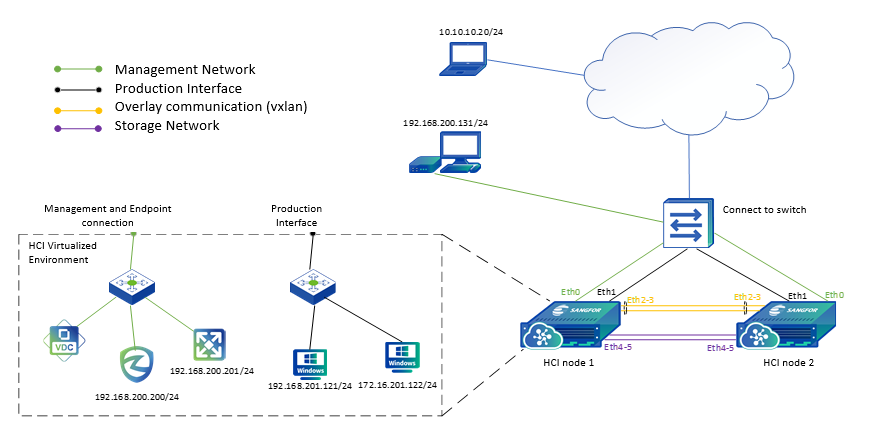
Topology Planning:

Steps:

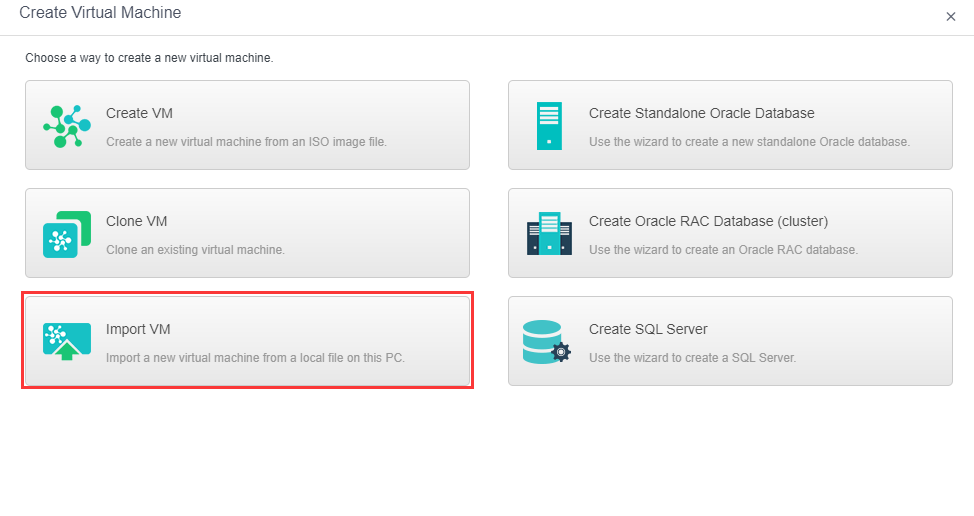
  1. Log in to the HCI platform as the admin, enter the Compute interface, and click New > Import VM.
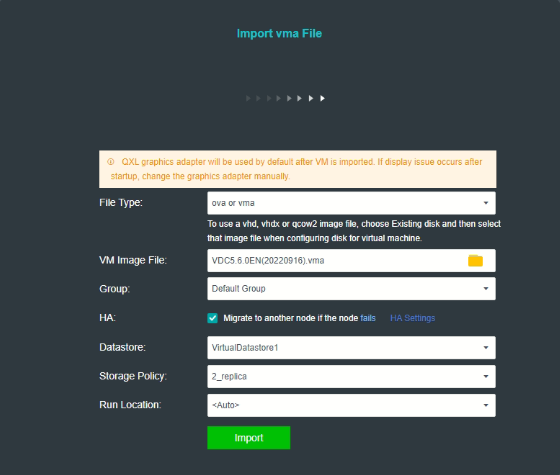
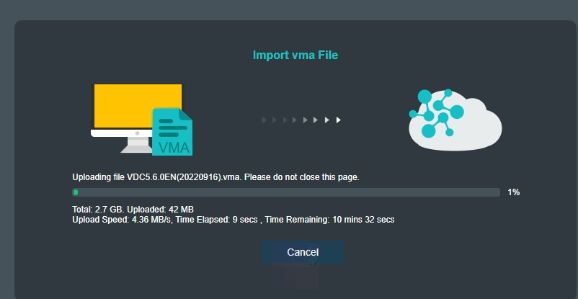
  1. Set the group, datastore, storage tag, and running location of the virtual machine, and click Import.


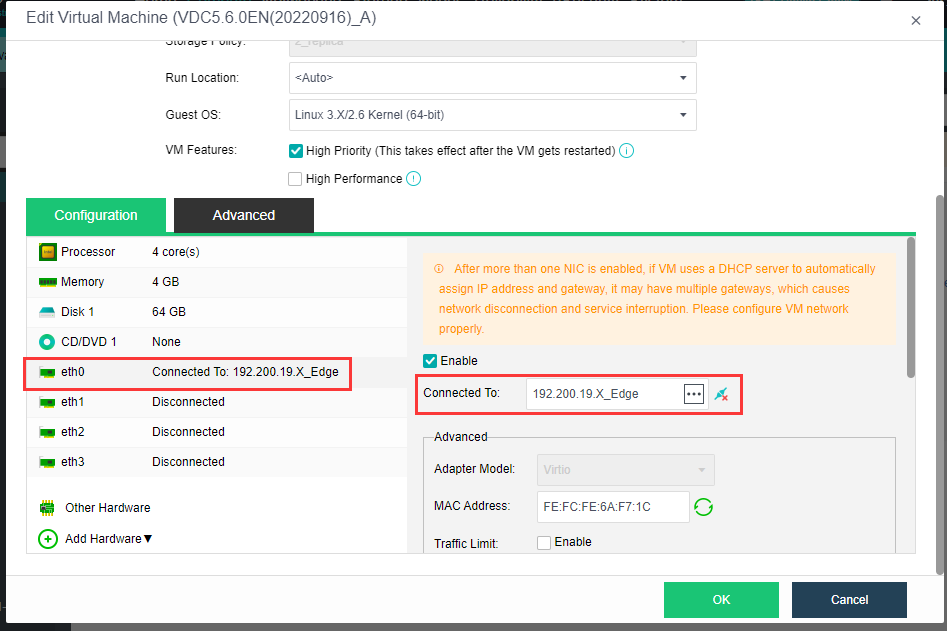
  1. After the import is successful, edit the virtual machine and connect the eth0 network card of the virtual machine to a physical edge that can communicate with the HCI management network.


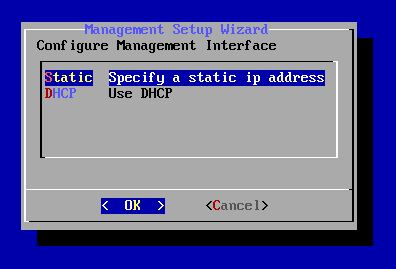
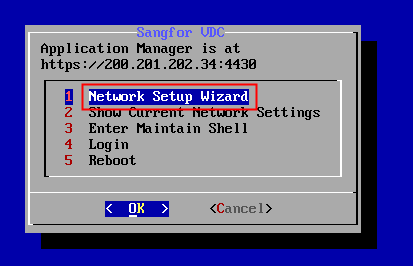
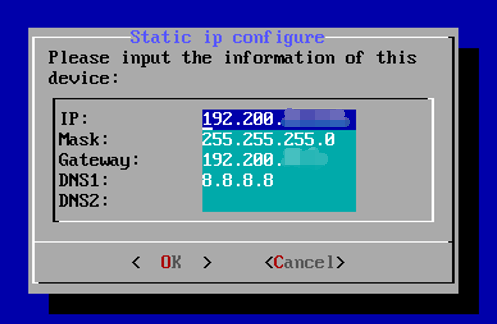
  1. Enter into the virtual machine console, and configure an IP for the VDC platform.


图形用户界面, 文本, 应用程序  描述已自动生成


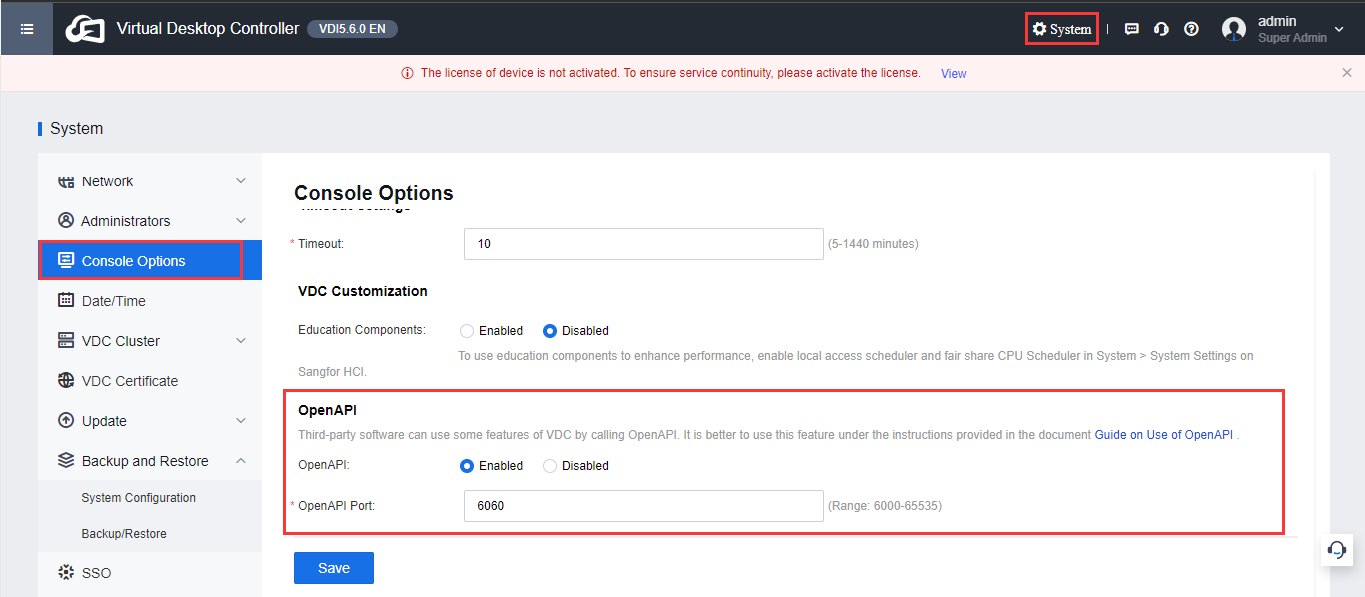
  1. Use the admin user to log in to the VDC platform (https://VDC IP:4430), enter the System > Console Options > OpenAPI interface, enable the OpenAPI interface, set the OpenAPI port, and click Save.

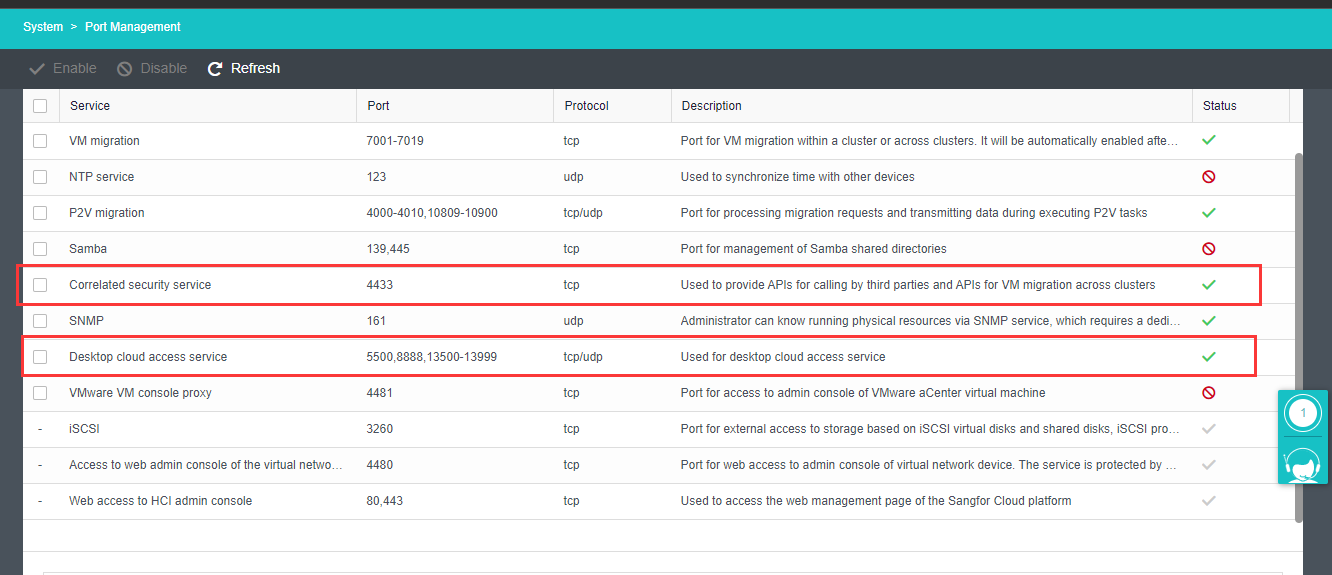
  1. Log in to the HCI cluster hosting the VDI virtual machine, and enable the Correlated security service and Desktop cloud access service ports to allow the related services. Otherwise, the VDI function will not be available.
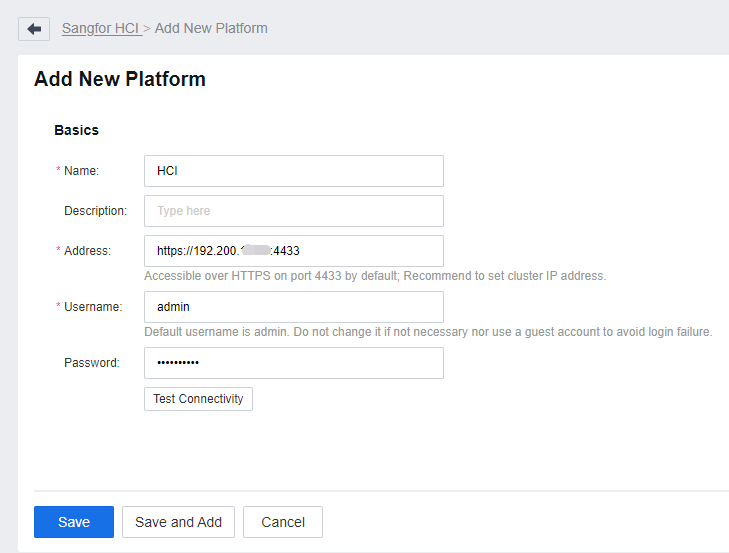
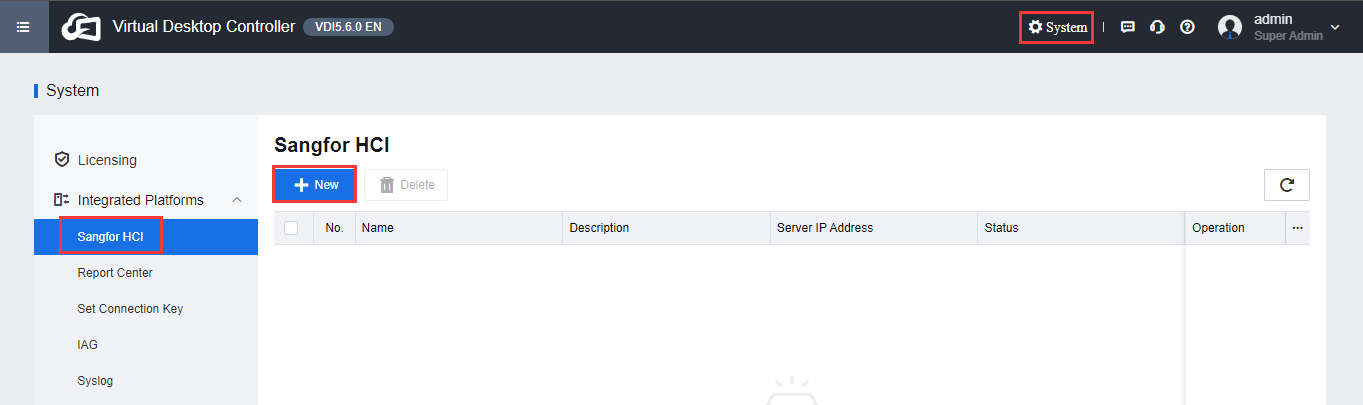
  2. Use the admin user to log in to the VDC platform, enter the System > Integrated Platforms > Sangfor HCI interface, click New, and configure the following parameters:

Name: Self-Defined

Controller address: https://HCI cluster address: 4433

Connection account: admin

Password: admin account password

  1. Click Test Connectivity to verify connectivity to the HCI platform.
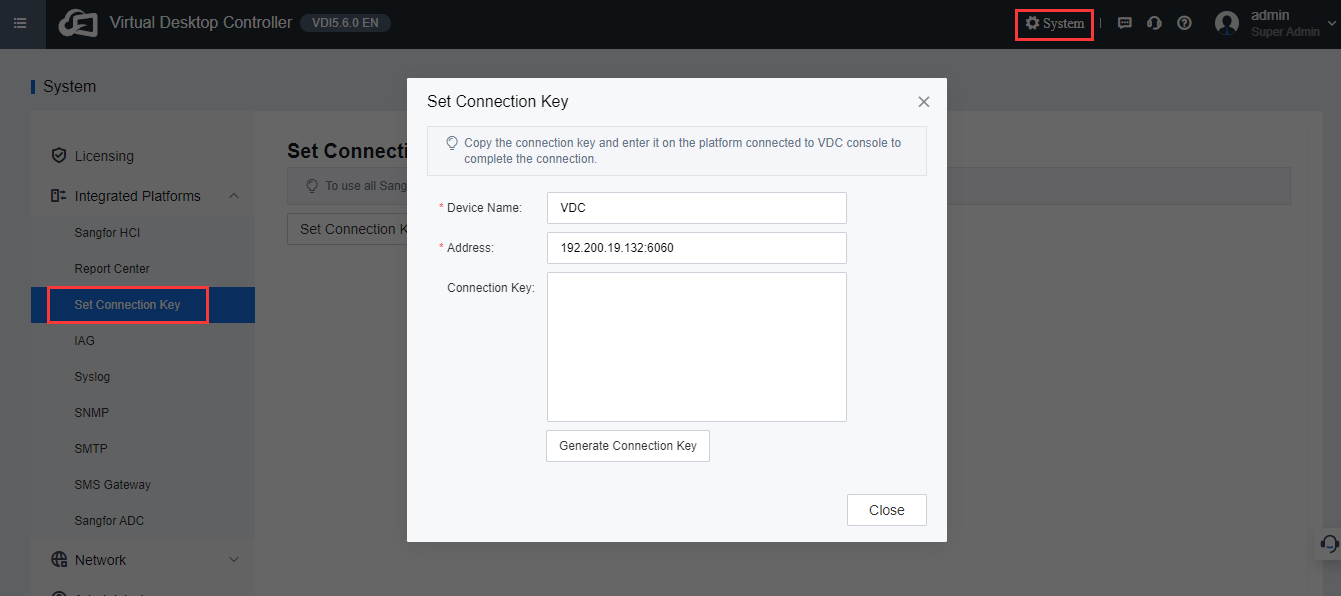
  2. Enter the System > Integrated Platforms > Set Connection Key interface, click Set Connection Key, configure the Device Name and Device Address, and click Generate Connection Key.

Device name: Self-defined

Device address: VDC Platform address: OpenAPI port
  1. Use the admin user to log in to the SCP platform.
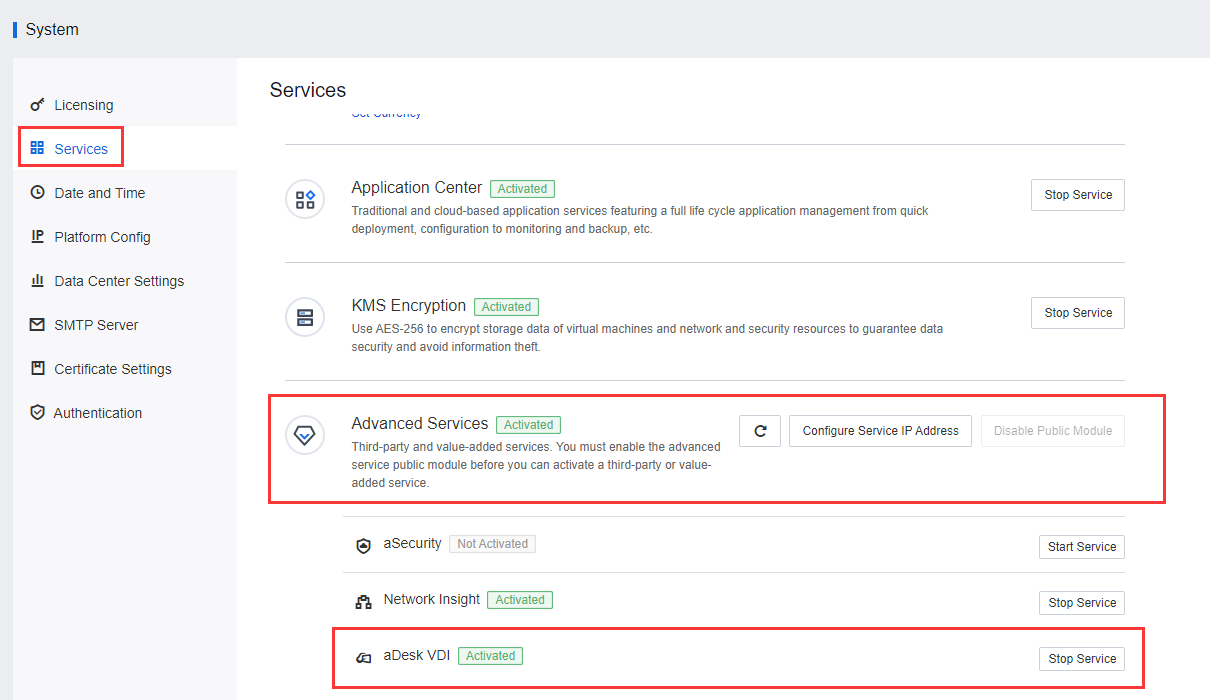
  2. Proceed to System > Services > Advanced Service > aDesk VDI interface, and activate the aDesk VDI service.

  1. After entering the aDesk VDI redirection page, click Activate Now.

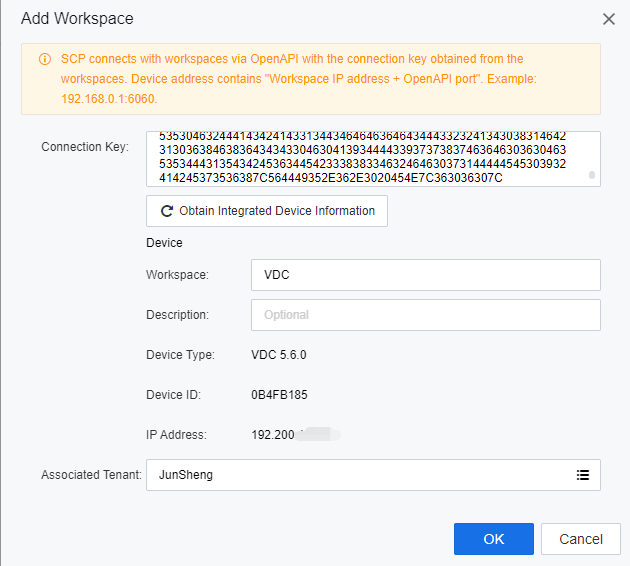
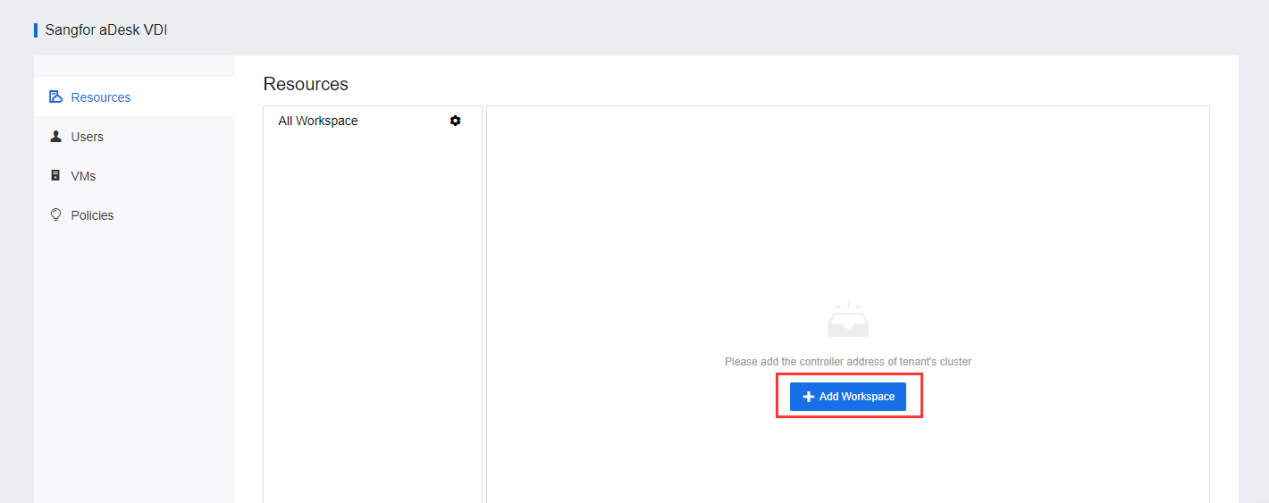
  1. Enter the Compute > aDesk VDI > Resources interface, click Add Workspace, fill in the Connection Key, click Obtain Integrated Device Information to obtain Integrated Device Information, select the tenant to be associated, and click OK.