


{{ secondMenu.name }}






As one of the basic units of Sangfor's SCP platform to carry services, the virtual machine can manage the entire life cycle of the virtual machine: creation, startup, shut down, import, export, deletion, allocation, revoke, etc.
Function Description:
The SCP platform supports ISO and built-in (HCI images) to create a new virtual machine and import existing virtual machines from the local node.
Prerequisite
When using an image to create a virtual machine, the required ISO image has been uploaded, or the HCI built-in image has been created.
Precautions:
Steps:
Step 1.Login to the SCP platform, select Compute > Virtual Machine, click the New button, and select Create New Virtual Machine.
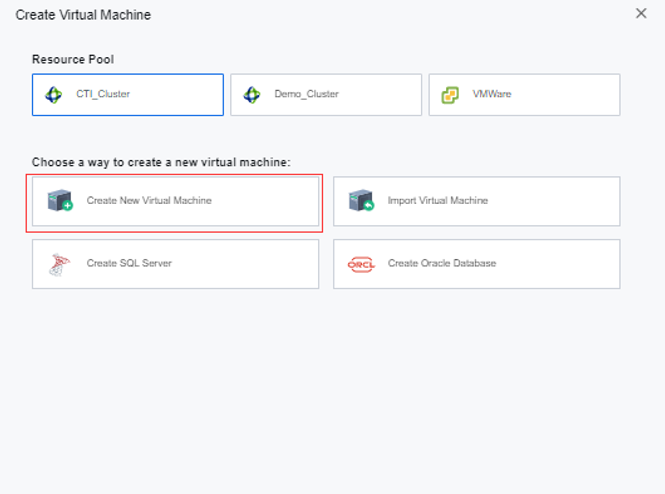
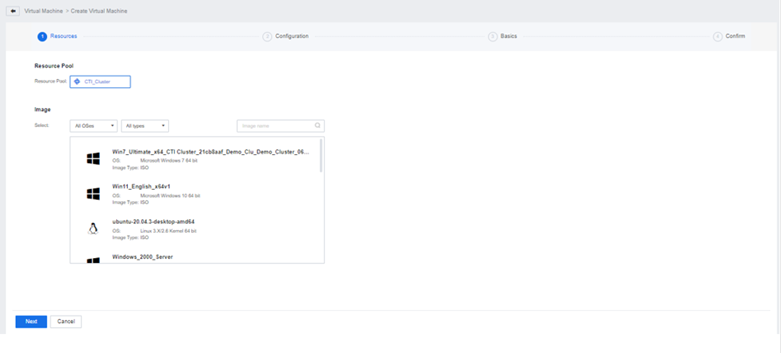
Step 2.Select the resource pool where the new virtual machine is located, select the required image, and click the Next button.
Step 3.Enter the Configuration interface.
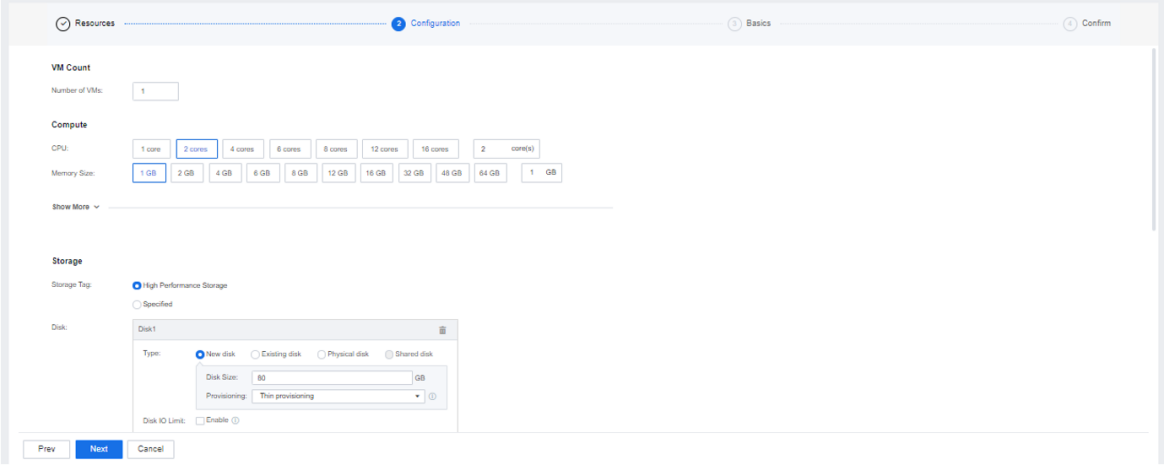
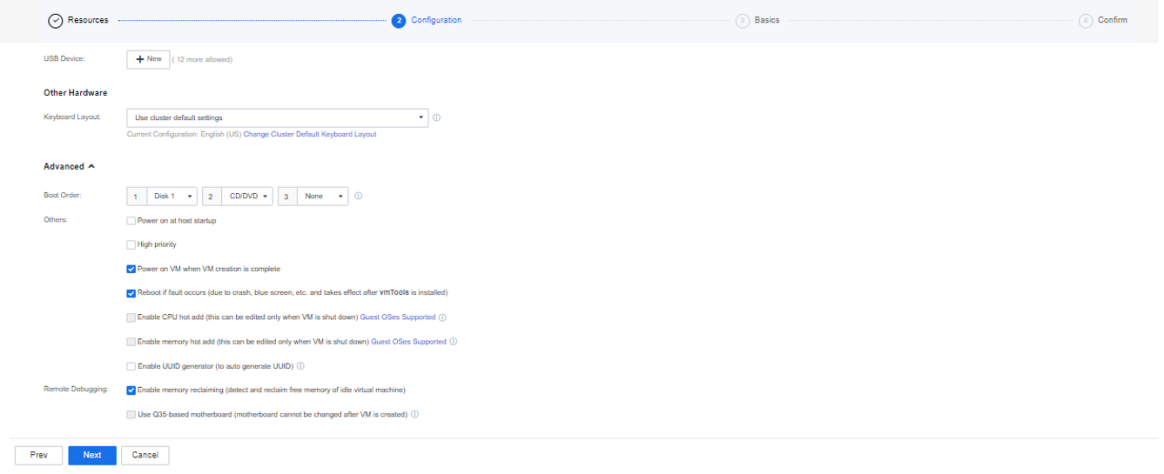
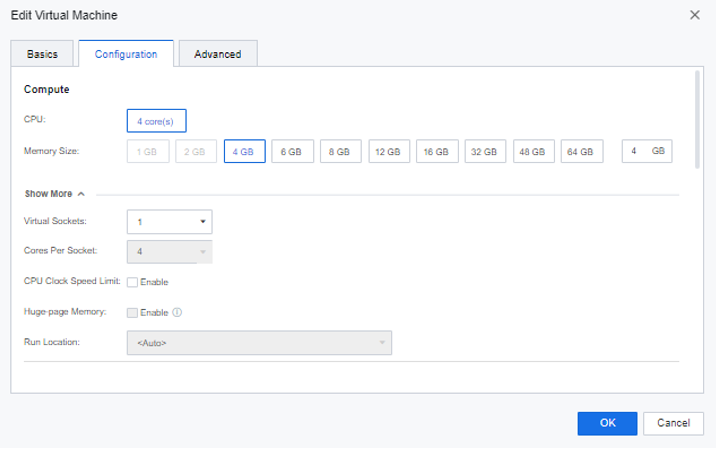
CPU: The number of vCPU cores allocated to the virtual machine does not exceed the running node's total number of physical CPU threads.
Memory size: The virtual machine's memory allocation does not exceed a single node's memory.
Total number of cores: The number of virtual sockets * number of cores per socket.
CPU Clock Speed Limit: If you check the Enable checkbox, you can configure the highest total clock speed of a node in the cluster.

Huge page memory: Enabling huge page memory for a specific application can improve the virtual machine's performance, but disks will be pre-allocated. After the Huge page memory is enabled, the virtual machine's memory reclamation mechanism will be disabled. Prioritize memory usage and improve business performance.
Run Location: The run location specifies which node's CPU and memory resources are used when the virtual machine is running, and you can select and specify a node automatically. When the Storage location is selected as a stretched volume, you can also specify the run location of the virtual machine as a fault domain. When specified as a fault domain, you can set priority to run at the selected location or must run at the selected location.
Storage Tag: You can select High Performance Storage or Specified. You may choose the preferred datastore if Specified is selected.Storage Policy: The default policy stores two replicas, while the HA policy stores three replicas.
Disk: Virtual machine disk allocation, including the following four allocation methods.
New disk
Dynamic provisioning: According to the data occupancy, the storage space is dynamically allocated. While improving the performance, the storage space utilization rate can also be increased. The maximum capacity is 8T.
Thin Provisioning: According to the actual data occupancy, the storage space is allocated on demand, saving storage space. The maximum capacity is 63T.
Pre-allocating: Pre-allocate a fixed storage space, which can improve disk performance but will take up more storage space. The maximum capacity is 4T.
Existing disk
Use the disk image file of the virtual machine created earlier, such as a qcow2 format file.
Physical disk
Mount the physical storage directly to the virtual machine for use.
Shared disk
Choose an existing shared virtual disk, generally used to deploy Oracle RAC and other applications requiring shared disks.
• Disk IO limit
You can configure the IO limit of each disk of the virtual machine CPU.
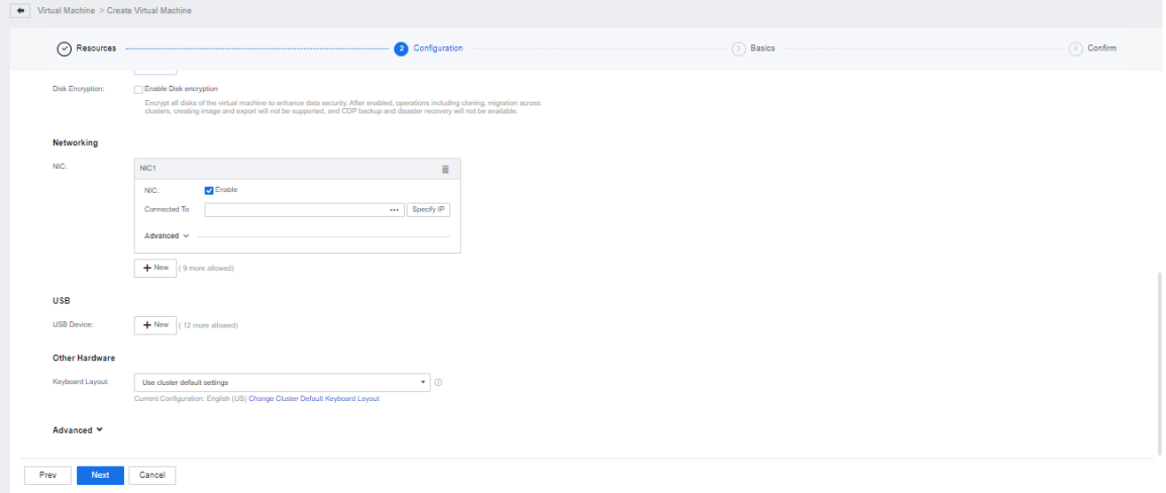
Disk encryption: All virtual machine disks will be encrypted if you check the Enable disk encryption checkbox. Once enabled, the virtual machine will not support cloning, cross-cluster migration, mirroring and export operations, and CDP backup and disaster recovery functions.
Networking: Specify the connection location of the virtual machine's NIC. You can also set the IP address of the network card. You can specify the adapter model and MAC address in the advanced options.
• Adapter Model: The default is Virtio.
• MAC address: Set the MAC address of the network card and keep it automatically obtained, or you can click Specify IP to specify it manually.
• Jumbo frame receiving function: If the jumbo frame receiving function is not enabled, TCP jumbo frame messages will be processed by TCP fragmentation, and non-TCP jumbo frame messages will be processed by IP fragmentation before entering the virtual network card. IPsec equipment may not support Network devices that receive jumbo frames and need to turn off this option.
USB: Map the USB device on the physical server to the virtual machine, or the virtual machine deployed on the virtualization platform needs to use the USB device. The USB device plugged into the virtualization platform needs to be mapped to the virtual machine.
Other hardware: Configure the keyboard layout of the virtual machine. Here you can inherit the cluster default keyboard layout, or you can configure the keyboard layout for the virtual machine separately. For cluster keyboard layout settings, please refer to the Edit Cluster chapter.
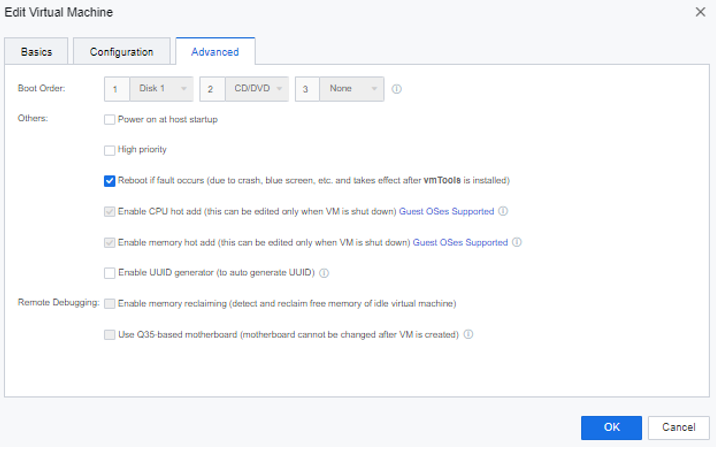
Boot order: The boot sequence of the virtual machine system. This option can be edited when shutting down or creating a virtual machine.
Power on at host startup: The server starts the virtual machine automatically when it is turned on.
High priority: Pre-allocate resources according to the memory specifications of the user's virtual machine. This resource is exclusively used by the virtual machine and will not be preempted by other virtual machines, and memory will not be reclaimed.
Reboot if fault occurs: When the virtual machine does not respond (such as stuck, blue screen), it will automatically restart, and the virtual machine will take effect after restarting. This option is selected by default.
Enable CPU hot add/Enable memory hot add: The booted virtual machine can manually add CPU and memory. Note that the support levels of different operating systems are different. When operating, check the system support list first, and this feature requires the virtual machine to install vmtools support. This option can be edited when shutting down or creating a virtual machine. After this configuration takes effect, the memory and CPU can be hot-added when the virtual machine is powered on. When the virtual machine is edited in the power-on state, the number of CPU and memory can be changed. The size can be modified to be higher than the originally allocated CPU and memory size.
Enable UUID generator: The unique identifier of the virtual machine, some software needs to obtain the virtual machine UUID to use it. After disabling the UUID, when re-enabled, the user can choose to use the new UUID or continue to use the original UUID. Please decide whether to regenerate the UUID according to the actual needs of cloned and template-deployed virtual machines.

For version 6.X and above, it will only take effect when Linux is checked, and the previous version will not take effect. The UUID is not used when joining the AD windows SID. Generally, some special software authorization will use UUID.
Step 4.Enter the virtual machine name, description, belonging group, administrator's password, hostname, and expiration date according to actual needs.
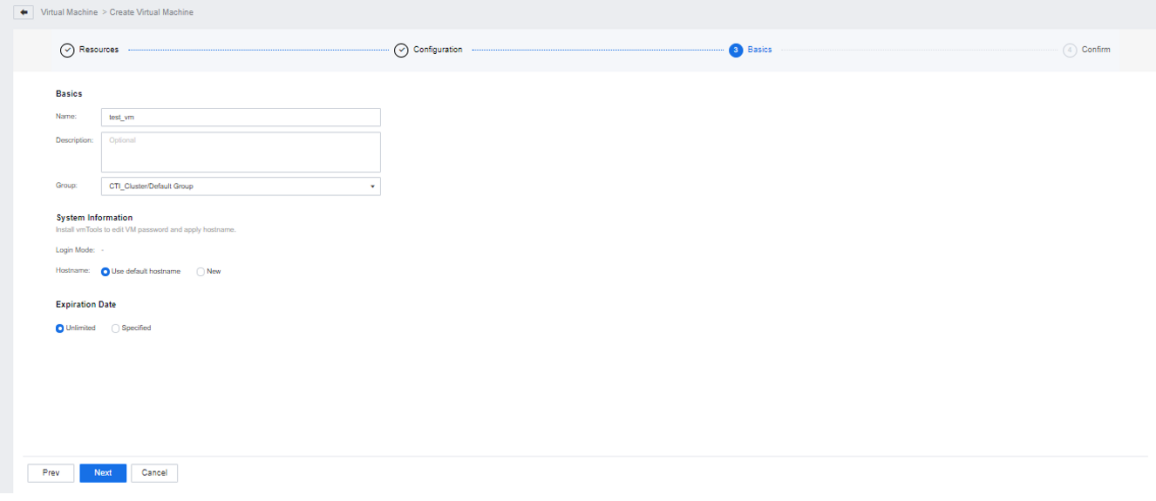
System Information: Users are not recommended to modify by themselves.
Step 5.Finally, confirm the information. After confirming it is correct, click OK to create the virtual machine.
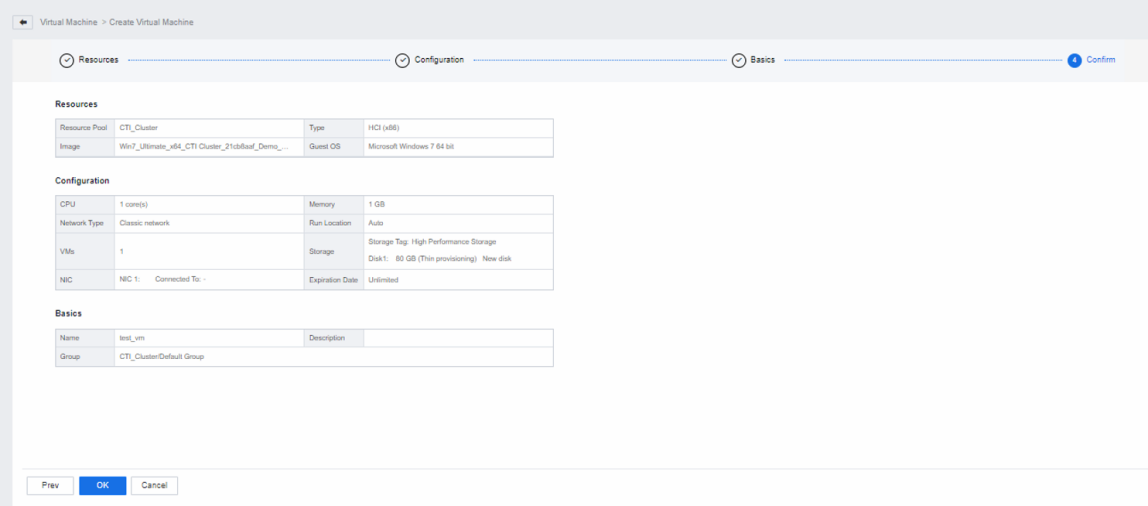
Step 1.Log in to the SCP platform, select Compute > Virtual machine, and click the Create button.
Step 2.Select the resource pool where the new virtual machine is located and select Import Virtual Machine as the creation method.
Step 3.Select the OVA or VMA format file to be uploaded, select the group, running location, and storage of the upload virtual machine, and click Import to upload.
Step 4.After importing the virtual machine, its network card is not connected to any device. You can edit the virtual machine for configuration.
Function Description:
The related configuration of the virtual machine can be adjusted by editing the virtual machine.
Precautions:
Prerequisite
None.
Steps:
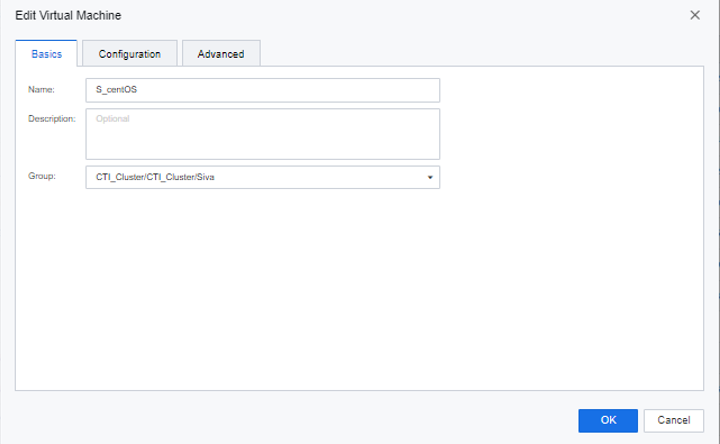
Step 1.Place the mouse cursor on the virtual machine that needs to be edited, and then click More > Edit.
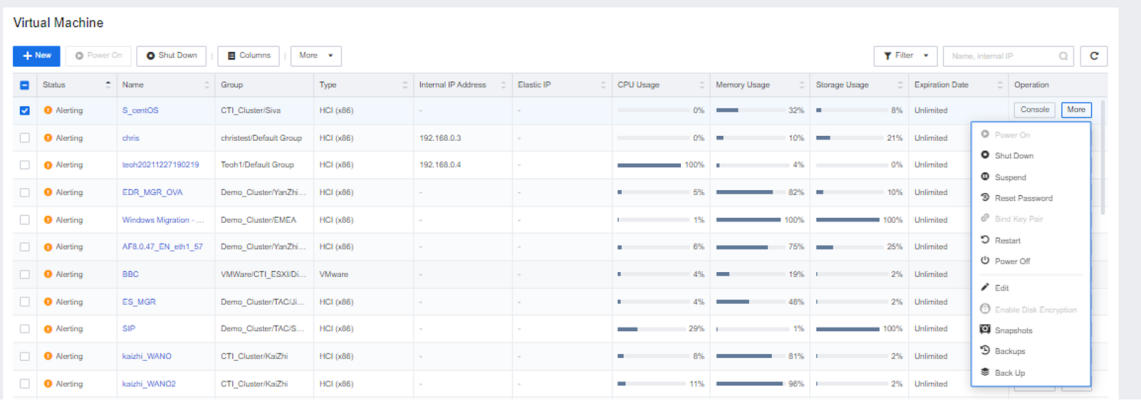
Step 2.You can edit Basic, Configuration, and Advanced on the virtual machine edit page. Please refer to Chapter 4.2.1.1 Create Virtual Machine in this manual for more information.
Function Description:
The SCP platform supports viewing virtual machine details, including operating status, hardware configuration, backup data, operation audit, and alarm logs.
Precautions:
None.
Prerequisite
None.
Steps:
Step 1.Log in to the SCP platform, select Compute > Virtual Machine to enter the virtual machine list, find the target virtual machine, and click the virtual machine name to re-direct.
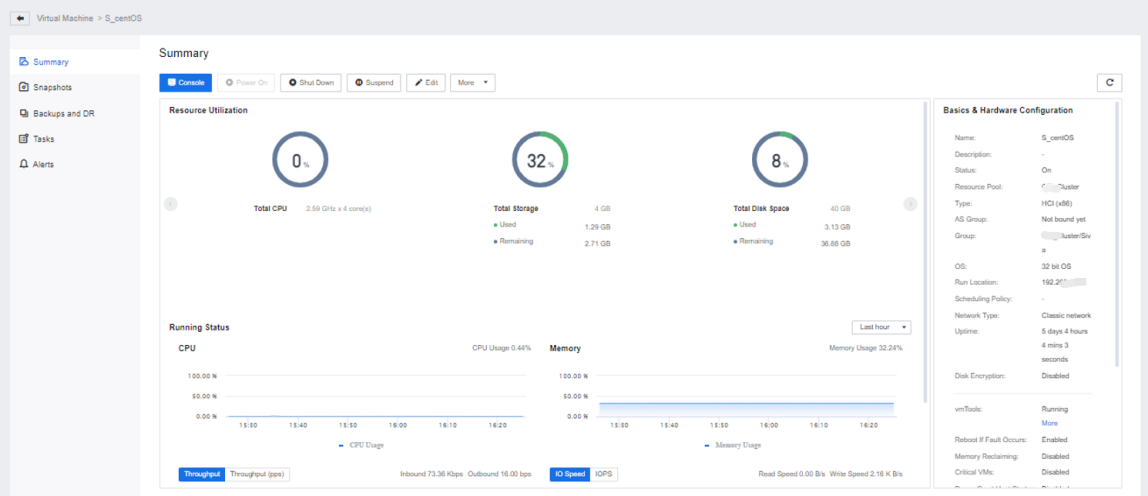
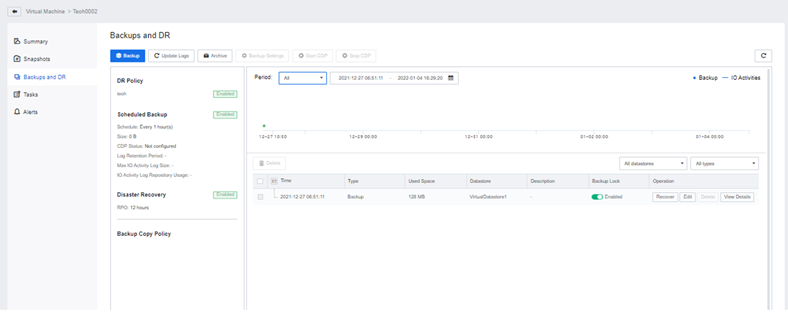
Step 2.Go to the Backup and DR page to view the backup data information.
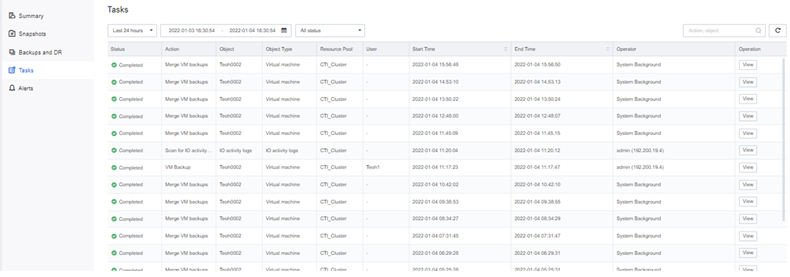
Step 3.Go to the Tasks page to view virtual machine operation records.
Step 4.Enter the Alerts page to view historical alarm records.
Function Description:
SCP platform supports setting a validity for the virtual machine, and the virtual machine that exceeds the validity will generate alarm messages.
Precautions:
Prerequisite
None.
Steps:
Step 1.Log in to the SCP platform, select Compute > Virtual Machine to enter the virtual machine list, find the target virtual machine, and click the virtual machine name to re-direct.
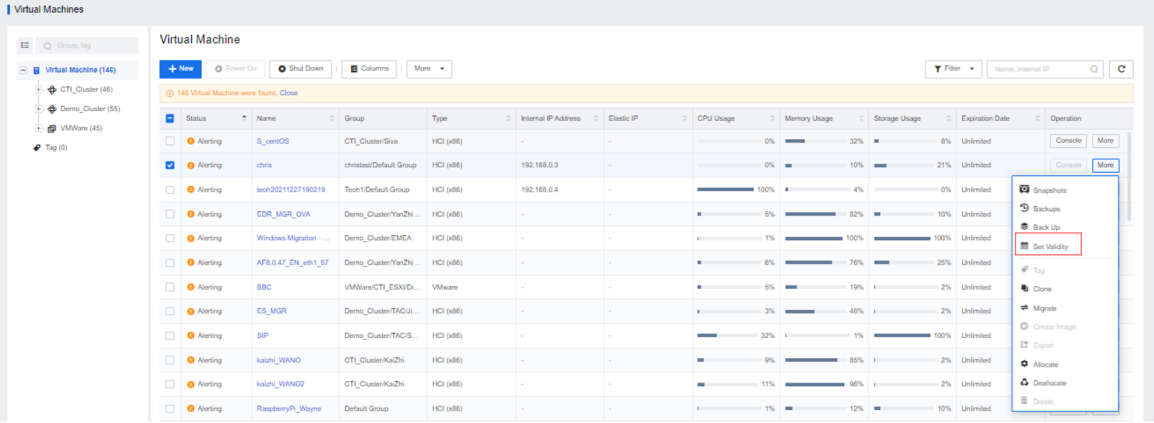
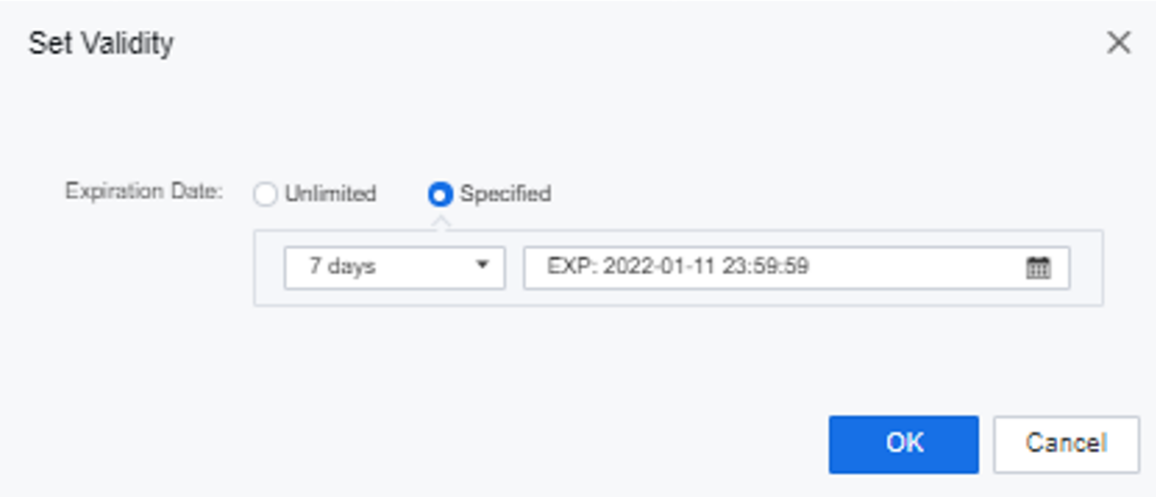
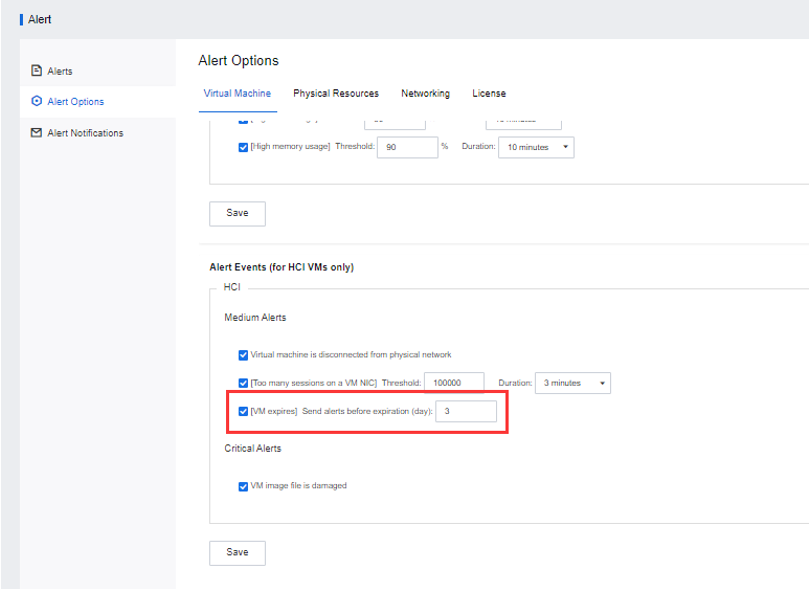
Step 2.The admin can set the number of days of early warning of the virtual machine. The default is 3 days. Suppose you need to customize the number of days of early warning. In that case, you can remind xx days before the virtual machine life cycle expires in Monitoring Center > Alerts > Alert Options.
Function Description:
This function supports exporting virtual machines in VMA or OVA format.
Precautions:
Only the shutdown virtual machine can perform the export operation.
Prerequisite
Virtual Machine already shut down.
Steps:
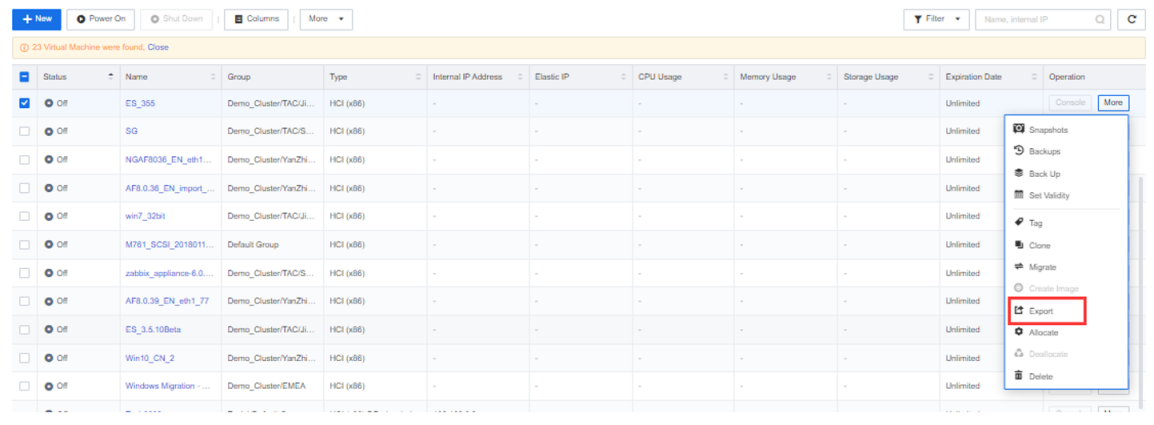
Step 1.Log in to the SCP platform, select Compute > Virtual Machine, select the virtual machine that needs to be exported, click the More button on the right, and click the Export option.
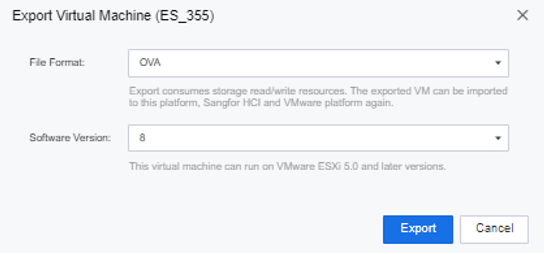
Step 2.Select the format that needs to be exported. OVA and VMA formats are available, and click the Export button.
There are two formats, VMA and OVA, with different export options. To export in VMA format, you can directly click to start exporting. But to export to OVA format, you must select the software version. The software version is the version number of VMware Station.
Step 3.Please wait for the virtual machine to produce and download the export file.
Function Description:
This function supports the migration of the virtual machine's running location and storage location and the migration of the virtual machine across resource pools.
Precautions:
 [1]
[1]
| Type |
Source Version |
Destination Version |
| x86 |
6.0.0 R5 |
6.9.0 |
| 6.2.0 |
||
| 6.3.0 R1 |
||
| 6.3.0 R2 |
||
| 6.3.0 R3 |
||
| 6.7.0 R2 |
||
| 6.3.0 R1 (EN) |
6.9.0 (EN) |
|
| 6.3.0 R2 (EN) |
Some kernel features take effect only after a restart.
| Version |
Feature Restriction |
| 6.0.0 R5 |
The maximum memory is 960 GB. You cannot change the operating system of VMs. L3 cache is not supported. Disk space deallocation is not supported. Anti-escape is not supported for VMs. You cannot use a VirtIO NIC for a VM if vmTools is not installed on the VM. |
| 6.2.0, 6.3.0 R1, and 6.3.0 R2 |
You cannot change the operating system of VMs. L3 cache is not supported. Disk space deallocation is not supported. Anti-escape is not supported for VMs. You cannot use a VirtIO NIC for a VM if vmTools is not installed on the VM. |
• If you export a compatible VM and then import it, the imported VM will not be a compatible one but a full-featured VM.
• If you back up a compatible VM and then recover it, the recovered VM will not be a compatible one but a full-featured VM.
• If you snapshot a compatible VM and then recover or clone it based on the snapshot, the new VM will not be a compatible one but a full-featured VM.
• If you clone a compatible VM, the new VM will not be a compatible one but a full-featured VM.
• You can perform migration among clusters on the classic network but not VPC.
• Migration optimization is not supported for a VM if you have configured its memory hot add settings when it is powered on or if you have not restarted it after installing or uninstalling vmTools.
• Cross-QEMU cluster migration is not supported if the underlying system of the host is UOS.
Prerequisites
The source VM can properly access the interface used for migration to the destination host, and the VM migration service has been enabled on the Port Management page of HCI.
Steps:
Step 1.Log in to the SCP platform, select Compute > Virtual Machines, select the virtual machine that needs to be migrated, and click More > Migrate.
Step 2.Select the information of the migration destination: Resource Pool, Datastore, Run Location, and Connect NIC and click OK to start the migration.
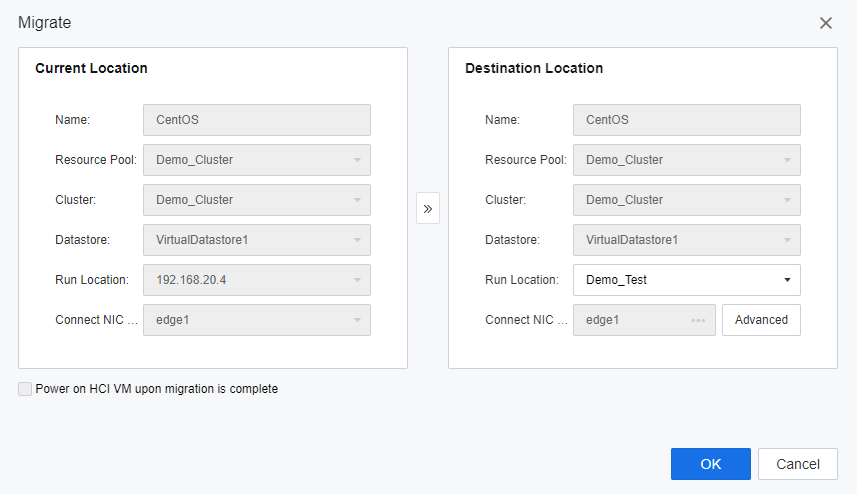
Step 3.You can set the Network and Migration Speed for migration within the cluster and enable Compressed under the Advanced setting.
• Network: The bandwidth of the network port will be automatically identified here. When the bandwidth of the management interface, overlay network interface, and storage network interface is inconsistent, the network port with the highest bandwidth will be recommended. The priority of the interface is shown below when all interfaces have the same bandwidth.
Overlay Network Interface > Storage Network Interface > Management Interface
• Migration Speed: The default is unlimited, and the maximum migration speed can be set before or during live migration. The minimum value of the migration speed limit is 50MB/s, and the maximum value cannot exceed the bandwidth value of the physical network port of the current network.
• Compressed: After enabling it, the hot migration speed can be improved, but it will consume certain CPU resources (up to 4 threads). 

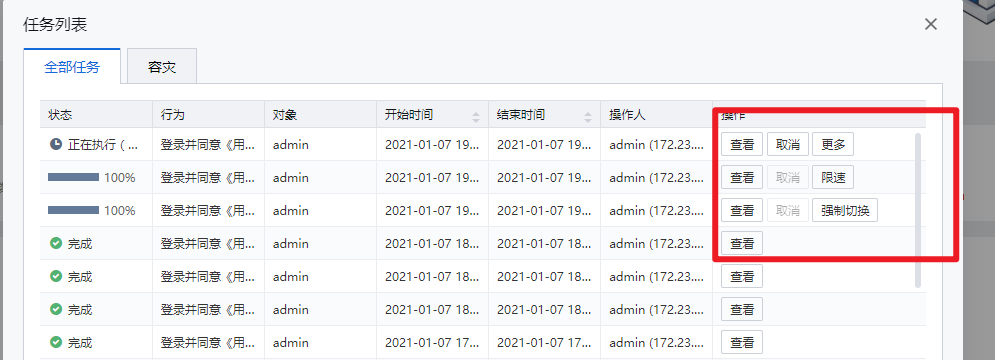 [2]
[2]
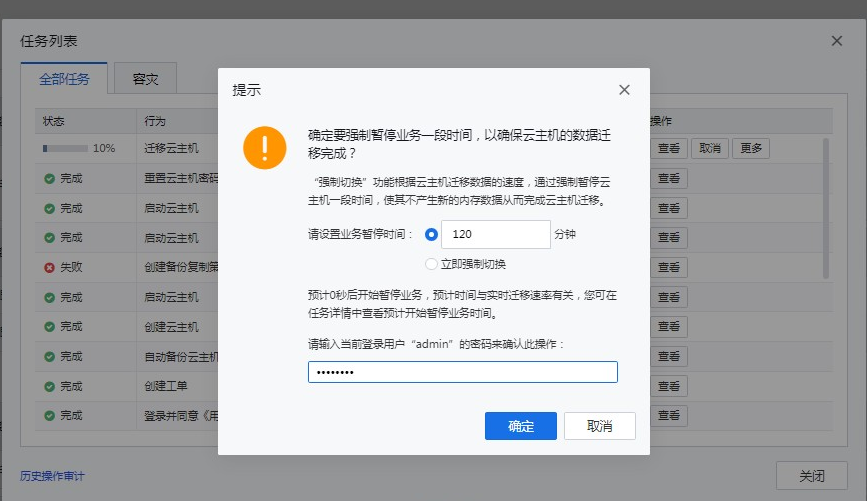
Note:
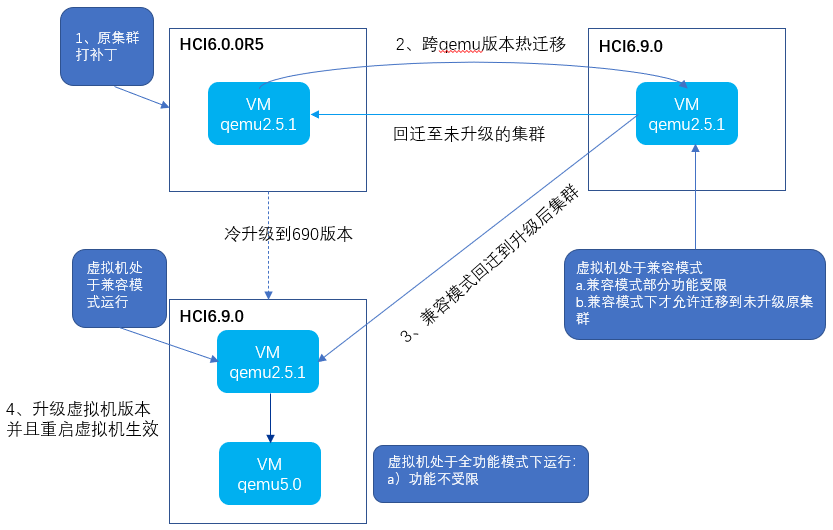
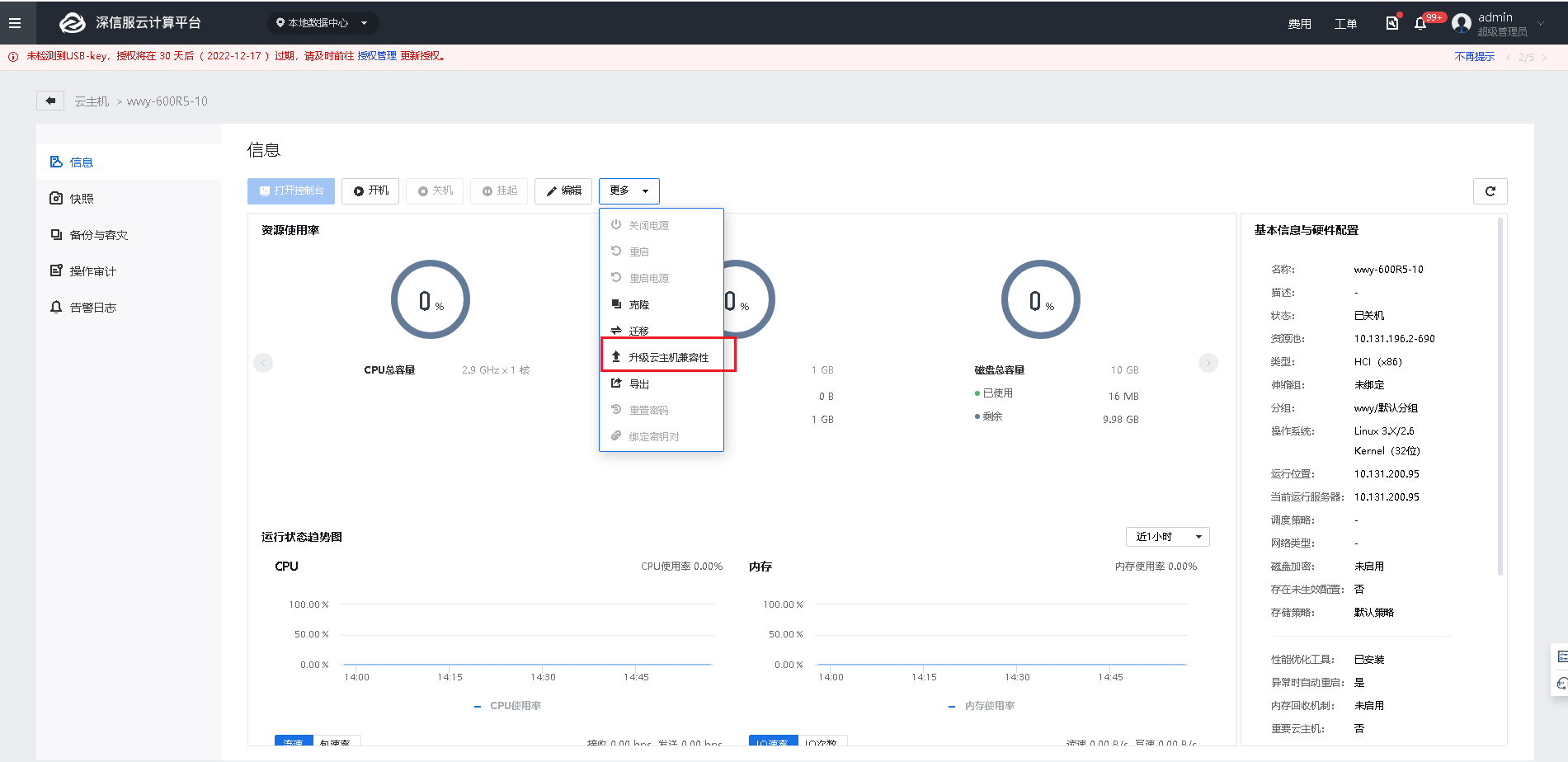
• After the cross-cluster cross-version hot migration, we recommend that you upgrade the VM compatibility during off-peak hours.
• After the cross-version hot migration and before the VM compatibility upgrade, if you find that the VM businesses are abnormal, you can migrate them back to the source cluster. If you have upgraded the VM compatibility, this operation is not allowed.
Function Description:
This function supports assigning virtual machines to tenants or tenant user accounts.
Precautions:
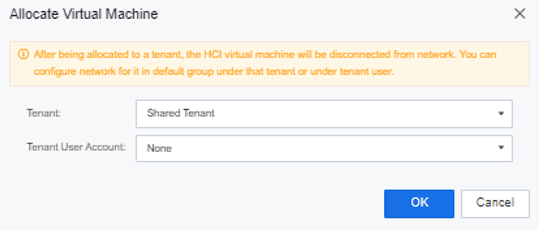
After deallocation, the HCI-type virtual machine will be disconnected from the network. You can go to the default grouped virtual machine list to configure the network for the virtual machine.
Prerequisite
The assigned tenant or tenant user account has a sufficient quota.
Steps:
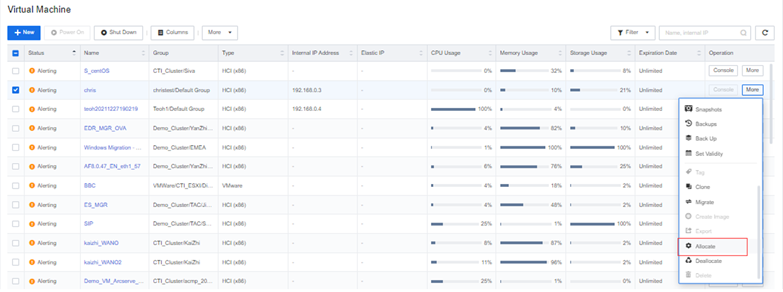
Step 1.Log in to the SCP platform, select Compute > Virtual Machine, select the virtual machine that needs to be allocated, and click More > Allocate.
Step 2.Select the Tenant and Tenant User Account (it can be empty) and click the OK button.
Function Description:
This function supports the virtual machines' deallocation to the SCP platform.
Precautions:
Prerequisite
The virtual machine that needs to be deallocated has been shut down.
Steps:
Step 1.Log in to the SCP platform, select Compute > Virtual Machine, select the virtual machine that needs to be deallocated, and click More > Deallocate. 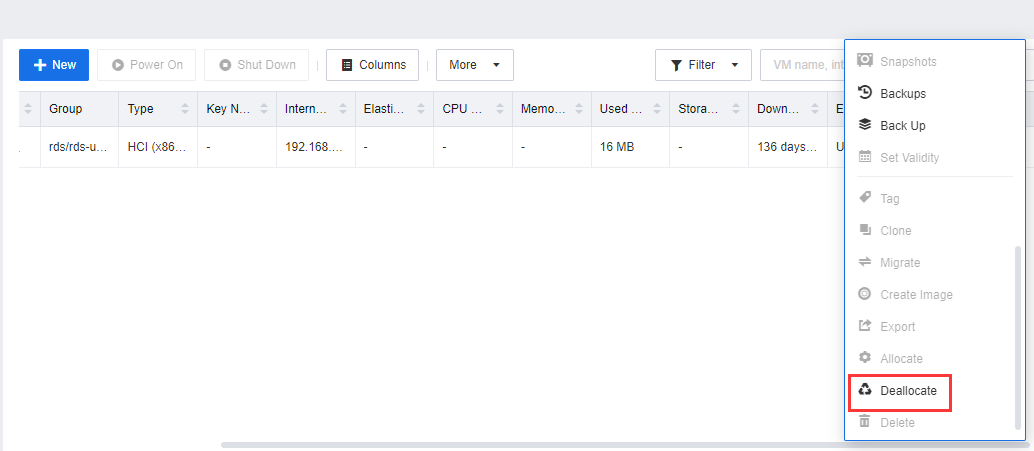
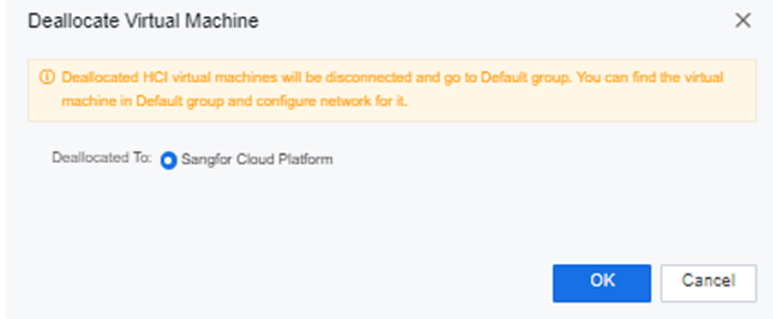
Step 2.You can see the deallocate progress on the taskbar.
Function Description:
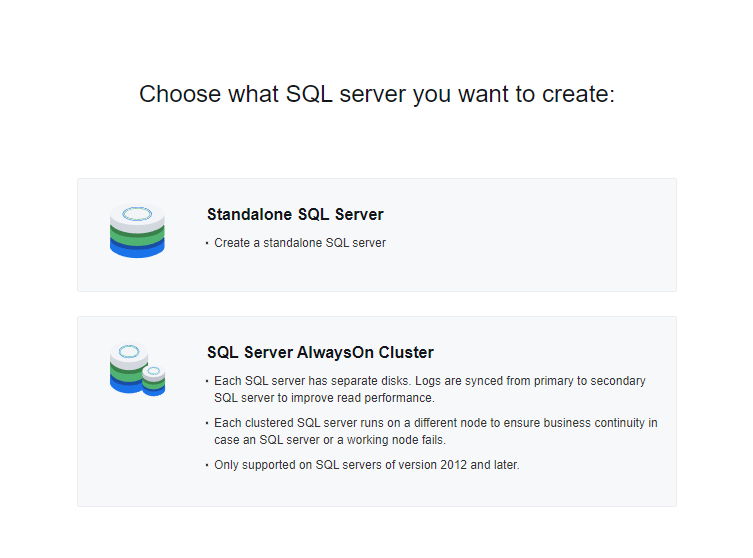
The SCP platform supports creating a Standalone SQL Server and SQL Server AlwaysOn Cluster.
Precautions:
None.
Prerequisite
None.
Steps:
Step 4.Navigate to Resources, and select Virtual Machines under Compute.
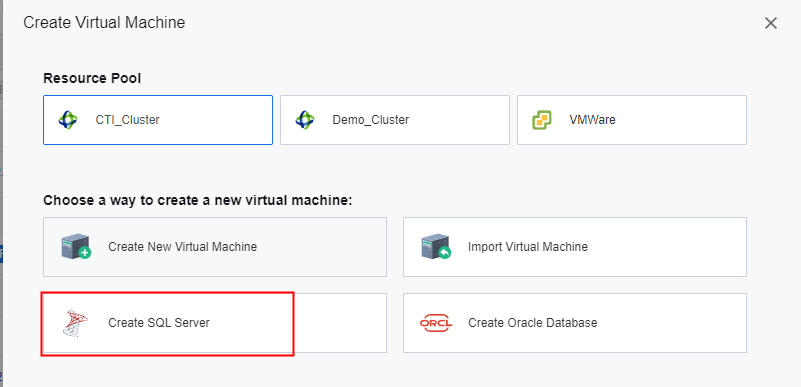
Step 5.Click New, select Resource Pool for where the SQL server will be located, and click Create SQL Server to create a new SQL Server.
Step 6.Choose the type of SQL server you want to create.
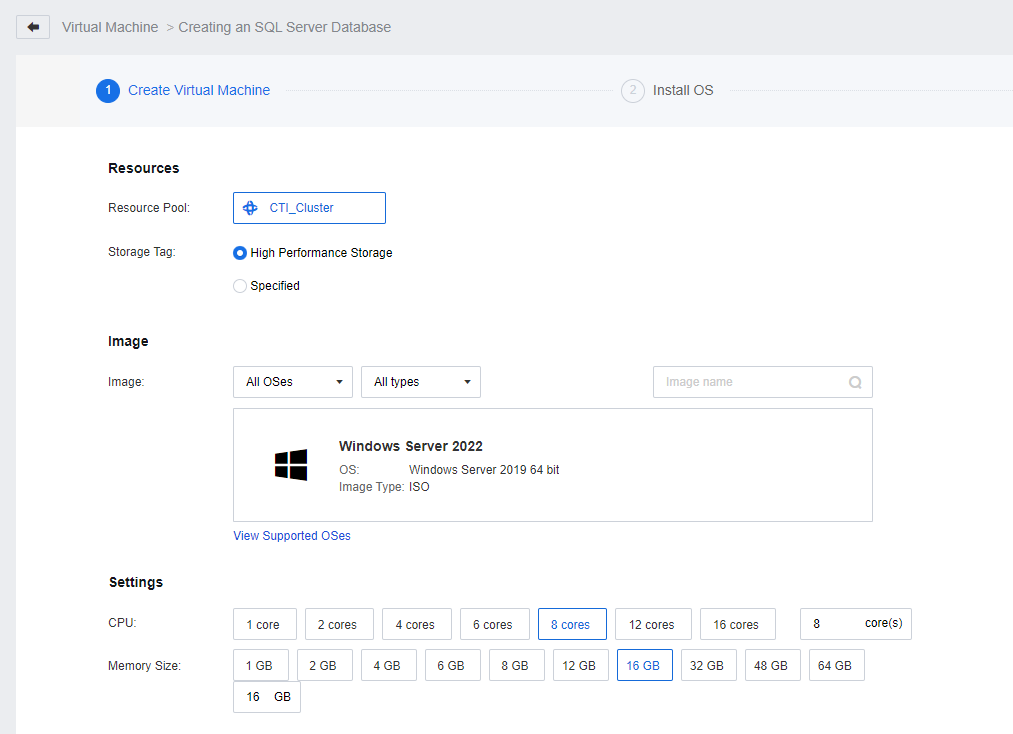
Step 7.Enter the SQL Server Database creation page, pick the appropriate Storage Tag, select Image and configure the Settings for CPU and Memory Size.
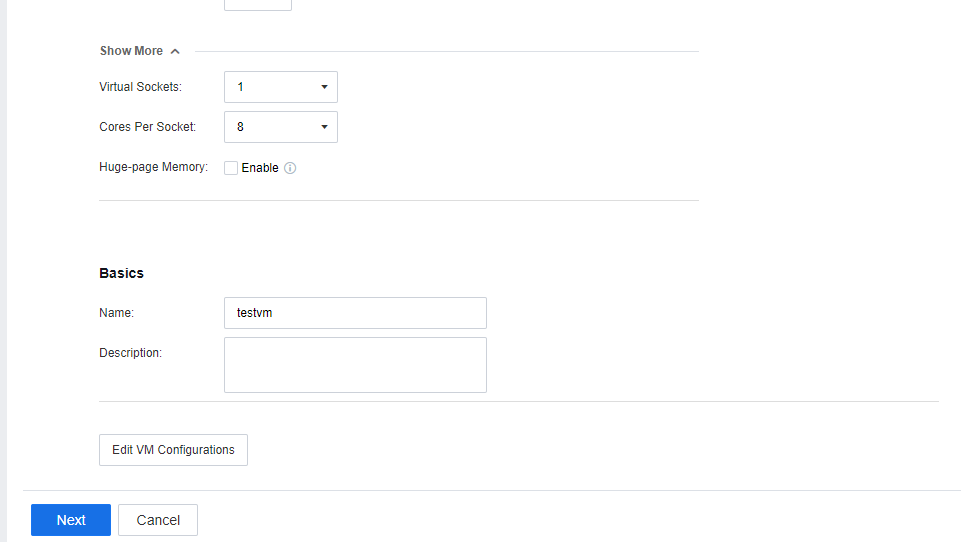
Step 8.Click Show More to configure the Virtual Socket, Cores Per Socket, and Huge-page Memory. Lastly, configure the Basics, then click Next to install OS.
Step 9.Install the SQL Server.
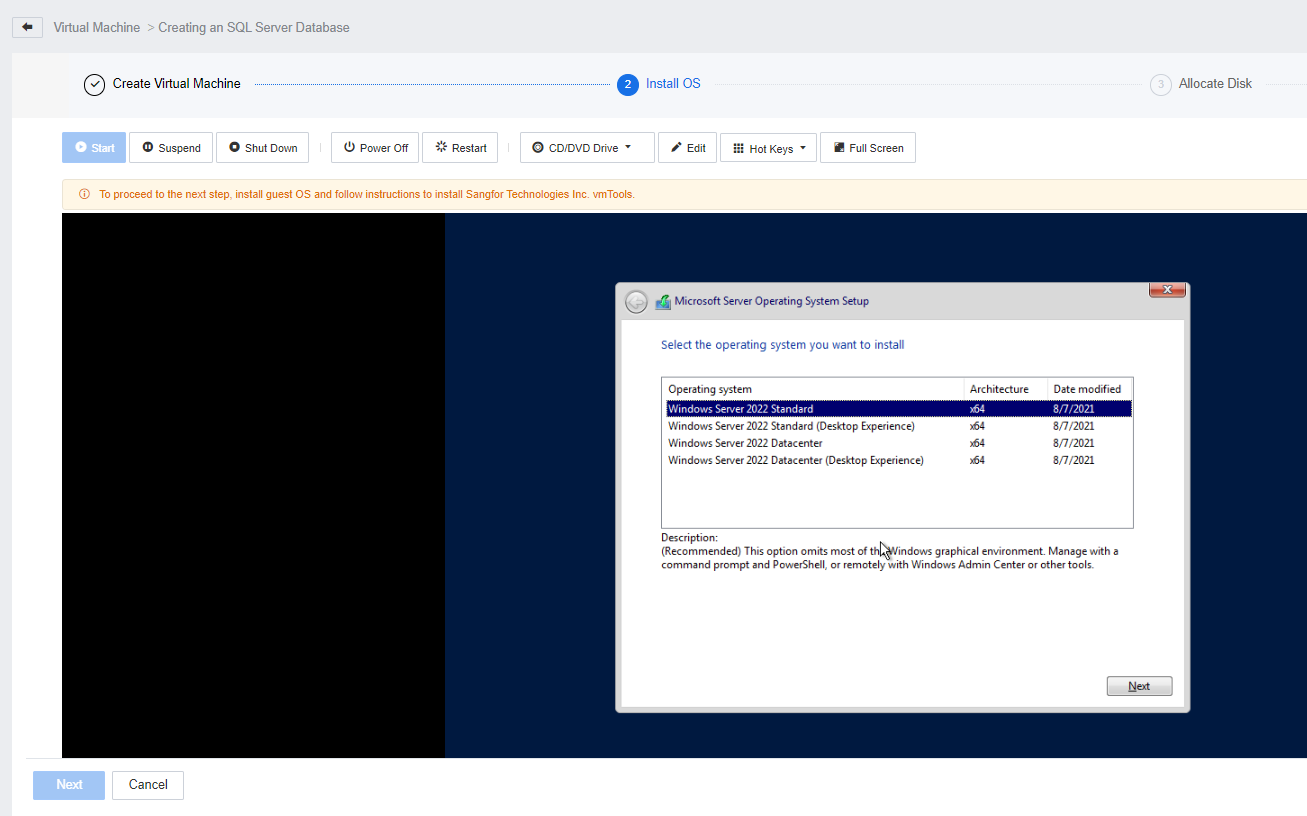

To proceed to the next step Allocate Disk, install vmTools, and restart this VM first.
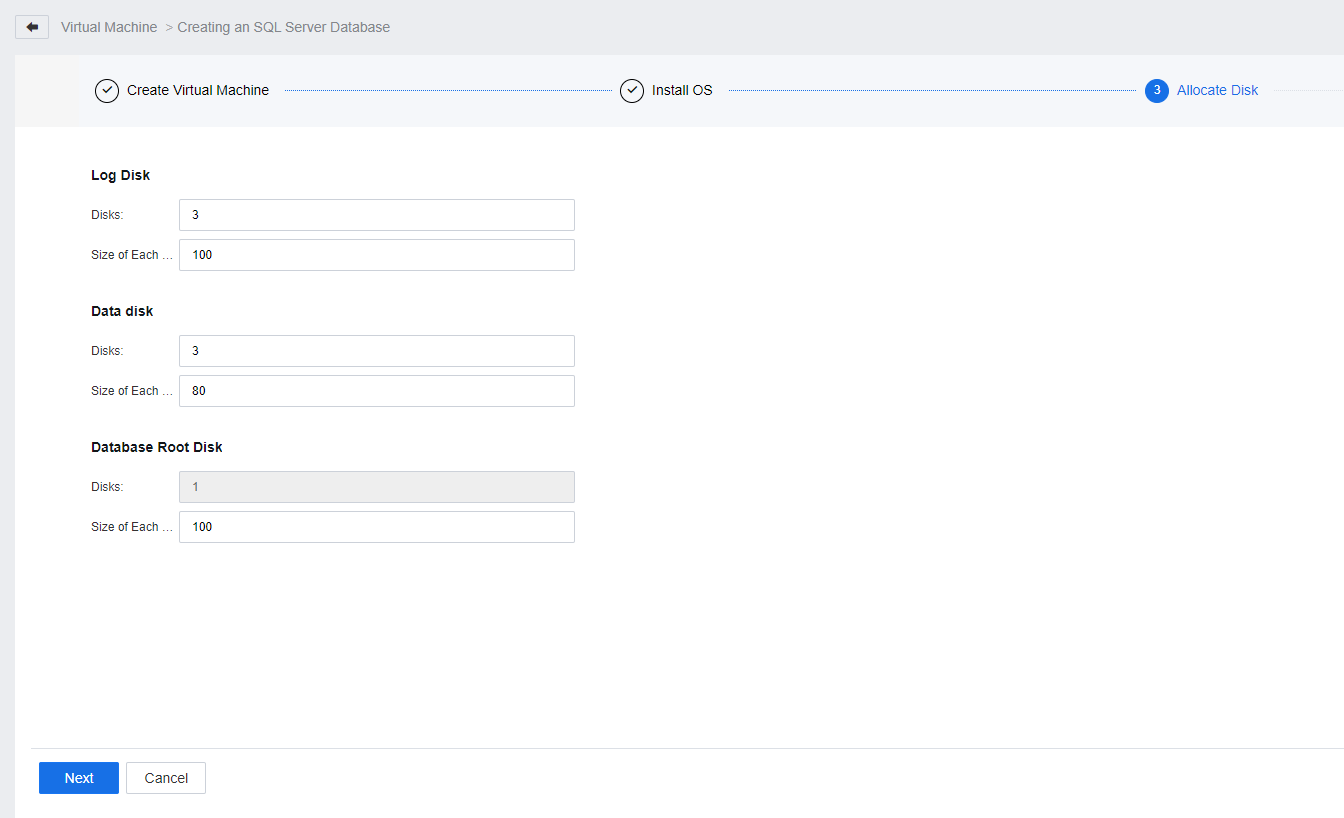
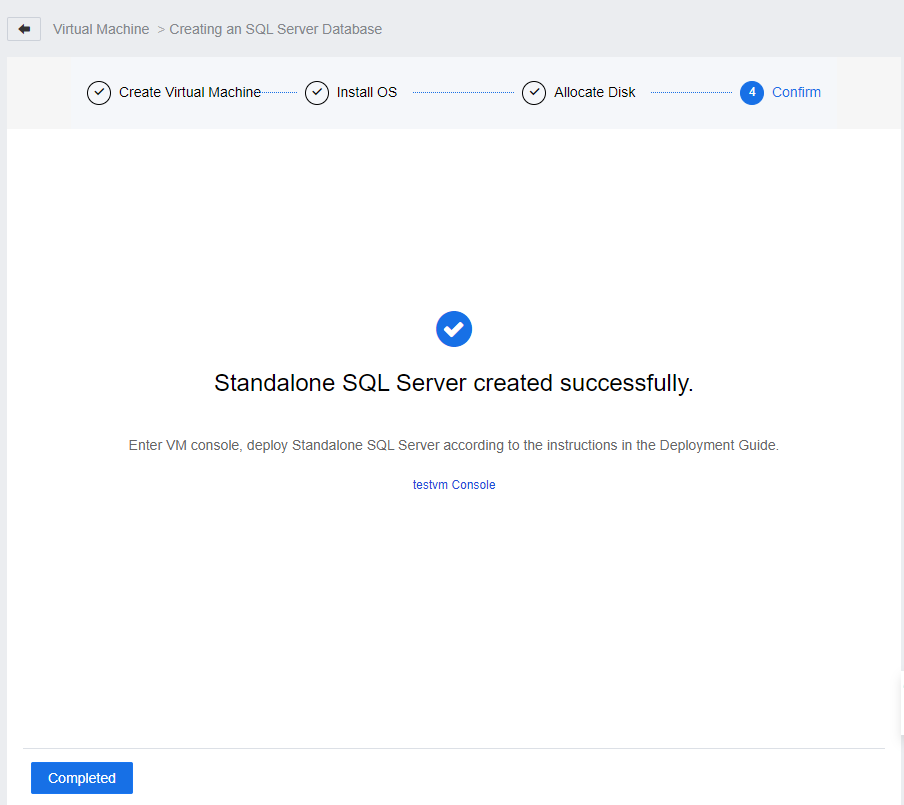
Step 10.Configure the Log Disk, Data Disk, Database Root Disks, and click Next to complete the SQL Server creation.


 {{ $t('index.defaultHeader.chromeBrowserTip') }}