


{{ secondMenu.name }}






For detailed operation steps, please refer to the Adding Physical Resources chapter.
Function Description:
The platform administrator can log in to the managed HCI cluster from the SCP platform to perform more fine-grained cluster management.
Prerequisite
The SCP platform has successfully managed the cluster.
Steps:
Step 1.The platform administrator logs in to the SCP platform selects Resources Overview > Cluster, enters the cluster list interface, and clicks the Visit button to log in to the corresponding cluster.

Function Description:
The platform administrator can log in to the managed HCI cluster from the SCP platform to perform more fine-grained cluster management.
Prerequisite
Precautions:
The SCP platform has successfully managed the cluster.
Steps:
Step 1.Platform administrator login to the SCP platform selects Resources Overview > Cluster, enters the cluster list interface, and clicks Edit to modify the name and description of the cluster.
Step 2.Click More to Edit Connection, Configure storage tag, Configure Default keyboard layout, and Delete cluster operations.

• Configure Connection Information: you can modify the cluster connection information.
• Tag Storage: you can modify or customize the storage performance.
• Configure The Default Keyboard Layout: Currently supports six keyboard layout modes: English (United States), English (Ireland), German, Spanish, French, and Italian. After the configuration, new virtual machines under the cluster will use this configuration by default. After the configuration is changed, the original virtual machine that inherits the default configuration of the cluster will use the new keyboard configuration after the restart.
• Delete Cluster: When the cluster is not associated with the resource pool, you only can delete the cluster.
Function Description:
Due to certain requirements, the SCP platform is no longer required to manage a certain cluster, and the cluster can be deleted in the SCP.
Precautions:
This operation will delete related data and cannot be recovered. Please operate with caution.
Prerequisite
Steps:
Step 1.Login to the SCP platform and clicks User and Access Management > Tenant to enter the tenant management interface.
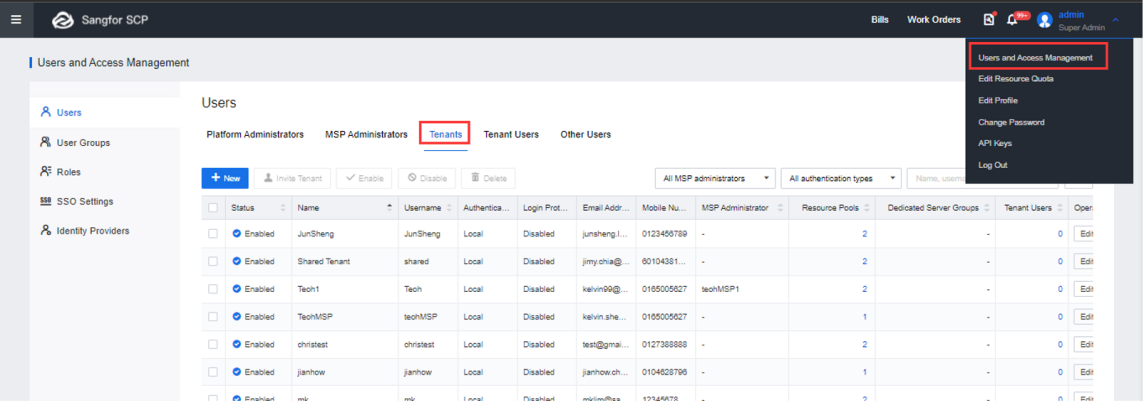
Step 2.Delete the tenant and tenant users created under the resource pool, enter the password and click the OK button once you confirm the operation.

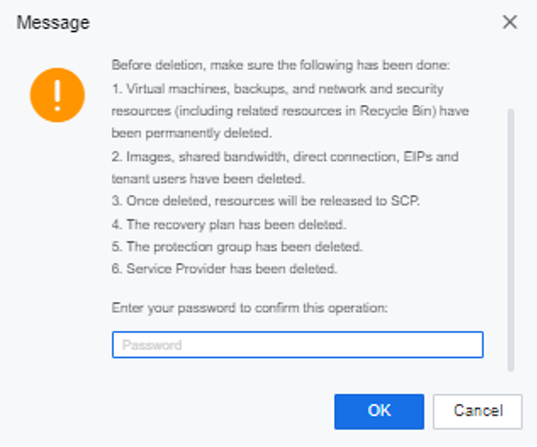
Step 3.After the tenants and tenant users under the resource pool are deleted, proceed to Resource Overview > Resource Pools, click the Delete button, and click Confirm in the pop-up window.

Step 4.Under Resource Overview > Cluster, find the cluster you want to delete, click More > Delete, and click the OK button in the pop-up window to delete the cluster.



 {{ $t('index.defaultHeader.chromeBrowserTip') }}