


{{ secondMenu.name }}






Please refer to Chapter 3.3 Dividing Resource Pools.
Function Description:
Users can view the details of the resource pool on the SCP platform, which mainly includes information such as resource utilization, physical hosts, and storage.
Precautions:
None.
Prerequisite
The resource pool has been successfully added and authorized.
Steps:
Step 1.Login to the SCP platform, select Resources Overview > Resource Pools, enter the resource pool list interface and clicks the resource pool name to enter the resource pool details.
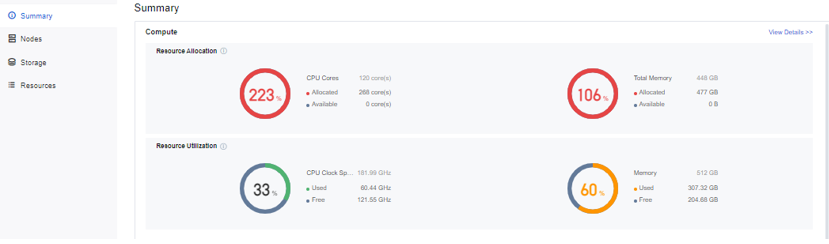
Step 2.You can view the resource usage in the resource pool, the information of the cluster associated with the resource pool, and parameter information such as physical nodes and storage.
• Definition of compute resource allocation rate: The current usage of computing resources in the resource pool.
CPU occupancy = (CPU occupied by the created virtual machine + CPU occupied by security resources) / total number of CPU cores.
Memory usage = (memory occupied by the created virtual machine + memory occupied by security resources) / total memory capacity.
• Definition of computing resource utilization: current resource pool, real-time performance status of each physical node.
CPU usage = (GHz used by the CPU demand / GHz of the node's total CPU) * 100%.
Memory usage = (physical host memory usage / total host memory) * 100%.
Function Description:
Supports manual and immediate synchronization of HCI cluster information to the SCP platform.
Precautions:
The default period for automatic synchronization of information between the SCP platform and the resource pool is one hour.
Prerequisite
The connectivity between the resource pool and the SCP platform is normal.
Steps:
Login to the SCP platform, select Resource Overview > Resource Pool, enter the resource pool list interface and click Sync Data to immediately synchronize the cluster information to the SCP cloud computing platform.

Function Description:
The platform administrator can edit and delete the added resource pool.
Precautions:
After the resource pool is associated with the tenant, the resource pool cannot be deleted.
Prerequisite
None.
Steps:

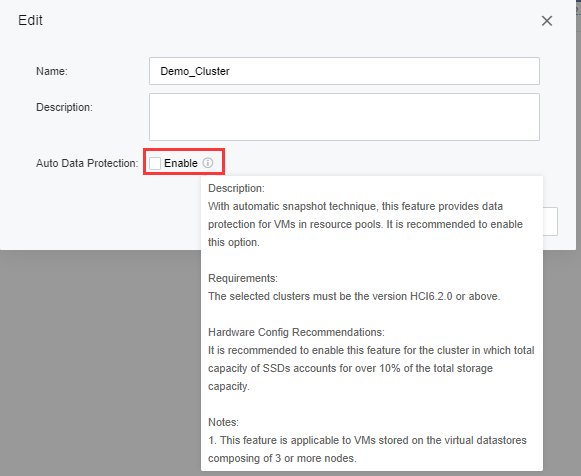

-Auto data protection applies to VMs stored on the virtual datastores composed of 3 or more nodes.
-If RPO is one day, two snapshots will be preserved for each VM by default when auto data protection is enabled.
-Auto data protection does not apply to VMs using shared disks.


 {{ $t('index.defaultHeader.chromeBrowserTip') }}