


{{ secondMenu.name }}






Function Description:
After the SCP platform manages the HCI cluster and associates the cluster with the resource pool, the HCI cluster needs to be licensed to ensure that the HCI cluster service is available.
Precautions:
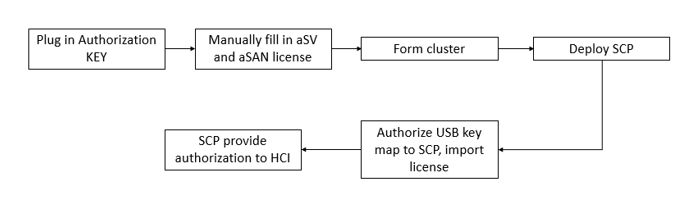
The workflow of creating SCP in the HCI cluster and activating the HCI license by SCP is shown in the figure below.
Prerequisite
Steps:
Step 1.Log in to the SCP platform and select System > Licensing > Cluster License to view the not licensed clusters.
Step 2.Click Licensing on the right side of the cluster with abnormal status and click the Confirm button.
Step 3.After the licensing is successful, cluster licensing can be viewed, edited, and recycled on the licensing interface.
Please note when performing licensed revoke:
• Revoking the licensing may affect the related functions of the cluster. Please operate with caution. If all the licensing is recovered, the licensing of the NFV devices in the cluster will also be recovered.
• Except for CDP, aHM, aSC, aSI, aGPU, the licensing of other components does not support separate revoking for the time being.


 {{ $t('index.defaultHeader.chromeBrowserTip') }}