


{{ secondMenu.name }}






The web system upgrade is divided into two methods: online upgrade and offline upgrade.
Step 1.Go to System > Maintenance > Upgrade. The device will connect to upgrade the server to look for the latest upgrade package. If not, it will show “This is the latest version!" and the Update button will be shown as below.
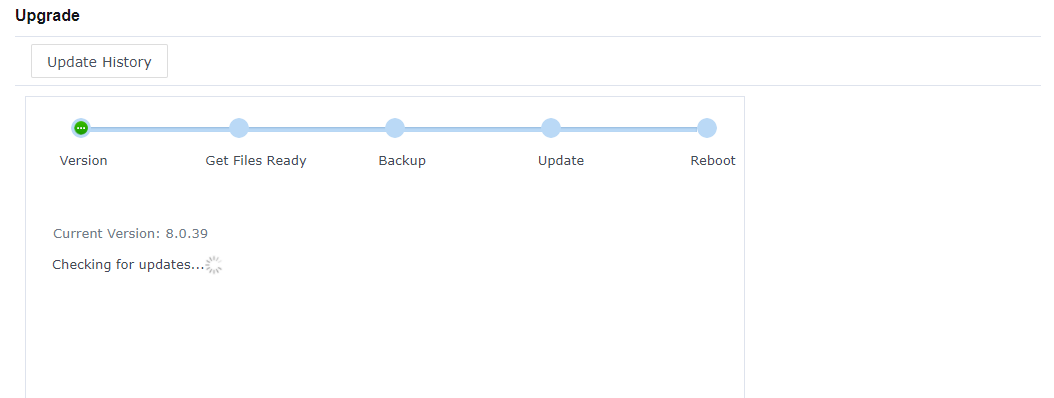
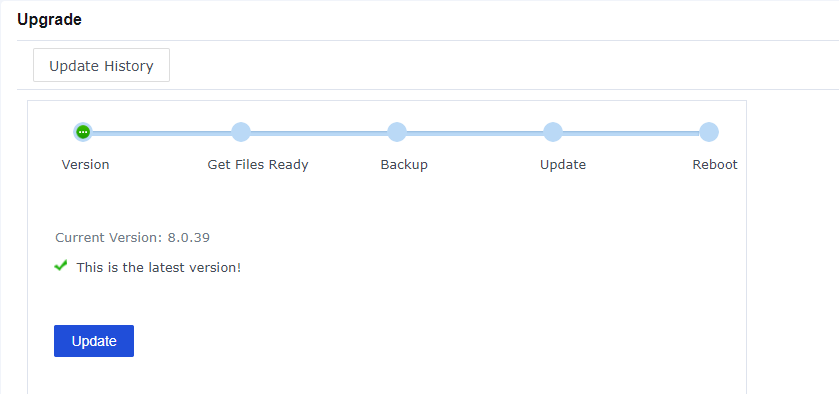
Step 2.Click the Update button and you will move to the Get Files Ready section.
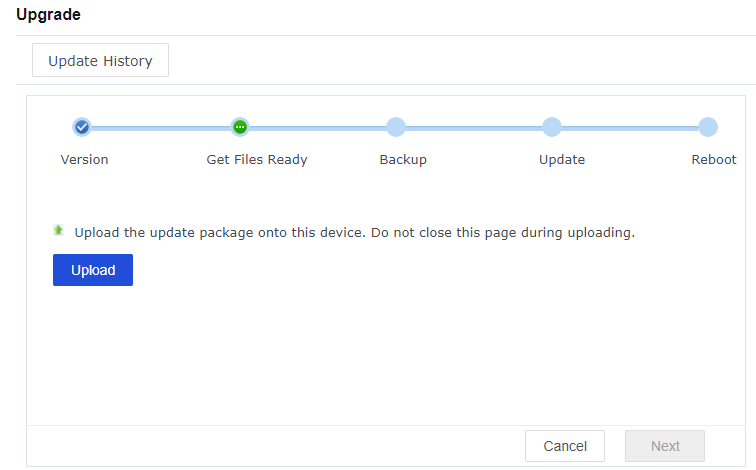
Step 3.Select the Upload button to upload the upgrade package from the local pc.
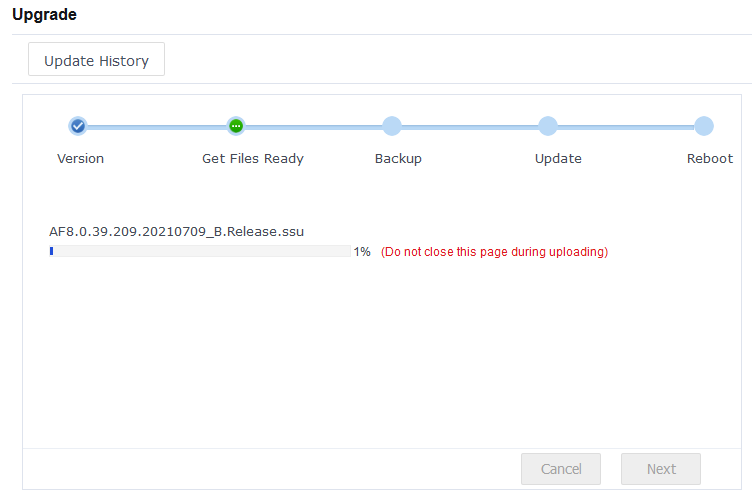
Step 4.After the upgrade package is uploaded, click Next to complete the configuration backup to start the upgrade. After the upgrade is completed, the device will reboot automatically. After the reboot is completed, log in to the device console and check the status of the device.

During the uploading, backup, or update process, you cannot close the page. Otherwise, you need to re-enter the page and perform the upgrade operation again.


 {{ $t('index.defaultHeader.chromeBrowserTip') }}