Athena NGFW (Next-Generation Firewall)

Athena NGFW (previously known as Network Secure) provides comprehensive protection for every network perimeter, ensuring the safety of your valuable assets, data, and users from emerging threats.
{{ $t('productDocDetail.guideClickSwitch') }}
{{ $t('productDocDetail.know') }}
{{ $t('productDocDetail.dontRemind') }}
8.0.39
{{sendMatomoQuery("Athena NGFW (Next-Generation Firewall)","Device Hardware Failure")}}

Device Hardware Failure

{{ $t('productDocDetail.updateTime') }}: 2026-01-07

The ALARM indicator light staying off and the device fails to power on

  1. Power off the device and restore the network connection.
  2. Confirm the number of switches in the device. Some of the devices have only one switch, whereas the others are equipped with a hard switch and a soft switch (elastic switch).
  3. For a device equipped with only one hard switch, if the device cannot be powered on after you turn on the switch, the ALARM indicator light stays off. In this case, replace the power strip and power line. If the device still fails to power on, contact the technical support engineer from Sangfor and return the device to the factory for repair.
  4. To power on a device equipped with two switches, turn on the hard switch first and then the soft switch (elastic switch). If the device still fails to power on after you turn on the switches in sequence and replace the power strip and power line, contact the technical support engineer from Sangfor and return the device to the factory for repair.

The ALARM indicator light staying on and failing to log in to the device

  1. Power off the device and restore the network connection.
  2. After 30 minutes, power on the device again and wait for two hours. If the device is powered on normally within two hours, it indicates that the device performed the self-inspection before. If the ALARM indicator light stays on after two hours, contact the technical support engineer from Sangfor and return the device to the factory for repair.

Networking interface failure

  1. Replace a network cable and check whether the interface can work normally.
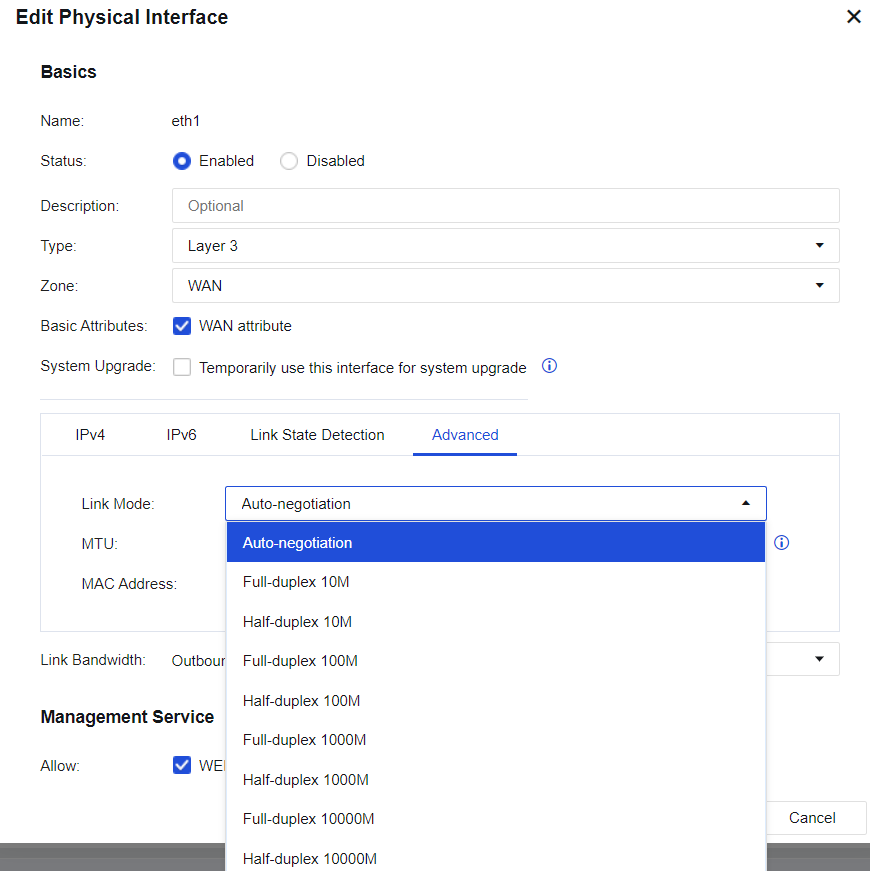
  2. Change the rate and duplex mode of the failed interface and check whether compatibility issues exist when the networking interface is used.
  3. Choose Network/Interface/Physical Interface and click the interface you want to edit. Click Advanced and select different rates and duplex modes to check whether the interface can work normally.

  1. Connect the failed interface to other interfaces of a switch or other network devices, and check whether the interface can work normally.
  2. Disconnect the device from the network. Contact the technical support engineer from Sangfor to confirm whether hardware failures exist. If so, return the device to the factory for repair.