


{{ secondMenu.name }}






This section describes how to update the patch in the five scenarios.
If the device can access the Internet and the automatic patch update is enabled, you do not need to do anything and view the updated patch.
Log in to the device as the administrator, choose System > Maintenance > Service Packs to go to the Patch Update page, and view the updated patch.
Suppose the device can access the Internet and the automatic patch update is not enabled. In that case, the device can automatically obtain an update patch which only can be installed manually.

We recommend that you enable the Automatic Patch Update function. You will be reminded when the device is restarted or update for patches in other particular scenarios is required. These patches can be updated only after you confirm the update information manually.
Suppose the device cannot access the Internet, but a LAN server serves as a proxy to access the Internet. In that case, you can set a proxy server, allowing the device to access the Internet using the LAN proxy server and update the patch.
After the proxy server is configured and the device can use it to access the WAN normally, the device can obtain a patch by following the same steps as those in the preceding two scenarios. This section only describes how to configure a proxy server.
Step 1.Choose System > Maintenance > Service Packs and click Settings, as shown in the following figure.
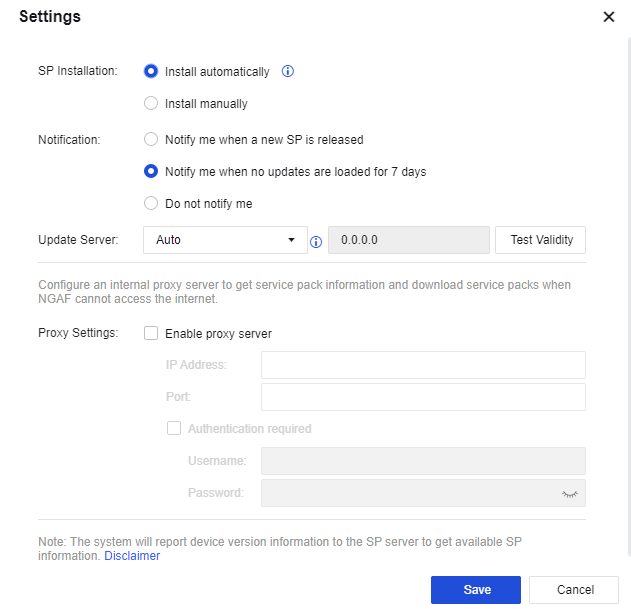
Step 2.Select Enable proxy server and enter the IP address and port of the proxy server. If the username and password are required when the device connects to the proxy server, select Authentication Required and enter the username and password to be verified by the proxy server. Users provide the username and password.
If the device cannot access the online server and your PC cannot access the Internet.
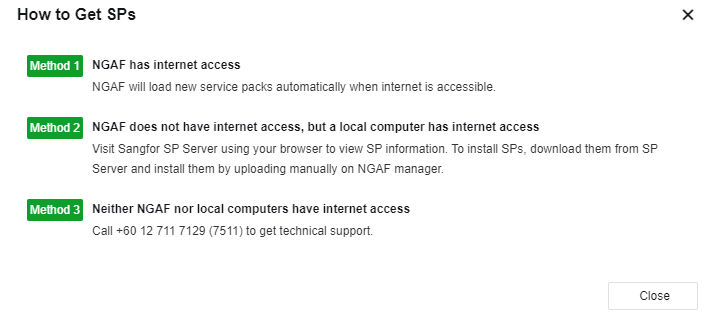
1. You can log in to the Home > Service Packs, click How to Get SPs. Follow method 3 to contact our Sangfor Support team.


 {{ $t('index.defaultHeader.chromeBrowserTip') }}