


{{ secondMenu.name }}






This module includes three tabs: Web Console, Packet Capture, and Technical Support.
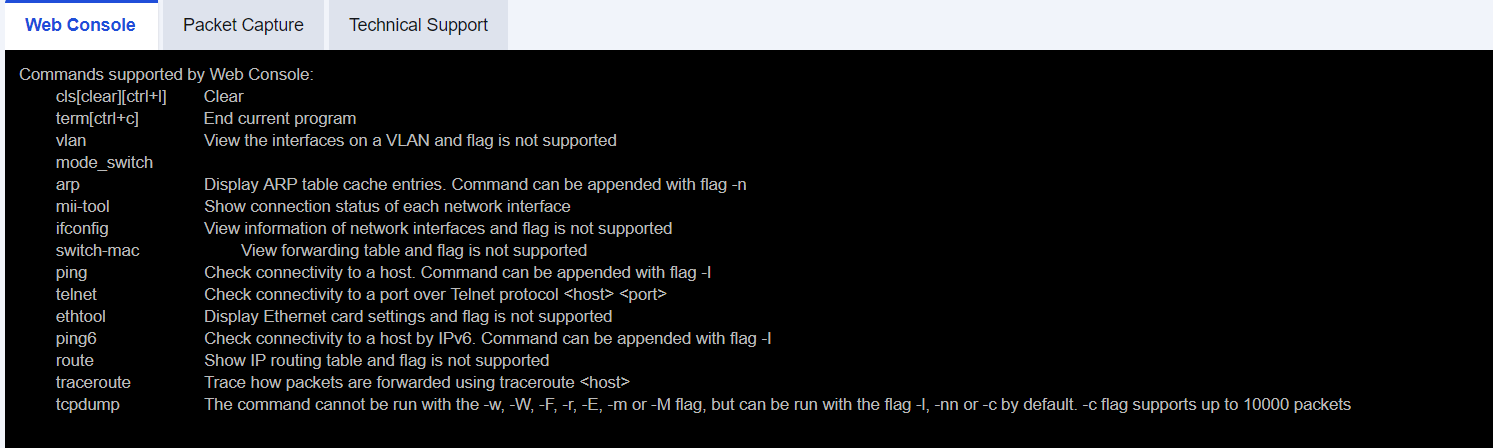
To provide a simple console command line by which you can view simple information of the device. The commands supported by Web Console include cls (clear), term (end current program), vlan (view the interfaces on a VLAN), arp (display the ARP table), mii-tool (show connection status of each network interface), ifconfig (view information of network interfaces), switch-mac (view the MAC forwarding table), ping (check connectivity to a host), telnet (check connectivity to a port), ethtool (display Ethernet card settings), route (show IP routing table), traceroute (track how packets are forwarded using traceroute), and tcpdump (the command can be run with the flag -l, -nn, or -c by default and is used for packet capture). Enter a command on the Command Line page and press Enter. The page is shown in the following figure.
On the Package Capture tab, you can set a package capture tool to capture packets passing through the device to locate the problems rapidly. Therefore, this tool can be used as an auxiliary tool for troubleshooting.
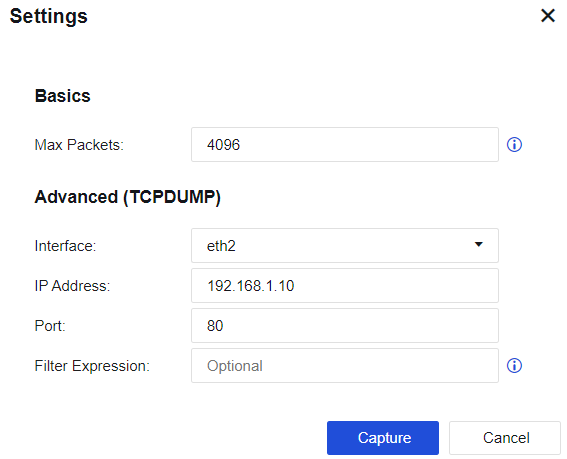
For example, when you capture a packet passing through the WAN port 80 accessed by the LAN endpoint 192.168.1.10, perform the following steps:
Step 1.Click Capture. On the Settings page, select a LAN interface (eth2) for the Interface parameter, set the IP Address parameter to 192.168.1.10, and set the Port parameter to 80, as shown in the following figure.
Step 2.Click Capture. Then, the capture program starts to execute, as shown in the following figure.

Step 3.Make an HTTP request on the endpoint 192.168.1.10, for example, open the webpage http://www.gov.cn.
Step 4.Click Stop and then click Download to download the packet to your PC. See the figure below.

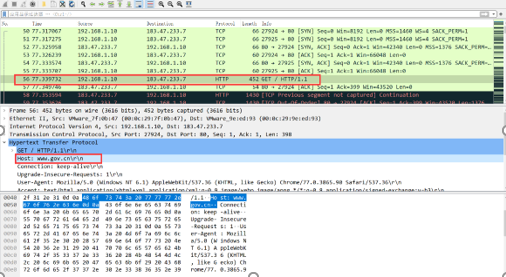
Step 5.Use Sniffer, Ethereal, Wireshark, or other packet capture software to view specific information of a packet file. The analysis result shows that the endpoint accessed the website http://www.gov.cn, as shown in the following figure.
On the Technical Support tab, you can configure a technical support tool that allows the technical support personnel to troubleshoot and check the system's health, and helps them maintain devices with ease.
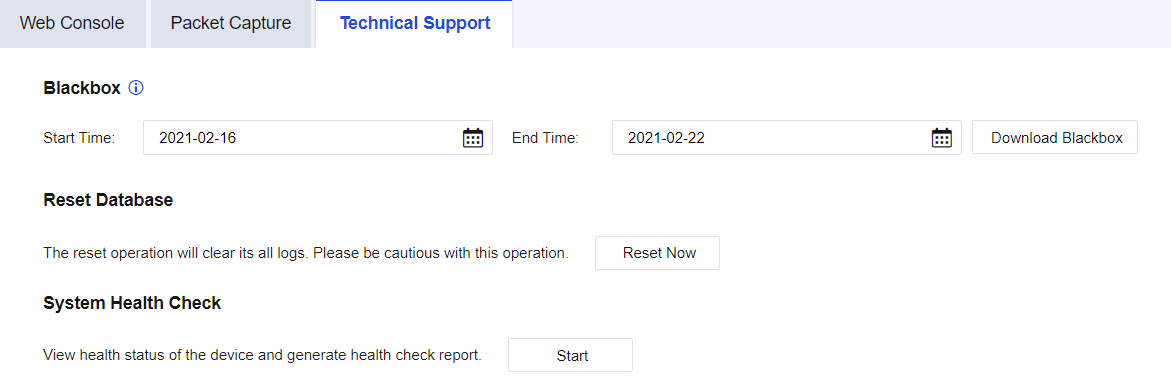
Blackbox: Obtains BlackBox information and allows you to download the information. In this way, the technical support personnel can troubleshoot with ease.
Reset Database: Reset a database. If you reset the database, all data in the built-in data center will be cleared. Proceed with caution.
System Health Check: This allows you to check the status of NGAF with one click, and generates a health check report. The health check includes ten items: Device health check profiles, device load balancing, network connectivity, business status, log compliance, system status, process check, configuration status, major bugs of historical versions, and dmesg command.


 {{ $t('index.defaultHeader.chromeBrowserTip') }}