


{{ secondMenu.name }}






On the Troubleshooting page, you can search by which module the data packet is rejected when passing through the gateway and why it is rejected, to locate the configuration error quickly or to test whether some rules take effect, including precise traffic analysis, global passthrough, and analysis, and L2 packet passthrough.
To analyze a source IP address, destination IP address, or domain name, and obtain matching details of traffic, to precisely locate the traffic. We recommend that you selecting this method when some users cannot access the Internet or some services/applications cannot be used. You must enter the source IP address or destination IP address/domain name for directional analysis to rapidly locate fault causes.
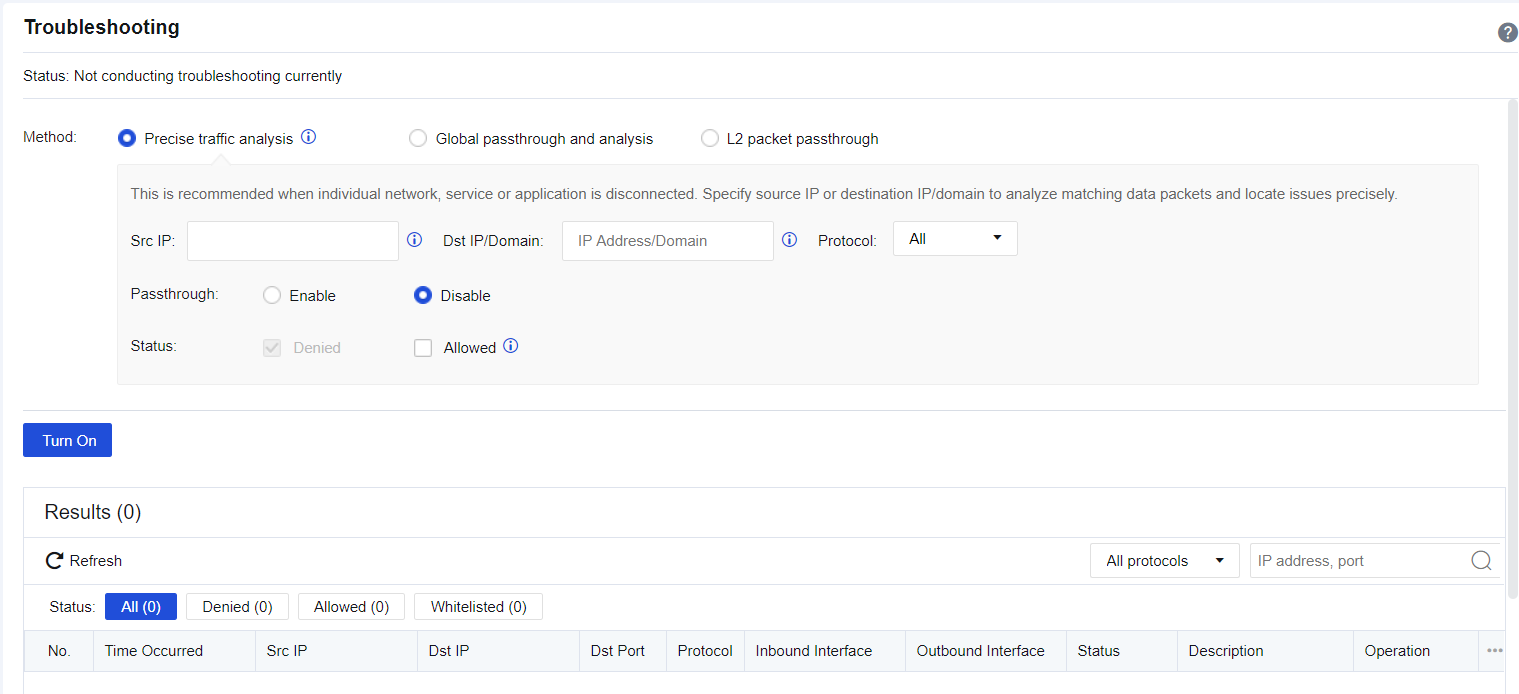
Src IP and Dst IP/Domain: Enter one or both of the source IP address and destination IP address of a packet for precisely matching.
Protocol: Specify the protocol of the packet that can be output to the analysis result list. You can select All, TCP, UDP, ICMP, ICMPv6, and other protocols for this parameter.
Passthrough: Specify whether the policy is allowed for the matched packet.
Status: Specify whether the matched packet is denied or allowed to be output to the analysis result list. You can select Denied for this parameter when troubleshooting the problem that some users cannot access the Internet.
After you click Turn On, the matching details will be displayed in the analysis result list. See the figure below.
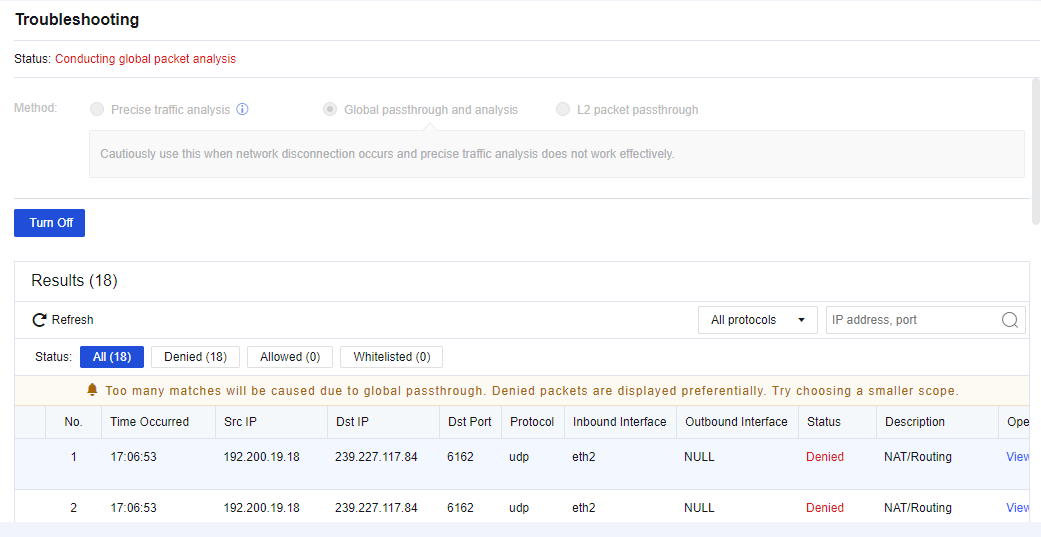
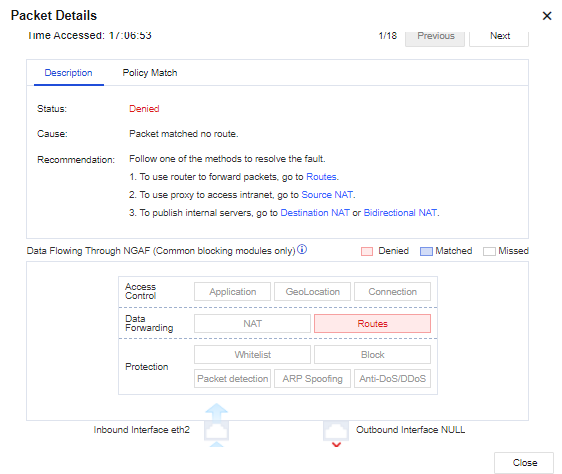
Click Refresh to view the matching situations of the packet in real-time. Click View details to view the specific policy matching with this packet. See the figure below.
After the troubleshooting is completed, click Turn Off. This makes the address policy specified to the passthrough rule continue to take effect, but not allowed for this packet any longer.
If you select Global passthrough and analysis, all devices' policies are allowed but not protected any longer. We recommend using this method if large-area networks that cannot be directionally analyzed are interrupted, such as the network environment for device installation.
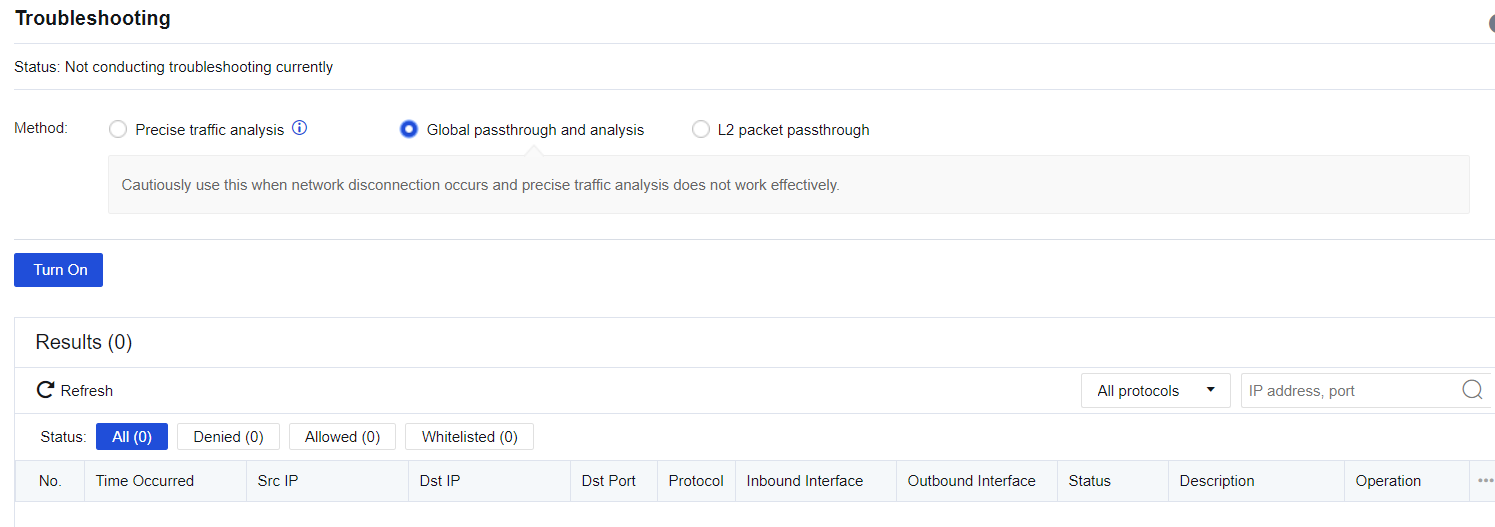
After you click Turn On, the matching details will be displayed in the analysis result list. See the figure below.
Click Refresh to view the matching situations of the packet in real-time. Click View details to view the specific policy matching with this packet. See the figure below.
After the troubleshooting is completed, click Turn Off. This makes the device policy specified continue to take effect, but not allowed for all packets any longer.
To allow the passthrough in the Layer-2 network. Packets will be bypassed on Layer 2. We recommend that you use this method if the fault causes still cannot be located by using the preceding two methods.
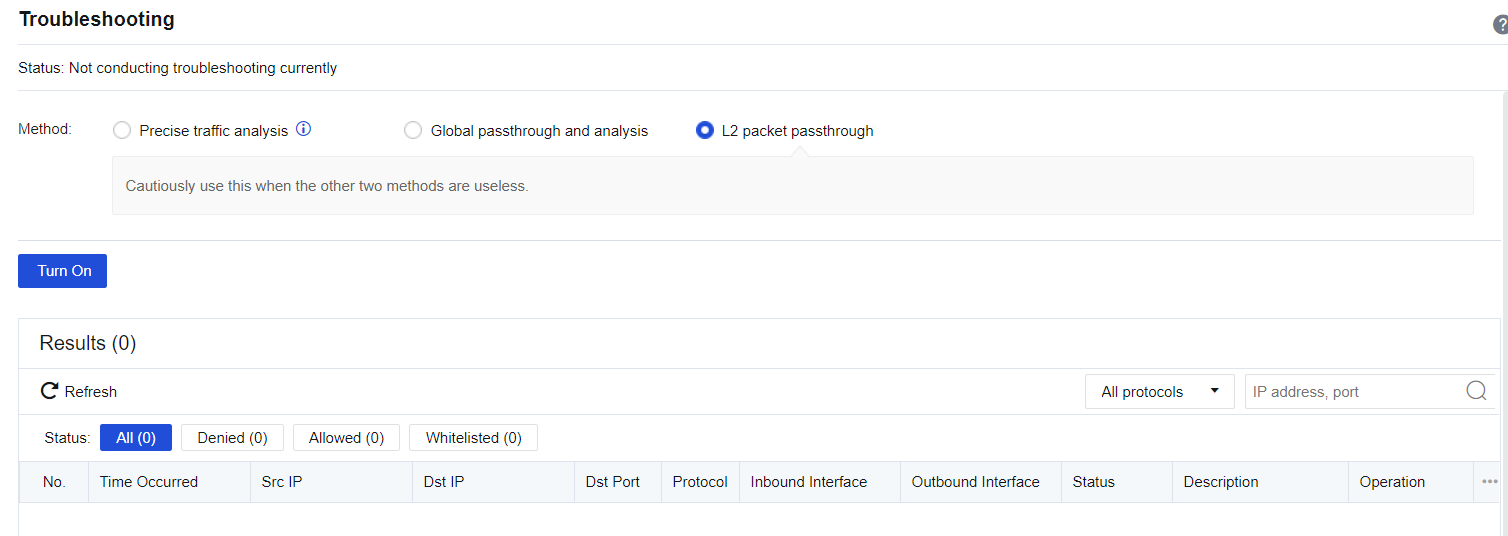
After the troubleshooting, click Turn Off.


 {{ $t('index.defaultHeader.chromeBrowserTip') }}