


{{ secondMenu.name }}






On the SMTP Server tab, you can configure the information about the SMTP server the device uses to send alarm emails.
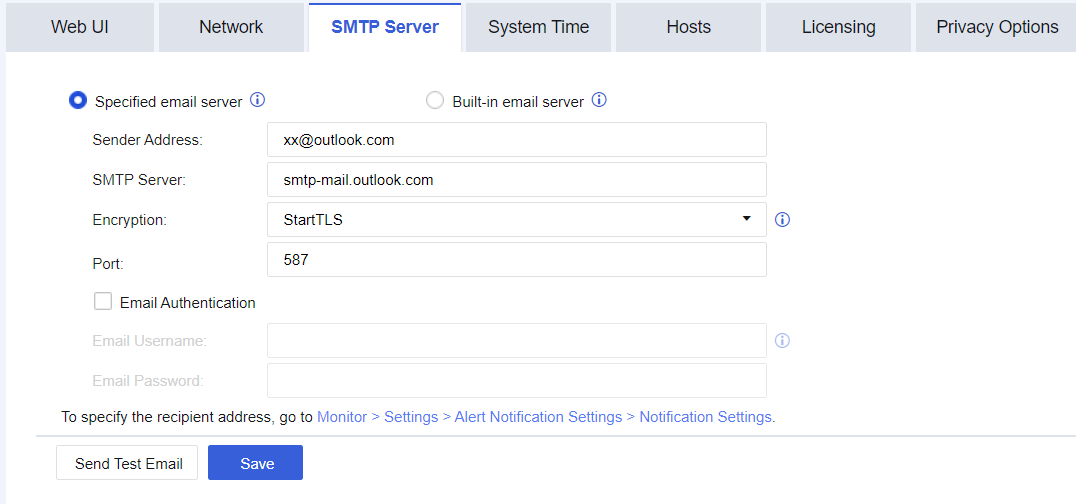
Sender Email Address: Specify the email address the device uses to send alarm emails. HYPERLINK "mailto:例如test@domain.com" test@domain.com
SMTP Server: Specify the SMTP server's domain name or IP address corresponding to the sender's email address. If the SMTP server requires verification of the username and password, select Authentication Required.
Encryption: There is 3 options for envryption which is None, SSL, and StartTLS.
Server Port: Specify the SMTP server port.
Email Authentication: Specify the username and password of the sender’s email address.
• Username: You can enter the email address or username.
• Password: If the sender's email address has enabled the third-party client authorization code, enter the authorization code in the field.
After you enter the email address, click Send Test Email to test whether the email can be sent.
Click Send Test Email. After the test email is sent, you can log in to the test email address to view whether the test email is received.
Built-in email server: Use Sangfor's sender email address and SMTP server. By default, the email is encrypted by SSL and the port is port 465 for SMTPS.

If you configure in the SFGuard system that the administrator will be notified after a website has tampered with the SMTP server mentioned above will send an email. If you configure an email alarm, it will send an alarm message.
The StartTLS email protocol command is now supported.
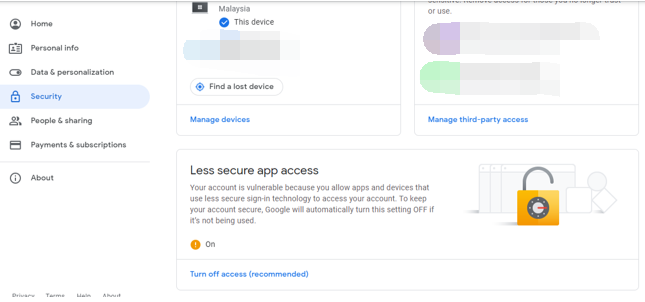
Step 1.To configure a Gmail email server. You need to change the Gmail account to allow Less secure app access as the figure shown below:
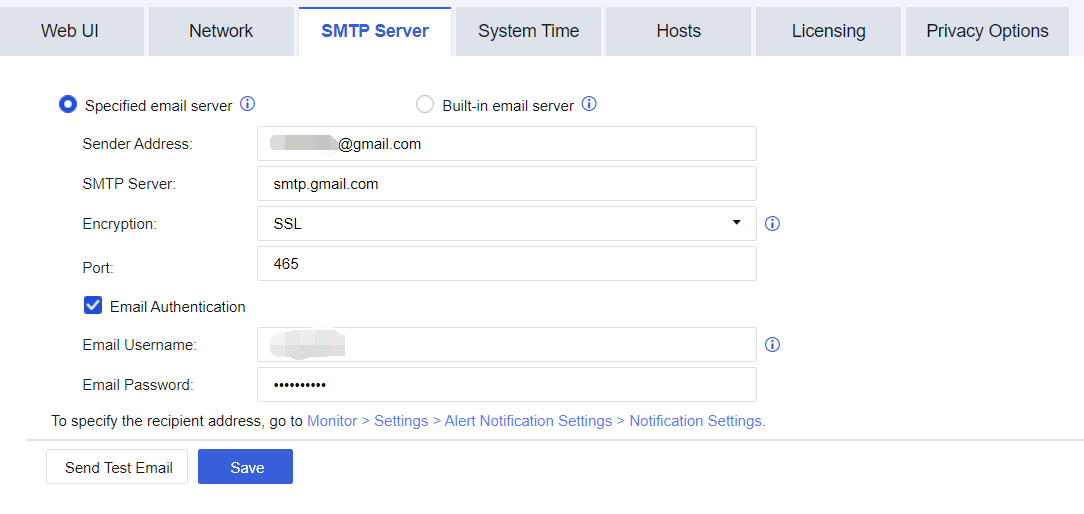
Step 2.Go to the SMTP Server tab. Fill in the email address, SMTP server address, and server port that you have configured in the preceding steps. The username that you fill in to validate the SMTP server must be the same as that of the sender email address and the password is the authorization code. Then click Save.
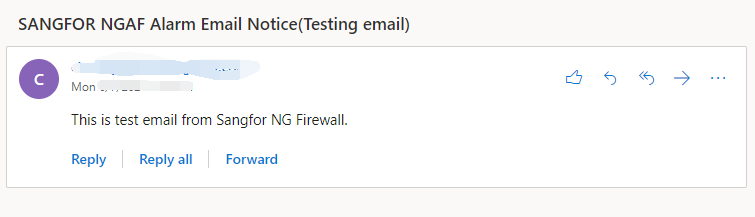
Step 3.Click Send Test Email and enter a specified email address that can receive emails to test whether the test email can be received, as shown in the following figure.
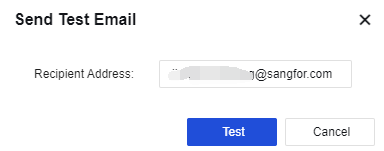
Step 4.After the email is sent, the specified email address receives the test email, indicating that the configured SMTP server can send emails normally.


 {{ $t('index.defaultHeader.chromeBrowserTip') }}