


{{ secondMenu.name }}






Web UI: Specify parameters in the Web UI Options, and Login Security sections.
In the Web UI Options section, set the Device Name, WebUI Ports, Idle Timeout, etc., as shown in the following figure.
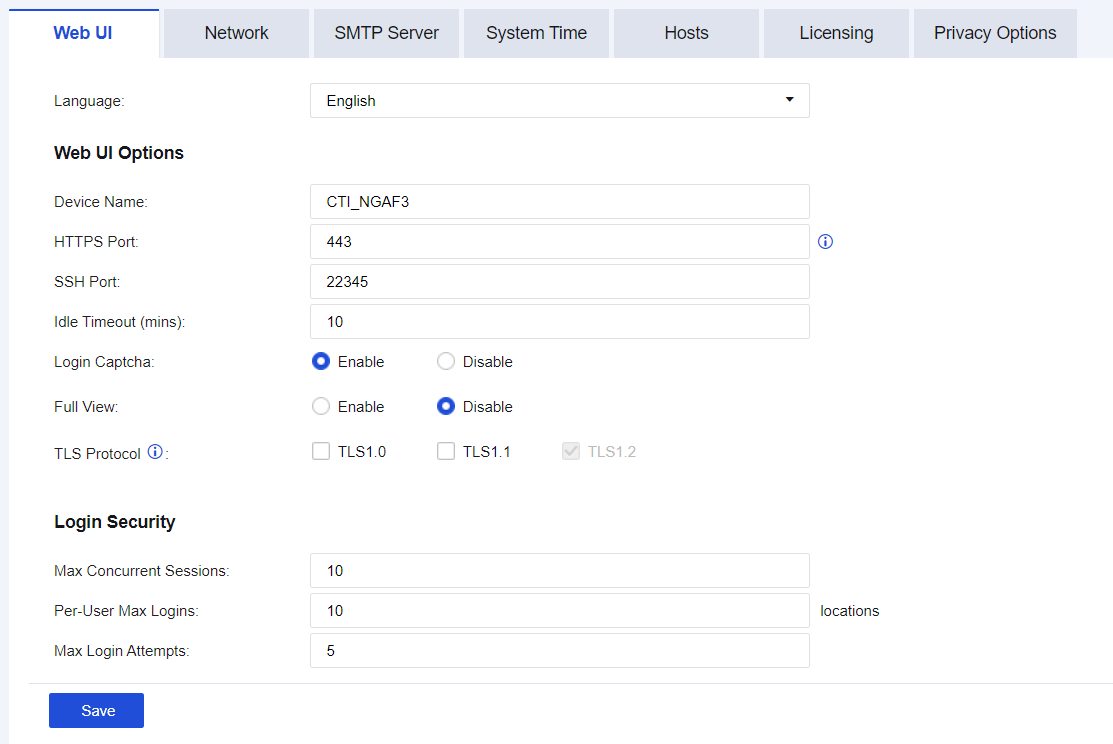
Language: Supports switch between Chinese and English.

When you switch the language from Chinese to English in the original environment, the configurations in the Chinese OS will be lost in the English OS and vice versa. After you switch the language to the original one, the configurations in the corresponding OS will be recovered. In addition, the device will be restarted during the switch and the Internet connection will be interrupted. In this case, we recommend that you switch the language when no service is being processed.
Device Name: Specify the name of the device.
HTTPS Port: Specify the port by which you log in to the console. By default, this parameter is set to port TCP 443.
SSH Port: Specify the port by which you log in to the console via Secure Shell (SSH). By default, this parameter is set to TCP port 22345.
Idle Timeout (mins): Specify the timeout for the console. If the administrator does not operate the console in the specified time, the system is automatically disconnected.
Smart Customer Service: Specify whether to enable the option of the smart customer service robot on the console page.
Login Captcha: Specify whether to enable the option of Login Captcha when you log in to the console.
Full View: Specify whether to enable the Full View option when you log in to the console. After this option is enabled, when you access the page that can refresh automatically, you will not be forced to log out due to the timeout. We recommend that you enable this option when you need to project the page to a large screen for monitoring security information.
TLS Protocol: Specify the browser TLS protocol that is available for the console. This protocol determines whether you can log in to the NGAF console using the browser.
Max Concurrent Sessions: Specify the maximum number of users allowed to log in to the console simultaneously.
Per-User Max Logins: Specify the number of IP addresses using an identical admin account to log in to the device console.
Max Login Attempts: Specify the number of login failures allowed for an administrator.
Click Save. Then, the configuration takes effect.


 {{ $t('index.defaultHeader.chromeBrowserTip') }}