


{{ secondMenu.name }}






The App Signature Database is mainly used to identify app data and protect apps by identifying different apps.
To judge and detect the app category of Internet data. It can detect the app category according to the signature value of the data packet or multiple conditions such as protocol, port, direction, data packet length matching, and data packet content matching. Also, it can well detect the app categories that cannot be distinguished by port or protocol, such as QQ, P2P, etc.
The App Signature Database is divided into the built-in database and the custom database. The built-in database has built-in rules and apps, and the custom database has custom rules and custom apps. The built-in database cannot be modified, which is updated regularly by the device.
The updating of the built-in database requires serial number authorization to ensure that the device can access the Internet. The custom database can be added, deleted, modified, etc., a custom definition can cite multiple rules.
In Policies/Application Control Policy, you can cite app signature rules to control relevant applications.
Viewing app signature rules
On the Navigation Menu page, choose Objects > Content Identification Database > Application Signature, enter the App Signature page.
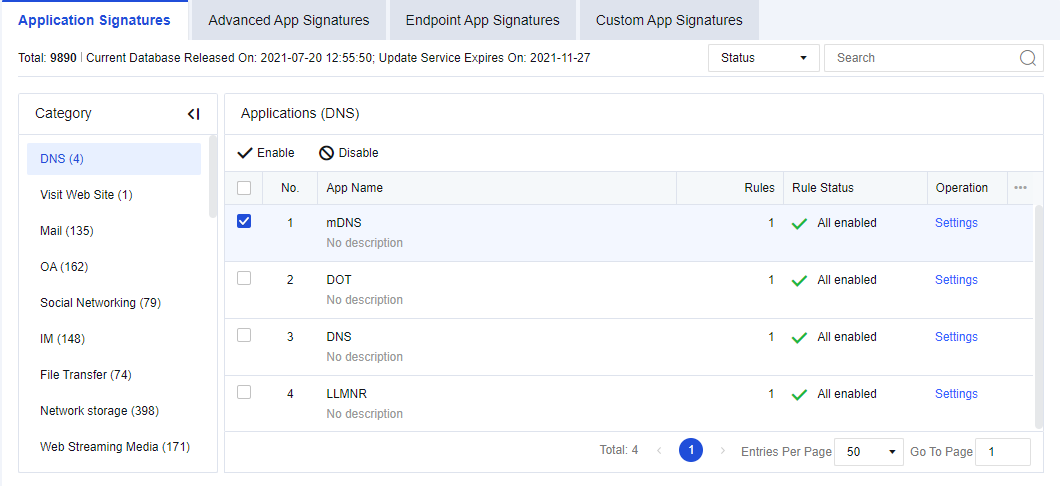
Total app rules: This shows the number of app rules in the device’s current internal rule signature database.
Version of app signature database: This shows the current version of the internal rule signature database.
Upgrade valid to: Shows the validity period for the upgrade of the internal rule signature database.
App Category: Shows the categories of app signature rules, such as IM and games.
Select the correct app category. Specific Apps shows specific applications included in the current app category. They belong to a sub-category under a large app category, such as QQ and MSN in IM.
Select the rule type to be queried in Filter: Select All to filter all rules that meet the conditions; select Enabled to filter enabled rules that meet the search conditions; select Disabled to filter disabled rules that meet the conditions. In Search, enter the rule keyword to be queried (e.g., set "QQ" as the filter condition).
Enabling/Disabling app signature rules
In the Objects > Content Identification Database > Application Signature on the Navigation Menu page, enter the App Signature page, and firstly filter the rules to be set, such as disabling the QQ rules, to filter QQ related apps as shown in the following figure:
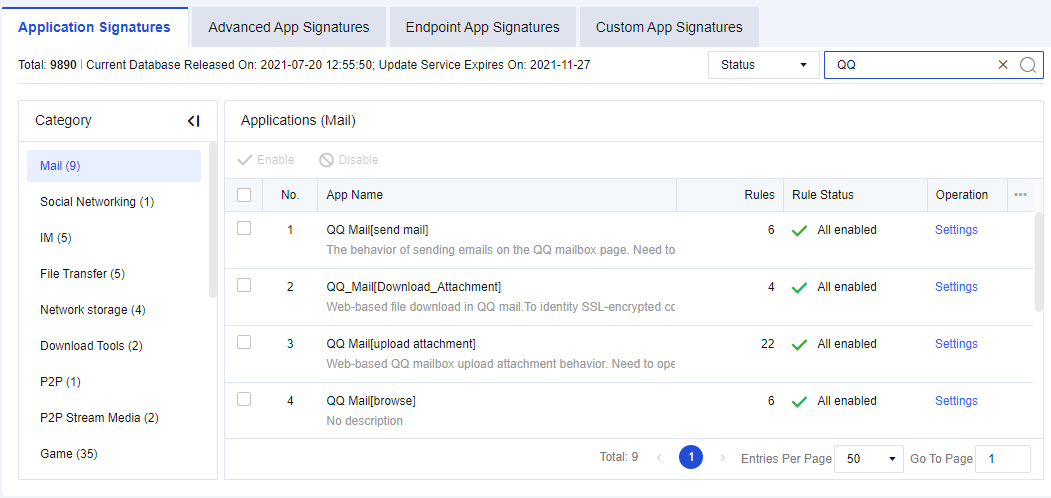
Select the specific app "QQ" and click Enable or Disable. You can disable or enable all QQ login rules.
If you want to disable or enable a rule in a specific app, such as disabling a rule in "QQ", click Rule Settings. The QQ signature rules editing box is displayed, listing all relevant rules of "QQ". Select a rule and click Enable or Disable to disable or enable the rule.
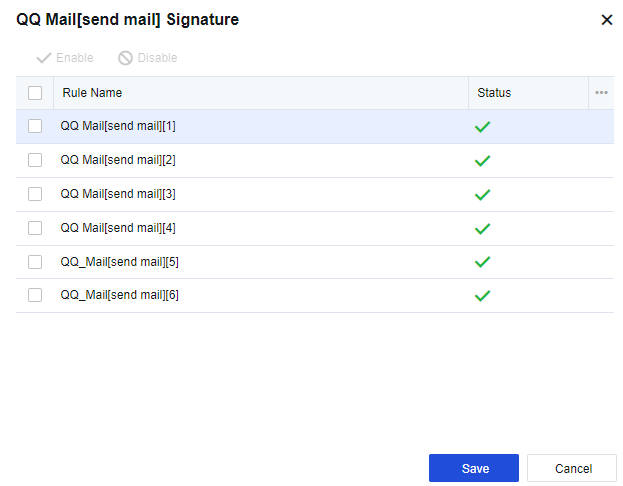

1. The app signature rules of some basic protocols (such as HTTP) cannot be disabled. If such basic protocols are disabled, data identification based on HTTP will be affected. Therefore, such rules cannot be disabled.
2. Here, disabling the rules is not to block apps. For blocking rules, please refer to the Content Security chapter. In this case, if we disable QQ, the device will not identify the QQ app. Under normal circumstances, you are not advised to disable these rules. They may be needed in troubleshooting scenarios.
3. The app signature database supports IPv6 and can recognize common applications in the IPv6 environment.
Advanced App Signature Database is used to identify various app categories of Internet data. It has a different judgment method from the App Signature Database, which can identify some encrypted data, such as plaintext or ciphertext of P2P apps, Skype, SSL, and Sangfor VPN data identification, and data of proxy tools. The configuration is shown in the figure below.
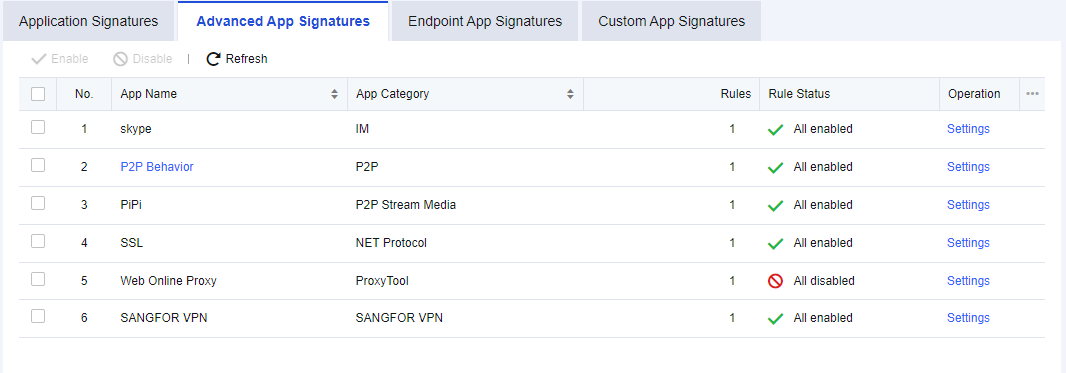
Enabling/Disabling advanced app signature rules
On the Navigation Menu page, choose choose Objects > Content Identification Database > Application Signature. The Advanced App Signature tab appears on the right.
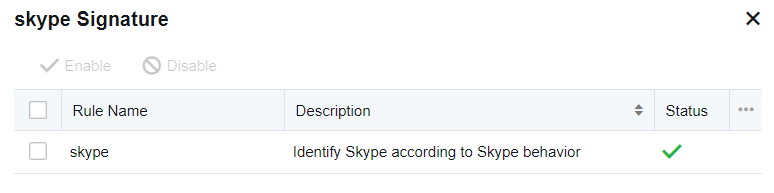
Select the app name "skype" and click Disable or Enable. You can disable or enable the intelligent identification rules of skype.
If you want to disable or enable a rule in a specific app, such as disabling a rule in the "skype", click Rule Settings. The skype editing box is displayed, listing all relevant rules of "skype". Select a rule and click Enable or Disable to disable or enable the rule.
Editing P2P behavior identification rules
P2P behavior identification rules supplement app feature identification and intelligently identify P2P data that cannot be recognized in the app signature database. P2P behavior rules can be edited. Click P2P Behavior, and the rule editing box is displayed.
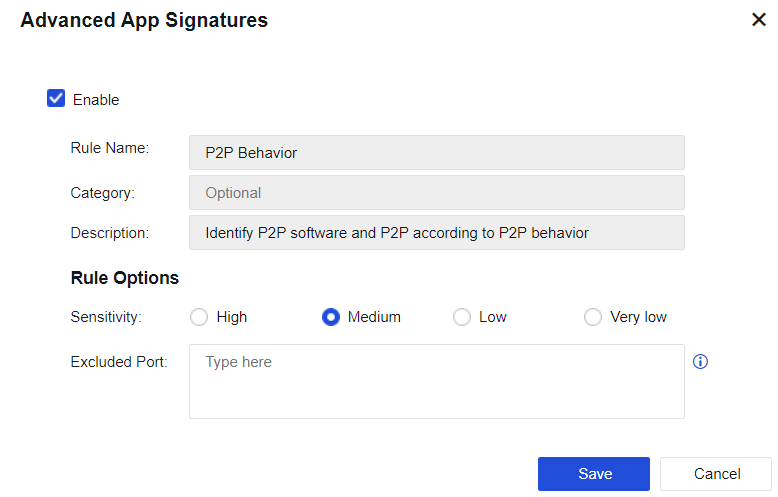
Enable: You can select this item to enable the current rule.
Rule Name, Category, and Description cannot be edited.
Sensitivity: Set the sensitivity of the rule. Four options are provided: high, medium, low, and extra-low. You can adjust the detection sensitivity as needed. Intelligent P2P identification may lead to misjudgment, so sensitivity is used to set the judgment standard. The sensitivity decreases from high to extra-low. You can adjust the sensitivity level according to the identification of specific data. For example, if there is much data, and the ports for data connection are random high-end ports with uncertain target addresses, these data may be unidentified P2P data. In this case, you may use higher sensitivity. If some apps do not contain P2P data but are identified as P2P, the sensitivity level may be set higher. In this case, you can lower the sensitivity level properly.
Excluded Port: Specify the excluded port. If the target data port is excluded, the device does not perform P2P intelligent identification on such data. It can avoid misjudgment to some extent.
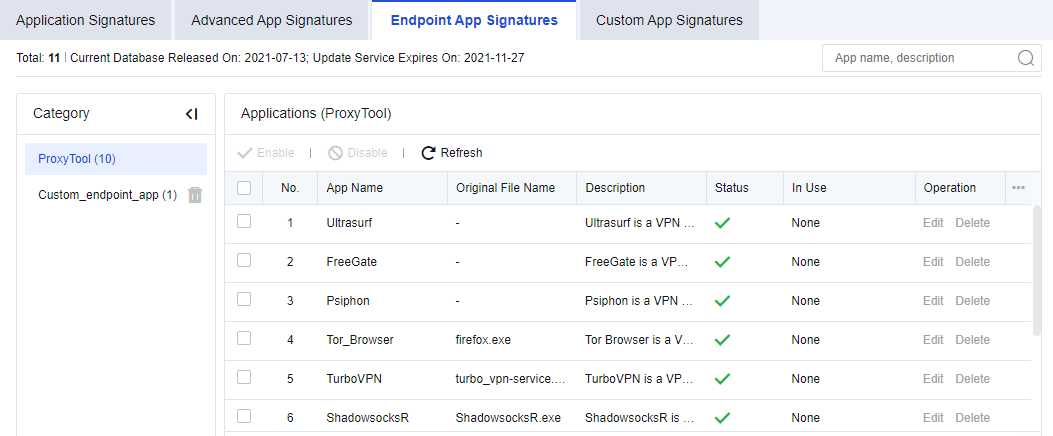
Endpoint App Signature is used to identify various proxy tools app categories and custom endpoint app, as shown in the following figure:
Viewing app signature rules
On the Navigation Menu page, choose Objects > Content Identification Database > Application Signature, enter the Endpoint App Signature page.
Total: This shows the number of app rules in the device’s current internal rule signature database.
Version of app signature database: This shows the current version of the internal rule signature database.
Upgrade valid to: Shows the validity period for the upgrade of the internal rule signature database.
App Category: Shows the categories of proxy tools app signature and custom endpoint app.
Filter: Select All to filter all rules that meet the conditions; select Enabled to filter enabled rules that meet the search conditions; select Disabled to filter disabled rules that meet the conditions. In Search, enter the rule keyword to be queried (e.g., set "Psiphon" as the filter condition).
Enabling/Disabling endpoint app signature rules
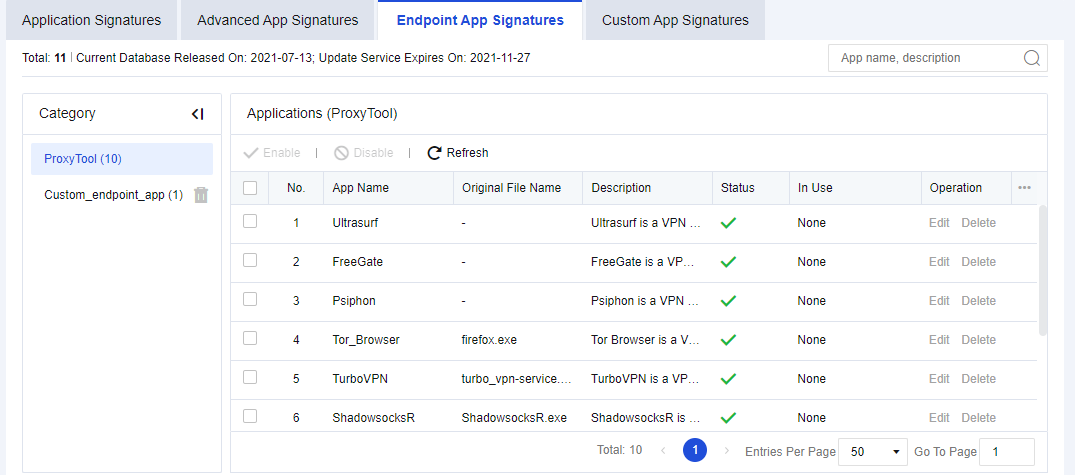
On the Navigation Menu page, choose Objects > Content Identification Database > Application Signature. The Endpoint App Signature tab appears on the right.
Select the app name "Ultrasurk" and click Disable or Enable. You can disable or enable the endpoint app rules of Ultrasurf.
To customize the app signature rules. You can customize apps not covered by the built-in app signature database.
The custom app can be defined by data direction, IP address, protocol, and port. You can add, delete, enable/disable, and import/export custom application operations as the administrator.
On the Navigation Menu page, choose Objects > Content Identification Database > Application Signature, and click the Custom App tab on the right side.
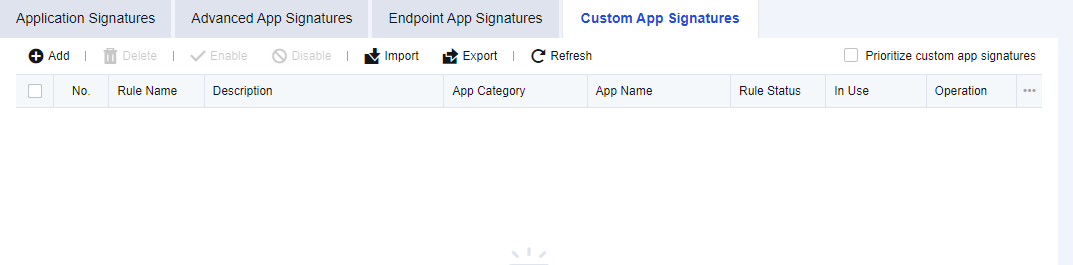
Example: You must provide traffic assurance for company mail. However, when selecting the app category, you cannot select the company mail alone. In this case, you can customize a company mail app.
Step 1.On the Custom App Signatures tab, click Add. The Add Custom Rule page appears. Set related parameters by following the steps.
Step 2.Enable the rule and set the basic attributes of the app, including the rule name, description, app category, and app name. You can select the existing category or customize a category.
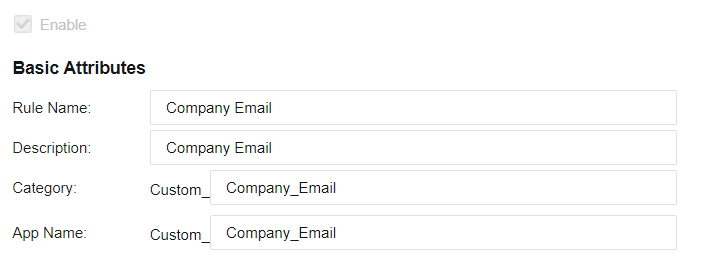
Step 3.Set the category of matching packets.
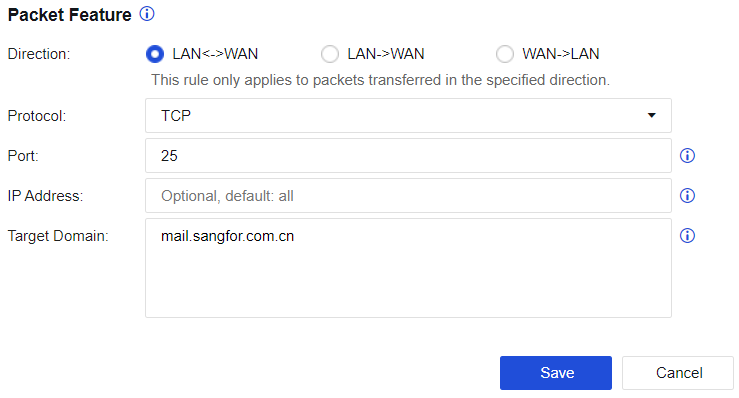
Direction: Specify the direction of data passing through the device. The rule only applies to packets transferred in the specified direction.
Protocol: Specify the type of protocol used for sending data. In this example, the TCP is used for mail sending.
Port: Specify the destination port accessed by the data. In this example, the mail is sent through the TCP25 port.
IP Address: Specify the source IP, destination IP, or destination IP after proxy identification.
Target Domain: Specify the target domain name address that packets access. In this example, enter the domain name email address of the company, such as "mail.sangfor.com".
Step 4.Click Save to complete the setting of this rule.

Step 5.Prioritize a custom app signature rule. Because the built-in app signature database also provides a mail identification rule. If the built-in rule is prioritized, the data may first match this mail identification rule instead of the custom app signature rule ("company mail"). Therefore, you should give priority to the custom app signature rule. To do this, select Prioritize custom app signatures on the Custom App Signatures tab.
Step 6.Choose Traffic Management/Channel Configuration and set the guaranteed channel of this app, ensuring that the bandwidth required for the mail is sent from the company email address.
We recommend adding identification information, including destination port, IP address, and domain name, when setting the custom app signature rule. If identification conditions are too broad, they may conflict with the built-in application identification rules and lead to confusion. As a result, some control and audit rules may fail.


 {{ $t('index.defaultHeader.chromeBrowserTip') }}