


{{ secondMenu.name }}






This function checks packets for latent threats against the LAN system. Two internal templates are configured, Internet access control and business protection. Where:
• Default Template_Internet Access Scenario is to protect LAN users.
• Default Template_Server Scenario is to protect servers.

Click Add to create a vulnerability attack prevention template, as shown in the figure below.
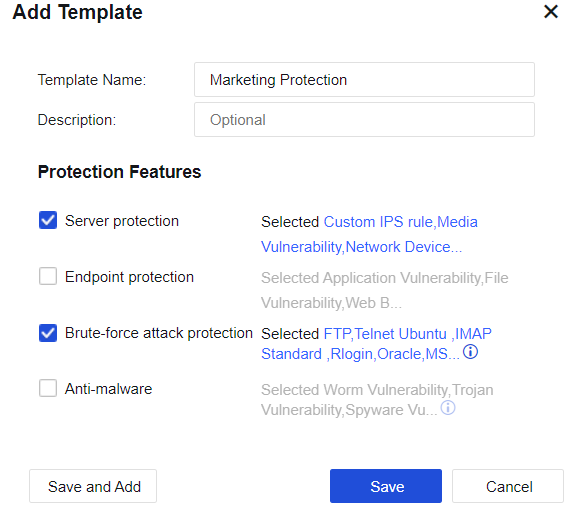
Template Name: Define the name of the template to prevent the attack behavior.
Description: Define the description of the template to prevent the attack behavior.
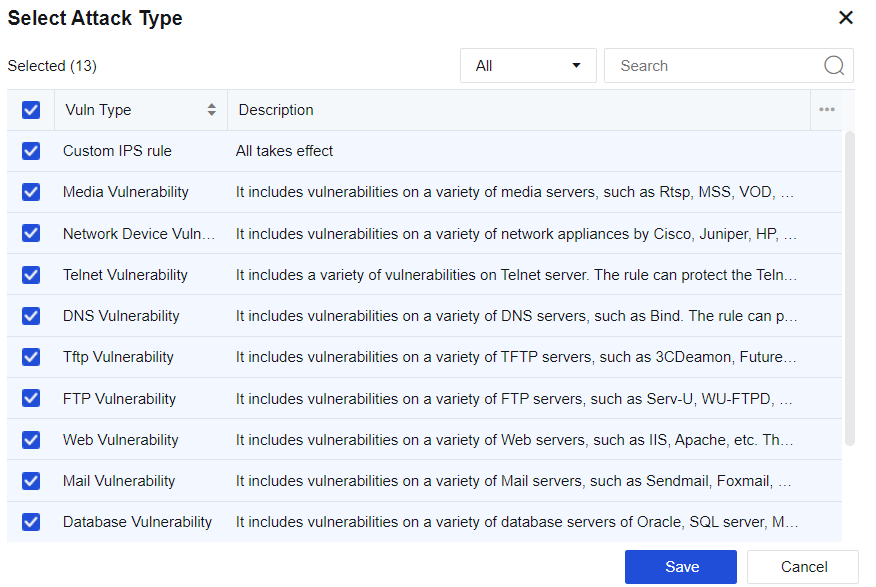
IPS Options: Specify protection parameters. Select Server protection and click Selected Custom IPS rule, Media Vulnerability, Network Device. In the Select Attack Type window displayed select vulnerability types according to the service type released by the server. The server will prevent attacks against vulnerabilities of this service type.
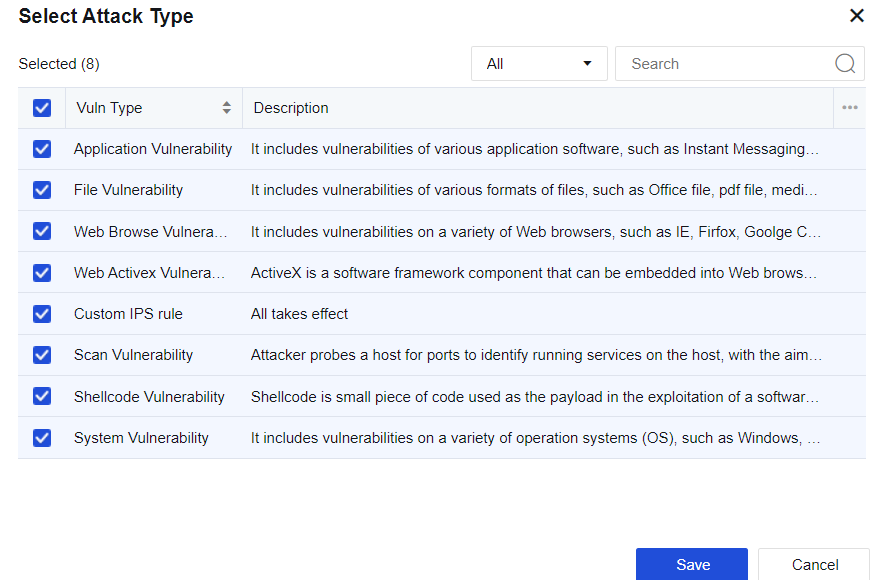
Check Endpoint protection and click Selected Application Vulnerability, File Vulnerability, Web Browse, Web Activex, then a "Select Attack Type" edit box will pop up, where you can check corresponding vulnerability types, and the server will perform intrusion prevention against the vulnerabilities related to this type of client.
Select Brute-force attack protection and click Selected FTP, Telnet Ubuntu, IMAP Standard, Rlogin, Oracle, MS. In the Select Attack Type window that is displayed, select vulnerability types. The server will prevent attacks against this type of brute-force attack.
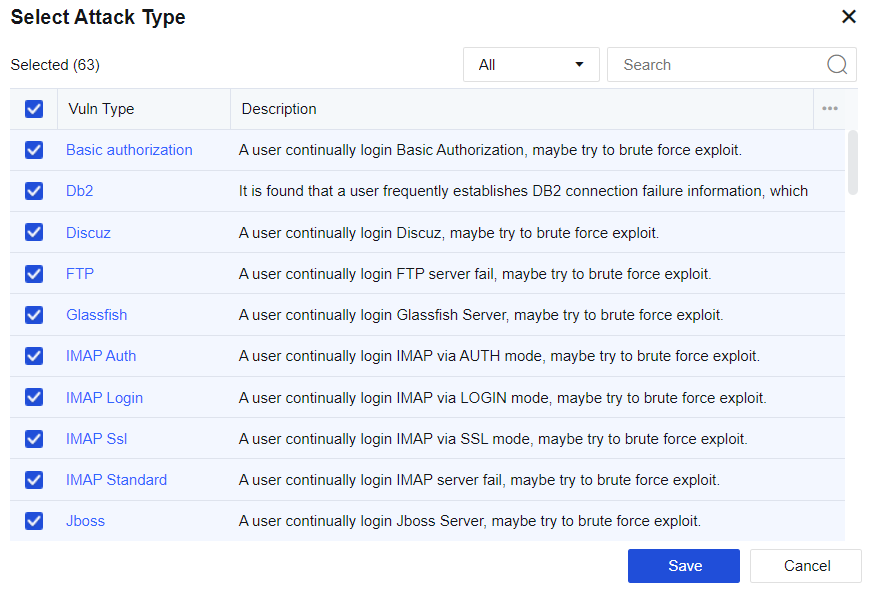
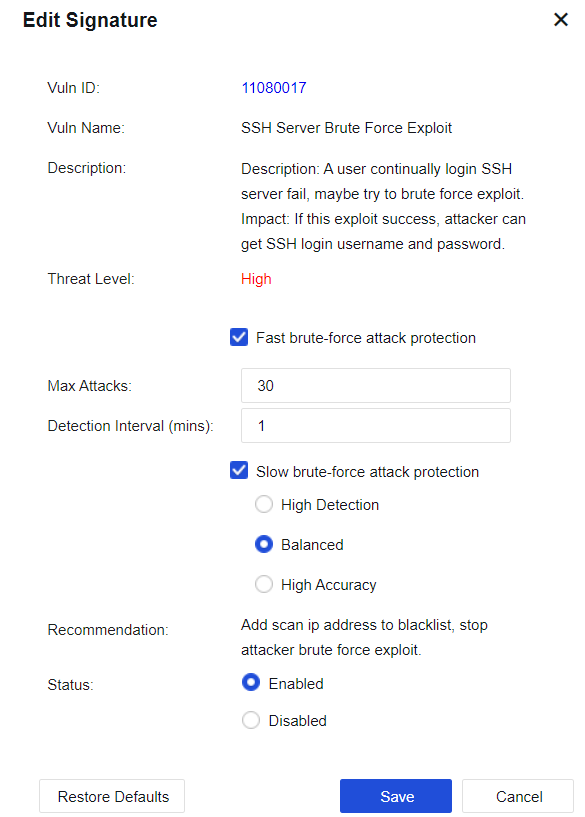
Click a brute-force attack to redirect to Edit Signature (the vulnerability attack signature database) to set the maximum attacks allowed and detection interval as well as the status (Enabled/Disabled).
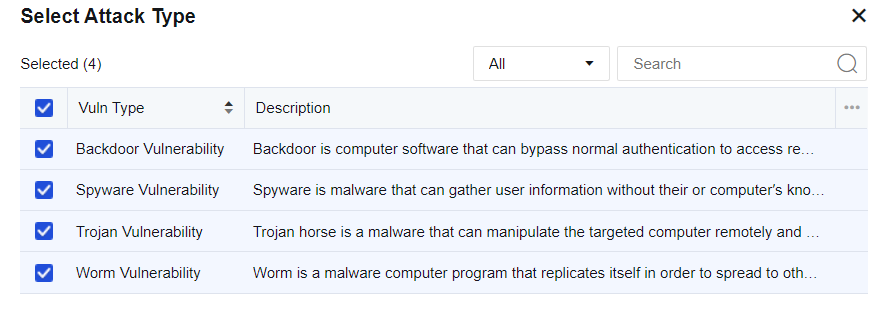
Check Anti-malware and meanwhile click Selected Worm Vulnerability, Trojan Vulnerability, Spyware Vulnerability, Backdoor Vulnerability, then a Select Attack Type edit box will pop up, where you can check corresponding vulnerability types, and the server will perform intrusion prevention against this type of malware.
Click Save to finish establishing vulnerability attack protection.
Click Advanced to navigate to the advanced options configuration page. See the figure below.
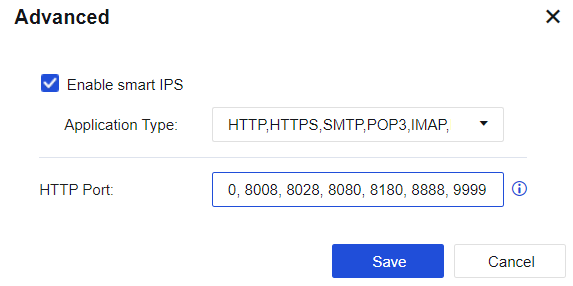
Select Enable smart IPS to identify vulnerability attacks and protect vulnerabilities based on applications. If this option is not selected, the system identifies IPS vulnerabilities based on ports.
HTTP port: Add multiple HTTP ports to identify HTTP attacks more accurately.


 {{ $t('index.defaultHeader.chromeBrowserTip') }}