


{{ secondMenu.name }}






When abnormal behaviors of the device occur or there is an attack, alerts will be sent via emails and text messages, ensuring customers perceive the current network conditions.
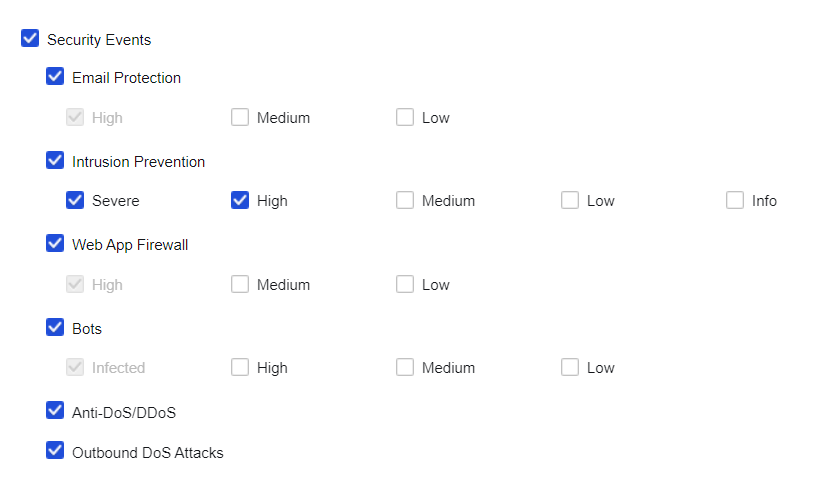
Select the events for which the alerting function needs to be enabled. Check the boxes corresponding to events to enable the function, as shown in the following figure.
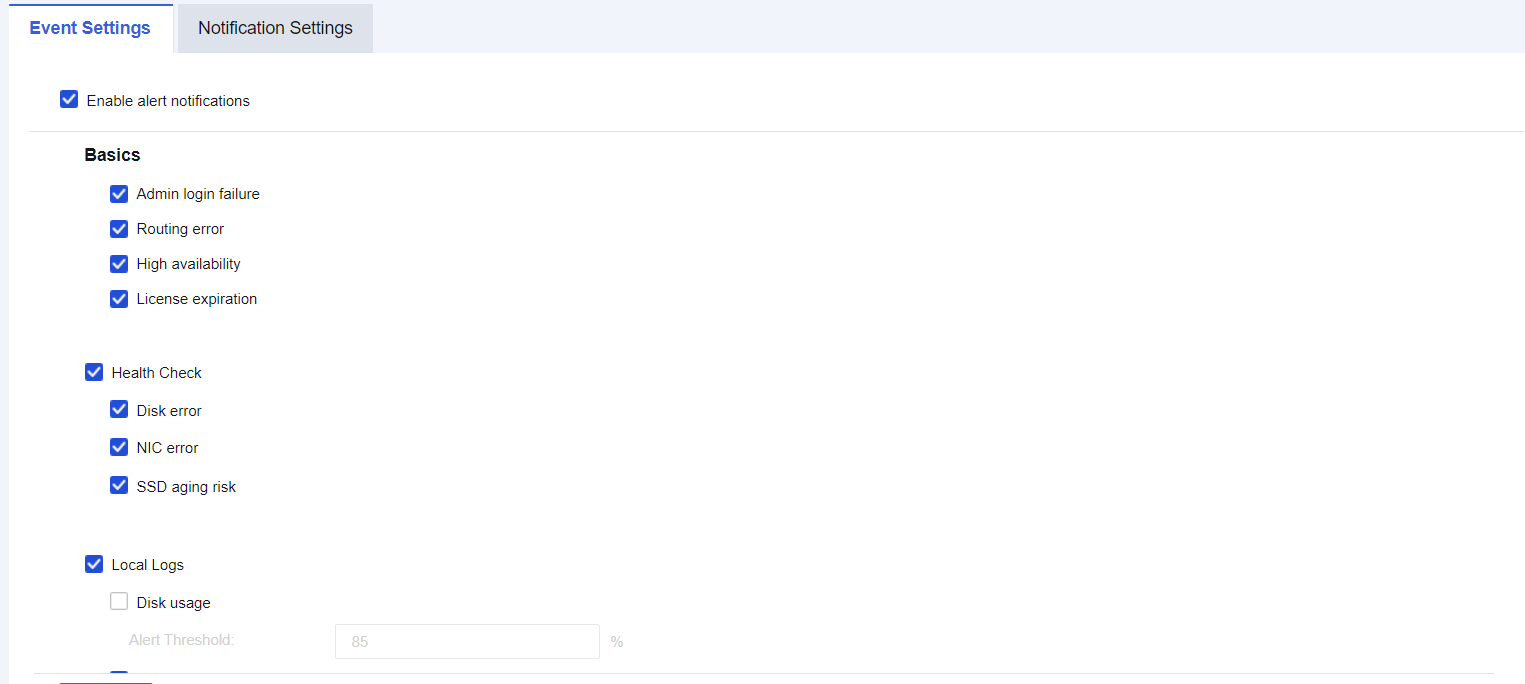
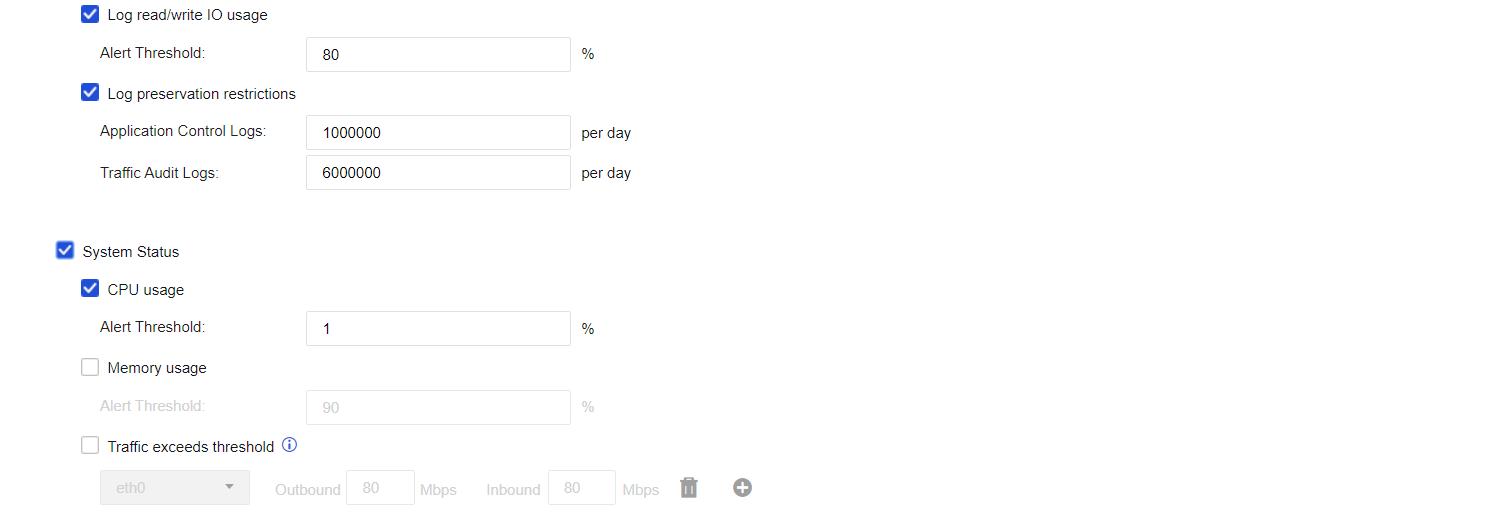
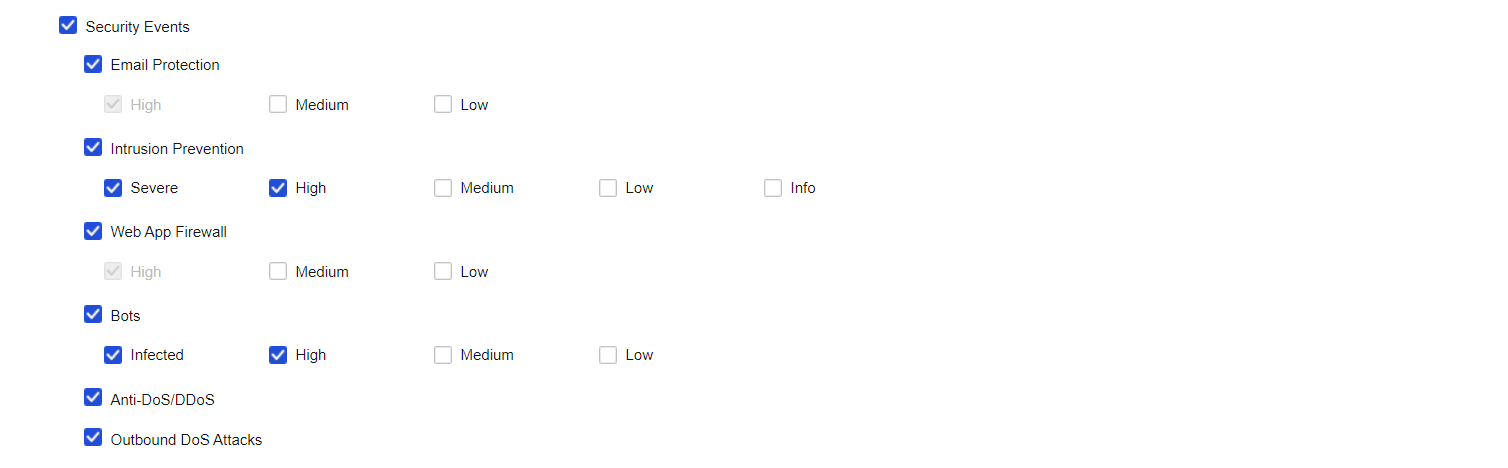
Issue alerts against the events that trigger the alerts according to the set notification mode. At present, email and SMS alerts are supported, as shown in the following figure.
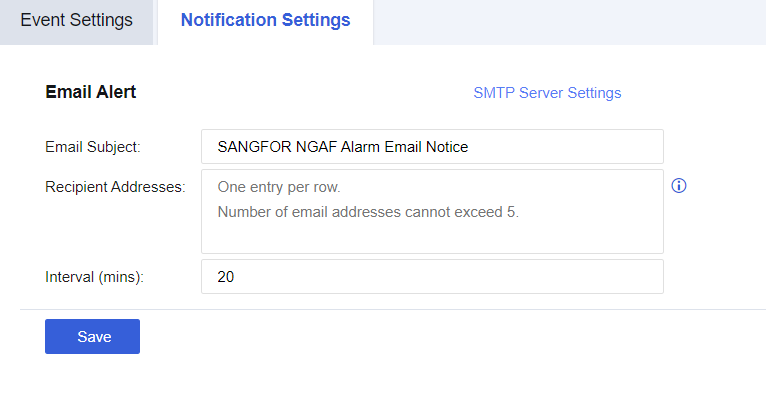
Email Alert
Configure Email Alert to send alerts via emails to an administrator's mailbox. For example, when viruses spread through the LAN or when the disk space has been used to a certain percentage, the device will automatically send alert emails to the administrator's mailbox. Click SMTP Server Settings to set the SMTP server.
An enterprise deployed an NGAF device at its Internet port. It is required to send email alerts firstly against high-severity security events so that the administrator can respond quickly.
Step 1.Ensure the NGAF device can access the Internet. Configure the SMTP server as shown in the following figure.
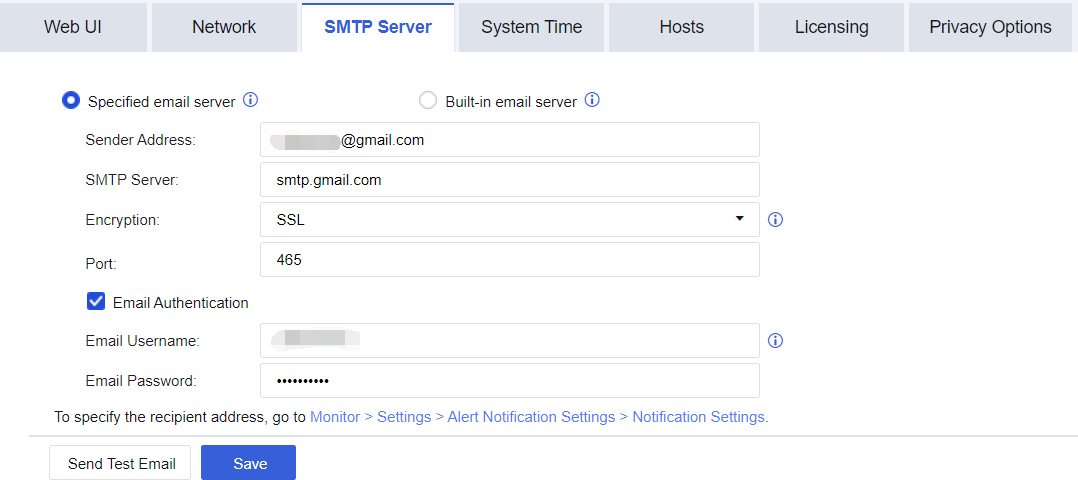

If an authorization code for third-party clients has been activated for the Sender Email Address configured, enter the authorization code in the SMTP Password field.
Step 2.Navigate to Monitor > Settings > Alert Events and enable the alerting function. For Security Events, only check the High and Severe options, as shown in the following figure.
Step 3.Set Email Alert and fill in the corresponding mailbox.
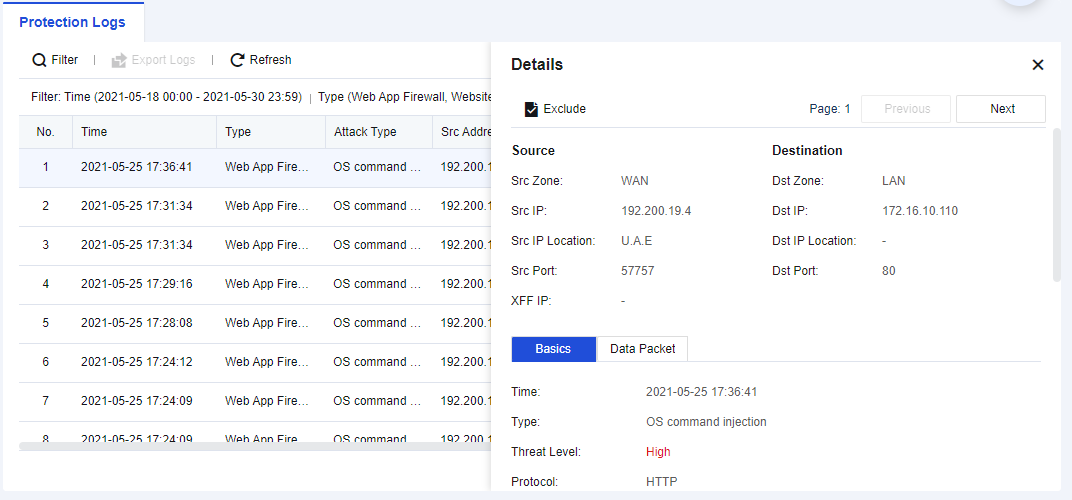
Step 4.Check the alert details received after being attacked, as shown in the following figure.


 {{ $t('index.defaultHeader.chromeBrowserTip') }}