


{{ secondMenu.name }}






To enable and disable logs, and control logs generated by the device to be stored on third-party devices, to meet the compliance requirements of log storage. The interface is shown below.
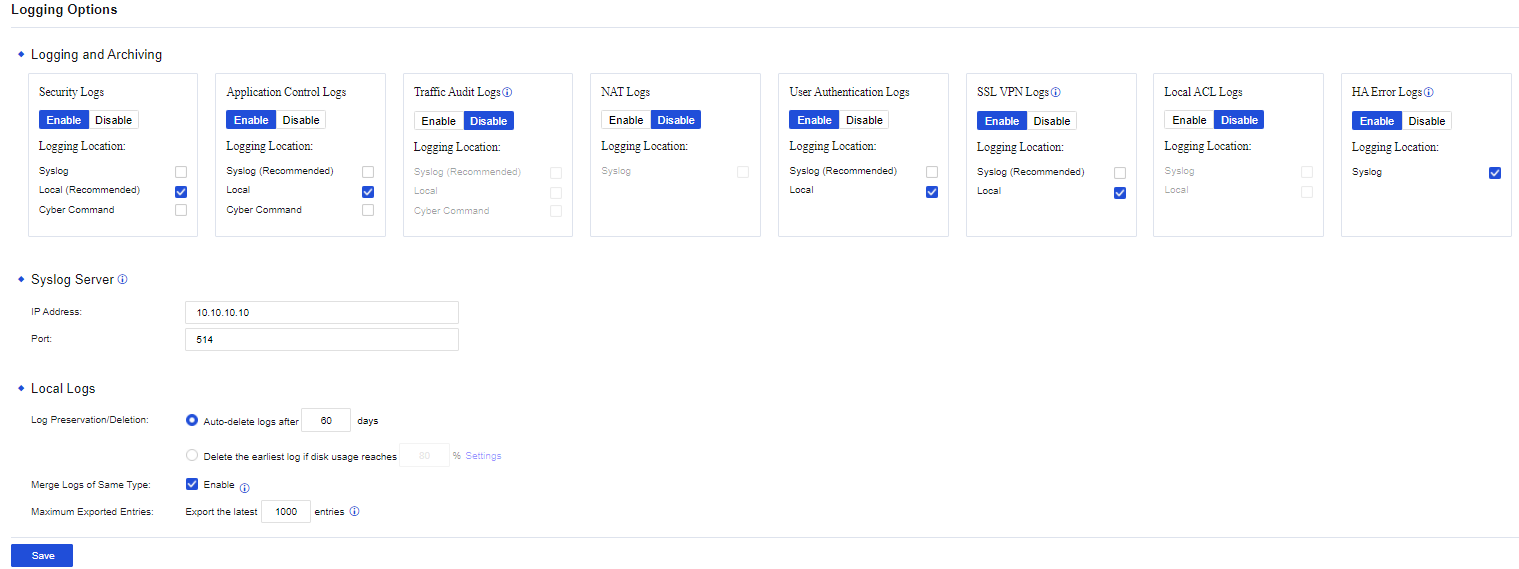
After the logging function is enabled, the device can create logs on specific locations, such as Syslog, firewall, and Cyber Command. Eight types of logs can be created, including Security Log, Application Control Log, Traffic Audit Log, NAT Log, User Authentication Log, SSL VPN Log, Local ACL Log, and HA Error Log. Some types of logs are disabled by default. Check the corresponding options on the pages to enable logs as needed. The page is shown as follows.

By default, it is recommended to enable Security Logs only and store the logs locally. You can make changes to enable other logging functions according to actual needs. A large amount of data will be generated when performing application control logging, traffic audit logging, NAT logging, or local ACL logging. If these logging functions need to be enabled, it is recommended to use a third-party storage device to store logs.
During the operation of the security device, a large number of system, security, and running logs will be generated. However, the storage space of the security device is not sufficient for log storage, which tends to cause logs to be overwritten or lost, thus making it impossible to perform attack traceability analysis and meet regulatory requirements. Therefore, after the security device is successfully connected to the Syslog server, the security device sends logs to the Syslog server, thereby relieving the log storage pressure on the security device and meeting regulatory compliance requirements.
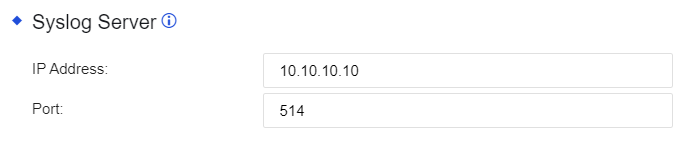
Syslog is used to send logs generated by the device to the Syslog server for storage. IP address and port details of the Syslog server need to be set.
An enterprise deployed an NGAF device at its Internet port. To meet the regulatory requirements, the security logs need to be sent to a log server for storage, and the server can only receive UDP packets on port 514.
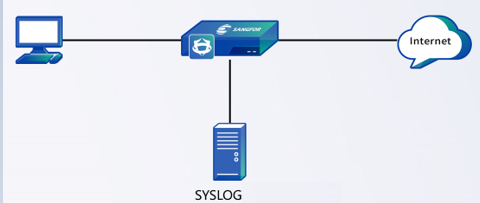
Step 1.Configure the Syslog server and send logs to the log server in the form of UDP514, as shown in the following figure.
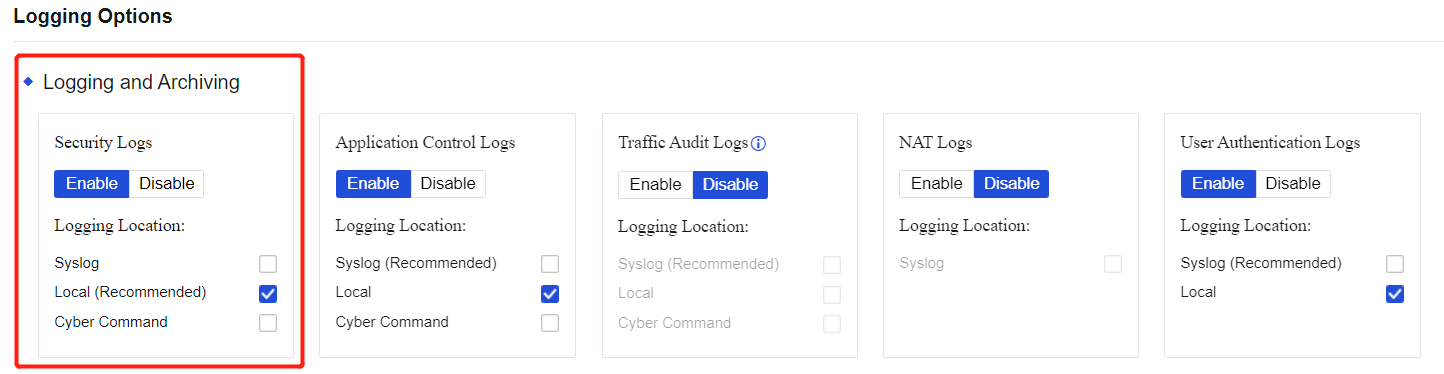
Step 2.Enable Security Logs and select Syslog, as shown in the following figure.
Step 3.View the security logs generated by the NGAF device. Check the log details and whether it has been set to send logs to the Syslog server, as shown in the following figure.
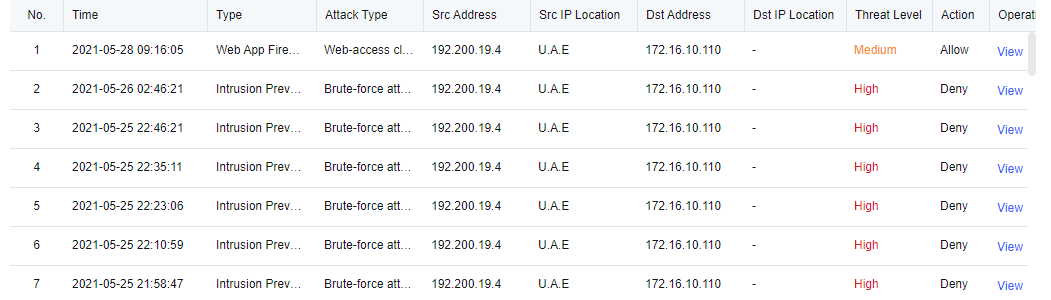
Step 4.Logs can be sent to the Syslog server.


1. Syslog only supports UDP connection and UTF-8 encoding.
2. System logs cannot be sent to the Syslog server.
To set the automatic deletion options of the device for log storage. The page is as follows.
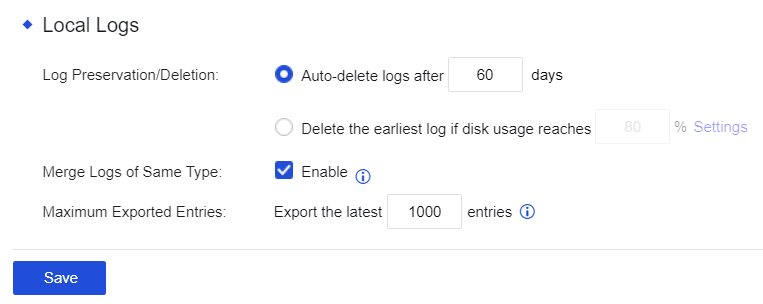
Log Preservation/Deletion: Set whether the system needs to delete the access control logs recorded automatically by selecting Auto-delete logs after xx days, you can set a duration within which logs should be preserved. By selecting Delete the earliest log if disk usage reaches xx, you can preserve logs according to disk usage percentage.

Deleted logs cannot be retrieved. It is recommended to add Syslog, Cyber Command systems, etc, for log backup.
Merge Logs of Same Type: after checking Enable, the built-in data center only records one activity of access to the same domain name to save the device's disk space.
Maximum Exported Entries: the number of logs allowed to be exported. Exporting too many logs will consume a large number of resources such as memory and CPU.
This function is to establish a connection between the NGAF and CCOM system as well as the full traffic threat analysis system. After establishing, logs created by the NGAF device will be synchronized to the CCOM platform, and the CCOM platform will perform further traceability analysis on the logs. The CCOM platform can also issue commands to the NGAF device, and the NGAF device will execute the corresponding actions after receiving the commands. The following figure shows the settings used to establish the connection between the NGAF and the CCOM system.
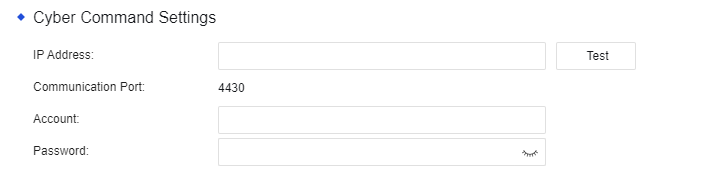
IP Address: the IP address of the CCOM system and complete traffic threat analysis system.
Communication Port: port 4430 by default. Other ports are not currently supported.
Account: the account used to establish the connection to the CCOM system and full traffic threat analysis system.
Password: The password used to establish the connection to the CCOM system and full traffic threat analysis system.


 {{ $t('index.defaultHeader.chromeBrowserTip') }}