


{{ secondMenu.name }}






The traffic statistics are performed mainly based on users, applications, and IP addresses for traffic rankings. Functions include Top User by Traffic, Top Applications by Traffic, Top IP Addresses by Traffic, and Traffic by IP Address.
Top User by Traffic ranks the users who have got the authentication for accessing the Internet by counting their traffic, displaying the bandwidth usage of online users. The interface is shown below.
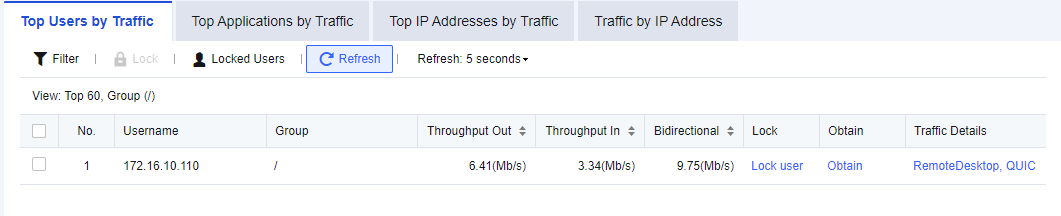
Case of Viewing Top User by Traffic
An administrator needs to view which applications the Sangfor user has accessed during office hours on an enterprise's network.
Step 1.Click Filter. The administrator can specify the filter conditions for user traffic ranking. See the figure below.
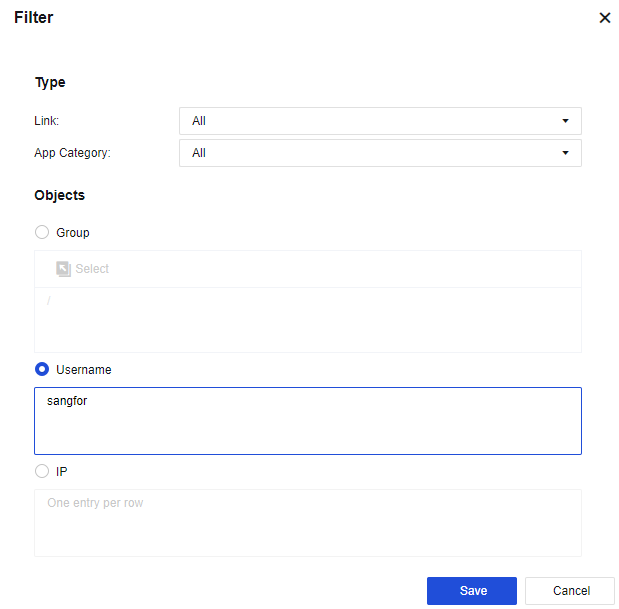
Link: select the specific link to view.
App Category: specify the application service to be viewed.
Objects: set a specific username or IP.
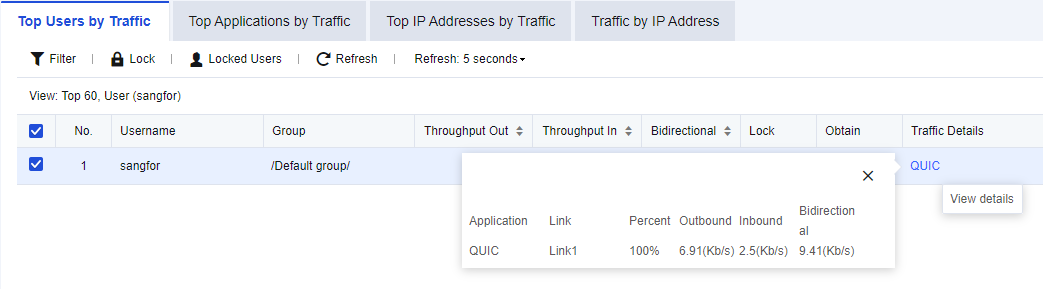
Step 2.Check the search results, as shown in the following figure.

Perform ranking based on the bidirectional throughput of users and display information of the following items: Username (displayed name), Group, Throughput Out/In, Bidirectional, Lock, Obtain, and Traffic Details. Click Lock to block Internet access for a user. In the Obtain column, click Obtain to find out the computer name of the user. In the Traffic Details column, click a specific application to open the following page, which shows the application traffic usage of the user.
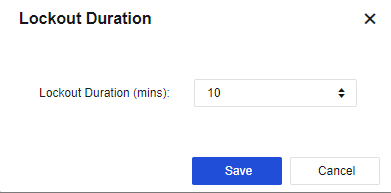
Step 3.(Optional) enable Lockout Duration to lock a user immediately so that the user cannot access the Internet within the specified duration. For specific operations, select a user listed in the Top User by Traffic, click Lock, and set the Lockout Duration (mins), as shown in the following figure.
Step 4.(Optional) unlock Internet access for users. If needed to immediately lift the restrictions on users being locked to allow them to access the Internet, click Locked Users and go to the online user management page, as shown in the following figure.
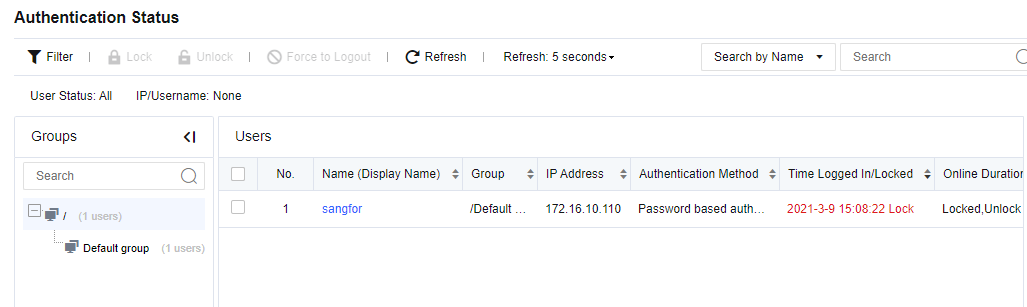
Find the locked user displayed on this page, select the user and click Unlock.
Top Applications by Traffic ranks the real-time application traffic when traffic flowing through the device. You can view the current traffic statistics per application, or filter data according to filter conditions. The interface is shown below.
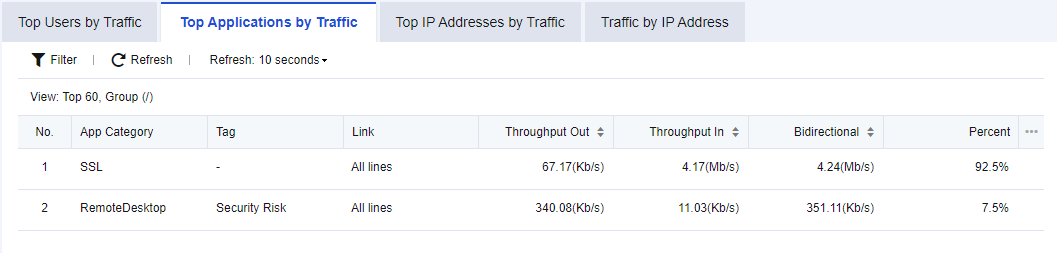
Applications are ranked based on their bandwidth. Information of the following items is displayed: App Category, Tag, Link, Throughput Out/In, and Bidirectional.
Click Refresh: 5 seconds to set the refresh interval of rankings on the page.
Click Refresh to refresh the page immediately.

1. Top Applications by Traffic supports application traffic ranking in IPv6.
2. Currently, 6 tags are available, including the leakage risk of outgoing documents, high bandwidth consumption, reduced work efficiency, e-mail sending, forum posting, and microblog posting.
3. To enable Top Applications by Traffic, you need to enable the log control switch under Logging Options.
Top IP Addresses by Traffic shows the bandwidth usage of online IP addresses, as shown in the following figure.
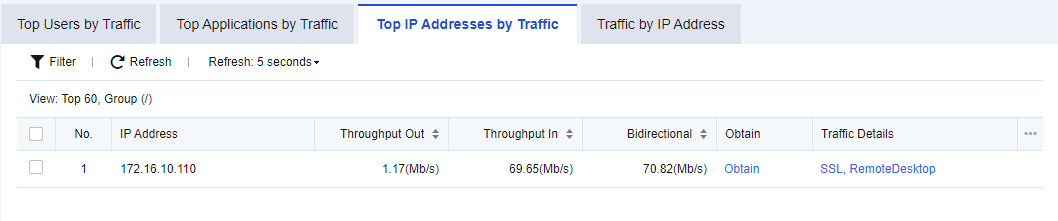
The ranking is based on the bidirectional throughput of IP addresses and the information displayed includes the following items: IP Address, Throughput Out, Throughput In, Bidirectional, Obtain, and Traffic Details. In the Obtain column, click Obtain to find out the computer name corresponding to the IP address. In the Traffic Details column, click a specific application to open the following page, which shows the application traffic usage for the IP address.
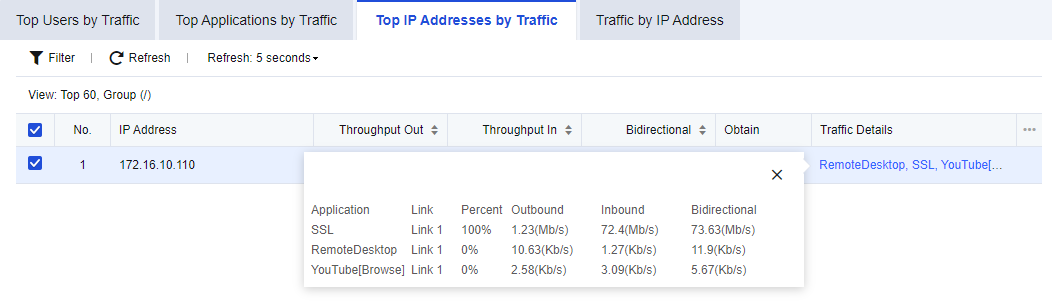
Click Refresh: 5 seconds to set the refresh interval of rankings on the page.
Click Refresh to refresh the page immediately.
Top IP Addresses by Traffic supports viewing IP address traffic ranking in IPv6.
Traffic by IP Address chart shows the traffic trend of IP addresses.
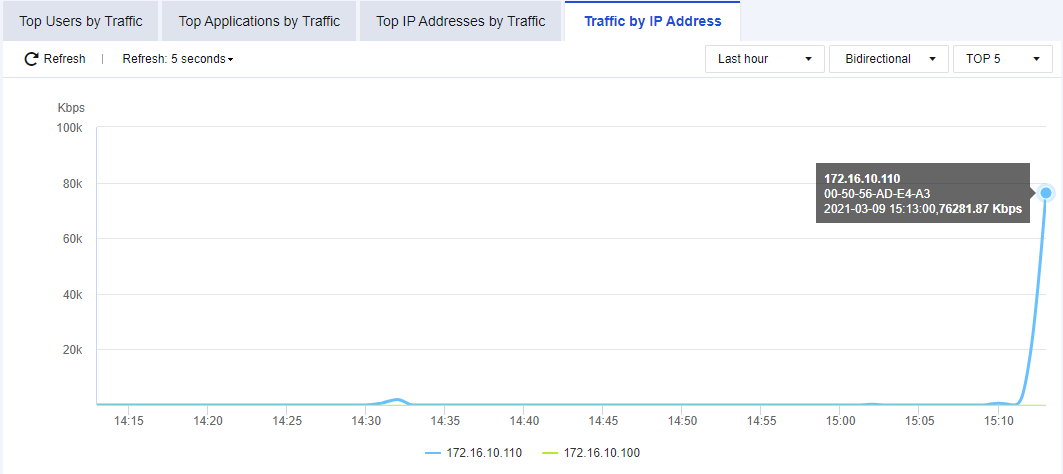
As shown in the figure, the latest Top 5 and Top 10 IP addresses with the highest traffic trend are displayed.


 {{ $t('index.defaultHeader.chromeBrowserTip') }}