


{{ secondMenu.name }}






Security Logs mainly record security attack events generated by the device, including Protection Logs. See the figure below.
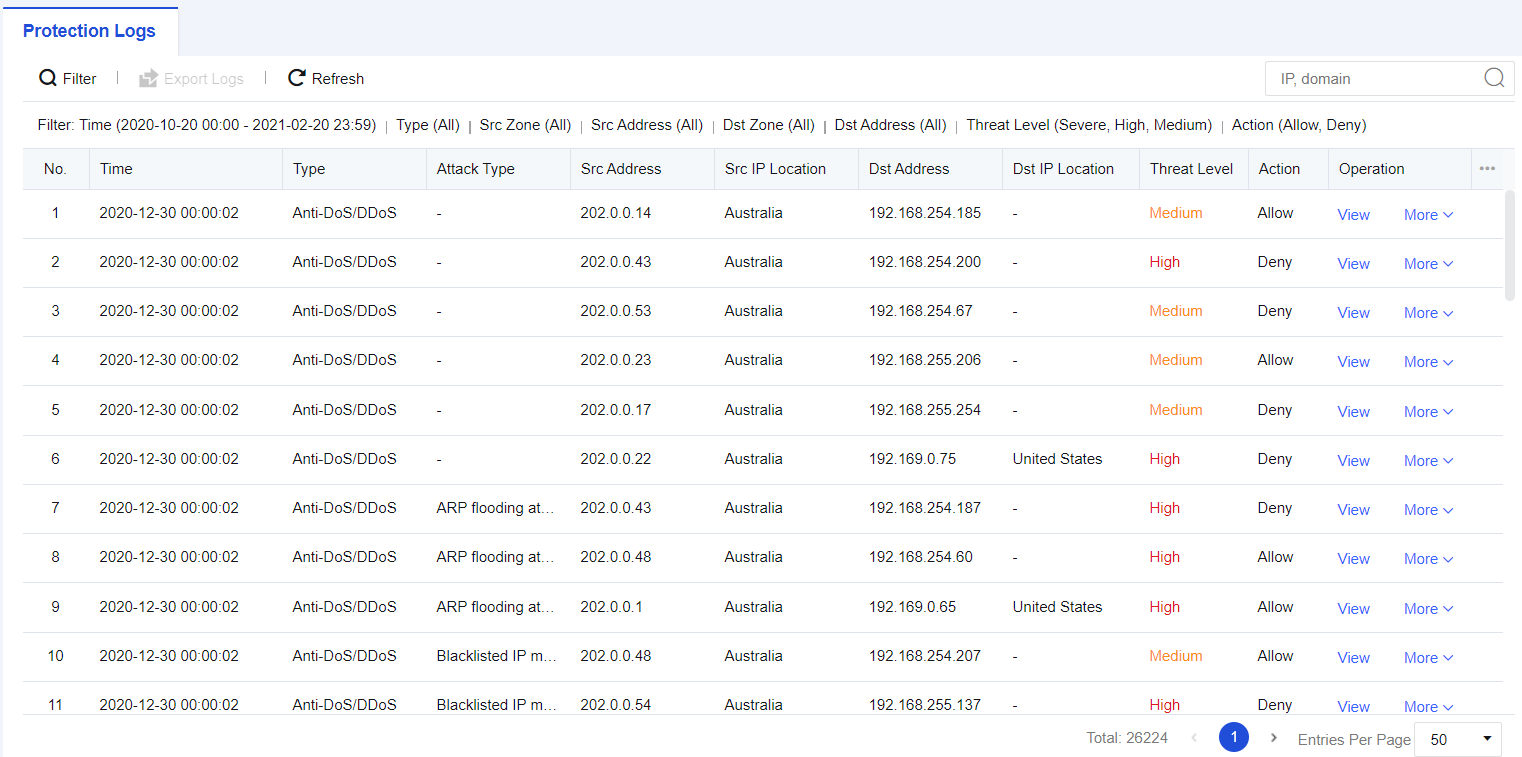
Protection logs mainly record service attack behaviors, including Web app protection, intrusion prevention, Bonet, website access, email security, and DoS attacks. If an attacking threat triggers the security policy, it will be logged into the security log. If the attack event is determined to be a misjudgment, the attack event can be added to the exceptions for exclusion, and if it is judged to be a real attack threat, the attack event can be dealt with according to the "solution" guidelines provided in the log details. You can export logs for performing analysis or enter the IP address/domain name in the search box to search for the corresponding log information. See the figure below.
A network administrator in an enterprise discovers that a Web server is under attack and needs to review the Web protection logs, determine the attacking IP address(es) and the means used in the attack, and other information.
Step 1.Click Filter and select the search criteria according to needs, as shown in the figure below.
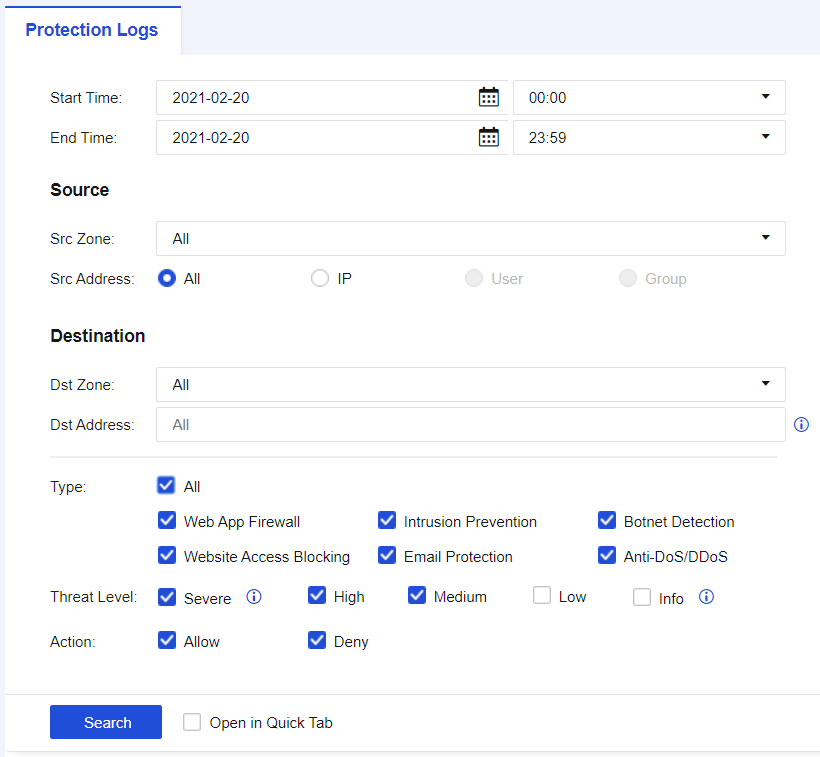
| Search Criteria |
Note |
| Start/End Time |
Select start time and end time for querying |
| Src Zone |
Source zones of logs |
| Src Address |
Source IP addresses for attackers |
| Dst Zone |
Zones where destination IP addresses of attacks resided in |
| Dst Address |
IP addresses attacked by attackers |
| Type |
Perform filtering according to different log types |
| Threat Level |
Filtering according to different security levels |
| Action |
Filtering according to log actions |
Table 9:Description of Log Search Criteria
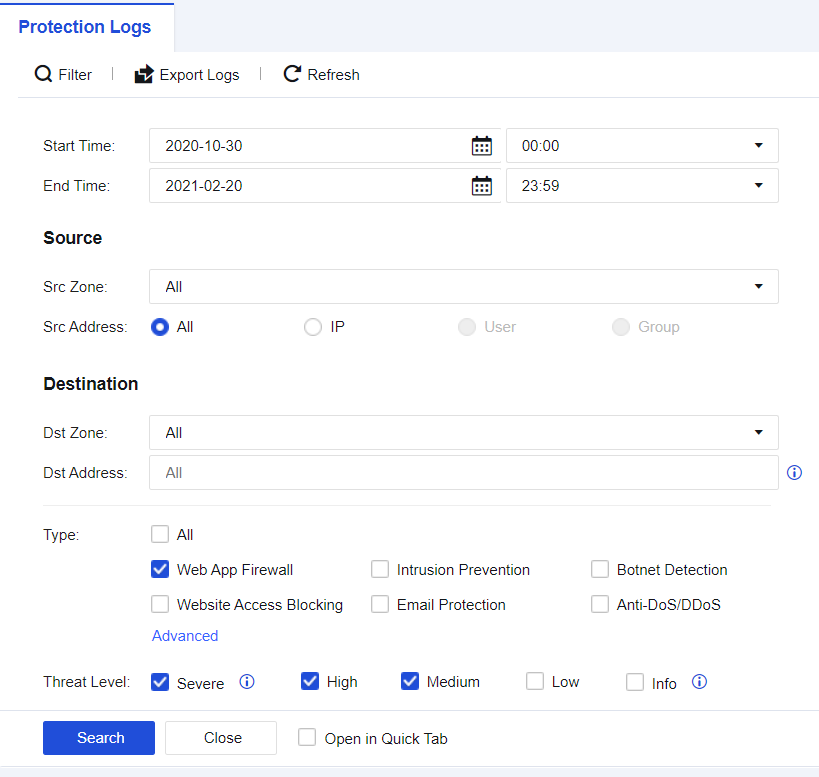
Step 2.Select Start/End Time as needed, check the Web App Firewall to view Web App Firewall logs, as shown in the following figure.
Step 3.View Web App Firewall logs, as shown in the following figure.
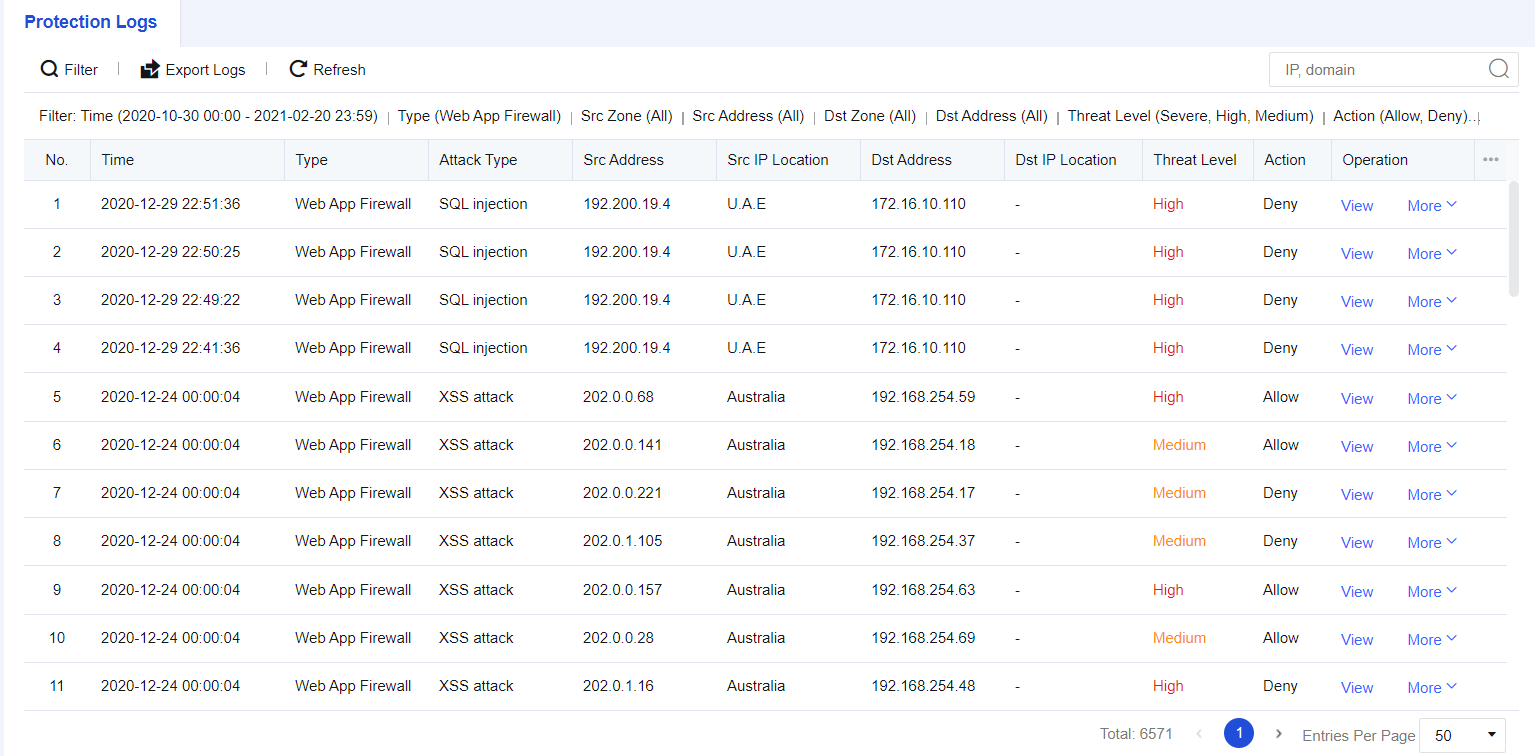
Notes: Logs reveals that the source of the attack, 192.200.19.4, attacked the target server, 172.16.10.100.
Step 4.Click View to check whether the attack behavior is a false positive, as shown in the following figure.
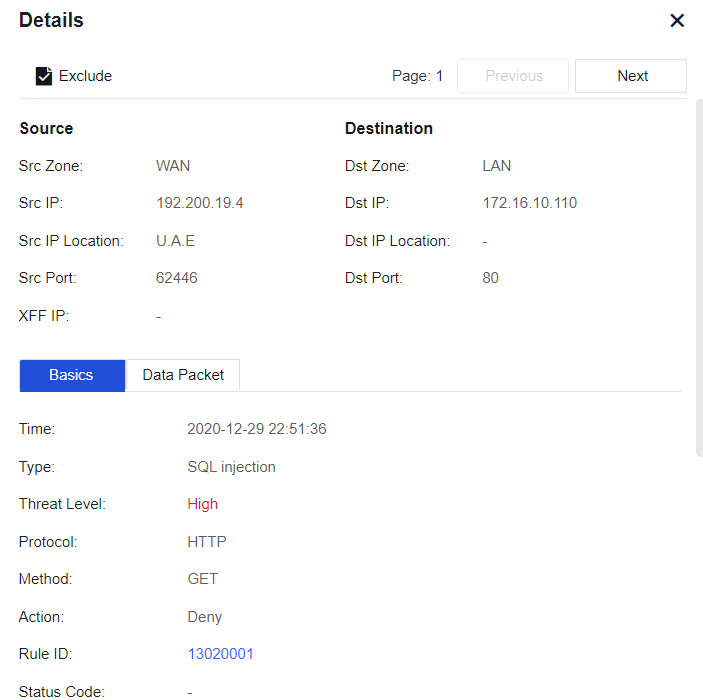
Basics: information describing the attack behavior, such as matching Rule ID and request method.
Data Packet: record the complete request information of the data packet, and the part highlighted in red indicates the feature of the attack.
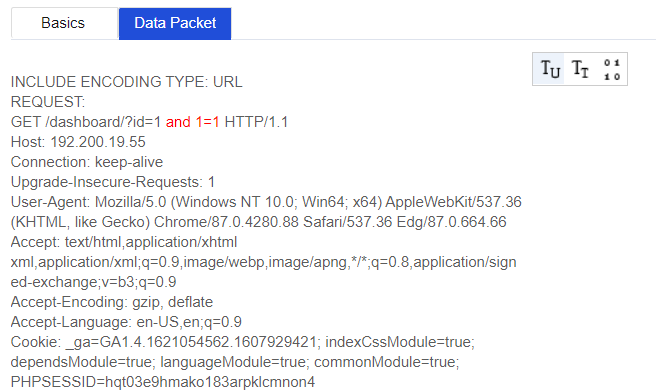
You can determine whether it is a false positive by viewing the log details. If it is, add the attack event to the exceptions. Click More under Operation on the far right side of the interface Logs, and then select Exclude, a dialog box will pop up.
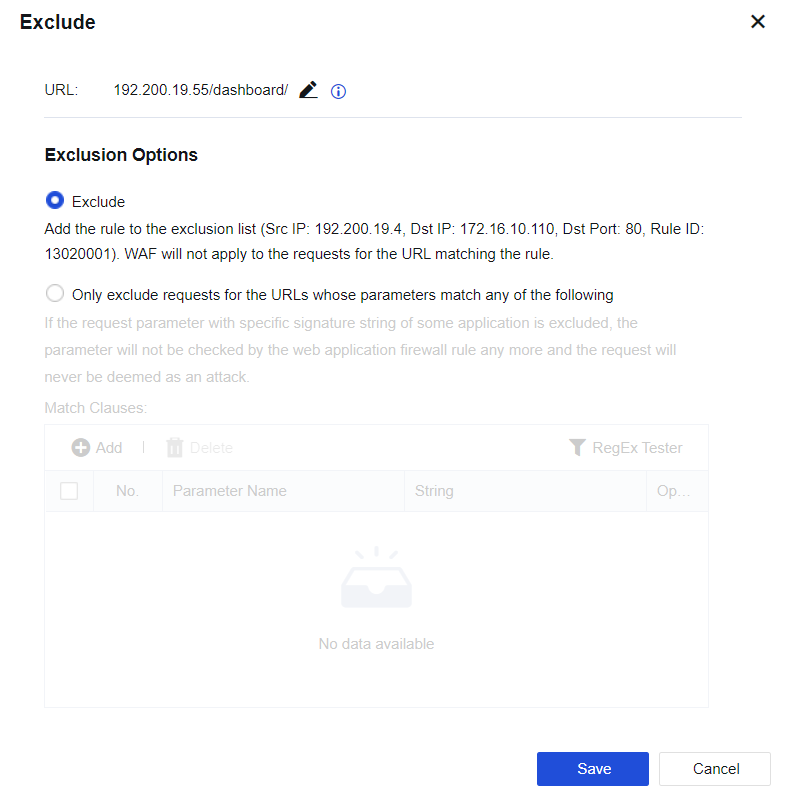
URL: the URL to be matched.
Exclusion Options: add the matched Src & Dst IPs, Dst Port, and Rule ID as exceptions.
Only exclude requests for the URLs whose parameters match any of the following: these parameters will be excluded when performing website attack detection of Web App Firewall. For normal business scenarios where certain request parameters are detected as attacks due to the specific signature strings they contained, this option can be checked to exclude such parameters exclusively.

Starting from 8.0.47 version, support to export multiple security types at the same time.
The maximum number of logs that can be exported at the same time is 100000 entries.


 {{ $t('index.defaultHeader.chromeBrowserTip') }}